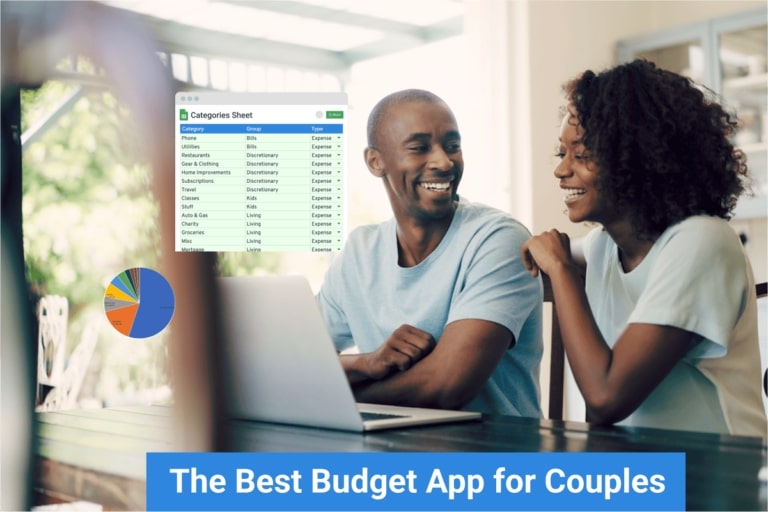
Many of Tiller’s customers signed up specifically to manage money as a couple.
That’s partly because Google Sheets and Excel are amazingly powerful collaboration tools. They’re secure, easy to share, and support working together in real-time. (Plus you can easily roll back changes if someone breaks something.)
But Tiller improves the basic collaboration features of spreadsheets with several upgrades:
- Categories can be customized for each person – Unlike any other automated personal finance service, Tiller gives you complete control of your transaction categories – up to 200 custom categories per spreadsheet. See tips on categories below.
- Use optional tags to assign transactions – Beyond categories and groups, use tagging in your Tiller spreadsheet to quickly assign transactions (or even entire categories) to a specific partner or to your shared household.
- Customize your templates for easy tracking – Every Tiller subscription includes the flexible Foundation Template for tracking payments and expenses, account balances, and monthly and yearly budgets. You can easily customize this template with additional sheets and reports, conditional formatting, categories, tags, and more, as noted below.
- Split expenses with the transaction splitter – If you want to track split expenses in Google Sheets, Tiller includes a Transaction Splitter Utility that can easily split a transaction’s total across multiple categories. You can customize the split’s description, note, and tags. And if you’re commonly splitting the same types of transactions the same way, you can save your splits and easily apply them later.
- Automate up to five spreadsheets at a time – With Tiller, you can automate up to five Google and Microsoft spreadsheets at a time. You can use one or more of these exclusively for shared accounting. If you need to automate more than five spreadsheets, simply disconnect one and create a new one. You can easily disconnect and reconnect your spreadsheets as needed.
Read: Here are 5 Different Approaches to Tracking Shared Expenses With Tiller
How to configure Tiller for tracking shared expenses

First, choose your Tiller account structure and permissions
You only need one Tiller account so pick the account (Google or Microsoft) you’d like to use to access the Tiller Console and the Tiller Money Feeds add-on/add-in.
Instead of a user name or password to login to Tiller, you exclusively use your Google or Microsoft credentials.
The account you start your subscription with is the same one you will use to log into the Tiller Console to manage and manually refresh your account connections.
This account will also be the account used to log into the Tiller Money Feeds add-on/in to fill new data into the spreadsheet and access all other features in Tiller Money Feeds, like AutoCat.
Note that there isn’t a way to change the email you’re using to log into Tiller after you’ve started your free trial. If you change your mind about which account you want to use to log into Tiller, start a new trial using the new account and and cancel the first account’s subscription.
If you’re sharing Tiller with someone else, consider these factors to be sure you both have access to the features you need:
- Do you share credentials for the Google or Microsoft account you want to use with Tiller?
If you do share credentials to that account, both partners will be able to access all of Tiller’s features, including adding and refreshing financial accounts, creating new Tiller-powered spreadsheets, and filling the spreadsheet.
If you do not share credentials to your Google or Microsoft account, the partner who does not have access to the credentials will be limited in their ability to use Tiller’s features. In some cases, that’s no problem, but it can present some unintended challenges later.
- When adding or refreshing your shared and individual financial accounts to Tiller, will you do that together if you also don’t share banking credentials?
- After a financial account is connected to Tiller, if it requires re-authentication, will the partner who has access to the credentials be able to re-enter any usernames, passwords, or security codes that the bank may require?
- Is it okay if the partner who does not have access to the credentials is limited to actions in the spreadsheet itself? In other words, they cannot use features in the Tiller Money Feeds add-on to fill new data into the spreadsheet, run AutoCat manually, or, add new accounts without logging into Tiller.
For many couples using Tiller together, setting up Tiller with a shared Google or Microsoft account is easier in the long run.
Below, we’ll share more detail on two scenarios for structuring your Tiller account: first, sharing Tiller when using a personal login by sharing the spreadsheet with your partner and second, sharing Tiller when using a shared login.
For many couples using Tiller together, setting up Tiller with a shared Google or Microsoft account is easier in the long run.
Sharing a Tiller account with a personal login
If your partner has access to the credentials for the personal Google or Microsoft account that you’re using with Tiller, OR it’s okay that they can’t log into Tiller because they don’t need access to all Tiller’s features, then the next step is to share the spreadsheet with them.
To allow someone else to view or edit your spreadsheet, share access to the spreadsheet with the varying permissions levels outlined here:
- How To Share Google Sheets – Everything You Need To Know
- How To Share An Excel File – Tiller
- 5 Tips For Sharing A Budget In Google Sheets
Sharing the spreadsheet will allow them to view, comment, or make changes in the spreadsheet depending on the permissions you chose to assign.
Sharing the spreadsheet will not give them access to the features in the Tiller Money Feeds add-on, or the ability to manage and refresh your linked accounts–for that, they will need to log in with the credentials to your Tiller-subscribed account.
When you’re sharing with Google Sheets, the best way is to share to another Google accounts. Sharing your Google Sheet to another Google account helps keep your personal information secure because it will prevent anyone with the link from accessing your spreadsheet–instead, your partner will need to be logged into their Google account to access the spreadsheet.
Regardless of whether you’re sharing your spreadsheet through Google Sheets or Excel, you can revoke permissions anytime.
Here’s how a couple might use one shared Tiller login when one partner is taking the lead role
Diane uses her Google account to sign up for Tiller as she takes the lead role in managing her household finances with Tiller. Her spouse Jack looks at their spreadsheet a few times a month, mostly to categorize transactions. Together, they schedule a monthly money date to review previous month’s data and to be sure they are on the same page about upcoming expenses.
Diane connects their financial institutions to Tiller. If you and your partner do not share online banking credentials, that’s a good reason to use a shared account to sign up for Tiller. Your banks may periodically require re-entering your online banking credentials and you will need to sign into Tiller to re-enter those banking credentials..
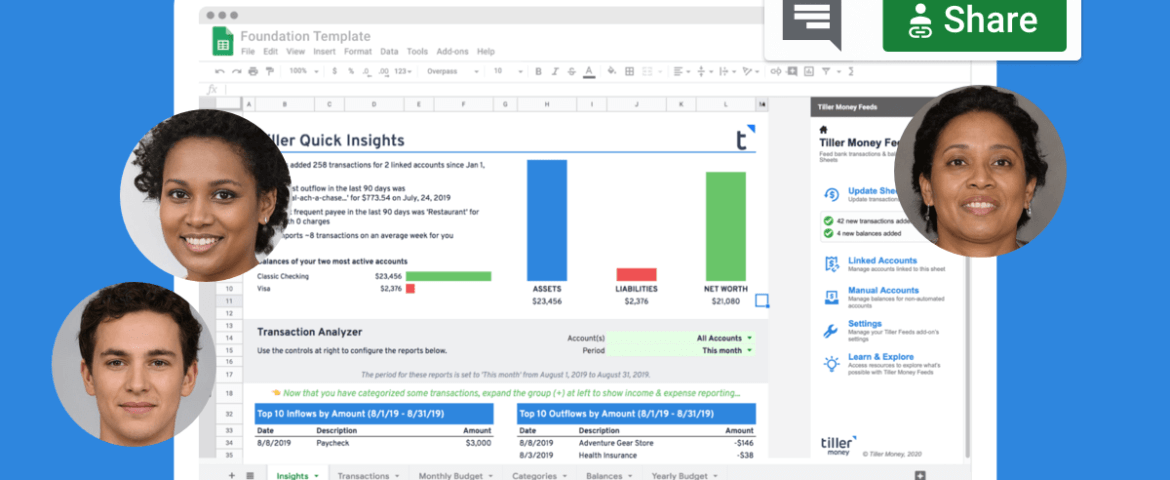
She creates a Tiller Foundation Template spreadsheet in Google Sheets and links their accounts to it. Connecting all of their income and spending accounts to a single spreadsheet will give Diane and Jack a complete view of their spending in one place.
Quick tip: you can use filtering in the spreadsheet to drill down and view expenses from just a single account.
Diane shares the spreadsheet with Jack using Google Sheets’ ‘Share’ feature, assigning him Editor access so he make any edits directly in the spreadsheet. For example, he can set values on the Categories sheet, categorize transactions, or even add a sheet to build a pivot table.
After setting up their budget together, Diane monitors their spreadsheet weekly. If any of their banks require it, Diane may need to re-enter online banking credentials periodically so Tiller can continue refreshing and pulling new data. She will log into Tiller using her Google account to complete that step.
Diane will also sign into the Tiller Money Feeds add-on using her Google account to fill the spreadsheet with new data, and use features like AutoCat.
If Jack notices he isn’t seeing recent data from a particular account while reviewing the spreadsheet, he will sign into Tiller using Diane’s Google account credentials and then manually refresh the account and fill the new data into the spreadsheet.
If both of you plan to be actively involved in managing account connections or clicking Fill to add new data into the spreadsheet AND you and your partner do not share credentials to the email you’re using with Tiller, then setting up your Tiller account with a shared Google or Microsoft account will be a better option.
Sharing a Tiller account with a shared login
If you both need to refresh accounts and access Tiller Money Feeds and you do not want to share the username and password to a personal email account, we recommend that you create a new shared Google or Microsoft account that you both can use to access Tiller features that require logging into the Tiller Console or Tiller Money Feeds add-on/in.
You can share the spreadsheet with your individual accounts so you won’t always have to be logged into the shared account when you’re simply viewing the spreadsheet.
Linking accounts to your spreadsheets
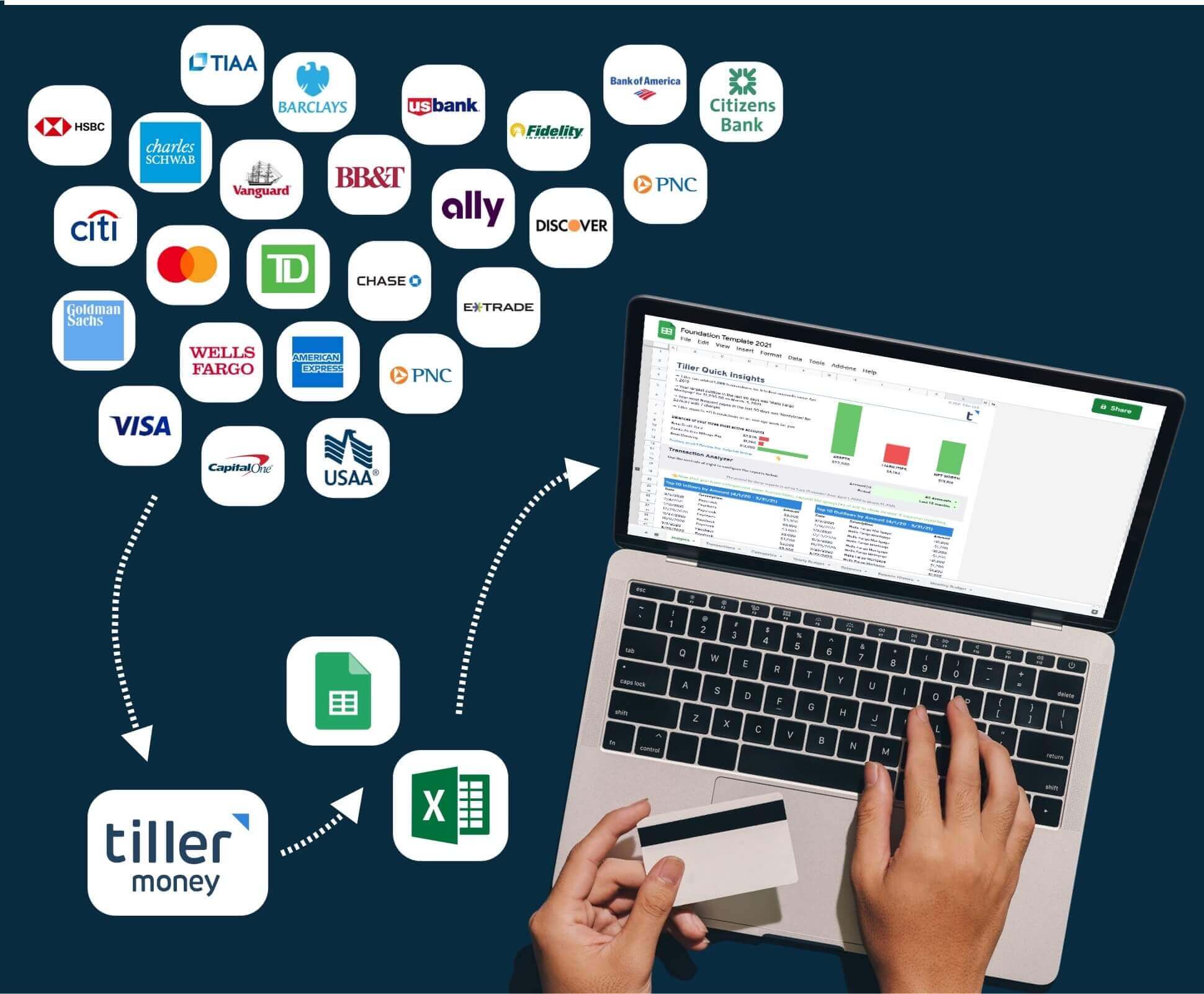
Once you’ve decided on which account to use for your subscription, add all your bank connections to the Tiller Console.
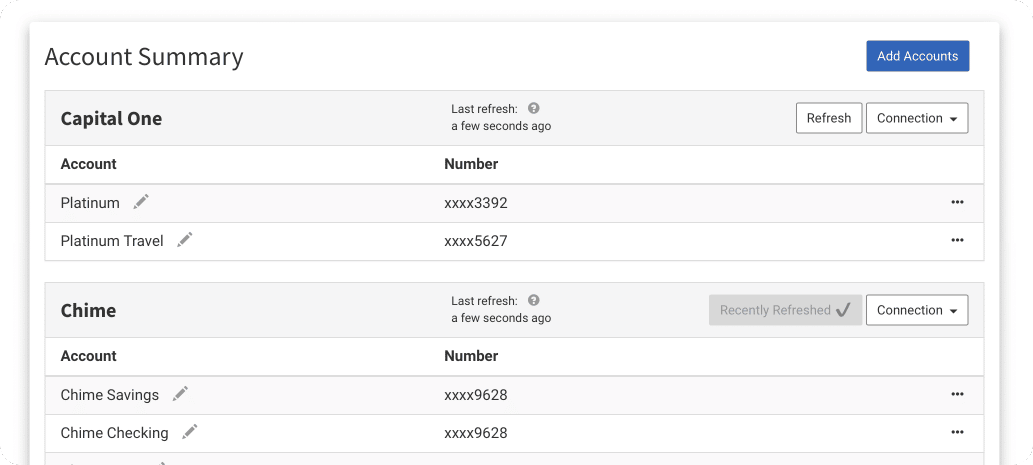
If you have multiple logins to the same institution, you can add a second login from the same bank to Tiller by choosing “Add accounts” on the Tiller Console under Account Summary.
If your bank is open banking-enabled with Tiller, you’ll choose the option to “Add a new login”
For all other supported banks, proceed with adding the second login as if you were adding the bank for the first time.
Note: linking a shared account that appears twice
If you have a shared bank account that appears twice in your Account Summary because you’ve connected multiple logins to the Tiller Console for the same bank, only link one instance of the account to the spreadsheet otherwise you’ll end up with duplicate transactions.