Tiller Resource Center > Spreadsheet Financial Systems > Budgeting in Spreadsheets
Setting up a budget is easy. The hard part — the part that determines whether a budget actually changes anything — is tracking it consistently. Knowing what you planned to spend is only useful when you can compare it to what you actually spent. And it’s even better when you can do that daily or weekly and without having to do a bunch of manual math.
Google Sheets makes this practical. With the right formulas and layout, your budget tracker can do the calculation work automatically, leaving you to focus on reviewing the results and making decisions — and most importantly, reaping the benefits of creating a budget to help you get ahead financially.
The core of budget tracking: planned vs. actual
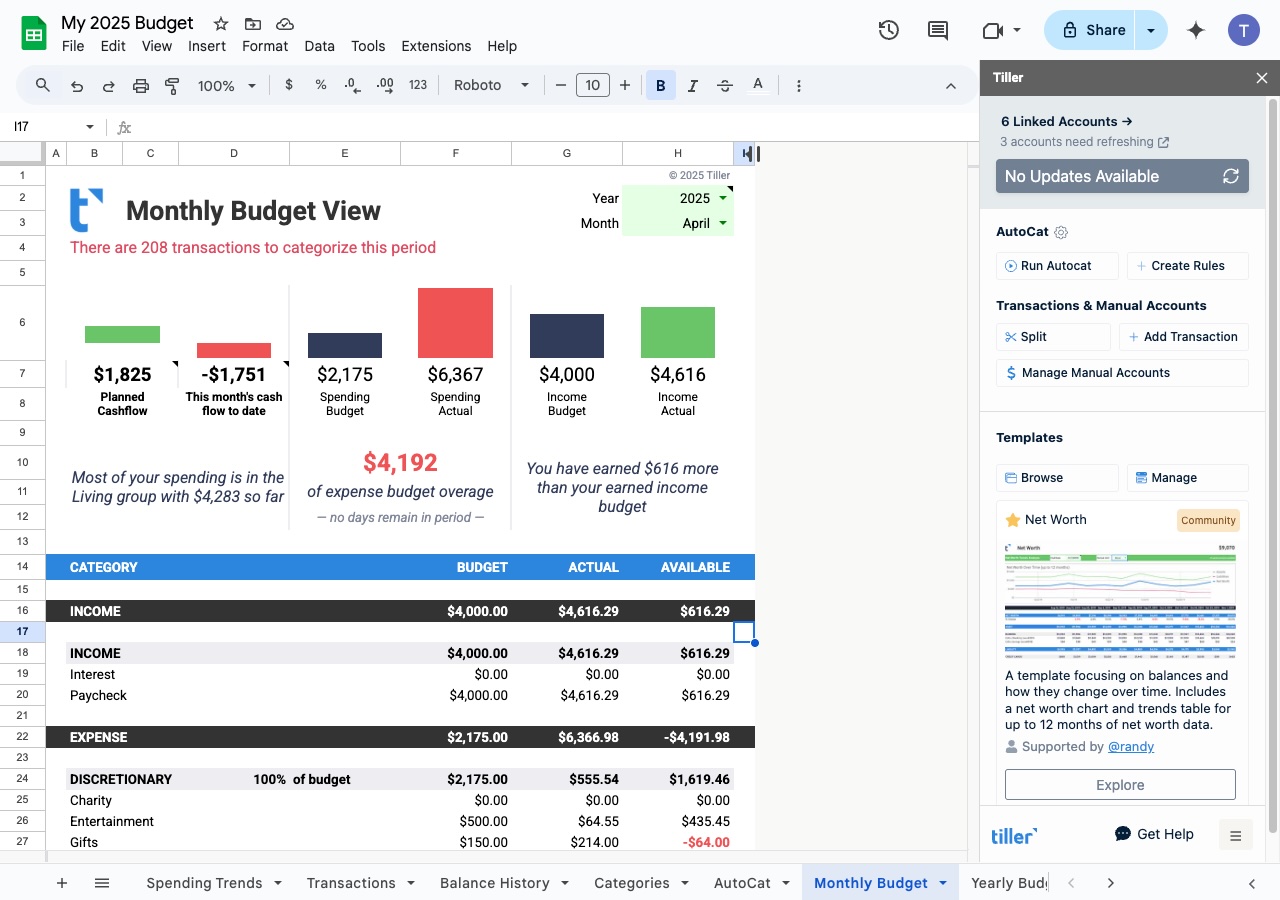
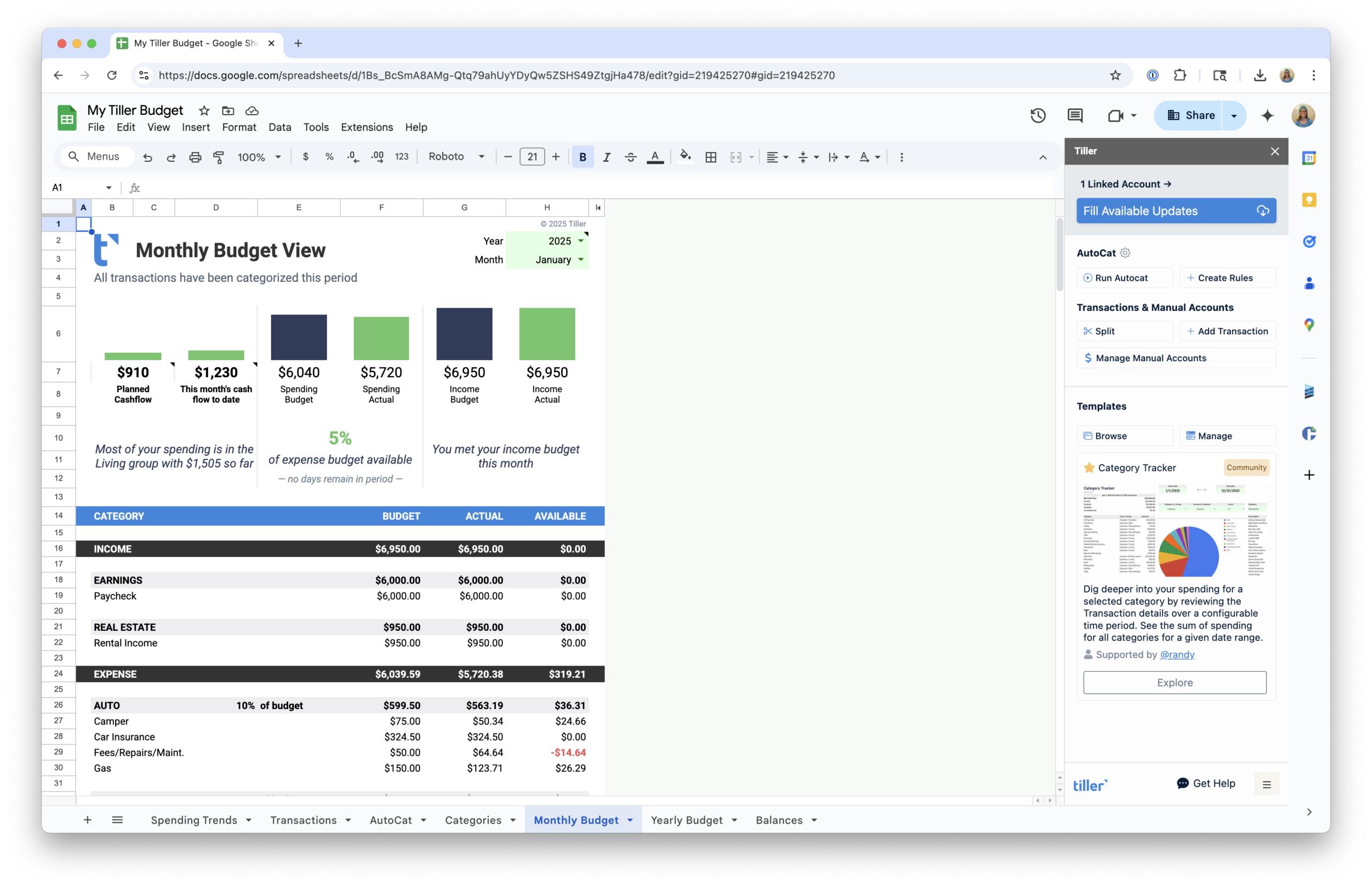
Budget tracking is fundamentally a comparison: What did you plan to spend in a category, versus what did you actually spend? The difference between those two — called the variance — is the most important number in your budget.
A positive variance (under budget) tells you where you had more discipline or luck than expected. A negative variance (over budget) tells you where to pay attention next month. Without that comparison, a budget is just a wish list.
The two most common layouts for this comparison are side-by-side columns (Budget | Actual | Remaining) in a single sheet, or separate sheets (one for budget amounts, one for transactions) linked by formulas. The side-by-side approach is simpler to set up; the two-sheet approach scales better as your transaction volume grows.
Essential formulas for budget tracking
SUMIFS: the engine of budget tracking
SUMIFS is the formula that makes a budget tracker actually work. It looks at your list of transactions, finds every row that matches a given category, looks at the dates you specify, and adds up the amounts — automatically.
The syntax: =SUMIFS(range, criteria, sum_range, date)
An easy way to track dates is to put the year in one cell (F1 for this example) and the month as a number in another (G1). Then, if your transaction categories are in column C on a sheet called “Transactions” and the amounts are in column D, the formula looks like this:
=SUMIFS(Transactions!D:D, Transactions!C:C, “Groceries”, Transactions!A:A, “>=”&DATE(F1,G1,1), Transactions!A:A, “<“&DATE(F1,G1+1,1))
This gives you the total of every transaction categorized as Groceries. Change the category name in the middle argument, and you get the total for any other category. Change the date cells, and you can update the month tracked (or change +1 to +12 to track the entire year). Put this formula in the Actual column of your Budget sheet for every category row, and your actuals update themselves every time a new transaction is added.
Variance: the number that matters
Once you have budget amounts and actuals, the variance is simple:
=B2-C2
Where B2 is your budget amount and C2 is your actual spending. A positive result means you’re under budget. A negative result means you’re over. Add a column for this and you have a live budget scorecard.
Percentage used
It can also be helpful to track what percentage of your budget you’ve consumed for the time period you’re tracking (usually monthly or yearly). The formula is:
=C2/B2
Formatted as a percentage, it tells you at a glance whether you’re pacing ahead or behind.
Conditional formatting: see problems instantly
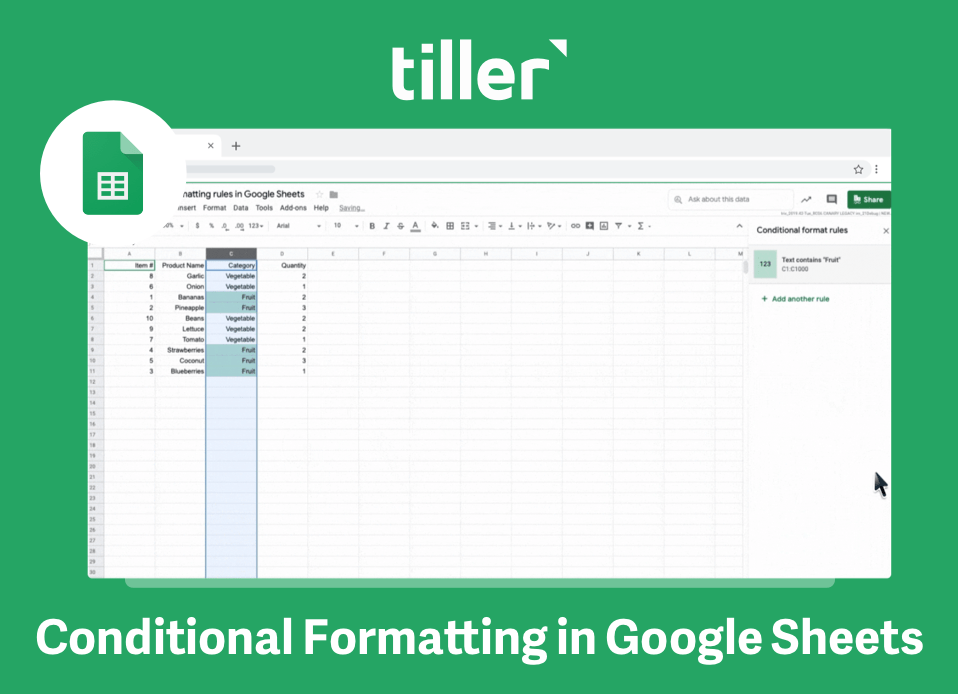
Conditional formatting lets you add colors to spreadsheet cells that meet criteria you select. This is especially helpful for budgets.
Select your Remaining column (or Percentage column) and add a conditional formatting rule:
- If the value is negative (or over 100%) → red background
- If the value is between 80–100% → yellow background
- If the value is below 80% → green background
With this in place, you can scan your budget in seconds. Red means over budget. Yellow means approaching the limit. Green means you’re fine. No hunting through numbers required.
Setting up a budget tracker layout
The recommended structure for your Budget sheet:
| Column A | Column B | Column C | Column D | Column E | Column F | Column G |
| Category | Monthly Budget | Actual (SUMIF) | Remaining | % Used | Year | Month |
Your Transactions sheet lives in the same workbook and contains:
| Column A | Column B | Column C | Column D | Column E | Column F | Column G |
| Date | Description | Category | Amount | Account | Year | Month |
Put income at the top of your Budget sheet, then list expense categories below. Group them logically — fixed expenses (rent, insurance, subscriptions) first, then variable (groceries, dining, entertainment), then savings.
You should also add data validation to the Category column on your Transactions sheet. Go to Data → Data Validation and set the allowed values to a list of your category names. This prevents typos that would cause SUMIF to miss transactions. “Grocery” and “Groceries” are different strings — a dropdown eliminates that problem entirely.
Tracking spending throughout the month
Once your layout and formulas are in place, the ongoing work is adding transactions. There are three approaches:
Manual entry — type each transaction into the Transactions sheet as it happens or in a weekly batch. This works well for one or two accounts but becomes burdensome with more.
CSV import — download transaction files from your bank periodically and paste them into your Transactions sheet. Faster than typing but requires regular effort and some cleanup since bank CSV formats vary.
Automated feeds — tools like Tiller connect to your accounts and add new transactions automatically each day, already formatted to match your sheet structure.
Whichever approach you use, filters and sorting make review easier. Filter by month to see just the current period. Sort by category to spot patterns. Sort by amount to find large transactions quickly.
Most people find a weekly check-in — 5–10 minutes to scan new transactions and glance at category totals — is the most sustainable cadence. Daily can feel obsessive; monthly is too infrequent to catch overspending while you can still adjust.
Automating your budget tracker
Keeping up with transactions is critical for tracking your budget. Once you’re behind, catching up feels like a project. Most people abandon their spreadsheet budget not because the system failed but because the data entry stopped.
Tiller solves this by automating the data layer in the Foundation Template. Your bank accounts connect to your Google Sheet, and new transactions arrive automatically each day — already in the right columns, ready to be categorized. Your SUMIF formulas update themselves because the Transactions sheet is always current.
Tiller’s AutoCat feature takes it a step further. You set rules based on merchant name or transaction description, and matching transactions get categorized automatically. After a month of setup, the majority of your transactions categorize themselves. Then, the all that remains is for you to review the results and make decisions.
Even with automation, some things stay in your hands — for example, reviewing unusual charges, splitting transactions between categories, and adjusting budget amounts based on what you’ve learned. Automation removes the drudgery and speeds up the process, but you’re in charge of the analysis.
Monthly close: reviewing your results
At the end of each month, set aside 15–20 minutes for a deliberate review:
1. Categorize everything — make sure every transaction has a category. Flag anything you don’t recognize.
2. Review each category variance — go line by line. Where were you over? Under? Were the overages one-time events or a pattern?
3. Note any observations — write brief notes directly in your spreadsheet: “Dining over by $80 — work lunches” or “Utilities higher than expected — seasonal.”
4. Adjust next month — update budget amounts for categories that consistently miss — or adjust your spending. Add or merge categories if needed.
5. Archive or reset — depending on your setup, either start a new month tab or let rolling formulas handle the transition to the new month.
This monthly review is where your budget will improve over time. The formulas keep score for you. Your review is where you start to improve.
Frequently asked questions
What is the best formula for budget tracking in Google Sheets?
SUMIF is the core formula. It automatically totals spending by category from your transaction list: =SUMIF(Transactions!C:C,”Groceries”,Transactions!D:D). Pair it with a variance formula (=Budget-Actual) and conditional formatting, and you have a live budget scorecard that updates every time you add a new transaction.
How do I set up a budget vs. actual comparison in Google Sheets?
The standard layout: Category (column A), Monthly Budget (column B), Actual Spending (column C, populated by SUMIF pulling from a Transactions sheet), Remaining (column D = B-C), and % Used (column E = C/B). Add conditional formatting to the Remaining column to highlight negative values in red. This gives you a real-time budget scorecard that updates automatically as new spending is recorded.
How often should I update my budget tracker in Google Sheets?
A weekly check-in — 5–10 minutes to add transactions and review category totals — is the most sustainable cadence for most people. If you use Tiller to automate transaction imports, the data is already current when you open the sheet, so your weekly review is about decisions, not data entry.
Can I track multiple months in the same Google Sheets budget?
Yes. There are two common approaches. One is to separate tabs per month (January, February, etc.), each with its own budget and actuals. Second is a rolling approach where a date filter on your Transactions sheet lets you view any month’s totals in a single budget table. The rolling approach requires more formula work upfront but is cleaner for long-term tracking.