Tiller Resource Center > Spreadsheet Financial Systems > Budgeting in Spreadsheets
Most budget spreadsheets don’t fail because the design was wrong. They fail because they get neglected over time.
The pattern is familiar: spend a weekend setting up a beautifully organized budget, use it enthusiastically for two or three weeks, miss one update, miss two, and gradually stop opening it at all. Six months later it’s still there in Google Sheets or Microsoft Excel, frozen in time like a financial fossil.
The fix isn’t a better spreadsheet. It’s a lighter, more consistent routine.
Why budgets fail without a routine
A budget is a tool, and like any tool, it only works when you use it. The setup-and-forget/neglect pattern is common not because people don’t care about their budget but because the ongoing maintenance is difficult to keep up with.
The pattern is that each update session requires too much time or effort, so it gets postponed, and postponement becomes abandonment. Once a spreadsheet is two weeks out of date, catching up feels insurmountable. Projects require motivation. Motivation runs out.
A time-boxed routine solves this. The goal is consistency at a low-enough effort level that it doesn’t get skipped. A five-minute weekly check-in and a 20-minute monthly close are both achievable indefinitely. A two-hour monthly reconciliation isn’t.
The weekly check-in (five minutes)
Once a week, open your spreadsheet and do four things:
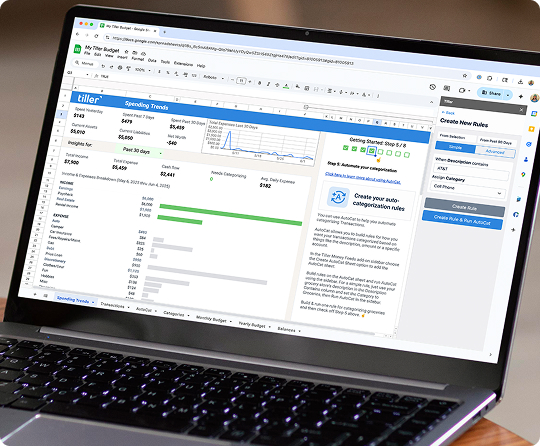
1. Scan new transactions. Look at what came in since your last check-in. If transactions don’t flow into your sheet automatically, you’ll need to log in to your accounts, export the CSV files, and import them into your budget sheet.
2. Categorize anything uncategorized. If a transaction doesn’t have a category, assign it.
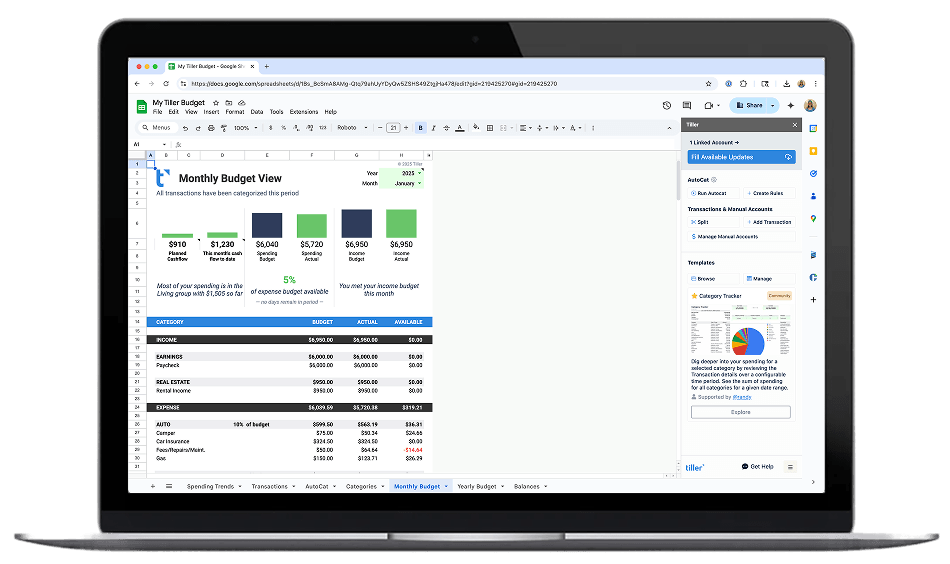
3. Glance at category totals vs. budget. Are any categories approaching their limit with two weeks still left in the month?
4. Flag anything unusual. Examples include a charge you don’t recognize or a bill that looks higher than expected.
That’s the whole check-in. The goal is staying current so that you don’t develop a large backlog of transactions to review.
AutoCat in Tiller: If you are using Tiller, AutoCat automatically categorizes your transactions in Google Sheets and Excel, 100% based on custom rules that you create and control. You can even add advanced rules like tags, changing description, RegEx, and more.
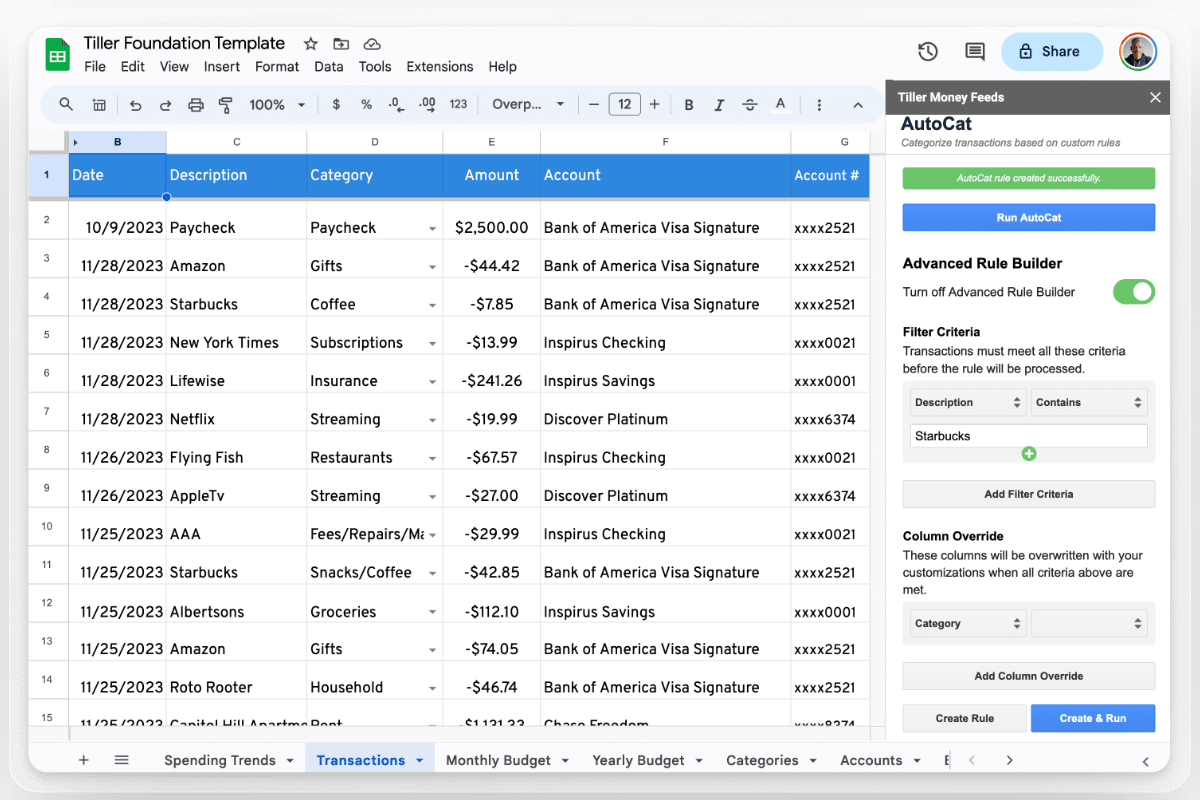
When you use AutoCat, most of your transactions are already there and categorized when you open the sheet. The weekly check-in becomes even lighter. You just review what AutoCat has already handled and catch the occasional edge case it missed.
Suggested day: Pick one and keep it. Sunday evening and Monday morning are both popular choices. The specific day matters less than consistency.
The monthly close (15–20 minutes)
At the end of each month, set aside time for a structured review. This is the most valuable ritual in the system. Here, you actually learn from your spending data and make the adjustments that improve next month.
Step 1: Categorize everything. Before reviewing, make sure every transaction from the month has a category. Uncategorized transactions mean your totals are incomplete and your review is based on partial data. Flag anything you don’t recognize and investigate it.
Step 2: Review budget vs. actual by category. Go through each category. Where were you over budget? Under? Which overages were one-time events (a medical bill, a car repair) and which reflect a genuine ongoing pattern (dining out consistently running 40% over)?
Step 3: Note any specific observations. Write brief notes directly in your spreadsheet if anything stands out. For example:
- “Dining over $120 — work trip to Dallas plus two celebrations”
- “Utilities higher than expected — seasonal, adjust October budget”
- “Groceries consistently $50 under budget — category is too high, reduce next month”
These notes take just a couple minutes and become invaluable when you’re trying to understand patterns three or six months from now.
Step 4: Adjust next month’s budget. Based on what you learned, update category amounts for next month. Consistently over budget in a category? Either increase the budget to be realistic, or acknowledge you need to change behavior. Consistently under? Lower the budget and redirect the surplus somewhere more useful.
Step 5: Update balances. If you’re tracking net worth or account balances, record end-of-month snapshots on your Accounts sheet. With Tiller, balances update daily automatically.
Step 6: Archive or reset. Depending on your spreadsheet setup, either create a new month tab or let your rolling formula structure handle the transition automatically.
Quarterly and annual reviews
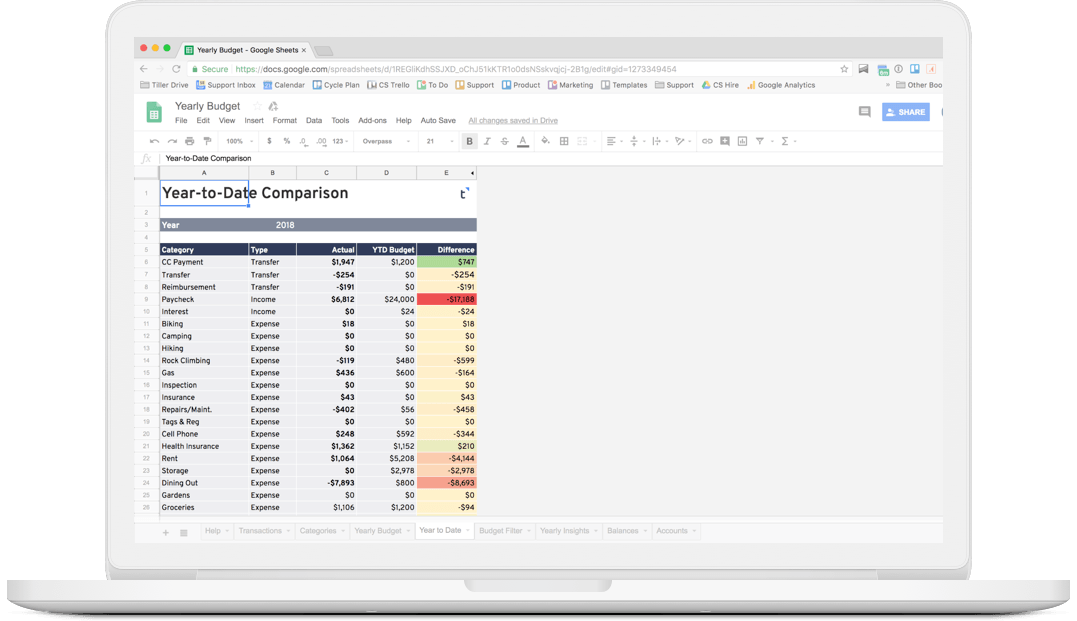
Quarterly review (30 minutes): A quarterly view catches slow-moving patterns that monthly snapshots can obscure. Are any categories trending in a direction you didn’t notice month-to-month? Is your savings rate stable? Are you making progress on any debt payoff goals?
Annual review (45–60 minutes): Set aside time in December or early January to review the full year. Look at:
- Total spending by category — how did actual annual spending compare to what you budgeted?
- Income changes over the year — is your income growing?
- Net worth progress from January to December
- Any major financial events worth noting
Then rebuild your category structure and budget amounts for the new year based on what you learned based on your actual numbers. Remove categories you never used and consider combining seldom-used categories. Split categories where you want more detailed tracking. Adjust budgeted amounts to reflect your current reality rather than what you hoped last January.
The annual review is where long-term financial progress becomes visible.
Automating the tedious parts
The biggest time sink in any of these routines — weekly check-in, monthly close, or annual review — is data entry. Getting transactions into the sheet and categorizing them is the work that fills the most time and erodes consistency most quickly.
Tiller automates both. Daily bank feeds populate your transaction sheet automatically from all connected accounts. AutoCat rules handle most categorization. When you sit down for your weekly check-in, the transactions are already there and most already have categories.
The practical difference is significant:
- Weekly check-in without automation: 15–20 minutes (data entry + review)
- Weekly check-in with automation: 2–5 minutes (review only)
- Monthly close without automation: 45–60 minutes
- Monthly close with automation: 15–20 minutes
That’s a time difference of up to two hours per month (24 hours per year) on the routine maintenance of tracking your finances. Those time savings can be the deciding factor for whether your system is sustainable long-term. Automation removes the mundane work so that you more quickly get to the important stuff — reviewing your spending, noticing patterns, and deciding on any changes.
Frequently asked questions
How often should I update my budget spreadsheet?
A weekly check-in — about five minutes — is the most sustainable cadence. It’s frequent enough to catch overspending while you can still adjust. The monthly close (15–20 minutes) is when you do the deeper review: noting differences between budgeted and actual spending, adjustments for next month, and pattern notes. If you’re using Tiller to automate transaction imports, the weekly check-in drops to 2–3 minutes since the data entry is already done.
What should I do at the end of each month for my budget?
A complete monthly close has six steps: (1) categorize all remaining transactions, (2) review budget vs. actual by category, (3) note any surprises or patterns in a notes column, (4) adjust next month’s budget amounts based on what you learned, (5) record end-of-month account balances if you’re tracking net worth, and (6) archive or reset the month depending on your spreadsheet structure. The whole process takes 15–20 minutes and is the most valuable thing you can do to improve your budget over time.
What is the biggest reason people stop using their budget spreadsheet?
Manual data entry. Logging into multiple bank accounts, downloading transaction files, and pasting data into a spreadsheet works in theory, but most people stop doing it consistently once life gets busy. The fix is automating the data layer — tools like Tiller connect to your bank accounts and deliver transactions into your Google Sheet or Microsoft Excel workbook daily, so your spreadsheet is already current when you sit down for your weekly review.
How do I do an annual budget review in a spreadsheet?
Set aside 45–60 minutes in December or early January. Review total spending by category for the year compared to what you budgeted. Look at net worth progress from January to December and any income changes. Then rebuild your budget categories and amounts for the new year based on what you learned. This is also a good time to remove categories you never used and add ones that reflect how your life has changed.