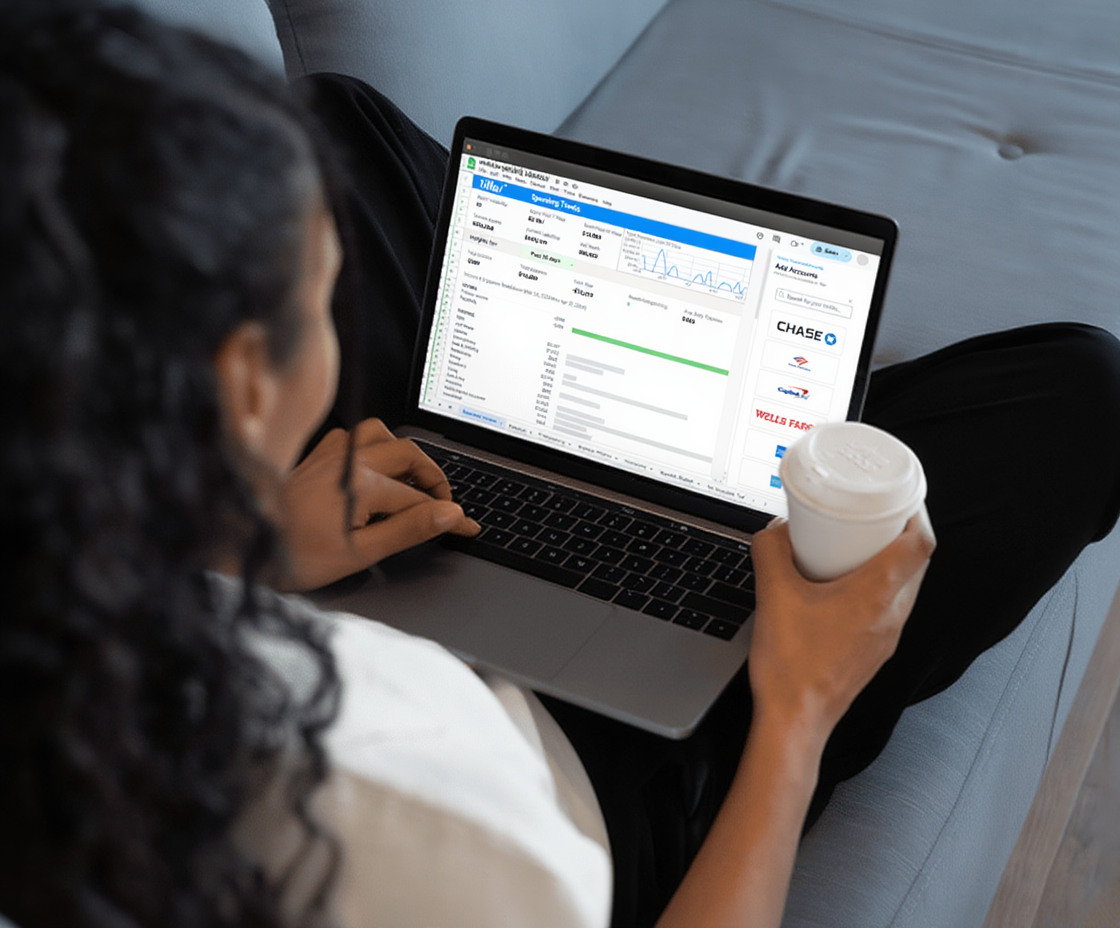
Tiller is a service that automatically connects your financial accounts to Google Sheets or Microsoft Excel, delivering daily transaction updates into your spreadsheet. Instead of manually entering transactions one-by-one, or logging into bank websites, downloading CSV files, and pasting data manually, your transactions arrive each morning ready to work with.
Tiller makes setting up your own complete personal finance system easy. With Tiller’s Foundation Template, you’ll be up and running quickly. And when you’re ready to go deeper, you can add prebuilt and user-created templates to expand your system using the power of spreadsheets.
This guide shows you how to set up your own complete system using Tiller’s tools and templates, from first connection to a fully functioning financial system.
Tiller comes with everything you need
With Tiller connected to your accounts, your Tiller spreadsheet supports:
- Automated budget tracking — view spending by category from your daily transaction feed, so budget vs. actual stays current without manual updates
- Spending reports — category breakdowns and trend analysis that reflect real data, not estimates
- Net worth tracking — your Balance History sheet captures daily account balances, making monthly snapshots straightforward
- Debt payoff planning — track loan balances and model payoff timelines against your actual spending
- Custom dashboards — summary views, charts, and key metrics that update as new transactions arrive
Tiller also includes a very popular daily email called Hello, Money that shows you the latest charges, transactions, and balances across all your accounts at a glance. Keep track of balances, catch unexpected charges, stop fraud before it spreads, and more.
The Foundation Template is the starting point with Tiller—it includes pre-built versions of all of the above, connected to your transaction data from day one. Everything in the template is customizable; it’s a starting point, not a fixed system.
Step 1: Connect your financial accounts
After starting your free trial, you’ll connect your accounts through Tiller’s console—the web-based interface where you manage account connections and settings.
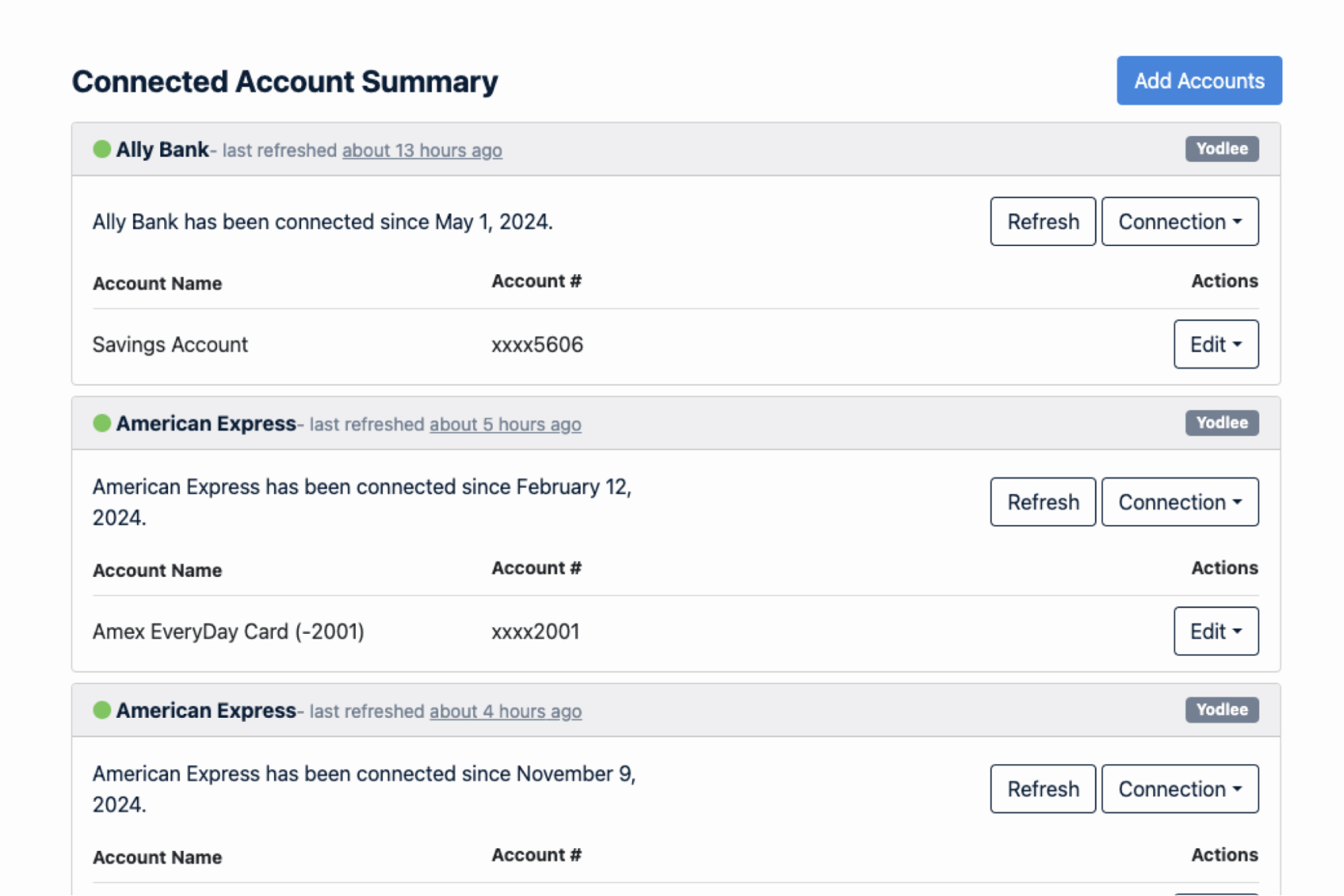
What you can connect:
- Checking and savings accounts
- Credit cards
- Investment and brokerage accounts (including 401k and IRA)
- Loan accounts (mortgage, student loans, auto loans)
Tiller reaches these institutions through partnerships with financial data aggregators—the same companies that power financial and banking apps. Most major national banks, regional banks, credit unions, online banks, credit card issuers, and investment platforms are supported.
On security: Tiller is committed to your privacy and security. The connection is read-only. Tiller can see your transactions and balances but cannot initiate transfers, move money, or make any changes to your accounts—and no one on the Tiller team can see your transactions or balances. You authorize the connection through your bank’s standard authentication interface; you’re not sharing passwords with Tiller directly. The connection uses bank-level encryption throughout.
What to expect after connecting: Transactions and balances from your connected accounts begin appearing in your spreadsheet. Tiller typically provides a backfill of recent transaction history (90 days or more, depending on the institution) so you’re not starting from zero. And you can manually add in older transactions via csv files. After that initial setup, new transactions arrive automatically each morning.
Step 2: Choose your starting template
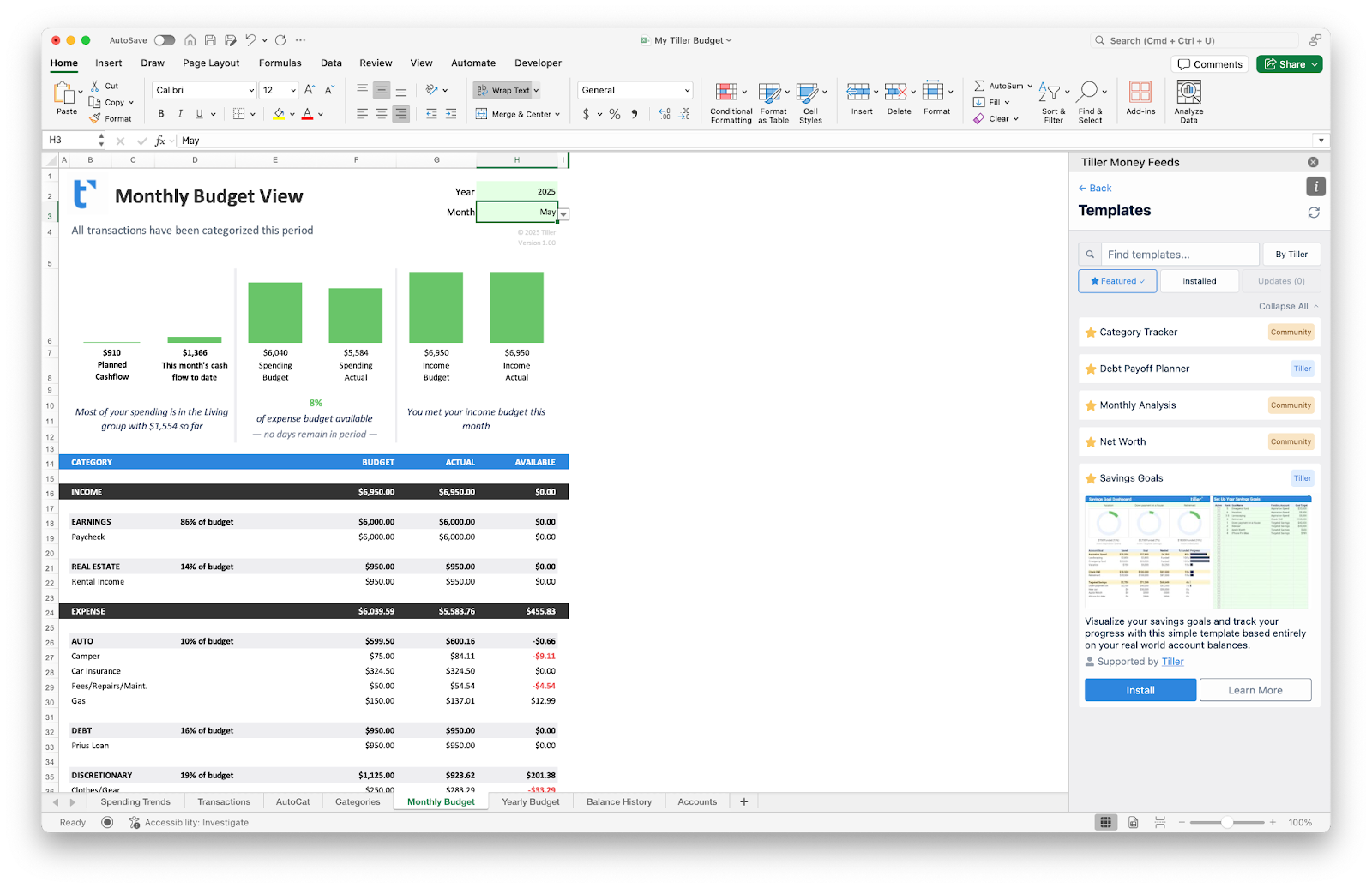
Once your accounts are connected, you’ll set up a spreadsheet template, choosing Google Sheets or Microsoft Excel.
The Foundation Template is Tiller’s all-in-one starting point for Google Sheets or Excel. It includes:
- A Transactions sheet with all your imported transactions
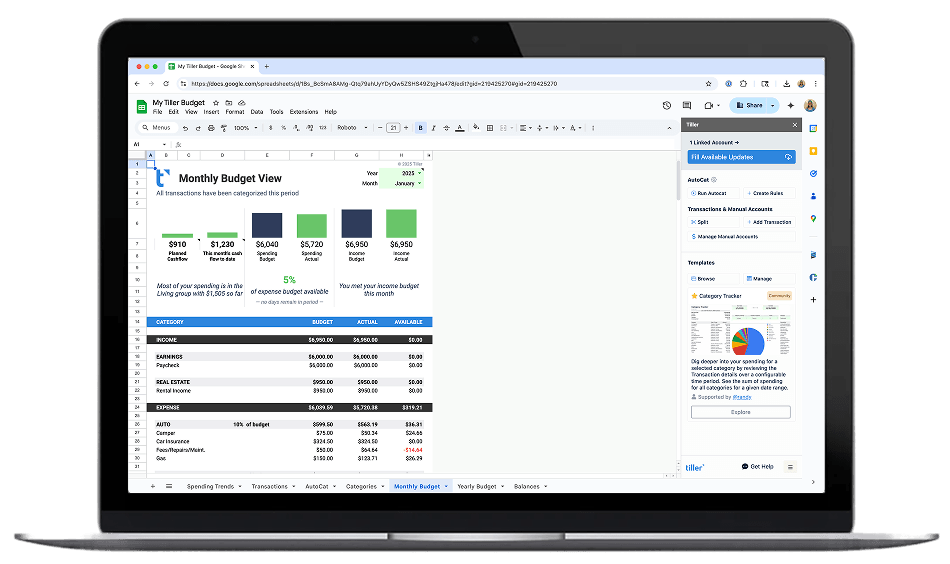
- A Budget sheet with planned vs. actual spending by category
- A Net Worth tracker
- An Account Overview showing current balances
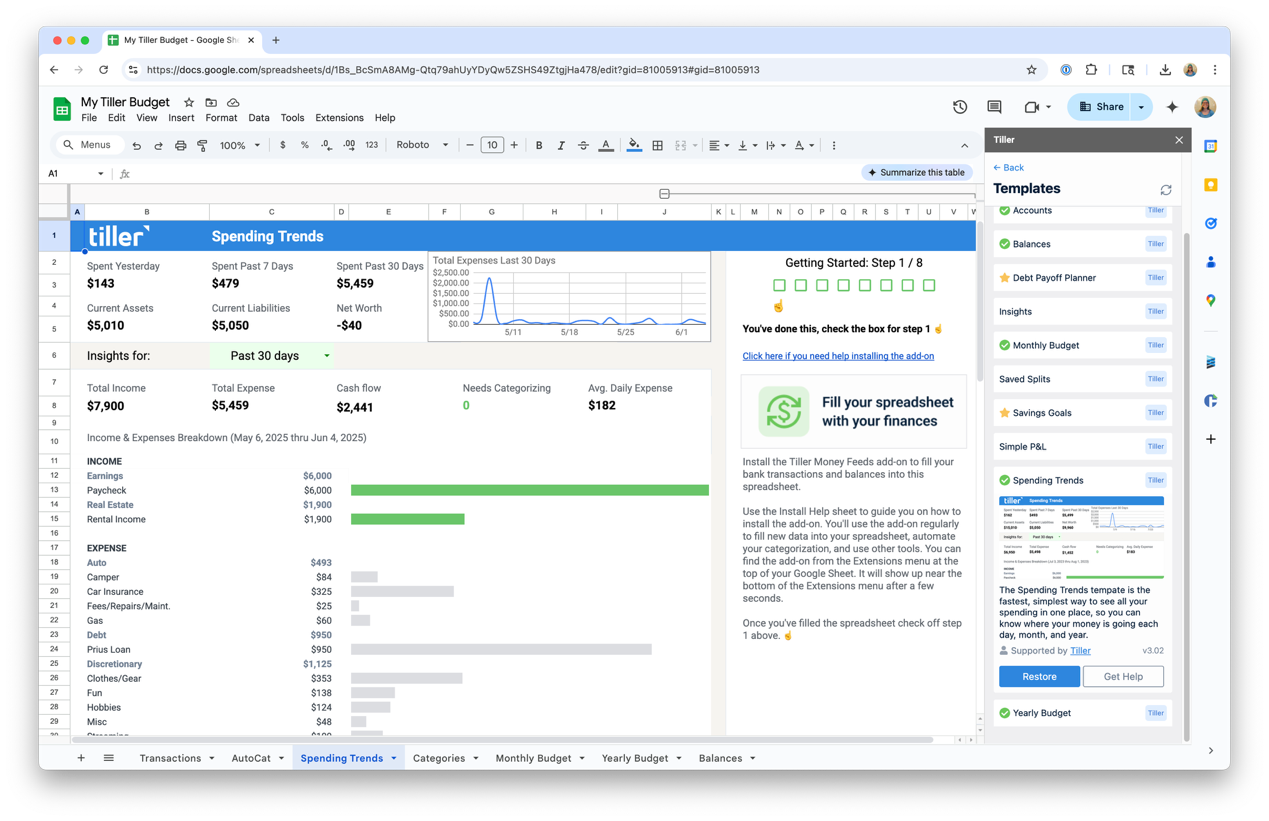
- Spending dashboards and summary views
- Complete customization
The functionality of the Foundation Template is identical across both platforms.
Customize when you’re ready: The Foundation Template provides the tracking that most of Tiller’s users need. But when you’re ready, you can expand Tiller however you want. There are additional templates (see the FAQ section below) and you can extend or replace sections on your own to align exactly with how you track your finances. You’ll never outgrow Tiller.
Step 3: Set up your budget categories
Categories are the organizational backbone of the system. Every transaction gets tagged with a category; every budget amount corresponds to a category. Getting this right matters.
Tiller’s Categories sheet controls the category list for your whole workbook. You can add, remove, rename, and reorganize categories here, and the changes flow through to your budget, spending reports, and AutoCat rules.
Starting guidance: Aim for 12–18 categories. Fewer than 10 doesn’t give you enough information; more than 20 and maintenance becomes time-consuming. Common starting categories include: Housing, Utilities, Groceries, Dining Out, Transportation, Insurance, Healthcare, Personal Care, Entertainment, Subscriptions, Savings, Miscellaneous.
After your first month: Refine your categories based on your actual data. Which categories are you never using? Which ones are too broad to be informative? Real spending patterns reveal what category structure actually fits your life better than any pre-set list. It’s a good idea to revisit these categories at least once a year.
Step 4: Configure AutoCat for automatic categorization
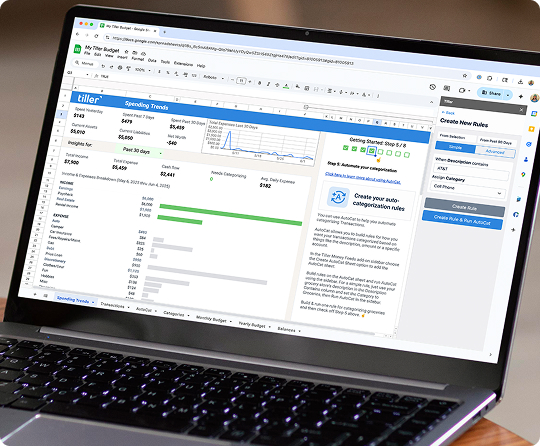
AutoCat is Tiller’s automatic categorization tool. It works by rules you create: when a new transaction matches a rule, AutoCat assigns the category automatically.
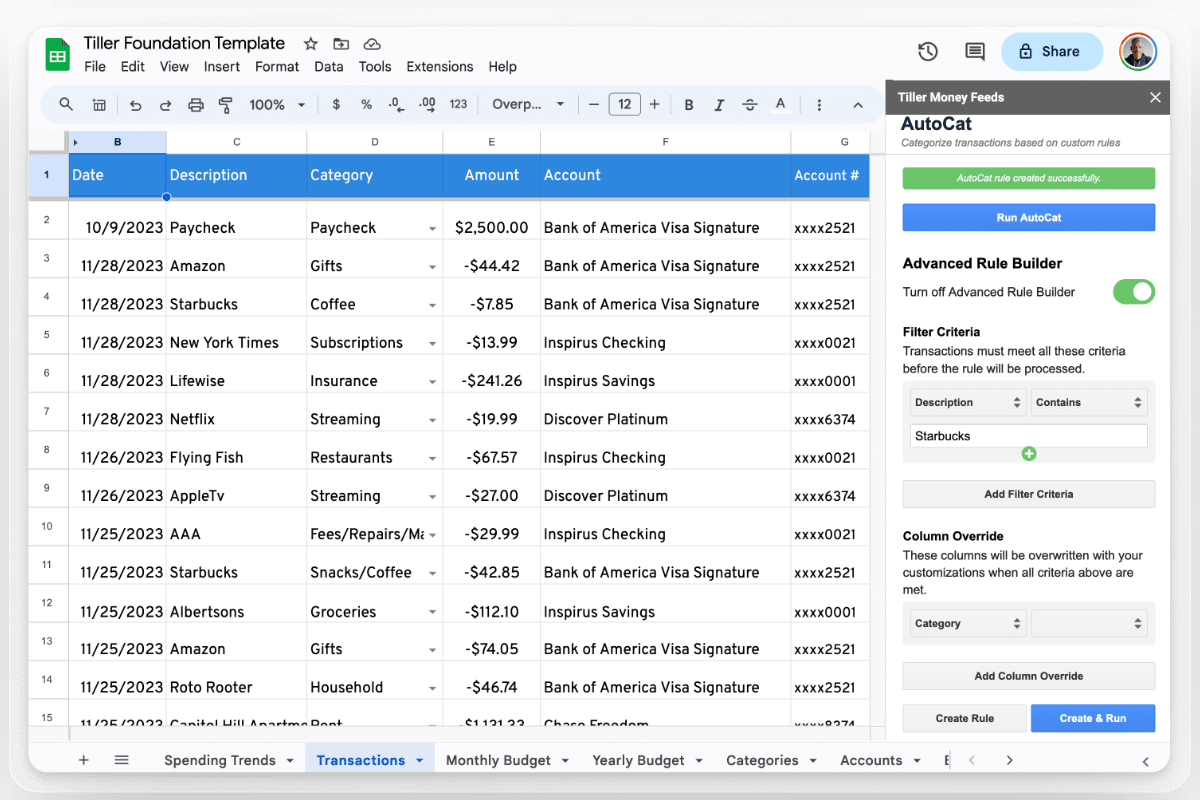
How rules work: Each rule is a set of conditions—merchant name, transaction description, amount range, account—paired with a category to assign. A rule might say: “If the merchant name contains ‘Whole Foods,’ assign category ‘Groceries.’” Or: “If the description contains ‘Netflix,’ assign ‘Subscriptions.’”
Building your initial rule set: Start with your 15–20 most frequent merchants. These cover the bulk of your monthly transactions. Common starting rules include: grocery stores, streaming services, gas stations, restaurants you visit regularly, your gym, and utilities.
What to expect: After 2–3 weeks of running AutoCat, most recurring merchants have rules. At that point, typically 80–90% of incoming transactions categorize themselves. What remains is occasional—a new merchant, an unusual transaction, a charge that doesn’t match any pattern, etc.
Rules are stored in an AutoCat sheet in your workbook and can be edited, added to, or deleted at any time. The more you use the system, the better your rule set becomes.
Step 5: Build your review routine
With transactions arriving daily and AutoCat handling most categorization, your ongoing work is mostly review and decision-making, not data entry.
Daily (optional, 1–2 minutes): Tiller updates your sheet overnight, and you can review yesterday’s transactions. You also get Hello, Money, our quick daily email that shows your recent transactions and balances at a glance—so you won’t even need to open your spreadsheet.
Weekly (5 minutes): Review uncategorized transactions and assign categories. Make updates to AutoCat as needed. Check budget progress—are any categories approaching their limit with significant time still left in the month? Note anything that looks unusual.
Monthly (15–20 minutes): Close out the month. Categorize anything remaining, review spending vs. budget by category, note any patterns or surprises, update budget amounts for next month, and record your net worth snapshot.
Quarterly: Look at three-month trends. Are your category amounts still realistic? Any patterns in your spending or savings that have emerged? Do any AutoCat rules need updating?
Yearly: Taking a wider look at categories and AutoCat entries. Are the categories you’re tracking helpful for making long-term budget and planning decisions? Do you have accounts to add or delete? If you start fresh each year, archive your data and prep everything for a new year.
This routine is intentionally light. The system does the data work; you do the thinking.
Expanding your system over time
After the initial setup, there’s room to grow.
Net worth tracking: Tiller’s Balance History sheet captures daily account balances automatically. Use this data to build a monthly net worth tracker that requires minimal manual work—the balances are already there.
Custom reports: If the Foundation Template’s built-in views don’t show the numbers you care about most, build additional sheets. Common additions include savings goal trackers, debt payoff timelines, and year-over-year spending comparisons.
Community templates: Additional Tiller templates are available, and Tiller also maintains a library of templates built by other Tiller users—additional dashboards, trackers, and tools that work with your existing Tiller data. These can extend the system significantly without requiring you to build from scratch.
Tiller’s support resources: Tiller provides top-rated product support. In addition to a dedicated customer success team, the Tiller community forum and help documentation cover both common setup questions and more advanced customization. If you want to build something specific but aren’t sure how, the community has likely tackled it.
Frequently asked questions
How long does it take to set up Tiller for personal finance?
Most people are fully set up in under an hour. The main steps are starting your free trial, connecting your financial accounts (typically 10–20 minutes depending on how many institutions you have), installing the Foundation Template in Google Sheets or Excel, and customizing your budget categories. The initial account connection is the most time-intensive part; after that, the system runs itself with daily automatic updates.
Does Tiller work with Excel as well as Google Sheets?
Yes. Tiller supports both Google Sheets and Microsoft Excel. On Excel, you install the Tiller Money Feeds add-in, which connects your accounts and delivers daily transaction updates into your workbook—the same way it works in Google Sheets. Templates and the core workflow are functionally identical across both platforms.
What is Tiller’s AutoCat feature and how does it work?
AutoCat is Tiller’s automatic transaction categorization tool. You create rules based on criteria like merchant name, transaction description, or amount—and when new transactions arrive that match a rule, they’re categorized automatically. After setting up rules for your most common merchants, most of your daily transaction review is already done for you. Rules are stored in a sheet in your workbook and can be edited anytime.
Can I use Tiller with my own custom spreadsheet, or do I have to use the Foundation Template?
Both options are fully supported. The Foundation Template is the recommended starting point because it includes pre-built budget, net worth, and spending report sheets that work immediately with your connected transaction data. Tiller also delivers raw transaction data that experienced spreadsheet users can build their own custom sheets around from scratch. Many users start with the Foundation Template and gradually customize or extend it over time.