

Originally written by Ian Hyzy in 2019. Updated May 2026 by the Tiller team.
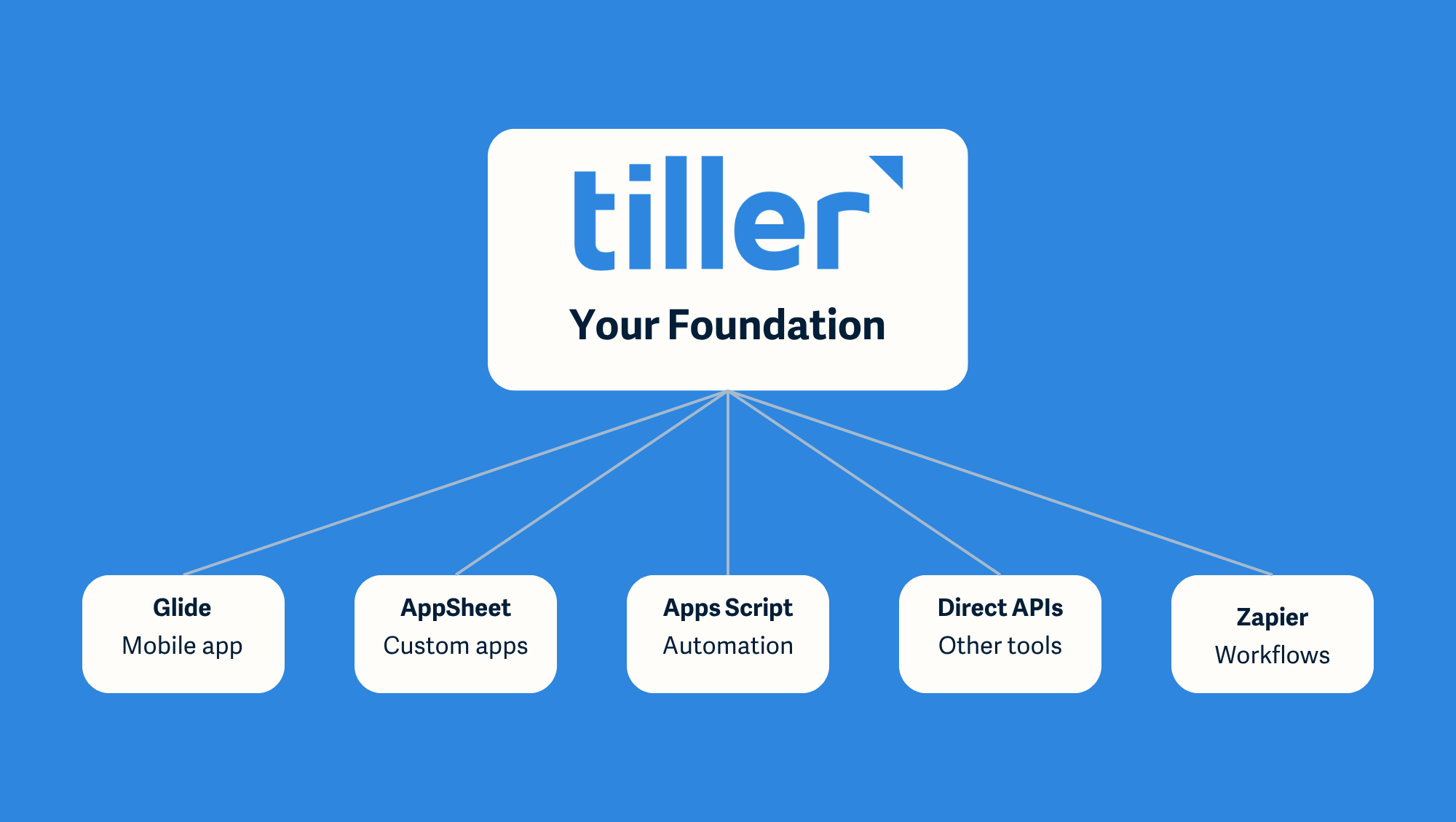
Tiller pulls transactions and balances from your banks into a Google Sheet or Excel spreadsheet you control. That sheet is the foundation. Everything else — the mobile view, the dashboards, the custom workflows — is yours to build, on your terms, with your data.
This post started in 2019 as a tutorial from community member Ian Hyzy on connecting Glide to a Tiller sheet. Glide still works beautifully, and that walkthrough lives in section 1 below, updated for 2026.
But the broader story is bigger now: there’s a whole ecosystem of tools that let you build on top of Tiller, no engineering team required.
Here are five of the most powerful, with real examples from the Tiller community.
Why build on top of a spreadsheet?
Most personal finance apps lock you into their interface, their reports, and their data model. You see what they show you. You categorize how they want you to categorize. And the moment you outgrow the app (or it gets acquired and shuts down), your history is theirs to delete.
Tiller works the other way around. Your transactions live in a Google Sheet or Excel spreadsheet you own. That means:
- Privacy by default. Tiller doesn’t sell your data and doesn’t use it for advertising. Anything you build on top of your sheet inherits that posture. Your data stays in your account.
- You control the structure. Categories, groups, time periods, custom fields, whatever you need.
- You can extend it forever. Automation, AI tools, dashboards in other software, if it can read a Google Sheet or Excel spreadsheet, it can read your Tiller data.
That last point is what this post is about.
Get your Tiller sheet set up in minutes
Then come back and pick what to build on top.
1. Glide — Build a mobile app from your sheet
Glide reads a Google Sheet and turns it into a polished mobile web app in minutes. Pick a sheet, pick what to display, pick what’s editable, and share a link.
Done.
It’s the simplest way to get a clean mobile view of your Tiller data without giving your bank credentials to a third-party app, as you would with Empower or one of the closed-app budgeting tools.
The original Tiller + Glide setup, from Ian Hyzy. Ian wanted to review and categorize his daily transactions on his phone, and Google Sheets on a small screen in portrait mode isn’t a great experience for that. So he built a Glide app on top of his Tiller sheet.
A few patterns from his original tutorial are still worth borrowing:
- Use emoji-prefixed category names (e.g.,
🛒 Groceries,🏠 Rent). Glide automatically picks up the emoji as the list icon, so categories are visually distinguishable on mobile without any extra setup. - Add a mobile summary tab on your sheet. Pull values from across your existing Tiller sheets into one summary tab (Net Worth, this-month spending, top categories), then build a Glide view from just that tab. Mobile users see the highlights, not the full desktop dashboard.
- Make charts mobile-friendly. Tiller’s built-in Net Worth chart is great on desktop but cramped on mobile. Build a separate, shorter-range chart on a hidden tab, then
Publish chart → imageand link it into Glide. - Limit editing to the fields that matter on mobile. Ian only allows Category and Notes to be edited from his Glide app. The rest is read-only. That way, you can categorize on the go without accidentally breaking a formula.
Security note: Glide apps are public by default. Before you put any financial data into one, go to ⚙ Settings → Privacy in your Glide app and require sign-in. Don’t skip this.
Performance note: Very large Tiller sheets can slow Glide down. If you hit limits, use =IMPORTRANGE to pull only the data you need (e.g., the last 12 months of transactions) into a dedicated sheet that Glide reads from.
2. Google AppSheet — Google’s own no-code app builder
AppSheet is Google’s no-code platform for turning Sheets into native iOS, Android, and web apps. It’s deeper than Glide. Think more form logic, more workflow automation, more access control and it lives inside the Google ecosystem your Tiller data already runs on.
Example: A community-built tutorial series by mandpeklund. Tiller community member mandpeklund published a full step-by-step Medium series that walks you through building an AppScript mobile app on top of a Tiller sheet, including a transaction review flow and custom views.
Mobile App Creation Tutorial with Google AppSheet →
(link to the full Medium tutorial)
Security note: AppSheet runs under your Google account, which means access controls are governed by Google’s permissions model, generally a strong foundation. Still: check what data the app exposes, and don’t share the app link more broadly than you mean to.
3. Apps Script — Custom automation, built in
Google Apps Script is the scripting environment built directly into Google Sheets. It’s JavaScript; it has access to your sheet and can talk to external services. If you can describe a workflow, you can probably write — or vibe-code with an AI assistant — an Apps Script to run it.
Example: A community-built Amazon order importer. Tiller community builder daveahlers created an Apps Script that pulls your Amazon order history into a Sheet, then matches it against your Tiller transactions, so the $47.23 Amazon charge in your Transactions sheet shows up next to the actual item you bought. It’s available on the Google Marketplace.
New Amazon Import Process — Released on Google Marketplace →
Security note: Before installing any Apps Script — especially from the Google Marketplace — check three things:
- Who built it? Is the author identified and reachable?
- What permissions is it requesting? Access to all your Google Drive files is a different ask than access to this sheet.
- Is the source code visible? Open code can be reviewed. Closed code cannot.
4. Direct APIs — Read your Tiller sheet from anywhere
Because your data lives in a Google Sheet, any app or service that can authenticate to Google Sheets can read it. That opens the door to dedicated front-end apps and data-visualization tools built by independent developers.
Examples:
- OffSheets — a zero-knowledge, Mint-style web and iOS front-end for Tiller users. You authorize it to read your sheet; it provides a clean mobile experience without storing your financial data on its servers.
- Personal Finance Dashboard for Power BI — community member ppraju12 built a Power BI dashboard that connects directly to your Tiller Google Sheet for net worth, cash flow, top expense categories, and bills-due tracking. It won a Tiller Builder Rewards award and includes natural-language querying. Windows-only on the desktop side, but it works on mobile via the Power BI service.
Security note: Direct API means you’re handing a third-party app permission to read your spreadsheet. Before authorizing one:
- Read the developer’s privacy policy. Where does your data go? Is it stored on their servers, or only processed in your browser/device (zero-knowledge)?
- Check what permissions they’re requesting in the Google OAuth screen. Read-only is safer than read-write.
- Search the Tiller Community for the tool’s name. Independent reviews from other users are the best signal you’ll get.
5. Zapier — Connect your sheet to everything else
Zapier connects Google Sheets to thousands of other services. Slack, email, SMS, Todoist, Notion, Airtable. if you’ve heard of it, Zapier probably talks to it. That means your Tiller sheet can trigger almost anything.
Example: Budget overspend alerts. A community member built a Zap that watches a category’s spending against its budget and sends a text or Slack message when you cross a threshold.
Other things people use Zapier with Tiller for: logging income to a side-business tracker, copying transactions into a tax-prep sheet, posting weekly net worth updates to a partner via SMS, and archiving statements to Dropbox automatically.
Security note: Zapier needs read (and sometimes write) access to your Google Sheet. Review what each Zap is doing, and keep an eye on which third-party accounts you’ve connected. Zapier has an audit log. Use it.
How to evaluate any community-built solution
Most of the examples above were built by independent developers and Tiller community members, not by Tiller itself. That’s a feature, not a bug. It’s why the ecosystem exists at all. But it also means you need to bring a small amount of due diligence to anything you install.
A quick checklist before you authorize a new tool against your Tiller sheet:
- Who built it? Look for a real name, a real link, and ideally a track record in the Tiller Community or on GitHub.
- What permissions does it ask for? Read-only is safer than read-write. This sheet only is safer than all your files.
- Where does your data go? Read the privacy policy. Prefer tools that process data on your device or in your Google account rather than on the developer’s servers.
- What does the community say? Search the Tiller Community forum for the tool’s name. Real users posting real experiences is the most useful signal.
- Can you remove it cleanly? Check that you can revoke access from your Google Account permissions page at any time.
Tiller’s role here is the foundation: your data, in your sheet, under your control. What you build on top is up to you.
Build your own. Start with the foundation.
Every one of the solutions above sits on top of a Google Sheet that Tiller keeps current with your data, automatically, every day. That’s the foundation. The rest is yours to build.
If you want the cleanest possible base for whatever you’re going to build ( a mobile app, a custom dashboard, an automation, an AI workflow) , start with a Tiller sheet.
Start your free 30-day Tiller trial
Your sheets and data are yours to keep.
Frequently Asked Questions
Does Tiller have a mobile app?
Not a dedicated one. Tiller is built on top of Google Sheets and Microsoft Excel, both of which have full-featured mobile apps you can use to view and edit your Tiller data on the go. If you want a custom mobile experience tailored to budgeting and categorizing transactions, the five tools in this guide — Glide, AppSheet, OffSheets, Apps Script, and Zapier — let you build one on top of your Tiller sheet without writing much (or any) code.
Can you use Tiller on iPhone or Android?
Yes. Your Tiller-powered Google Sheet or Excel workbook opens in the official Google Sheets and Excel mobile apps on both iOS and Android. For a cleaner mobile experience, community members have built dedicated front-ends like OffSheets (iOS and web) and custom apps in Glide and AppSheet.
Glide vs. AppSheet for personal finance, which is better?
Glide is faster to set up and produces a more polished default look. AppSheet is deeper — better form logic, better workflow automation, and tighter integration with Google’s permissions model. If you want a clean mobile view of your transactions in under an hour, start with Glide. If you want to build something with more logic (multi-step forms, conditional alerts, role-based access for a partner or financial planner), AppSheet is worth the steeper learning curve.
Can you connect Tiller to Power BI?
Yes. Power BI can read directly from a Google Sheet, which means it can read from your Tiller sheet. Community member ppraju12 published a Personal Finance Dashboard for Power BI that includes net worth, cash flow, top expense categories, and natural-language querying. The desktop app is Windows-only; mobile and Mac access require Power BI service.
Is it safe to authorize a third-party app to read my Tiller sheet?
It depends on the app. Three things to check before you authorize one: who built it (look for a named developer with a track record), what permissions it’s requesting (read-only and this sheet only are safer than read-write and all your Google Drive files), and where your data goes (prefer tools that process data in your browser or Google account rather than on a developer’s servers). You can revoke any app’s access at any time from your Google Account permissions page.
Do I need to know how to code to build on top of Tiller?
No. Glide, AppSheet, and Zapier are all no-code platforms. You build by clicking and configuring, not by writing code. Apps Script does involve JavaScript, but AI assistants like Claude or ChatGPT can write working Apps Script from a plain-English description of what you want it to do. And most of the community-built tools we link to in this guide are already finished; you install them, you don’t build them.

