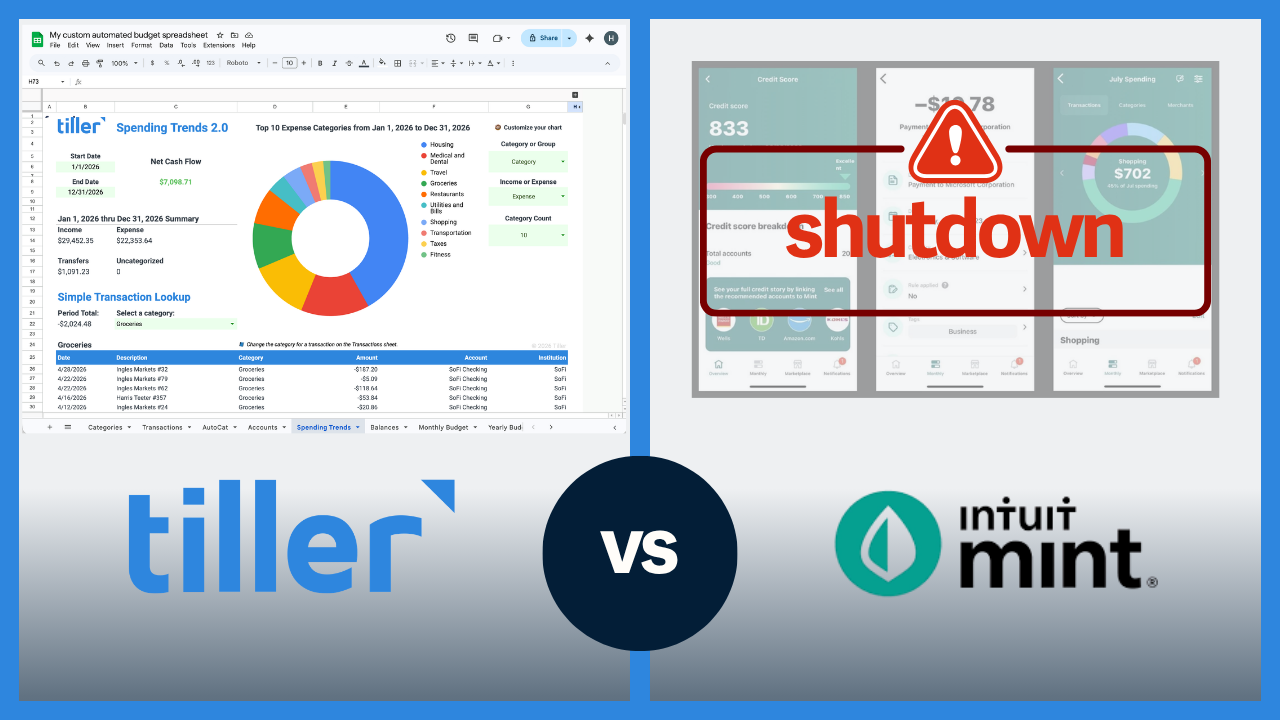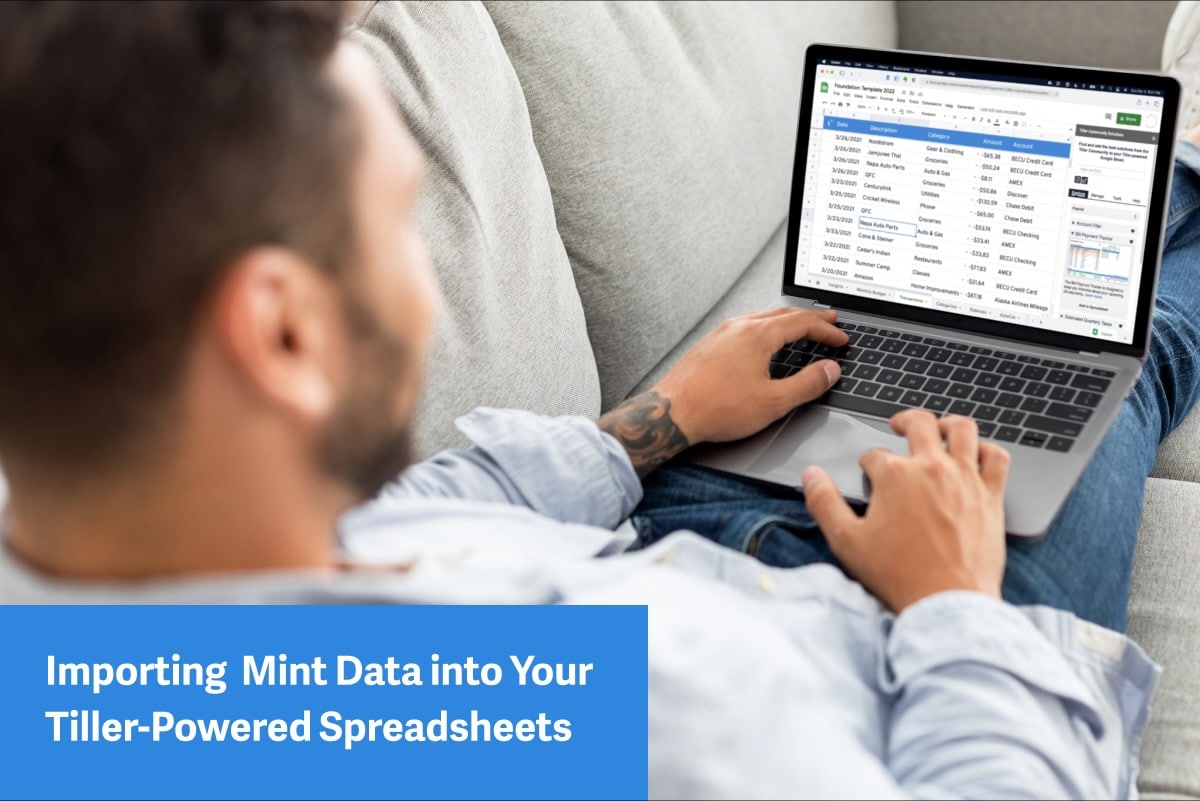
Here’s everything you need to know about exporting your data from Mint into a Tiller-powered spreadsheet.
(Actually, you can follow these instructions for importing your Mint data into any Google or Excel spreadsheet.)
And while these instructions may seem complex, they are actually very straightforward. If you get stuck or have questions, ask them here in the Tiller Community.
For a simpler look at getting your Mint data into a Google Sheets, here’s a helpful video from financial expert Rob Berger:
If you’re transitioning from Mint to Tiller you can use these steps to help get your data out of Mint and into your Tiller spreadsheet.
Table of Contents
Moving Your Data from Mint to Tiller for Google Sheets
Note: this information is also posted in Tiller’s extensive Help Docs library.
1. Start with the Foundation template for Google Sheets
The flexible Foundation Template for Google Sheets and Excel includes easy, prebuilt sheets for tracking your cash flow, monthly and yearly budgets, net worth, and more.
Note: You can skip these steps if you’ve already started a Google Sheet with Tiller Money Feeds
1 – On the Console click “Create a spreadsheet” and then Start with Google Sheets
2 – Follow the instructions on the Install Help tab to install the Tiller Money Feeds add-on and feed your bank data into the Google Sheet
2. Export your data from Mint
1 – Log into your Mint.com account.
2 – Choose the Transactions menu option.
3 – Click the export link at the bottom of the page to automatically download a CSV file of your transactions.
3. Grab your categories (Optional)
If you’ve already spent some time setting up Categories in your Foundation template you probably want to skip this step. If you’re brand new to Tiller you may want to quickly get started with those existing categories from Mint and customize later.
1 – Navigate to your Google Drive at https://drive.google.com
2 – Drag & drop your Mint CSV export into your Google Drive
3 – Double click the CSV file and choose “Open with Google Sheets” at the top
4 – Use this quick formula in a blank cell to grab a unique list of categories from your data:
=unique(F2:F)
5 – Copy the list of categories
6 – Paste it into the Categories sheet and overwrite the example categories by right-clicking and choosing Paste Special > Values only
4. Clear your transaction data (optional)
If you’d like to just move over the Mint data with all the categorizations, and you have all your data up to today’s date, you can clear the Transactions sheet making sure to leave the header row (row 1).
Alternatively, you can just bring in a segment of historical data that pre-dates the Transaction data Tiller was able to automatically pull into your Google Sheet.
5. Import your Mint CSV
Tiller Community Solutions provides a free CSV importer tool that simplifies importing Mint data into Google Sheets.
1 – Install the Tiller Community Solutions add-on
2 – Choose Tools > Import CSV Line Items
3 – Upload the Mint CSV from your computer
4 – On the summary screen, choose a date range for the data you’d like to add to the Tiller-powered sheet
5 – Click “Add to Transactions sheet”
6. Customize your transaction categories
You can customize your categories on the Categories sheet. You can totally re-think the way you want to categorize transactions. Update category names or delete ones you no longer want or need. Each category should have a Group and a Type.
To update Transactions that have already been categorized:
1 – Turn on the Filter in the Transactions sheet
2 – Sort the Category column from A>Z
3 – Update one invalid entry (red triangle in upper right)
4 – Use the quick fill square to update the other entries
5 – Repeat for each category you want to adjust
Alternatively, you can use AutoCat and run it on “All Transactions” to help you update categories and build a ruleset for ongoing automatic categorization.
7. Start budgeting
Set your Budget targets for each category on the Categories sheet in column E (you may need to expand these columns.) These values will cascade across to all months in the budgeting year. Edit any month directly.
???? Tip: Visit Tiller’s help center to learn more about budgeting with the Foundation Template.
Moving Your Data from Mint to Tiller for Excel
1. Start with the Foundation Template for Microsoft Excel
The flexible Foundation Template for Google Sheets and Excel includes easy, prebuilt sheets for tracking your cash flow, monthly and yearly budgets, net worth, and more.
Note: You can skip these steps if you’ve already started a Excel workbook with Tiller Money Feeds
- On the Console click “Create a spreadsheet” and then Start with Microsoft Excel
- Follow the instructions on the Install Help tab to install the Tiller Money Feeds add-in and feed your bank data into the workbook.
Note: If you don’t see the My Add-ins option on the Insert ribbon, check the Home ribbon.
2. Export your data from Mint
- Log into your Mint.com account.
- Choose the Transactions menu option.
- Click the export link at the bottom of the page to automatically download a CSV file of your transactions.
3. (optional) Grab your categories
If you’ve already spent some time setting up Categories in your Foundation template you probably want to skip this step. If you’re brand new to Tiller you may want to quickly get started with those existing categories from Mint and customize later.
1 – Open the CSV file you downloaded from Mint in Microsoft Excel
2 – Use the quick formula below in a blank cell to grab a unique list of categories from your data – you should input your last row number where it says “use last row number” in the formula:
=unique(F2:F[use last row number])
3 – Clear out the example categories in your Foundation Template’s Categories sheet
4 – Copy the list of categories from the Mint export
Paste it into the Categories sheet column A by right clicking the first empty cell in the Category column and choose Paste Special > Values only
4. Clear your transaction data (optional)
If you’d like to just move over the Mint data with all the categorizations, and you have all your data up to today’s date, you can clear the Transactions sheet making sure to leave the header row (row 1).
Alternatively, you can just bring in a segment of historical data that pre-dates the Transaction data Tiller was able to automatically pull into your Google Sheet.
5. Prep your Mint data for Tiller
1 – Delete the column used to create the unique list of categories
2 – Delete Notes and Labels columns if not using
3 – Select all the data in the export and choose Format as Table from the home ribbon and click OK in the pop up
4 – Add a column header in the first empty column to the right called “Corrected Amount”
5 – Paste the formula below into the first cell in that column to get the corrected amount data for your transactions, which should pre-fill to all subsequent rows:
=IF(E2="debit",-D2,D2)
6 – Add a new column header called “Final amount” to the right of the “Corrected Amount” column
7 – Copy the data from the “Corrected Amount” column and paste special > Values only into the “Final Amount” column
8 – Delete the Corrected Amount, Amount, and Transaction (type) column as those are no longer needed
9 – Rearrange columns so they are in the following order Date, Description, Category, Amount, Account name
10 – Delete the Original Description column
6. Move your Mint data to Tiller
1 – Select all the data in the Mint export from row 2 (do not copy row 1) to the last cell
2 – Copy the selected data
3 – In your Tiller Transactions sheet, select the first empty cell in the Date column (do not select row 1)
4 – Right click and choose Paste Special > Values only
7. Customize your categories
You can customize your categories on the Categories sheet. You can totally re-think the way you want to categorize transactions.
Update category names or delete ones you no longer want or need. Each category should have a Group and a Type. Group is the bigger bucket that categories fall into.
To update Transactions that have already been categorized:
1 – Use the filter in the Transactions sheet
2 – Sort the Category column from A>Z
3 – Update one invalid entry (red triangle in upper right)
4 – Use the fill handle to update the other entries
5 – Repeat for each category you want to adjust
Alternatively, you can use AutoCat and run it on “All Transactions” to help you update categories and build a ruleset for ongoing automatic categorization.
8. Start budgeting
Set your Budget targets for each category on the Categories sheet in column E (you may need to expand these columns.) These values will cascade across to all months in the budgeting year. Edit any month directly.