


Ally Bank is fully online — no branches, no paper statements handed across a counter. But it does let you download your transaction history as a CSV file directly from your account dashboard, which opens cleanly in both Google Sheets and Excel
Whether you have an Ally checking account, a high-yield savings account, a money market account, or an Ally Invest brokerage account, the export process follows the same basic pattern.
This guide walks through the full export step by step. If you’re managing Ally alongside accounts at other banks, or you want your financial data to stay current without manual downloads, the end of this guide covers how to connect Ally to a spreadsheet automatically so transactions arrive daily.
How to export Ally Bank transactions as a CSV
Step 1: Log in to your Ally account
Go to ally.com and sign in to your account.
Step 2: Select your account
From the account dashboard, click on the checking, savings, money market, or other account you want to export.
Step 3: Access your transaction history
Navigate to your account’s Transaction History.
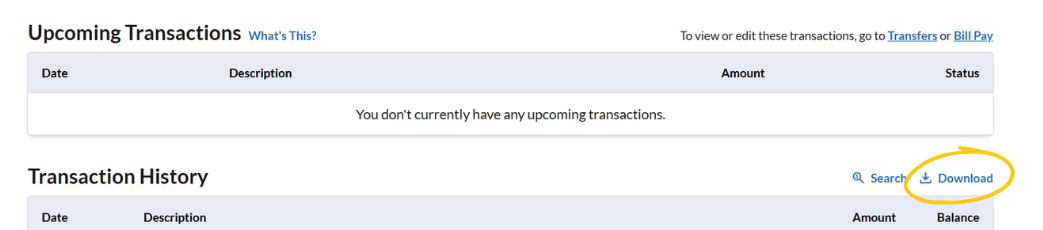
Step 4: Find the download option
Click the download icon.
Step 5: Choose your date range and file format
- Set a date range for the transactions you want.
- Choose CSV as the file format for best compatibility with Google Sheets and Excel.
- Ally may also offer OFX and QFX options; these are intended for Quicken and not ideal for direct spreadsheet import.
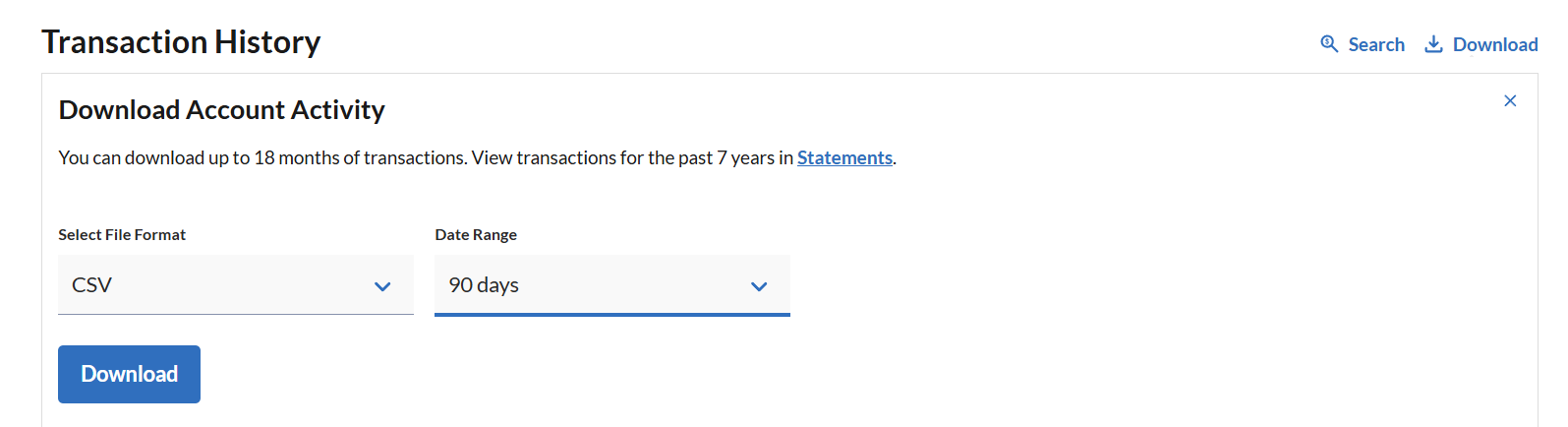
Step 6: Download the file
Click Download and save the CSV file to your computer.
How to open your Ally CSV in Google Sheets
- Go to sheets.new to open a new Google Sheet, or go to the home page for your Google Drive or Sheets account.
- Click File → Open → Upload.
- Drag and drop your downloaded CSV file or click Browse to locate it.
- Google Sheets will import the file and display your Ally transactions.
How to open your Ally CSV in Microsoft Excel
- Open Excel and click File → Open.
- Browse to your downloaded CSV file and open it.
- If the Text Import Wizard appears, select Delimited, click Next, check Comma, and click Finish.
- Your Ally transactions will appear in columns ready to work with.
For Excel Online, go to excel.cloud.microsoft, click Upload a File, and select your CSV.
Ally’s CSV typically includes columns for Date, Time, Amount, Type, Description, and Balance. The Amount column uses negative values for withdrawals and positive values for deposits. This is the standard signed format that works with SUMIF and other budget formulas without any additional cleanup. You may want to add a Category column and remove columns you don’t need before merging with an existing transaction sheet.
Limitations of manual Ally exports
CSV files, including from Ally, have limitations for personal finance tracking.
- One account at a time: Each Ally account requires a separate download. You can’t export all of your checking, savings, money market, and CD accounts at the same time.
- Savings buckets: Ally’s savings buckets feature lets you divide your savings into subcategories within a single account. These buckets don’t always export as separate line items; the CSV reflects account-level transactions rather than bucket-level detail.
- No scheduling: Ally doesn’t offer automated or scheduled exports, so you have to repeat the process manually each time you want updated data.
- Limited history window: Ally typically allows exports covering up to 18 months, though the exact window may vary by account type. For full account history beyond that window, contact Ally directly.”
- Ally Invest: Brokerage transactions through Ally Invest require a separate export process and may have different format conventions than bank account exports.
Automate Ally Bank transaction tracking with Tiller
Ally’s customer base tends to be financially engaged and tech-comfortable, which makes Tiller a natural fit. If you’re already using Ally’s high-yield savings, you’re likely already thinking about your money systematically.
Tiller connects your Ally accounts directly to Google Sheets or Excel and delivers transactions automatically each day. Checking, savings, money market, and Ally Invest activity all appear pre-formatted in your spreadsheet, alongside activity from any other connected institutions. Tiller’s Foundation Template lets you keep a clear view of your finances in one place.
AutoCat handles categorization automatically based on rules you define. Since Ally users often have multiple savings accounts for specific purposes — emergency fund, vacation, home purchase — you can create AutoCat rules that automatically tag transfers to each account with the corresponding goal category.
Frequently asked questions
Q: Can I export all my Ally accounts at once?
No. Ally requires a separate download for each account. If you have a checking account, multiple savings accounts, and a money market account, each needs its own export. Tiller connects all Ally account types simultaneously and consolidates everything into one spreadsheet automatically.
Q: Does Ally’s export include savings bucket detail?
Ally’s CSV export reflects account-level transactions rather than individual savings bucket activity. Transfers between buckets within the same account may not appear as separate line items. If bucket-level tracking matters to you, you’ll need to maintain that breakdown manually in your spreadsheet or use Ally’s in-app interface for that level of detail.
Q: How far back can I export Ally transaction history?
Ally typically allows exports covering 18 months or more, depending on the account type, though the exact window may vary. For full account history beyond that window, you may need to contact Ally directly or pull statements for older periods.
Q: What file format should I choose when downloading Ally transactions?
Choose CSV for Google Sheets or Excel. Ally may also offer OFX or QFX formats, but these are designed for Quicken and aren’t the right choice for direct spreadsheet import.
Q: Can I export Ally Invest brokerage transactions the same way?
Ally Invest uses a separate export process from Ally Bank accounts. Log in to your Ally Invest account and look for a transaction history download option there. The format may differ from Ally Bank CSV exports. Tiller can connect to both Ally Bank and Ally Invest accounts and automatically consolidate all transactions into a single spreadsheet.
Q: Can Tiller automatically import Ally Bank transactions into my spreadsheet?
Yes. Tiller supports Ally Bank account connections, including checking, savings, and money market accounts. Tiller delivers all transactions daily into Google Sheets or Excel alongside your other financial accounts.