

U.S. Bank lets you download transaction history directly from online banking as a CSV file that opens cleanly in Google Sheets and Excel. Whether you have a checking account, savings account, or U.S. Bank credit card, the process is similar.
This guide walks through the full export step by step. If you’re managing U.S. Bank alongside accounts at other institutions or you want your financial data to stay current without manual downloads, the end of this guide covers how to connect U.S. Bank to a spreadsheet automatically so new transactions arrive daily without any manual effort.
How to export U.S. Bank transactions as a CSV
Step 1: Log in to your U.S. Bank account
Go to usbank.com and sign in to online banking.
Step 2: Select your account
From the account dashboard, click on the checking, savings, or credit card account you want to export.
Step 3: Access your transaction history
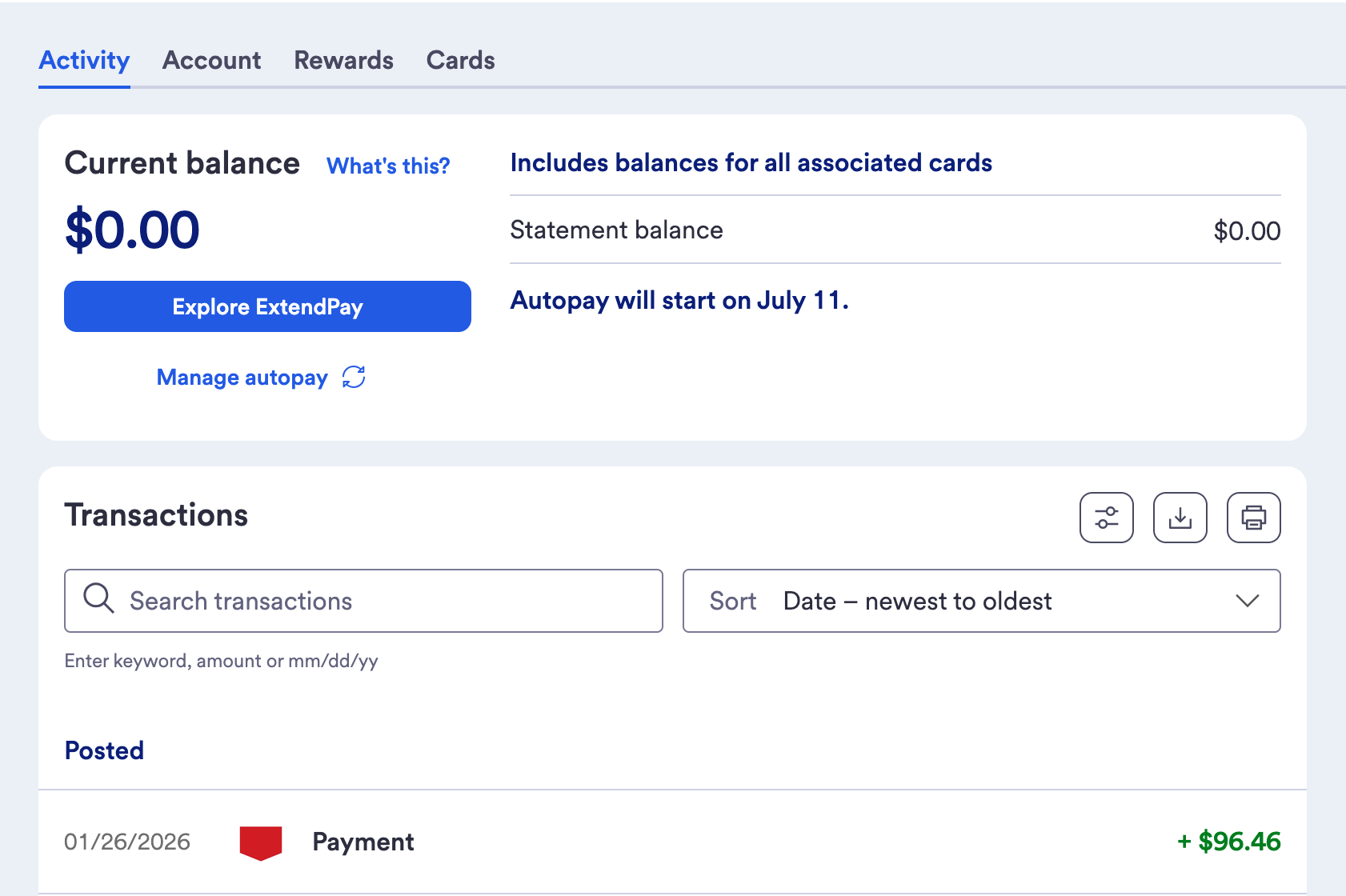
Click on Transactions or scroll to the transaction history section within your account view.
Step 4: Find the Download option
Look for a Download button or link near the top of your transaction list. U.S. Bank may display this as a download icon or labeled link depending on your account type and current interface version.
Step 5: Choose your date range and file format
• Set a date range for the transactions you want to export.
• Choose CSV as the file format for best compatibility with Google Sheets and Excel.
• U.S. Bank may also offer OFX and QFX options. These are intended for Quicken and are not ideal for direct import into a spreadsheet.
Step 6: Download the file
Click Download and save the CSV file to your computer.
How to open your U.S. Bank CSV in Google Sheets
- Go to sheets.new to open a new Google Sheet, or go to the home page for your Google Drive or Sheets account.
- Click File → Open → Upload.
- Drag and drop your downloaded CSV file or click Browse to locate it.
- Google Sheets will import the file and display your U.S. Bank transactions.
How to open your U.S. Bank CSV in Microsoft Excel
- Open Excel and click File → Open.
- Browse to your downloaded CSV file and open it.
- If the Text Import Wizard appears, select Delimited, click Next, check Comma, and click Finish.
- Your U.S. Bank transactions will appear in columns ready to work with.
For Excel Online, go to excel.cloud.microsoft, click Upload a File, and select your CSV.
U.S. Bank’s CSV typically includes columns for Date, Transaction, Name, Memo, and Amount. The Amount column uses negative values for debits and positive values for credits, which is the standard format most budget spreadsheets expect. You may want to add a Category column and remove any columns you don’t need before merging with an existing transaction sheet.
Limitations of manual U.S. Bank exports
Manual exports from U.S. Bank work but have real limitations for consistent financial tracking:
- One account at a time: Each U.S. Bank account requires a separate download for each checking, savings, and credit card account.
- Limited window: You can view transactions older than 18 months on your statements, but you won’t be able to download them.
- No scheduling: U.S. Bank doesn’t offer automated or scheduled exports, so you’ll need to repeat the full process every time you want updated numbers.
- Mobile app limitations: The U.S. Bank mobile app doesn’t support CSV exports. You’ll need to use a desktop browser.
- Pending transactions: Pending transactions don’t appear in CSV exports and won’t be captured until they post.
Automate U.S. Bank transaction tracking with Tiller
If you’re tracking U.S. Bank alongside other financial accounts or want your spreadsheet to always reflect up-to-date data, Tiller removes the export process entirely.
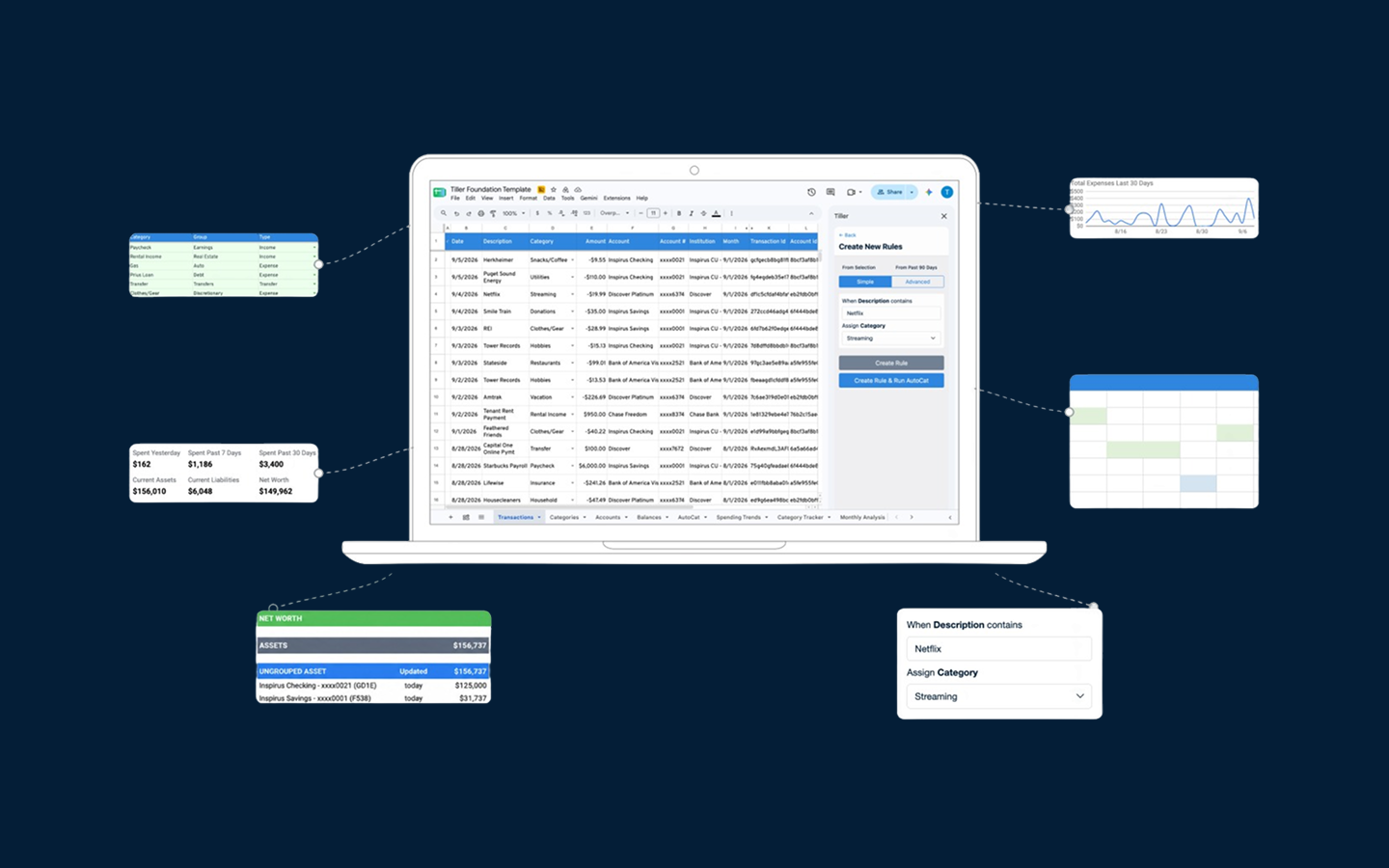
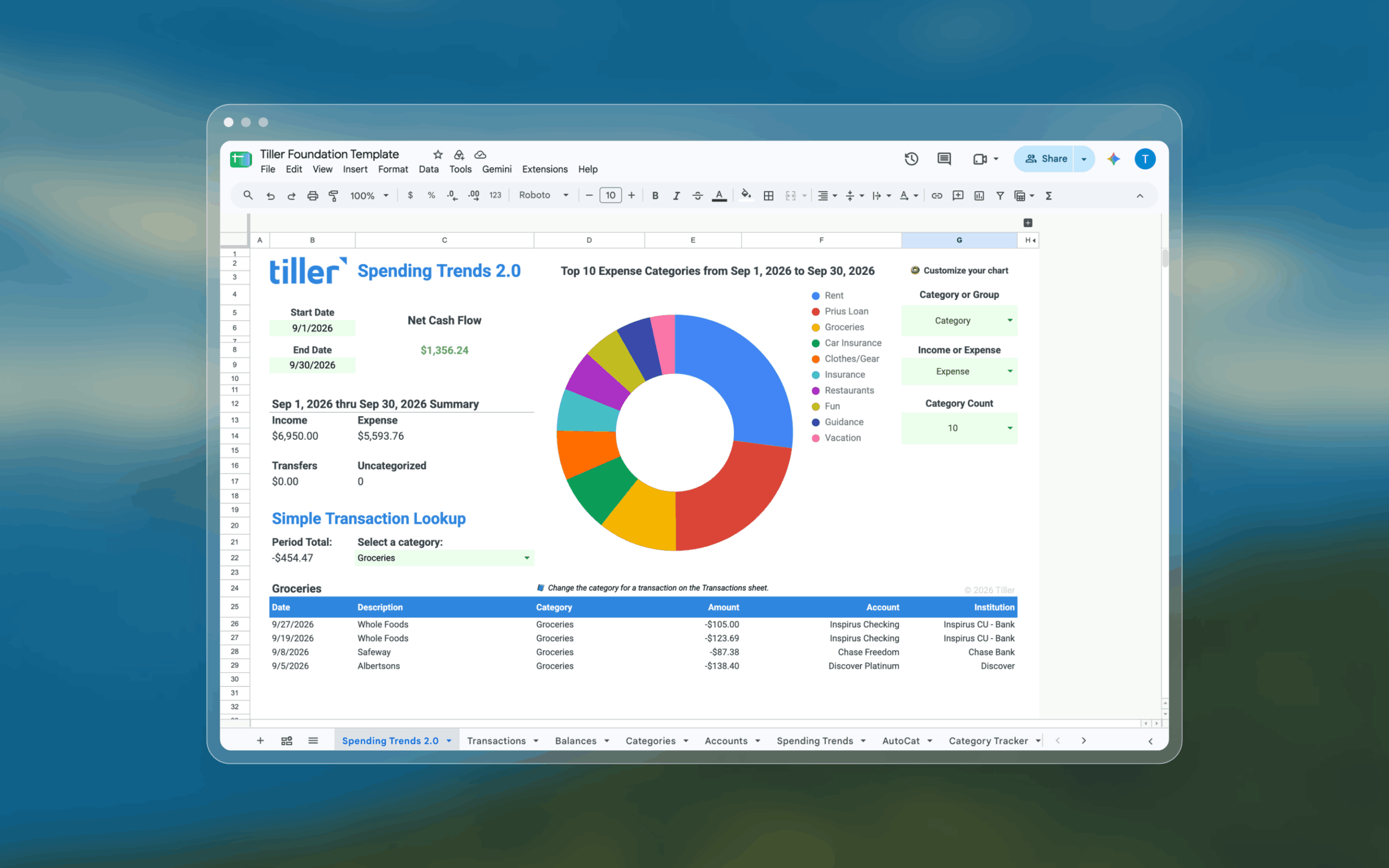
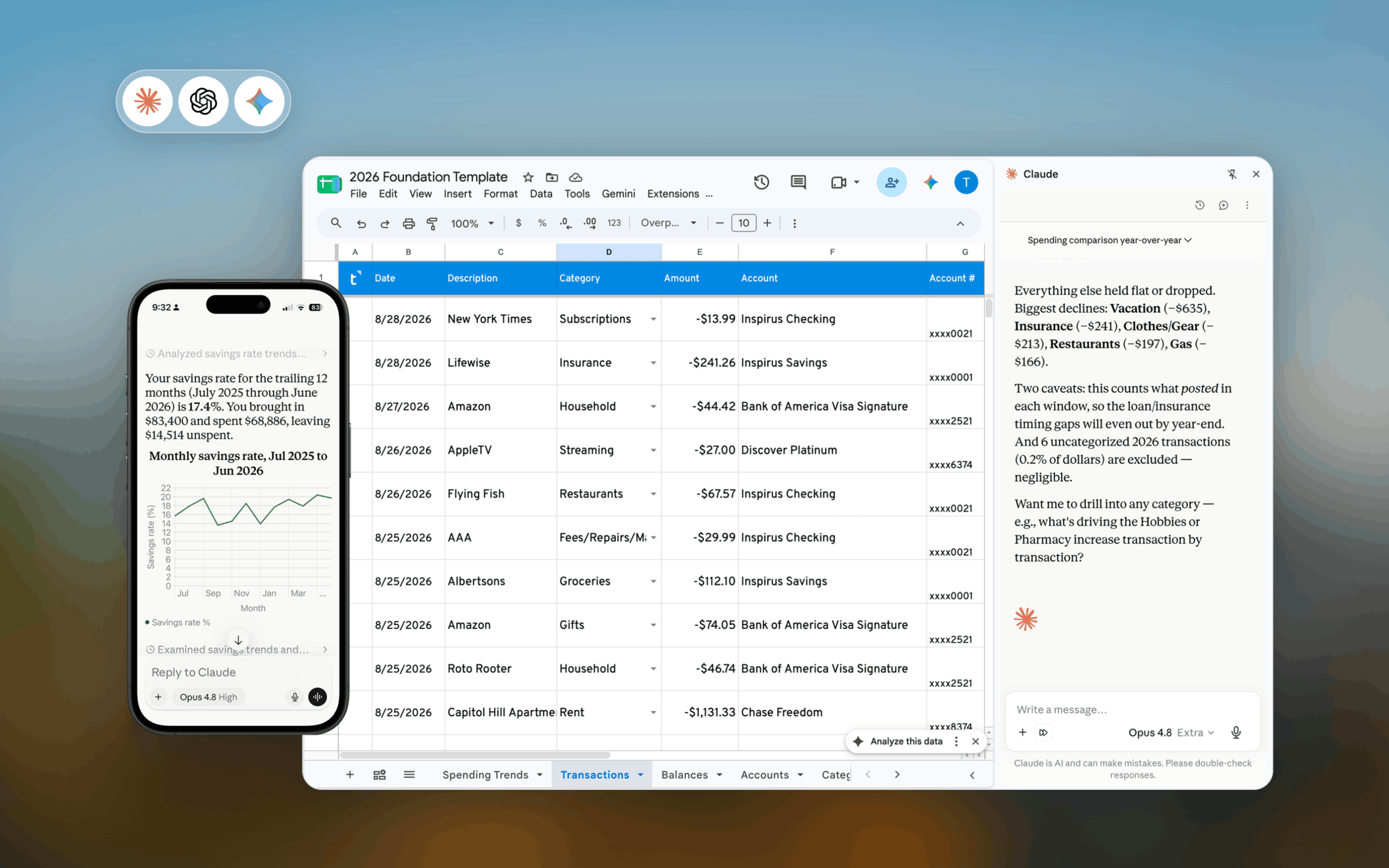
Tiller connects your U.S. Bank accounts directly to Google Sheets or Excel and delivers transactions automatically each day. Checking, savings, and U.S. Bank credit card activity all appear correctly formatted in your spreadsheet, alongside data from any other connected institutions. Tiller’s Foundation Template lets you keep a clear view of your finances in one place.
AutoCat handles categorization automatically based on rules you create. After a few weeks, most recurring transactions, such as utility payments, grocery store purchases, and subscriptions, categorize themselves automatically.
Frequently asked questions
Q: Can I export U.S. Bank transactions from multiple accounts at once?
No. U.S. Bank requires a separate download for each account. If you have a checking account, savings account, and U.S. Bank credit card, that’s three separate exports to run and combine. Tiller connects all U.S. Bank account types simultaneously and automatically consolidates everything into a single spreadsheet.
Q: How far back can I download U.S. Bank transaction history?
U.S. Bank allows you to download transactions for up to 18 months. You can view transactions older than 18 months on your statements, but you won’t be able to download them.
Q: Can I export U.S. Bank transactions from the mobile app?
No. You’ll need to log in through a desktop browser at usbank.com to access the download option.
Q: What file format should I choose when downloading U.S. Bank transactions?
Choose CSV for Google Sheets or Excel. U.S. Bank may also offer OFX or QFX formats, which are designed for Quicken and aren’t the right choice for direct spreadsheet import.
Q: Does U.S. Bank’s CSV work with standard spreadsheet budget formulas?
Yes. U.S. Bank’s Amount column uses negative values for debits and positive values for credits, which is the standard signed format that SUMIF and other budget formulas expect. This means less cleanup compared to banks that use separate Withdrawal and Deposit columns.
Q: Can Tiller automatically import U.S. Bank transactions into my spreadsheet?
Yes. Tiller supports U.S. Bank account connections and delivers transactions daily into Google Sheets or Excel alongside your other financial accounts.