
Getting bank transactions & financial data into a spreadsheet
Learn how to get your bank transactions into Google Sheets or Excel—from manual exports to fully automated daily updates.
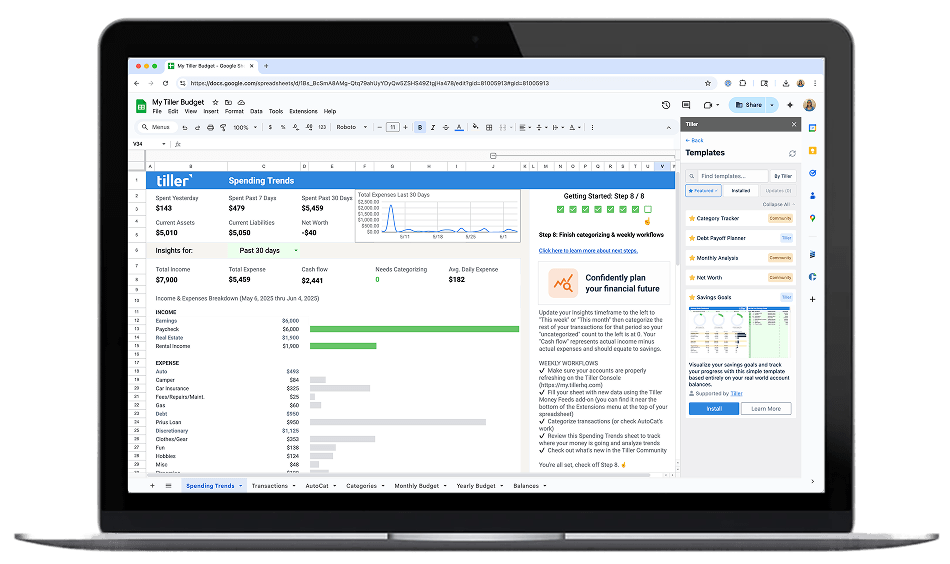
If you manage finances in a spreadsheet, you’ve faced the data problem: how do you get your bank transactions into your sheets without spending hours on manual entry?
Most people start by downloading CSV files from their bank websites. It works, but it’s tedious—each bank formats data differently, and keeping things clean across multiple accounts can eat up 30+ minutes every time you want current numbers.
There are several approaches: manual exports (free but time-consuming), bank feed automation tools like Tiller (convenient, subscription-based), or custom API integrations (powerful but complex). Each has trade-offs.
This section covers practical methods for getting transaction data into spreadsheets—from basic export techniques to automation workflows that update your sheets daily. Whether you prefer a manual process or you’re ready to automate, you’ll find step-by-step guidance here.
How to Export Bank Transactions (Manual Methods)
Most financial institutions let you download transaction history as CSV, QFX, or OFX files. The process varies by bank, but the basic pattern is similar: log in, navigate to your account, find the export or download option, select a date range, and save the file.

Once you have the file, you’ll typically need to:
This manual approach works fine for occasional updates or single accounts. It becomes challenging when you’re managing multiple accounts or want daily updates across checking, savings, credit cards, and investments.
Common challenges with manual exports:
How to Connect Your Bank Accounts to a Spreadsheet
Manually downloading CSV files from multiple bank accounts gets old fast — the data is always a week behind and the cleanup never ends. This hub covers how bank-to-spreadsheet connections actually work: how to link your accounts, sync transactions automatically in Google Sheets or Excel, and set up categorization that runs without you. Several guides feature Tiller, which handles the bank connection and daily data delivery so your spreadsheet stays current on its own.

Common approaches:
What your find in this hub:
How to Link Bank Account to Excel Spreadsheet
Connect Bank Account to Google Sheets
Bank Feed for Google Sheets
Sync Bank Account to Google Sheets
Sync Bank Transactions to Excel
Track Multiple Bank Accounts in One Spreadsheet
Import Transactions from Checking and Savings
Automate Daily Balance Updates in Spreadsheet
Understanding Automated Transaction Imports
Automated transaction tools like Tiller use secure connections to pull data directly from your financial institutions. These are the same encrypted, read-only connections that banks’ own mobile apps use—monitored and regulated for security.
You don’t share passwords with the automation service. Instead, you authorize a secure connection through your bank’s official interface. The service can see your transactions and balances, but it can’t move money or make changes to your accounts.
Once connected, the service checks for new transactions daily (typically overnight) and adds them to your spreadsheet automatically. You wake up, open your spreadsheet, and your data is current. No manual exports, no file imports, no formatting cleanup.
This automation runs continuously in the background. You set it up once, and it keeps working. You can disconnect accounts anytime, but most people find the convenience worth the subscription cost of tools that offer this service.
Financial Institution Coverage
Most automated transaction services don’t connect directly to your bank. Instead, they work through financial data aggregators—companies like Plaid, MX, and Yodlee that specialize in securely connecting to financial institutions and standardizing the data that comes back. These aggregators maintain connections to tens of thousands of U.S. banks, credit unions, and financial institutions.
Because of this aggregator layer, coverage is broad. Supported institutions typically include:
Tiller uses these same aggregator partnerships to support tens of thousands of financial institutions across all of these categories. That said, coverage can vary by aggregator and institution—some banks work more reliably than others, and occasional connection issues are common across all services that use this approach. Before subscribing to any automated platform, it’s worth verifying that your specific institutions are supported.
