

Tiller Resource Center > Getting Bank Data into Spreadsheets
How to Connect Your Bank Accounts to a Spreadsheet
The practical guide to setting up automatic transaction syncing in Google Sheets and Excel — so your financial data arrives every morning without any manual work.
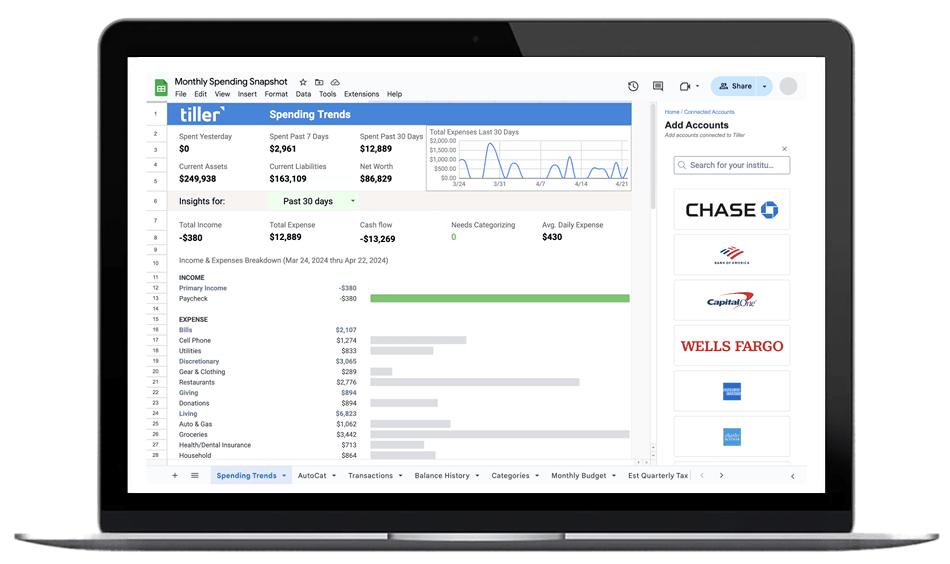
Getting your bank transactions into a spreadsheet manually works — until it doesn’t. The moment you’re managing more than one account, or you want numbers that reflect this week (not last week), the CSV download routine starts to fall apart. Logging into multiple bank websites, exporting files in different formats, cleaning up column headers, merging everything by hand — it’s 20–30 minutes of work every time you want current data.
A direct bank connection solves the maintenance problem. When your accounts are linked to your spreadsheet, transactions arrive automatically. Balances update. Categories are suggested. You open your sheet and the data is already there.
This hub covers the how: how bank-to-spreadsheet connections work, how to set one up in Google Sheets or Excel, how to sync transactions automatically, and how to automate categorization once the data is flowing. Several guides here feature Tiller, which handles the bank connection and daily data delivery so the pipeline runs without you.
Start with these guides:
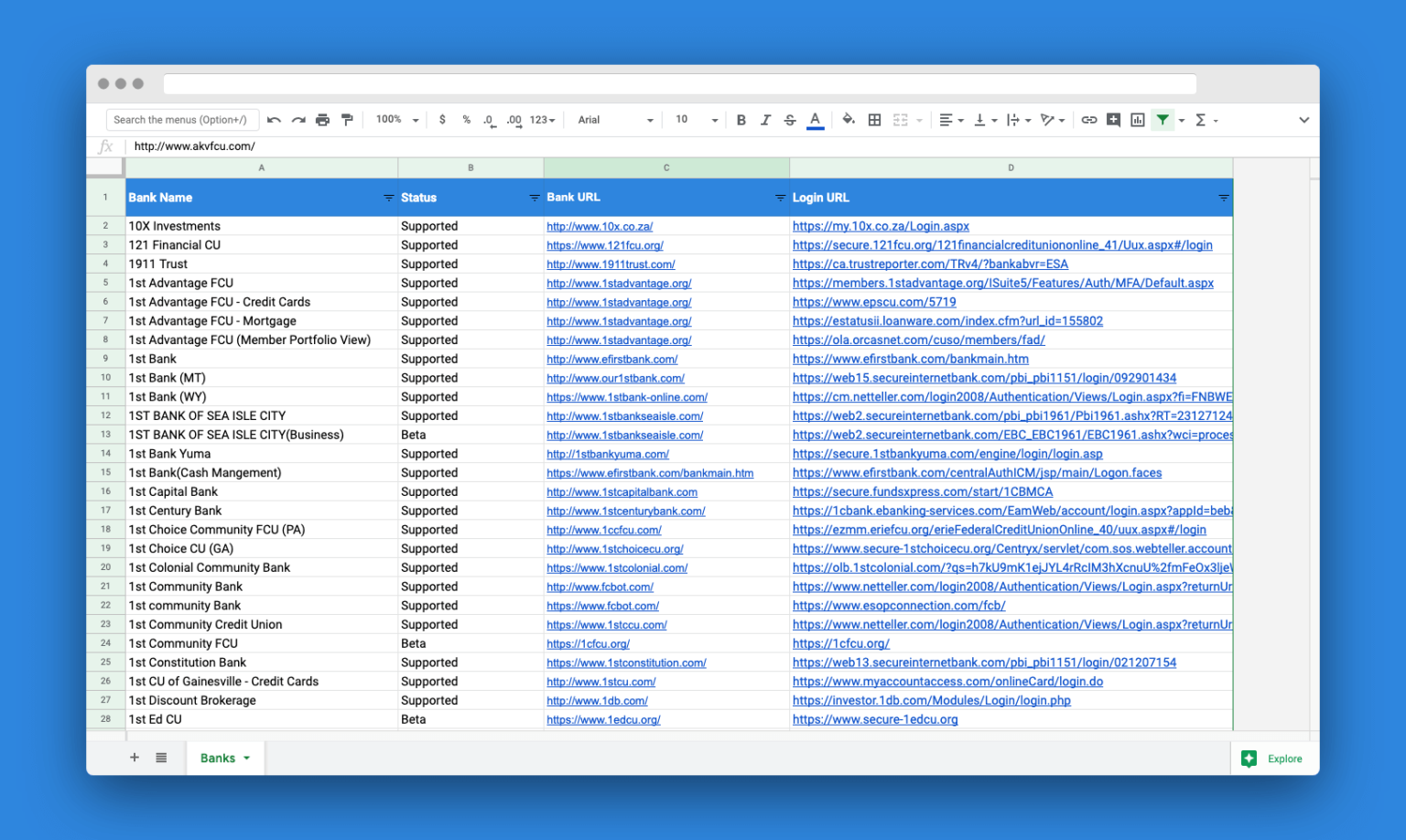
What Banks and Financial Sources Work With Tiller?
Tiller connects to 21,000+ financial institutions — banks, credit unions, credit cards, and investment platforms. Covers how to check whether your specific accounts are supported before subscribing.

How to Automatically Sync Bank Transactions
How automatic bank transaction syncing works — secure aggregator connections, daily data delivery, step-by-step setup for Google Sheets and Excel, and what to expect in the first few weeks after connecting your accounts.
How to Link Your Bank Account to an Excel Spreadsheet
How to connect bank accounts directly to Microsoft Excel using Tiller Money Feeds. Covers account authentication, the Tiller add-in setup, and how AutoCat handles automatic transaction categorization.
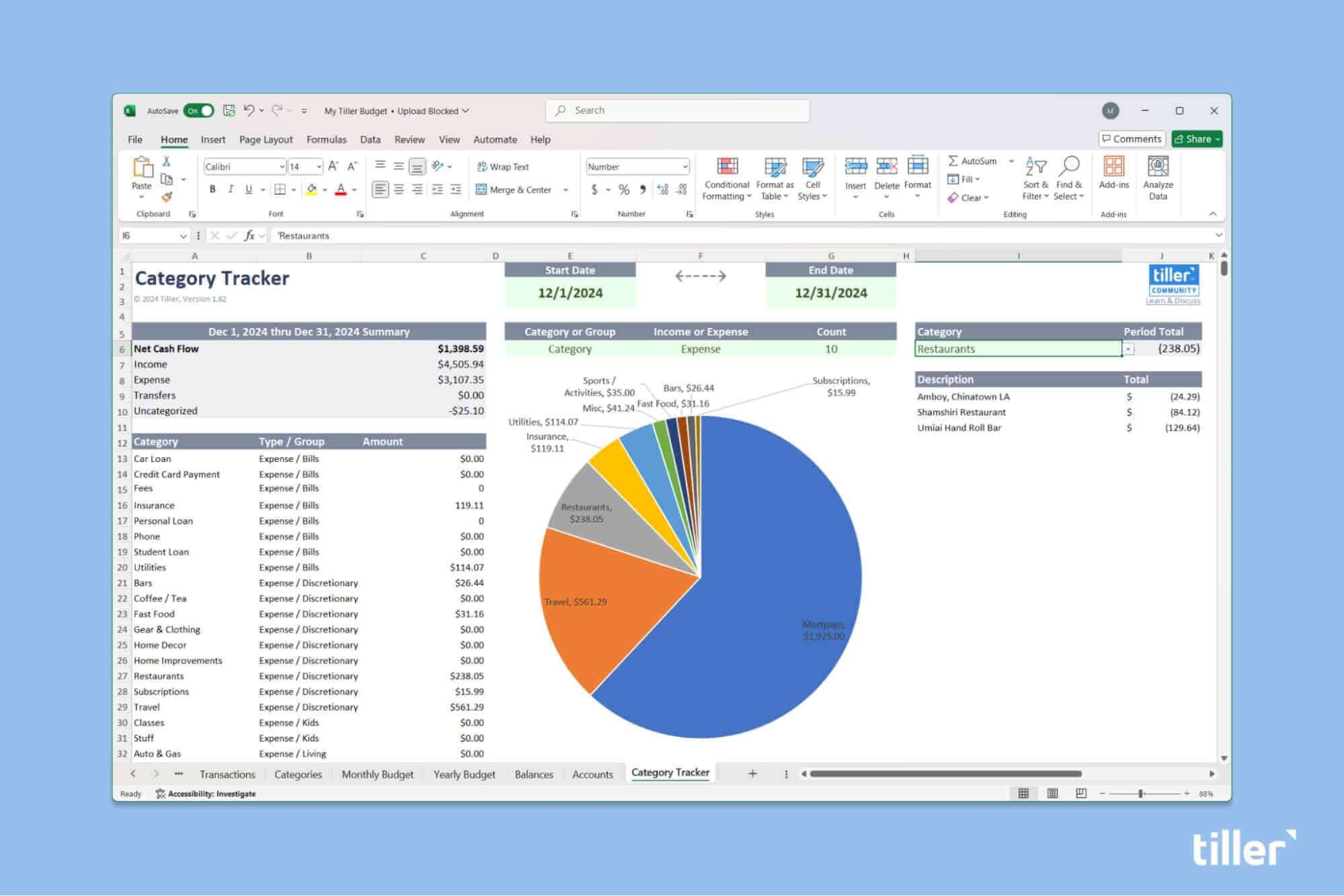
Automatically Download Bank Transactions to Excel
Step-by-step setup for automated transaction imports into Microsoft Excel. Connect your accounts once and get daily updates without downloading or formatting a CSV file.
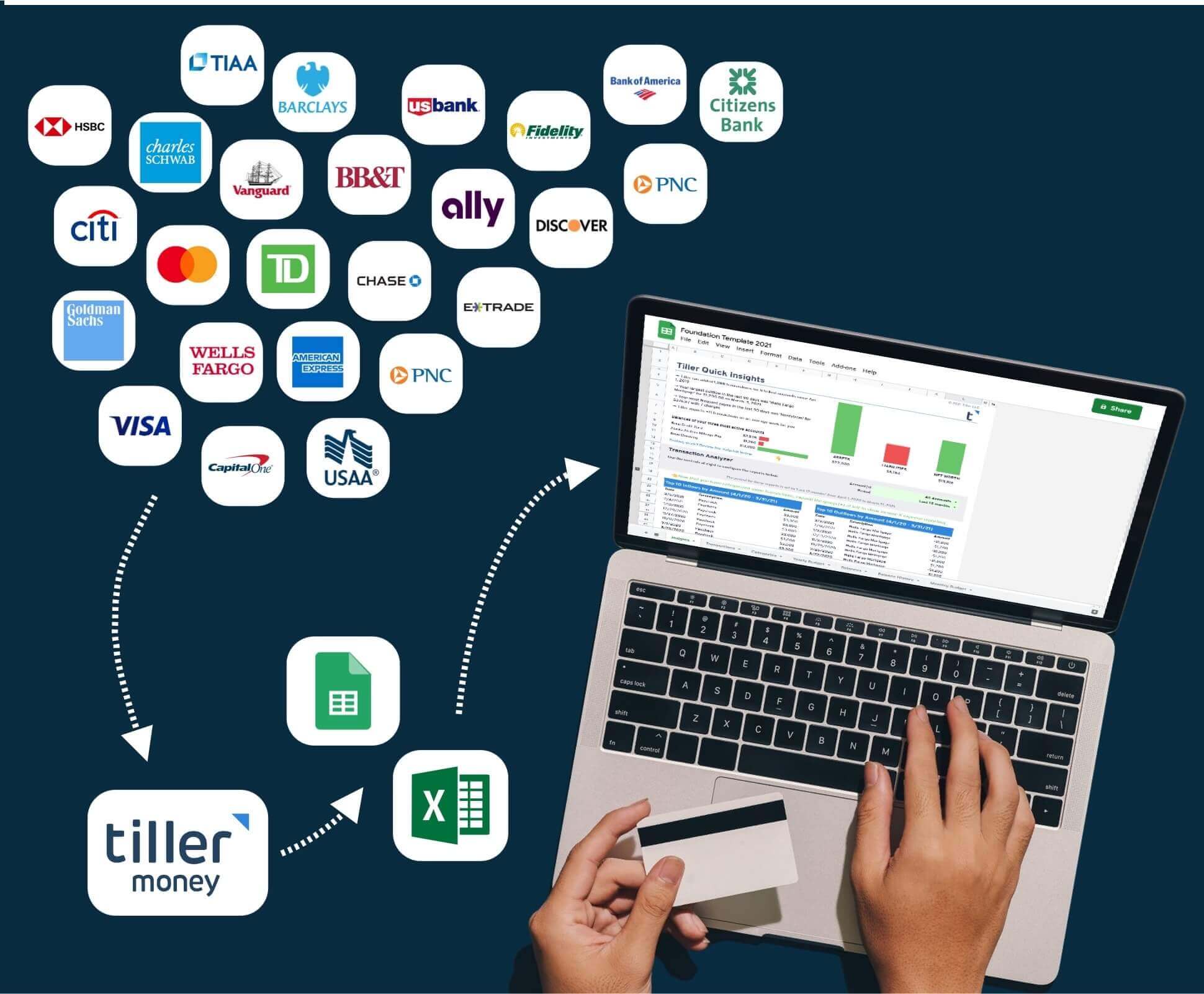
How to Import Bank Transactions into Google Sheets
A practical guide to getting bank transaction data into Google Sheets — covering manual CSV imports, formatting for Tiller’s transaction structure, and automated import options for both Google Sheets and Excel.
How to Import CSV Into a Google Spreadsheet
Step-by-step guide to importing CSV files from your bank into Google Sheets — including how to create a CSV export, import it correctly, and clean up common formatting issues like date formats and extra columns.

How to Use a Bank Account Tracking Spreadsheet + Free Templates
How to build and maintain a bank account tracking spreadsheet — covering balance monitoring, cash flow visibility, and spending habit tracking. Includes free template downloads and automated options.

How to Track Your HSA Spending in a Spreadsheet
How to track HSA contributions and qualified medical expenses in a spreadsheet — covering IRS compliance requirements, contribution limits, and setup options including Tiller’s automated system and free standalone templates.
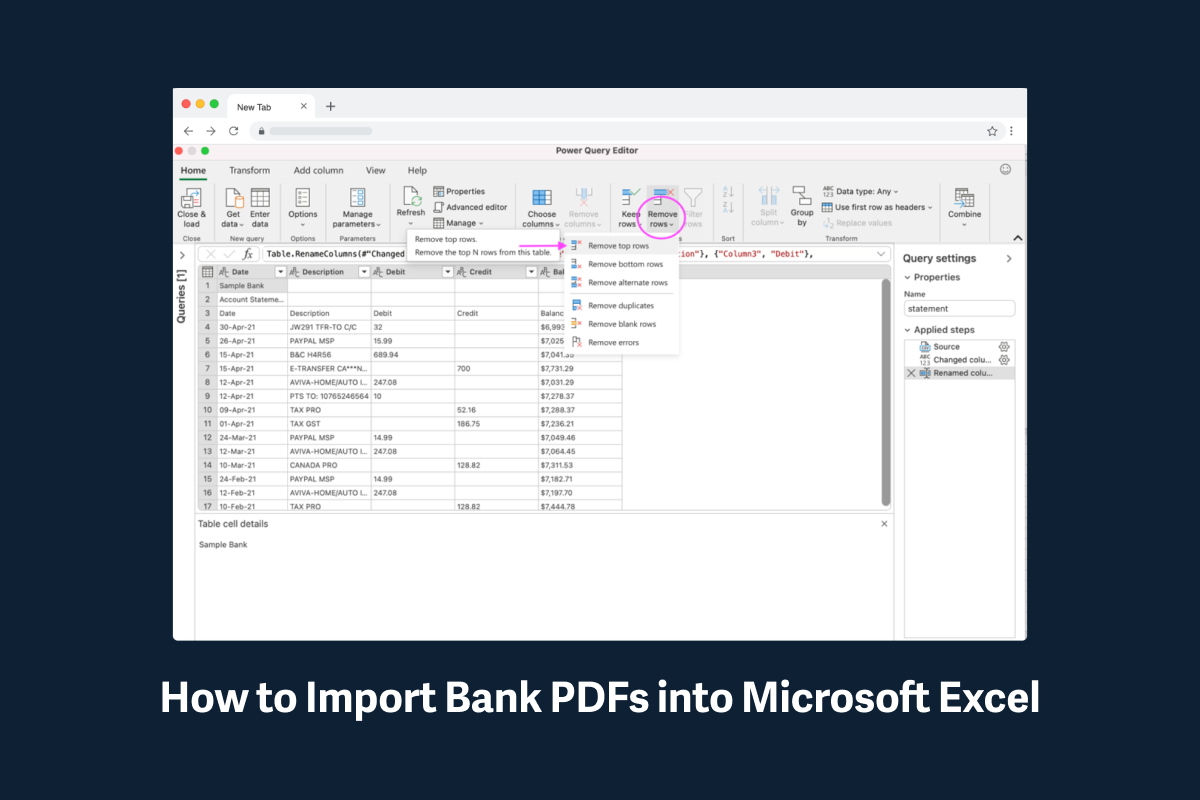
How to Import Bank PDF Statements into Microsoft Excel for Free
How to convert bank PDF statements into CSV files for use in Excel or Google Sheets — covering free online converters and Excel’s built-in Power Query method for direct PDF import and data cleanup.
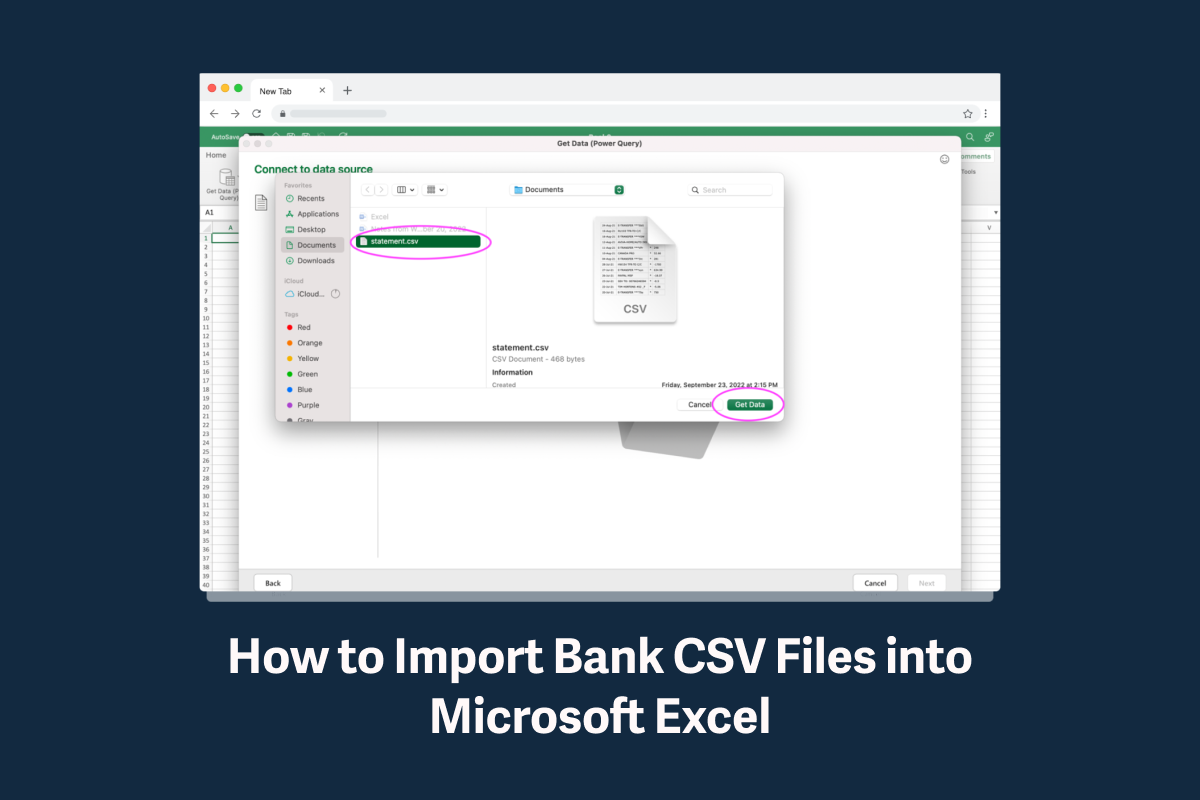
How to Import Bank CSV Files into Microsoft Excel
Step-by-step guide to importing bank CSV files into Excel using Power Query — covering the download, import, cleanup, and organization process including PivotTables for spending analysis.

How to Automate Transaction Categorization in Your Spreadsheet
How rule-based categorization works, how to build an initial rule set covering your most frequent merchants, and how Tiller’s AutoCat applies those rules automatically so most transactions categorize themselves without manual work.

Build a Live Financial Dashboard with Automated Data
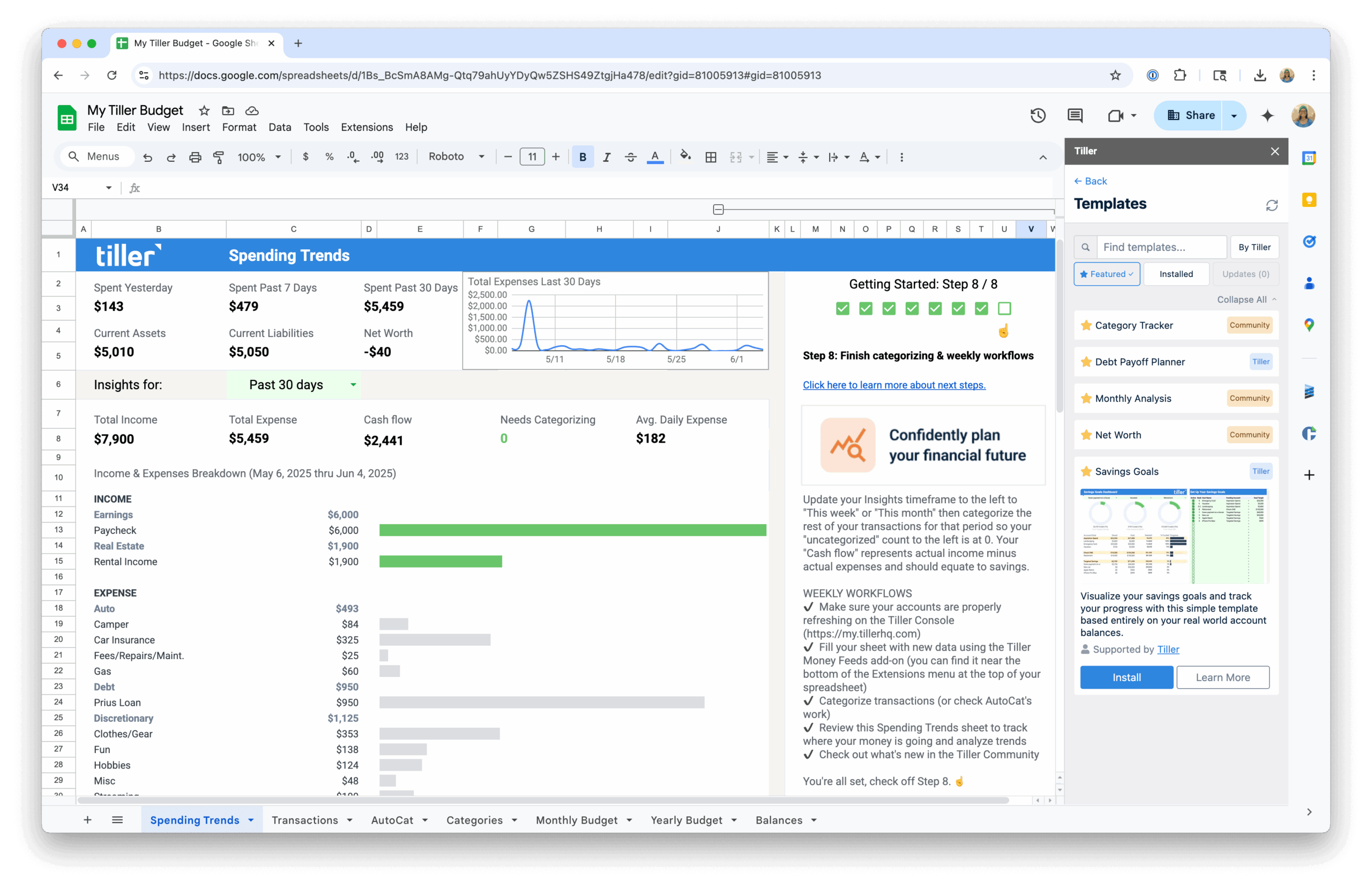
How to turn your automated transaction feed into a financial dashboard that updates in real time — covering layout, formulas, charts, and how to build a view that always reflects your current situation.
How a Bank-to-Spreadsheet Connection Actually Works
When you connect a bank account to a spreadsheet tool like Tiller, you’re not sharing your login credentials with a third party. The connection happens through a financial data aggregator — a company (like Plaid or MX) that specializes in securely linking financial institutions to other services. These are the same aggregators that power many banking apps and financial tools you already use.
The connection is read-only. The service can see your transactions and balances, but it cannot move money, initiate transfers, or make any changes to your accounts. You authorize access through your bank’s own interface, and you can revoke it at any time.
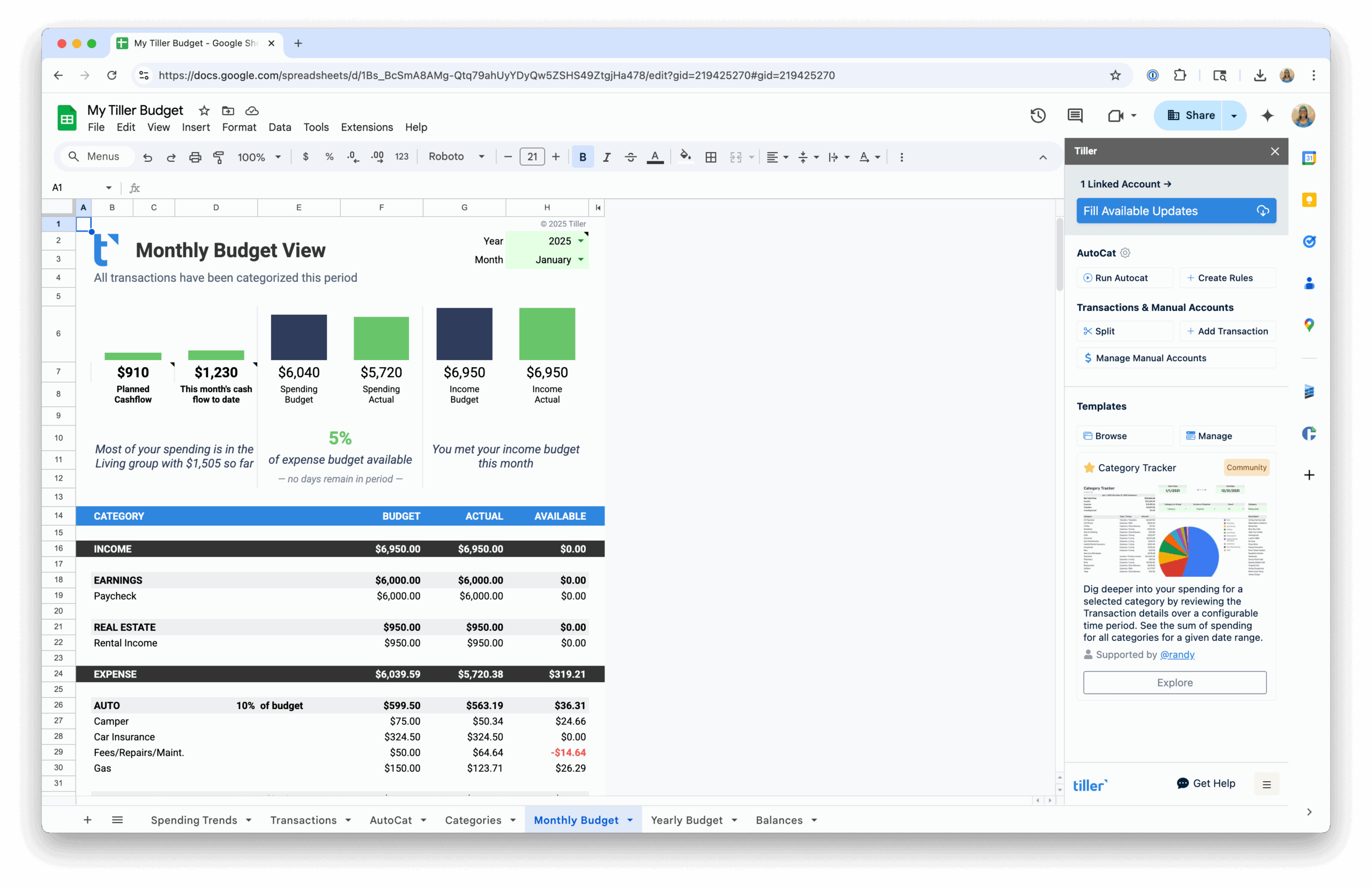
Once the connection is active, it runs in the background. Every morning, the aggregator checks for new transactions and passes them to your spreadsheet automatically — no action required on your part. Most major banks, credit unions, credit cards, and investment platforms are supported through these aggregator networks, though coverage can vary by institution.
More Ways to Work with Bank Transaction Data
This hub focuses on the connection and sync mechanics. The Bank Transactions & Financial Data Automation Resource Center also covers:
- Exporting Bank Transactions to Spreadsheets — Manual export guides for downloading transaction data from your bank, including institution-specific walkthroughs for Chase, Bank of America, Wells Fargo, Capital One, and more. A good starting point if you prefer manual control or want to understand the process before automating.
Once your data is flowing automatically, the Automated Personal Finance in Spreadsheets hub in the Spreadsheet Financial Systems Resource Center covers what to build with it — dashboards, automated budgets, and complete financial systems that run without manual upkeep.
