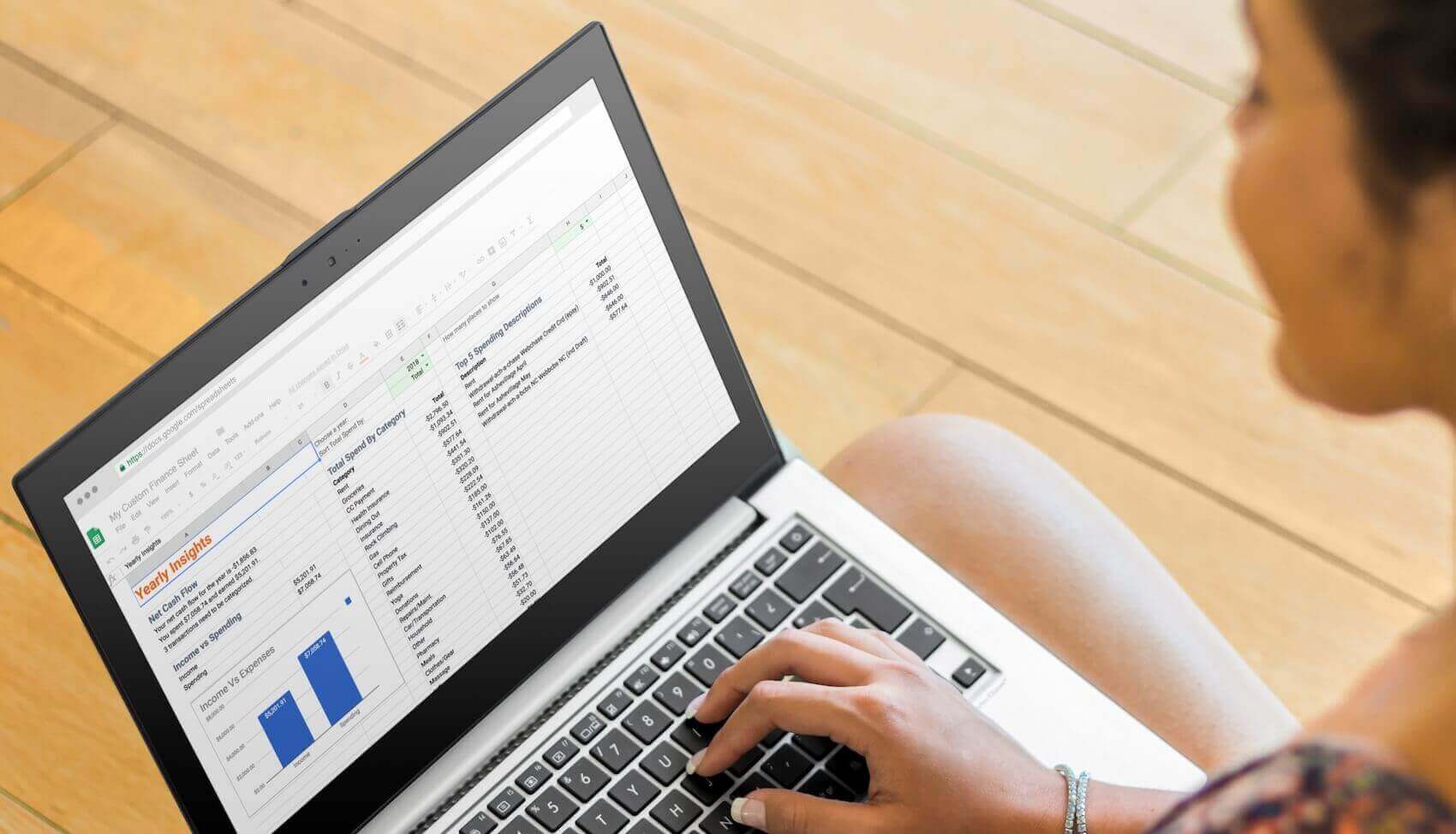


Empower (formerly Personal Capital) is a useful service, but perhaps you prefer to analyze and plan your finances with the flexibility and power of a spreadsheet.
Empower holds your transaction and balance history in a closed format requiring a special export process, which we explain for Google Sheets and Microsoft Excel below.
Unlike Empower, Tiller keeps your finances updated in your own private spreadsheets. And with Tiller, only you own and control your financial data. You can easily export your data anytime with the export tools built into Google Sheets and Excel.
Considering making the switch from Empower to Tiller? See our full Tiller vs. Empower comparison to understand how they differ and whether Tiller is the right fit.
And all your data history, custom categories, templates, budgets, and reports remain untouched in your spreadsheets if you ever cancel your Tiller service.
Tiller is completely free for 30 days. Your card isn’t charged until the end of your trial, and you can easily cancel anytime. Any transactions or templates you import remain in your spreadsheets even if you cancel your free trial.
How do you export your Personal Capital data into a Tiller-powered spreadsheet?
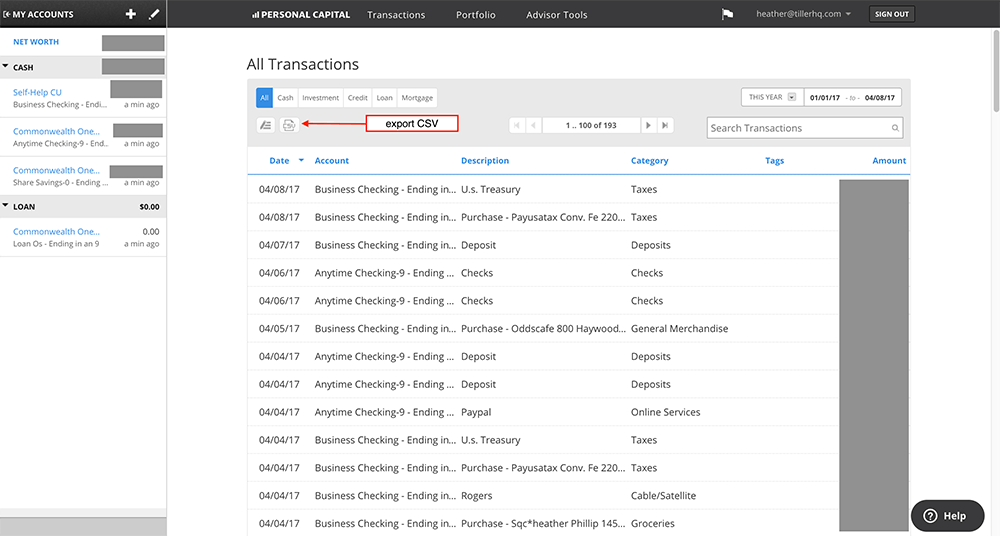
- Log in to Personal Capital and click “Transactions” from the top navigation.
- Select your date range. If you’re updating a spreadsheet that already has Personal Capital data, make sure to select a specific date range that doesn’t overlap to avoid duplicates.
- Click the CSV export button.
Manually add the finance data to the Transactions sheet
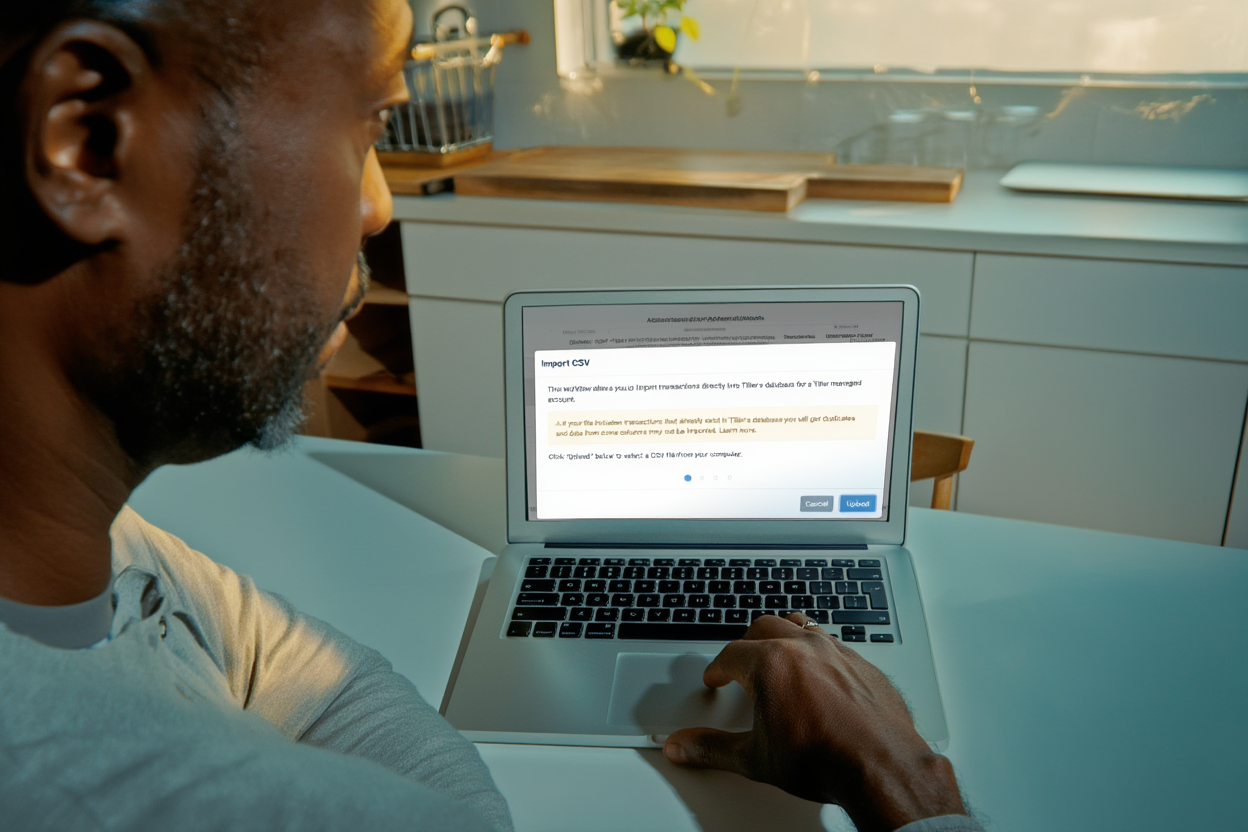
Now, you’ve got a CSV and you can use the same steps you’d use to manually import your data. If you haven’t done that before review this help article. It’s just a few more easy steps:
- Upload the CSV file into your Google Drive (instructions)
- Next, open the CSV as a Google Sheet
- Rearrange the columns to match the order of the columns on the Transactions sheet in your Tiller spreadsheet.
- Finally, copy the transactions and paste the Personal Capital data into blank rows on your Transactions sheet using the Edit menu > Paste Special > Paste values only
With all of your data in one place, you can now sort by date or organize your Transactions sheet however you want.
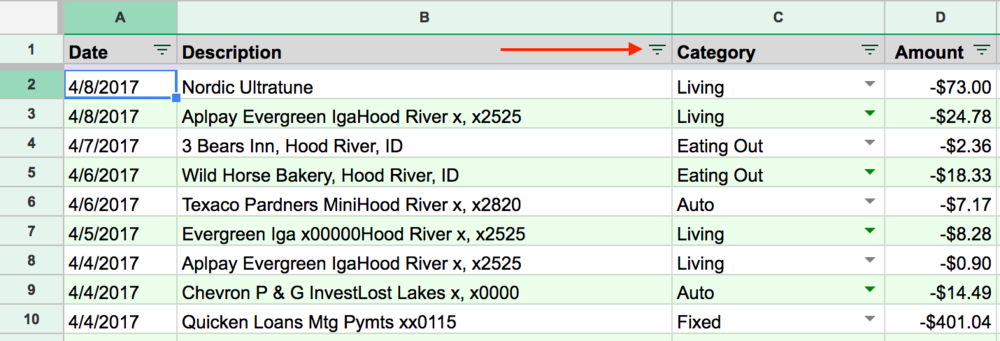
Filtering your financial data is fast and easy in a spreadsheet
A couple of things to remember as you go through this process. Make sure you turn the filter off on your Transactions sheet before you paste the Personal Capital transactions into the sheet.
Then turn the filter back on if this feature is useful to you.
Be aware that the filter is not turned on in all Tiller templates. If you don’t see a down arrow next to the column header name, then it’s not on. Finally, you can sort the date by Z to A to make sure the latest transactions are at the top.
The whole process takes less than 10 minutes. Using a spreadsheet to visualize your spending is a powerful way to get a handle on your finances.
Use the CSV Importer for Google Sheets
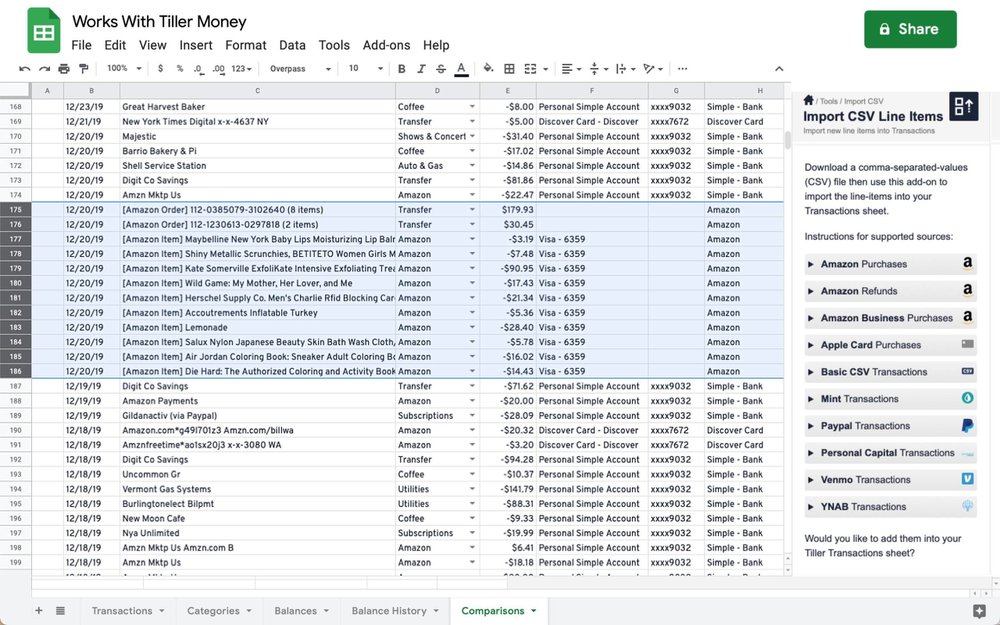
If you routinely import Personal Capital data into a Tiller-powered Google Sheet, it’s worth installing the free Tiller Community Solutions extension for Google Sheets and using its Import CSV Line Items tool.
This is designed to make importing CSV files into Google Sheet easier by:
- Recognizing & validating your import data source
- Remapping fields to match up with your Tiller spreadsheet
- Creating offsets to zero-out credit card charges from your feeds
- Itemizing orders into discrete line-items to facilitate accurate categorization (Amazon imports only)
- Tracking imported data and preventing the import of duplicates (not all data sources)
- Storing searchable metadata in the Transactions sheet
- Providing one-click filtering of uncategorized imported line items
Additionally, the CSV Line Items tool cleanly imports data from multiple sources:
- Amazon purchases (USA only)
- Amazon refunds (USA only)
- Apple Card purchases
- Mint transactions register
- Paypal transactions
- Personal Capital transactions register
- Venmo transactions
- YNAB transactions register
- Basic Bank CSV
Learn more in this thread in the Tiller Community.