Skip to content
  • Free Trial →
  • How Tiller Works
  • Reviews
  • Support
  • Blog
  • Login
tiller logo 2021tiller logo 2021
  • How Tiller Works
  • Features
  • Blog
    • Free Google Sheets Budget Templates
    • 6 Free Debt Spreadsheets
    • 8 Free Excel Budgets
    • Tiller CEOs Open Letter to JPMorgan Chase
    • Tiller’s Five Steps to Financial Well-Being
  • Reviews
  • Pricing & Free Trial
Login
Try Tiller Free
tiller logo 2021
Tiller Community Solutions Microsoft Excel Templates

Account Filter for Microsoft Excel

Review the transactions of any single account linked to your Tiller-powered Microsoft Excel spreadsheet.

  • Functions:AccountAccounts
  • Randy HulettFrom:Randy Hulett
Account Filter

About the Account Filter for Microsoft Excel

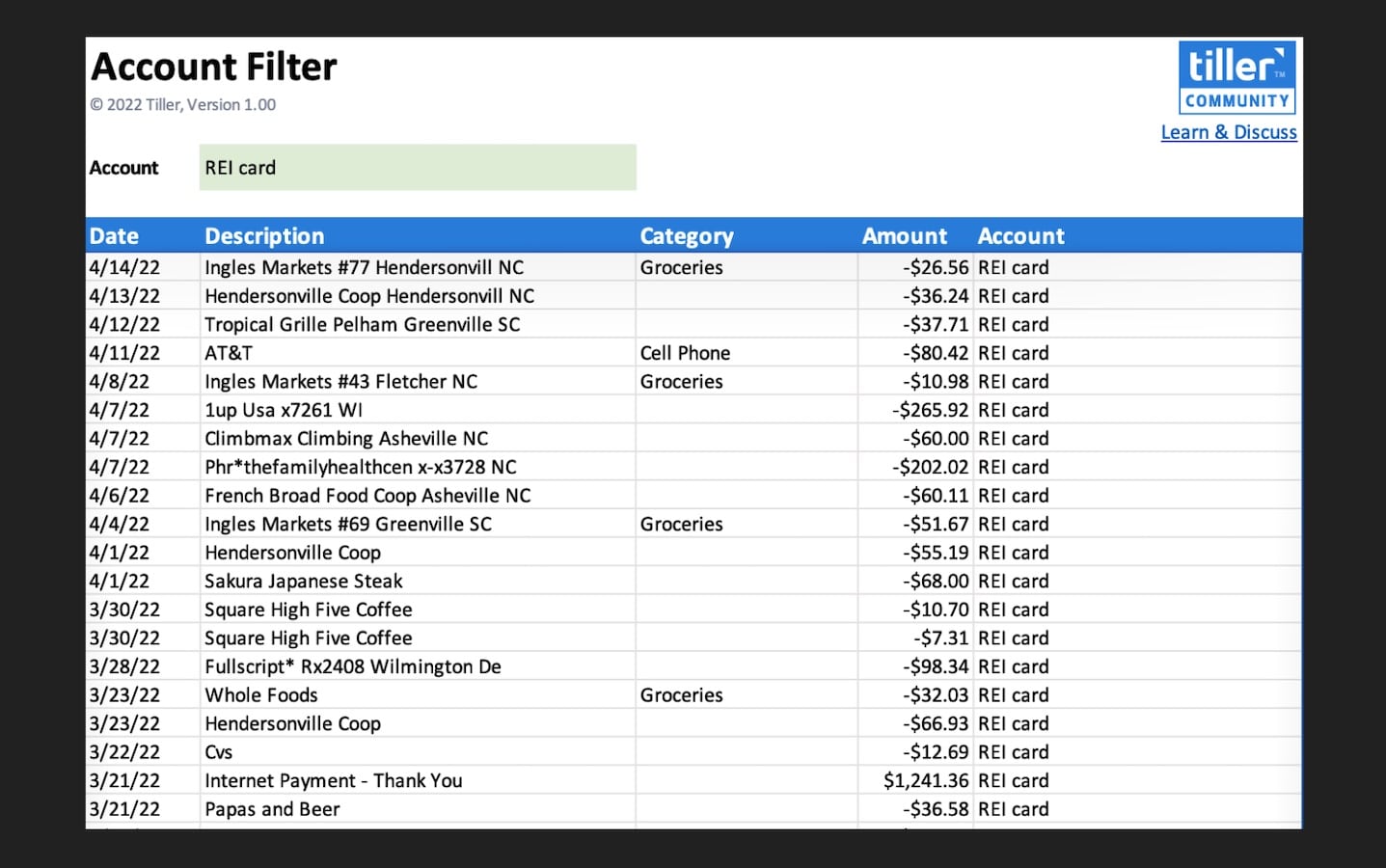
The Excel Account Filter sheet, based on the popular Sheets Account Filter is useful if you want to review the transactions of any single account linked to your Tiller spreadsheet.

This is a read-only sheet for viewing transactions that also already exist in the Transactions sheet. It’s an alternative if you prefer not to filter your Transactions sheet, but want to review transactions for a specific account.

How to Install the Account Filter Sheet

Add Excel Tables to Your Workbook
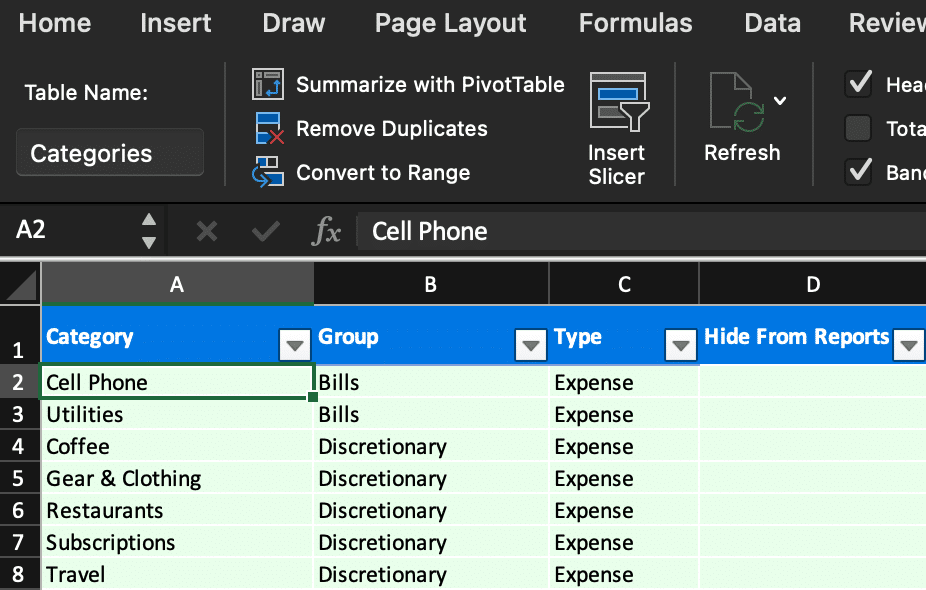
image 3

If you have a newer version of the Excel Foundation Workbook, you can skip this step. Otherwise, you’ll need to add Excel tables to your spreadsheet that contain the contents of the Transactions and Categories worksheets before adding the worksheet.

In each worksheet, simply:

  1. Select the entire used data range (including the header row)
  2. Click Insert/Table in the file menu
  3. Check the “My table has headers” checkbox
  4. Click “Ok” in the Create Table modal dialog
  5. Assign a Table Name in the little text box in the top left of the toolbar— use “Categories” in the Categories worksheet and “Transactions” in the Transactions worksheet

Insert the Account Filter Worksheet

  1. Download the Account Filter workbook.
  2. Follow these instructions to copy the downloaded template into your Excel workbook and to connect the formula references to your local workbook data. (The instructions are for the desktop version of Excel, the web version is not recommended for the installation but does work once the Account Reconciliation sheet is installed.)

At this point your new template should be functional and linked to your local workbook’s data.

How to use the Account Filter sheet

To use the sheet, select the account for which you want to view transactions in the drop down in cell B3.

Advanced users can pull in additional columns from the Transactions sheet by modifying the formula in cell B6.

Questions and Feeback

Share your feedback and questions here in the Tiller Community.

Powered by Tiller

This template is designed for spreadsheets powered by Tiller, the only personal finance service based on Google Sheets and Microsoft Excel.

The best way to use this template is by trying Tiller free for a month. Your card isn't charged until the end of your trial, and you can easily cancel anytime. Any data and templates you download during your trial are yours to keep.

Try Tiller Free

FAQ

Unless otherwise noted above, this is a free template built by a member of the Tiller Community. Some community templates may only be accessible via the Tiller Money Feeds add-on, which requires a Tiller free trial or subscription to use. Additionally, it’s recommended for use within the Foundation Template.

Tiller is the only automated personal finance service for Google Sheets and Microsoft Excel. Tiller automatically imports your daily spending, income, and balances in your spreadsheets, so you can see all your finances in one place and manage your money, your way. Learn more →

Follow the instructions above to install this template. Some community templates can be installed using Tiller Money Feeds. See Installation details above.

This template for Excel works best when installed in Tiller’s Foundation Template.

Review the Support and Documentation section in the template details above to learn how to get support for this template in the Tiller Community.
Notable Replies

  1. Avatar for TimA TimA says:
    April 20, 2022

    Great sheet addition to Excel. One small issue is that data validation will not copy over from the account filter sheet v1.00 to your personal sheet.

    I just copied the data validation source from the account filter sheet to my personal sheet, =Accounts!H2# and the sheet is working as intended! :smiley:

  2. Avatar for randy randy says:
    April 20, 2022

    Just noticed this in another share, @TimA. Will see if there is a similar workaround for the Account Filter.

  3. Avatar for randy randy says:
    April 20, 2022

    I implemented the change from this post, making the dropdown data validation reference local to the worksheet (in a hidden column at right). The new master is version 1.01 (with the link in the main body :point_up:).

    If this change works, let me know… Thanks.

  4. Avatar for adekunledauda adekunledauda says:
    April 21, 2022

    The category description

    DescriptionCapture
    DescriptionCapture481×524 56.5 KB

    total does not show the $value. Not sure if it’s a bug or error from my template.
  5. Avatar for heather heather says:
    May 31, 2022

    @adekunledauda - did you figure out how to get this to work? Maybe start with a fresh copy of the sheet and copy it into your workbook.

Continue the discussion at community.tillerhq.com

11 more replies

Participants

Avatar for heather Avatar for randy Avatar for adekunledauda Avatar for morgan Avatar for TimA Avatar for kjsice Avatar for Ramona Avatar for JayHudson

Historical Comment Archive

Leave a ReplyCancel Reply

You must be logged in to post a comment.

More Community Templates

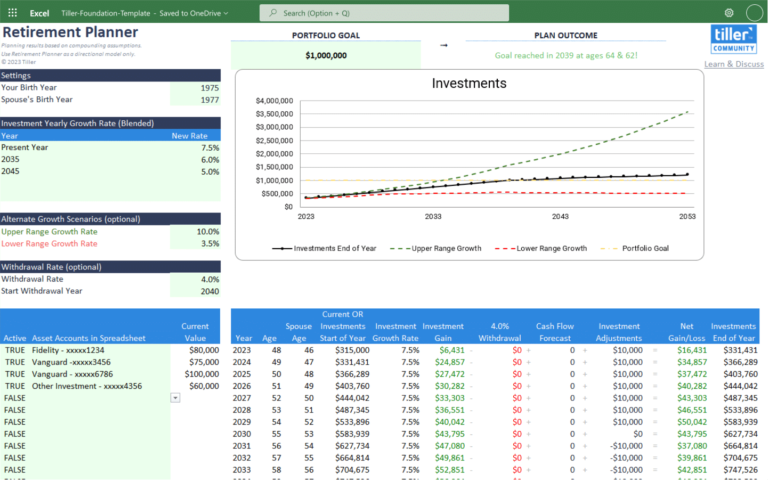
Retirement Planner Spreadsheet Excel

Retirement Planner Spreadsheet for Excel

  • Planning, Retirement
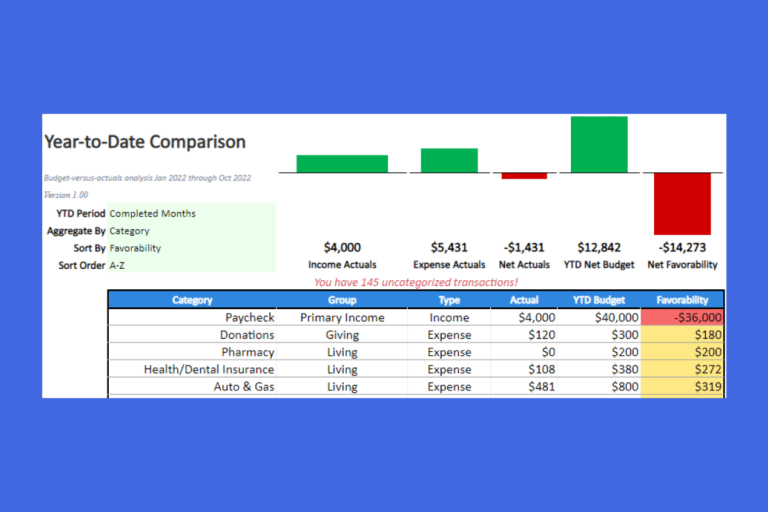
Year-to-date comparison

Year-to-Date Comparison Template for Microsoft Excel

  • Budgeting, Expenses, Report
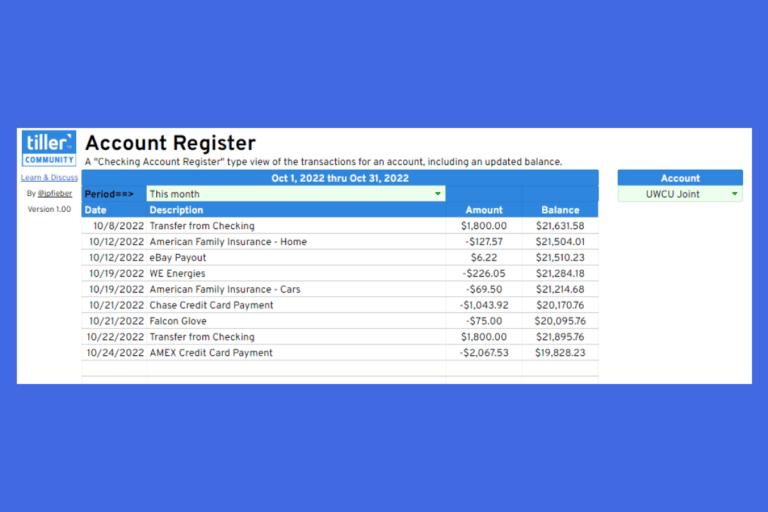
account register template for microsoft excel

Account Register Template for Microsoft Excel

  • Balances, Report
Category Tracker for Excel

Category Tracker for Microsoft Excel

  • Categories, Report
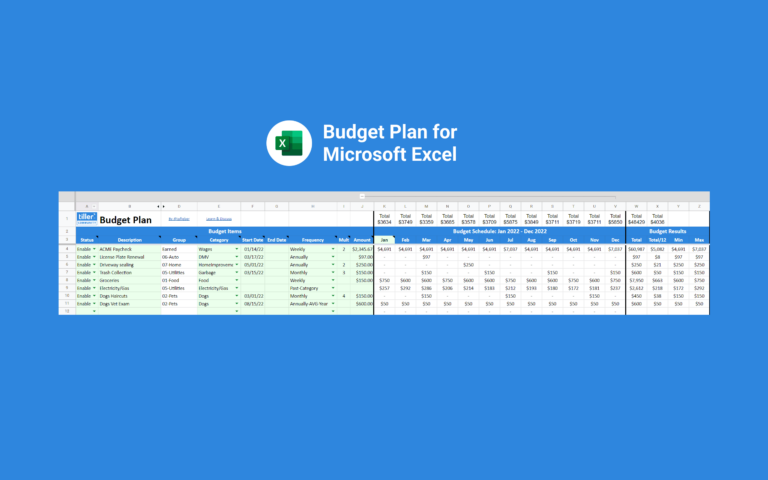
Budget Plan for Microsoft Excel

Budget Plan Template for Microsoft Excel

  • Budgeting, Planning
Monthly Budget Calendar

Monthly Budget Calendar for Microsoft Excel

  • Budgeting, Expenses
net worth template excel

Net Worth Template for Microsoft Excel

  • Net Worth
Cash flow template

Cash Flow Forecast Planner for Excel

  • Expenses, Planning
4.8 star rating - September 2024

Start Your Free Trial

Keep a clear, confident view of all your money in one place, with flexible templates, powerful privacy, and top-rated support

Start Your Free Trial
  • "There isn’t another tool on the market that does what Tiller can do.”
    Will Hinton, Google Review October 30, 2023
No results

Features

  • Foundation Template
  • Tiller Money Feeds
  • AutoCat
  • Hello, Money
  • All Tiller Features
  • Private by Design

Resources

  • Getting Started Course
  • Reviews
  • FAQs
  • Tiller vs Mint
  • Support
  • Help Docs ↗

Community

  • Tiller Blog
  • Tiller Community
  • Free Community Templates
  • Community Forums ↗
  • Find a Financial Pro

Company

  • About
  • Careers
  • Press
  • Terms
  • Privacy
  • Affiliates

Copyright © 2025 Tiller