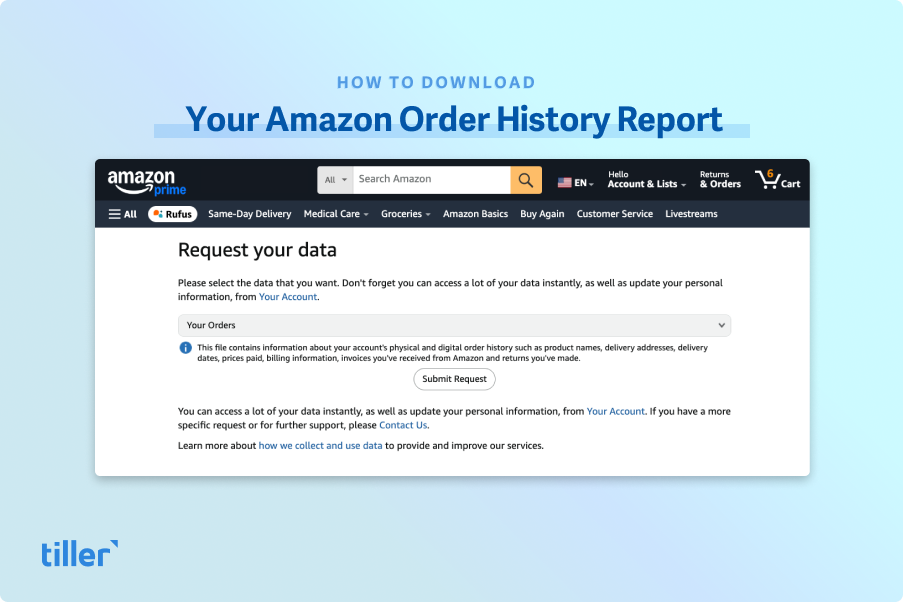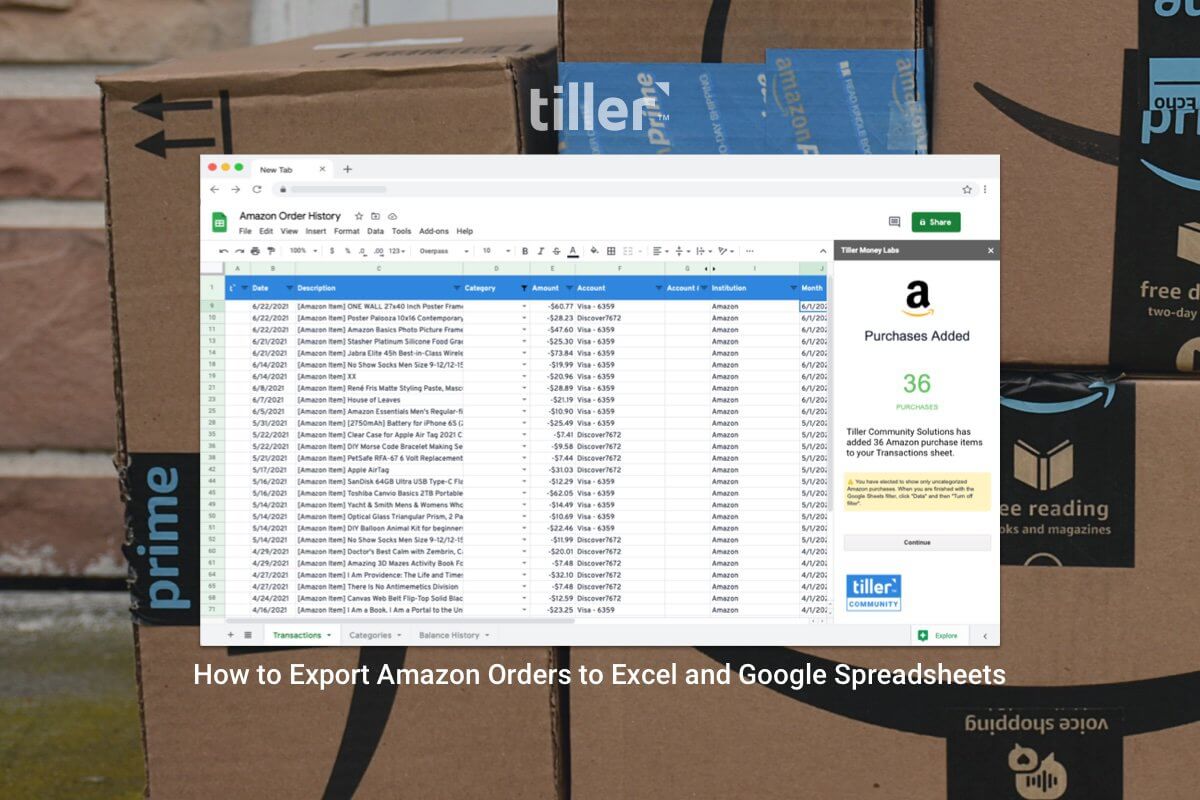
Amazon has recently changed how you access your Amazon order history, so be sure to check out our updated instructions.
Once you’ve downloaded your CSV files from Amazon, you probably want to view them in Google Sheets or Microsoft Excel. That way you can analyze your purchase history with custom reports and visualizations, or back it up for safekeeping.
Here’s how to get started.
How to Import Amazon Order History for Microsoft Excel
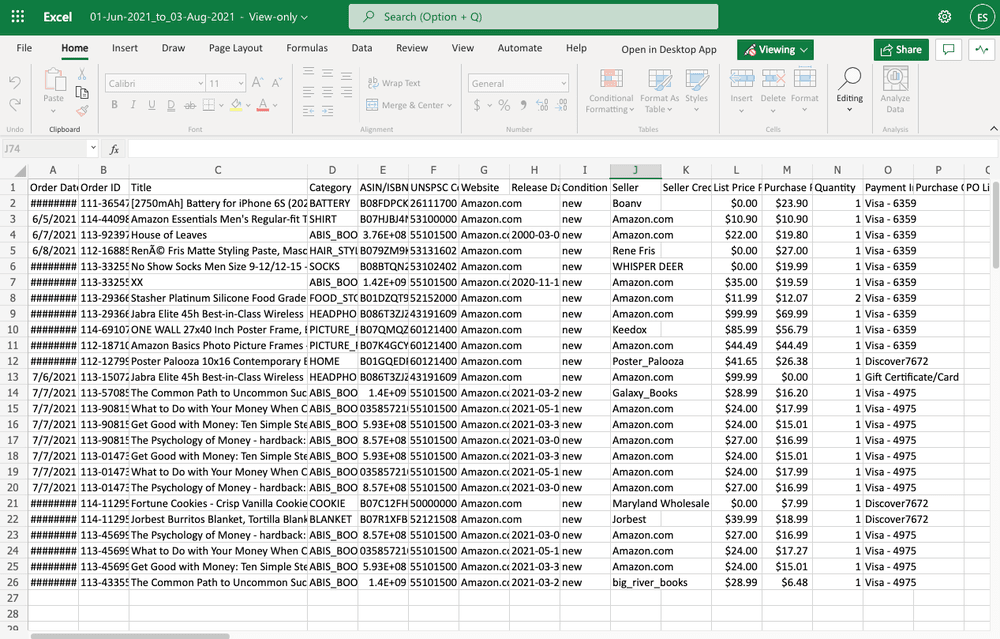
Here are instructions for importing your Amazon Order History to Microsoft Excel:
- Log in to excel.cloud.microsoft
- Click ”Upload a file“
- Select the file you want to import. Note that Amazon now provides multiple CSV files, including orders and returns, so be sure to select the correct file to import; you may need to repeat steps 2 and 3 for multiple files
- Your Amazon report is now available for deeper analysis and archiving in Microsoft Excel
How to Import Amazon Order History for Google Sheets
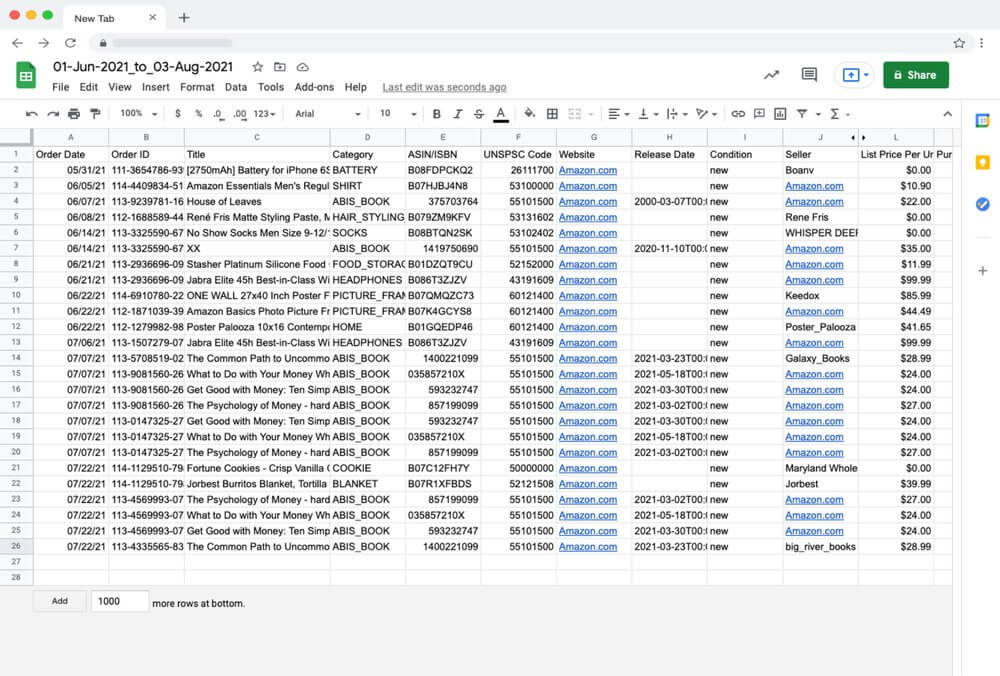
Here are instructions for importing your Amazon Order History to Microsoft Excel:
- Log in to your Google Account and open a new Google Spreadsheet
- Click File > Open > Upload
- Drop your Amazon CSV file into the window or click “Browse” to select a file from your device. Note that Amazon now provides multiple CSV files, including orders and returns, so be sure to select the correct file to import; you may need to repeat steps 2 and 3 for multiple files
- Your Amazon report is now available for deeper analysis and archiving in Google Sheets
Easier Amazon Order History Tracking With Tiller
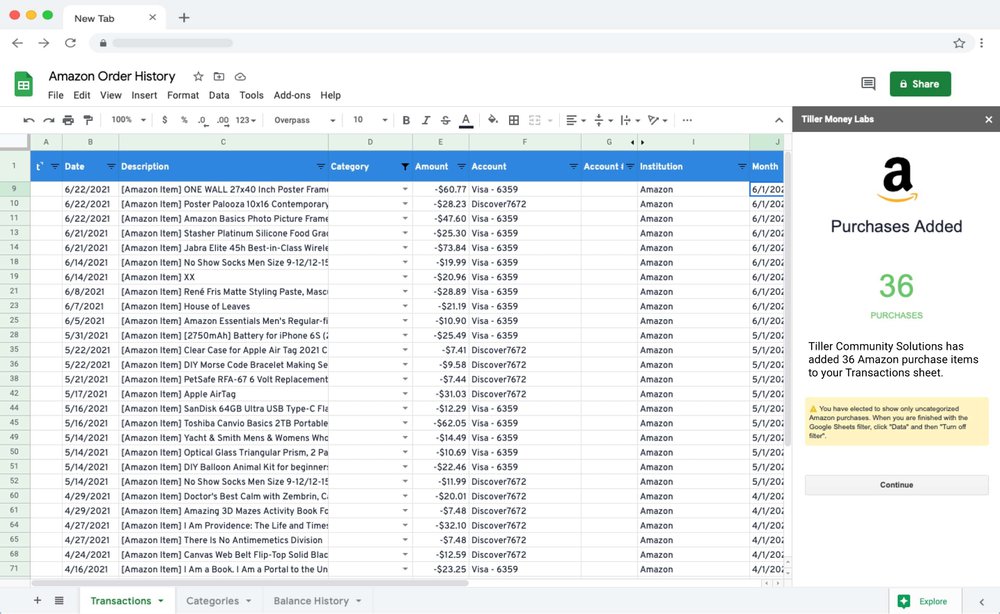
If you already use Tiller, you know it’s the fastest, easiest way to manage your financial life with the flexibility of a spreadsheet.
That’s because Tiller automatically updates Google Sheets and Excel with your daily financial transactions. No more data entry, CSV bank files, or logging into multiple accounts.
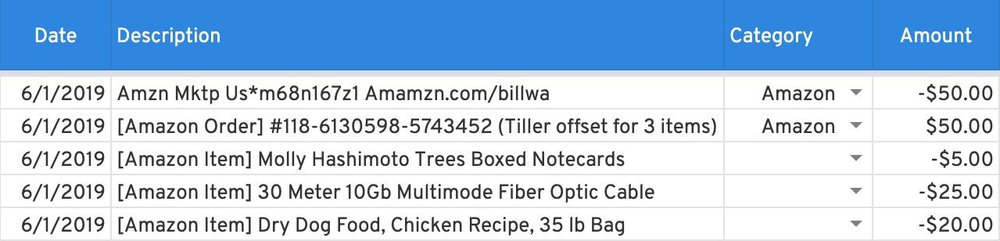
Tiller already pulls in each of your Amazon order transactions, which look like this in Google Sheets:

However, you might want to track your Amazon purchases in greater detail.
For example, the $50 Amazon purchase above might include items you want to categorize individually for more accurate tracking.
You could manually update the order line by line. But if you’re using Tiller to track your money, it’s much faster to use the free CSV Importer from the Tiller Community.
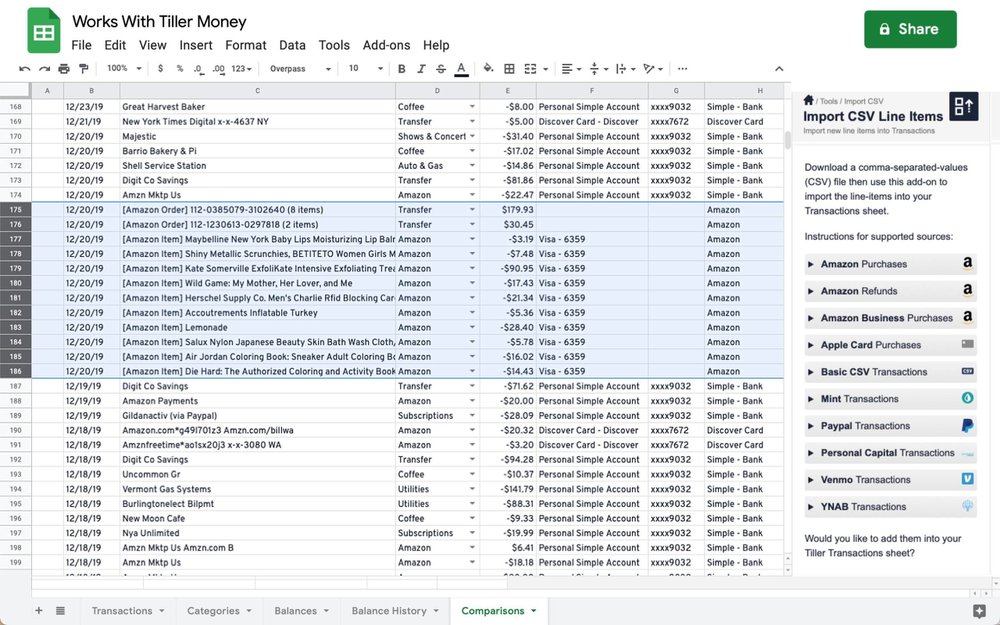
The Import CSV Line Items workflow streamlines the itemization of your Amazon orders into discrete line items in Google Sheets powered by Tiller. It can now read the Retail.OrderHistory.1.csv file in the “Your Orders” Privacy Central download from Amazon.
As explained in the Tiller Community, “the magic of the add-on is that you will see discrete purchases that can be categorized without clumsy splits or time spent cross-referencing the Amazon site.”
The CSV Importer:
- Automatically creates offsets to keep your cash flow reporting accurate
- Creates new rows for each item purchased
- Shows exactly what you paid for each item
- Pulls in each product’s name and details
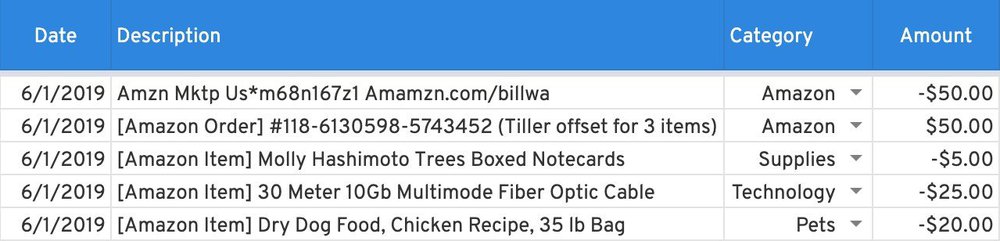
Once your order history is imported into your Tiller-powered Google spreadsheet, you can then categorize each transaction according to your preferences. In this example, we’re putting these items in our Supplies, Technology, and Pets categories:
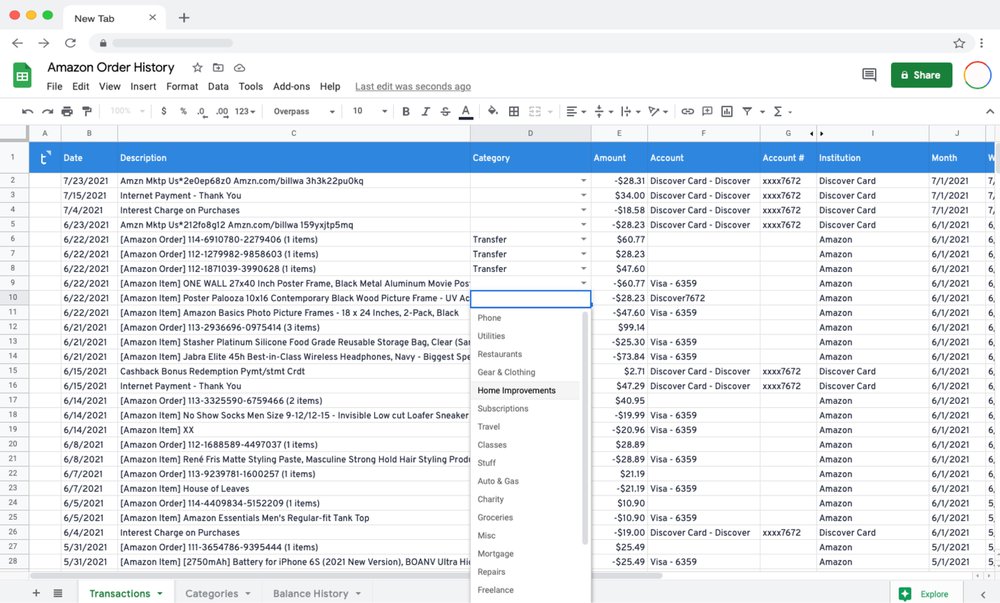
You can manually categorize your Amazon items, or run AutoCat to efficiently auto-categorize some or all transactions based on custom rules.
To learn more about the CSV Importer, visit this thread in the Tiller Community. Comment there with any thoughts or questions!