Transaction Comparison Spreadsheet

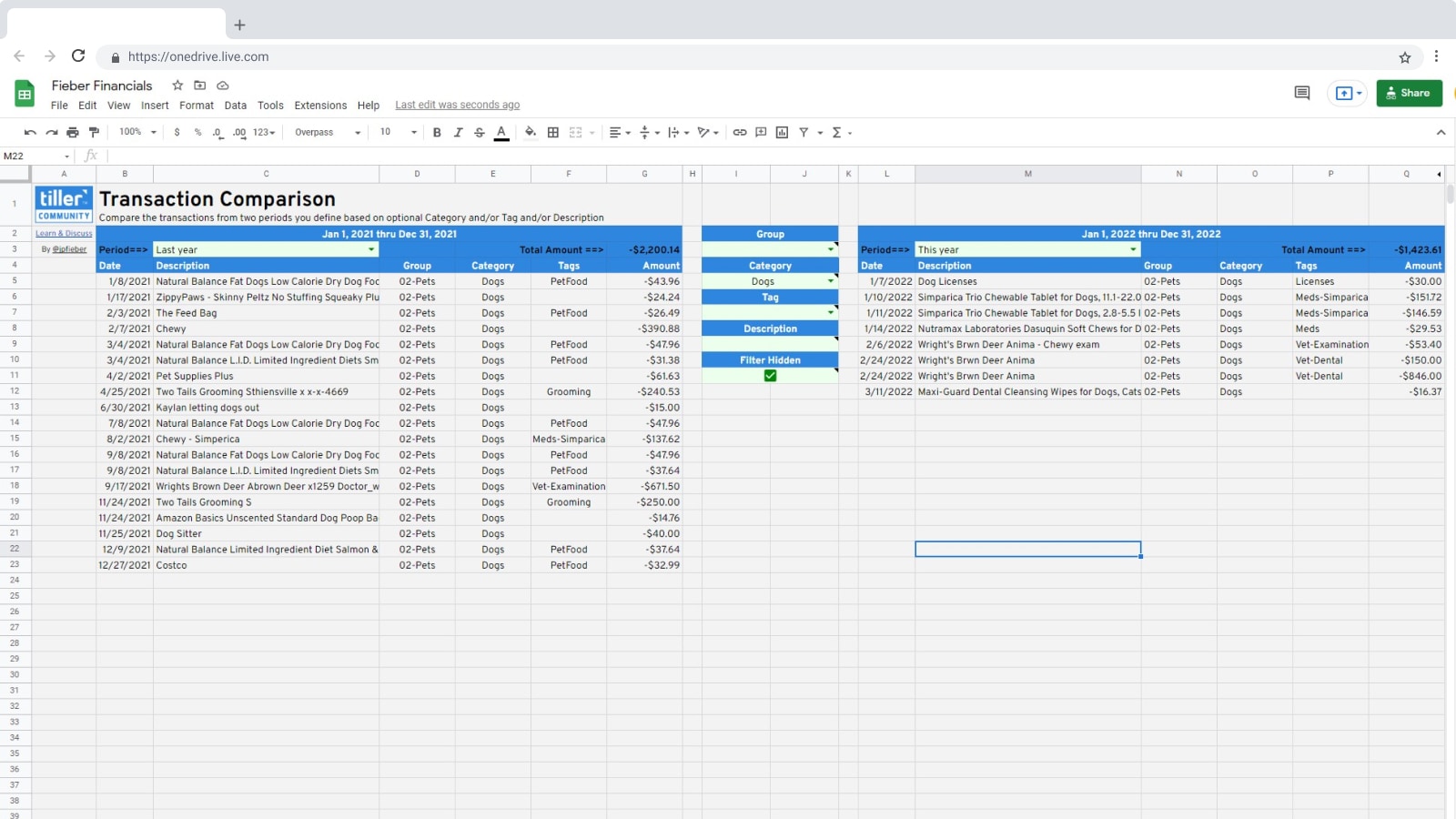
The Transaction Comparison template is a Microsoft Excel spreadsheet that lets you see exactly how your spending changed between any two time periods.

About the Transaction Comparison Spreadsheet

The Transaction Comparison template lets you see exactly how your spending changed between any two time periods. Set your date ranges, then filter by Group, Category, Tag, or Description to zero in on what matters. A total appears at the top of each list, so the difference is immediate.

It’s useful any time you want to answer a specific question: Did I spend more on groceries this year than last? How did Q1 compare to Q4? The side-by-side view makes those comparisons fast and concrete.

Built by Tiller Community member @jpfieber, this Excel template connects directly to your Tiller spreadsheet data. By default, it compares last year against this year. Adjust the date ranges and filters from the green-highlighted cells to customize your view.

Best for: Excel users who want to compare spending between two specific time periods: month vs. month, quarter vs. quarter, or year vs. year.

Support & Documentation

Download the Transaction Comparison template from the Tiller Community and follow the included instructions to copy it into your Excel workbook. (Note that installation requires the desktop version of Excel)

For community discussion, visit the Transaction Comparison thread.
Notable Replies

  1. GREAT idea! Unfortunately, I hit a snag that I’m not smart enough to noodle out.

    I get a ref error in B5

    Screenshot 2022-01-25 10.38.01 AM

  2. I’m guessing you don’t have a ‘Tags’ column on your Transactions sheet? I guess I laid everything out assuming it would be there. The quick fix would be to add one. I’ll have to figure out how to handle sheets that don’t have one though, since many people don’t use tags.

  3. YEP!! I just slapped a column to the far right and added the word Tag to it. No bueno, of course, so then I changed it to Tags and YAHOOO!!

    This is a fabulous addition to the Tiller arsenal. Thank you!!

  4. No problem. I’ll figure out how to better handle the absence of a Tag column. Let me know if you run into any other issues or have suggestions!

  5. OK, I figured out a quick fix if you don’t want a Tags column. I’ve updated the template with these changes, so you could delete the sheet and recopy it, or you can change the following two cells in your existing sheet (you’ll need to unhide the columns on the right side of the sheet):

    • Change cell S10 to =IFNA("'"&P$5&"'!$"&R10&"2:"&R10,"'"&P$5&"'!$A2:A")
    • Change cell Q13 to =IFNA(SORT(UNIQUE(TRANSPOSE(SPLIT(JOIN(",",FILTER(INDIRECT(S10),INDIRECT(S10)<>"")),",")))))

    Basically, if I don’t find a Tags column, I have the query look at the empty ‘A’ column on the Transactions sheet instead.

Continue the discussion at community.tillerhq.com

35 more replies

Participants

Avatar for slcronin Avatar for susandennis Avatar for yossiea Avatar for jpfieber Avatar for tilleruser Avatar for AHB Avatar for jim.pickell Avatar for KyleT Avatar for MoMentum Avatar for Alli Avatar for dbtobin

Historical Comment Archive