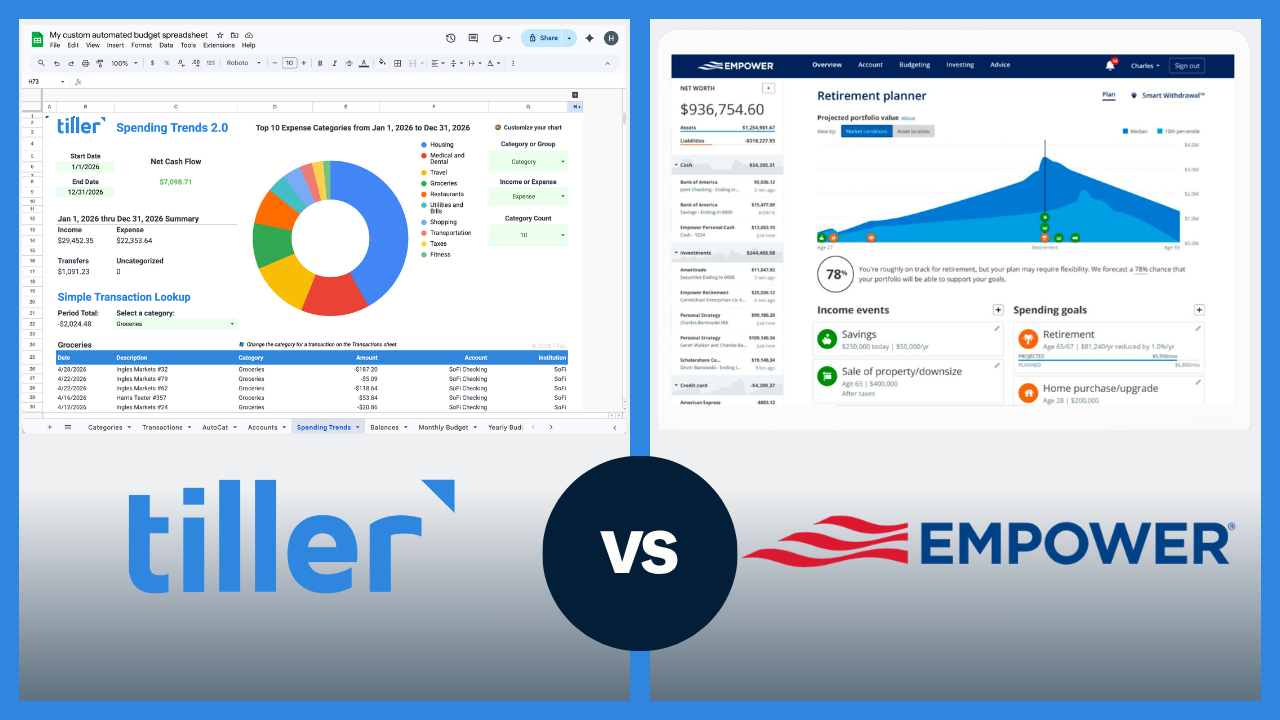


A complete personal finance spreadsheet system combines transaction tracking, budgeting, net worth monitoring, and goal planning in a single connected workbook
A spreadsheet personal finance system is a connected set of sheets — transactions, budget, net worth, goals — that work together to give you a clear, current view of your full financial picture. Unlike a single budget tab or a standalone tracker, a complete system means all the pieces are in one place, linked by formulas, and telling a coherent story.
The goal of this guide is to take you from a blank workbook to a functioning system, step by step.
What a complete spreadsheet finance system includes
A fully built personal finance spreadsheet typically has five components:
1. Transactions — a running log of every income and expense entry — the raw data that everything else builds on
2. Budget — planned spending by category compared to actual spending, fed by the transactions sheet
3. Net worth tracker — total assets minus total liabilities, recorded at regular intervals (monthly, yearly) to show progress over time
4. Goals or savings tracker — showing progress toward specific targets (emergency fund, vacation, home purchase)
5. Dashboard — a summary view that pulls key numbers from the other sheets into one place for quick review
The power comes from having everything connected. Your budget pulls from transactions. Your dashboard pulls from budget and net worth. Change one input and the whole system updates.
But you can start simple. A transactions sheet and a budget sheet are all you need to get going. The other components can be added once the core system is running and you understand what you actually want to track.
Now that we know the goal, let’s start setting up our spreadsheet.
Step 1: Set up your transaction foundation
The transaction sheet is the backbone. Without reliable transaction data, nothing else in the system works consistently.
The structure: One row per transaction, with these columns:
| Date | Description | Category | Amount | Account |
| 1/5 | Whole Foods | Groceries | $(87.42) | Chase Checking |
| 1/6 | Netflix | Subscriptions | $(15.49) | Visa |
| 1/8 | Paycheck | Income | $3,200 | Chase Checking |
Keep all transactions in one sheet, not separated by account or month. The Account column lets you filter by institution; the Date column lets you filter by month. A single sheet is far easier to analyze than multiple separate sheets.
How transactions get in: You have three options:
- Manual entry — type each transaction as it happens or in a weekly batch
- CSV import — download from your bank periodically and paste in
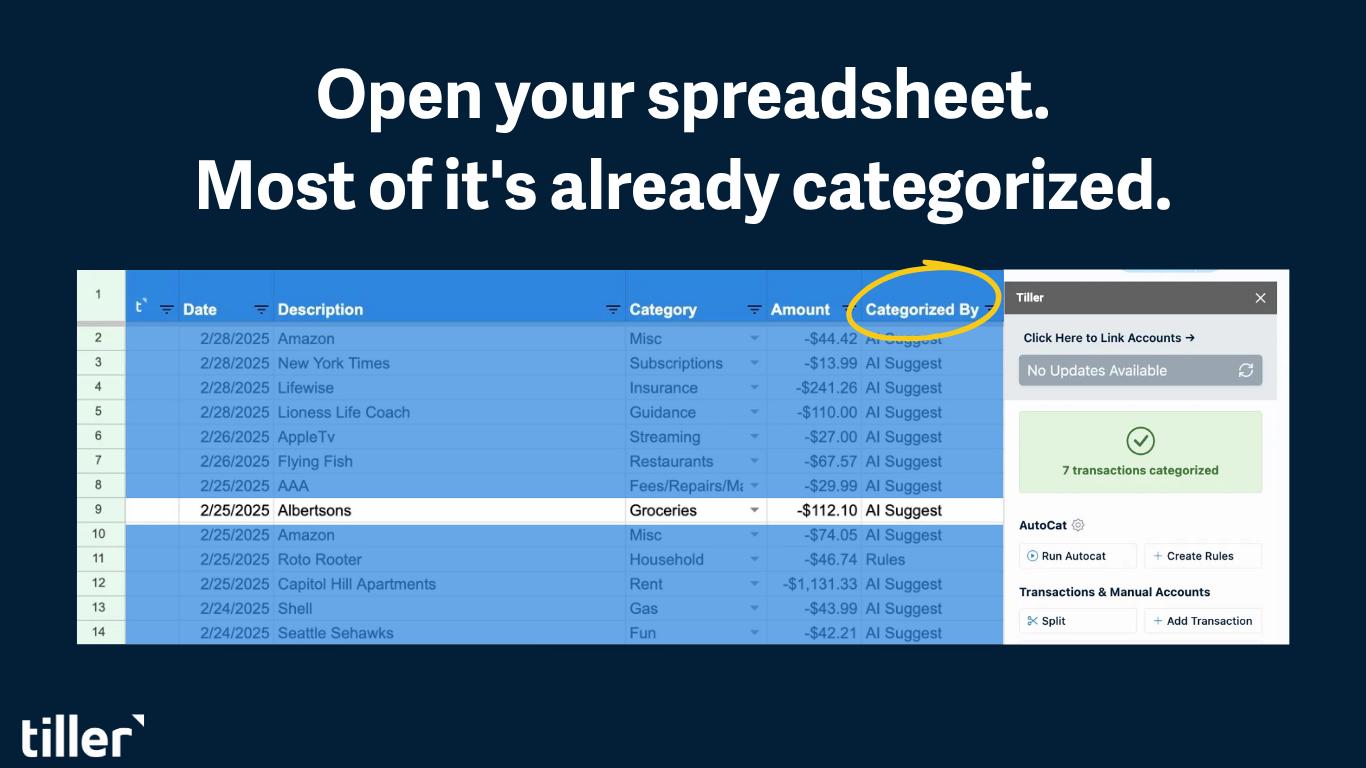
- Automated feeds — tools like Tiller connect to your accounts and add transactions automatically each day. Learn more about automated personal finance spreadsheets.
Manual entry and importing are fine for one or two accounts with minimal transactions. With three or more accounts or many transactions, the daily effort becomes a real barrier to consistency. Automation with tools like Tiller significantly speeds up tracking, plus helps eliminate data entry errors. With three or more accounts, manual entry is the most common reason people abandon their system within 30 days.
Note: without reliable transaction data flowing in, nothing else in the system stays current. This step is foundational to managing your finances in a spreadsheet.
Step 2: Build your budget structure
Your budget sheet is where you plan what you want to spend and compare it to what you actually spent. For a deeper dive on this step alone, see our guide on how to make a budget in Google Sheets.
Create it as a separate tab in your spreadsheet — right-click any sheet tab, choose Insert Sheet, and name it “Budget.” This keeps your budget data cleanly separated from your transaction data while still allowing formulas to pull across sheets.
Choose your categories first. Aim for 10–20 categories — enough to have meaningful visibility but not so many that maintenance becomes tedious. Common starting categories include Housing, Utilities, Groceries, Dining Out, Transportation, Insurance, Healthcare, Personal Care, Entertainment, Subscriptions, Savings, and Miscellaneous.
Set monthly budget amounts for each category. These are your targets — the amounts you intend to spend. Put your category names in Column A and your budget amounts in Column B.
Connect to transactions with SUMIF. In Column C (Actual), add this formula for each category:
=SUMIFS(Transactions!D:D, Transactions!C:C, A2, Transactions!A:A, ">="&DATE(F1,G1,1), Transactions!A:A, "<"&DATE(F1,G1+1,1))This formula uses Google Sheets’ SUMIFS function — the same function Google’s documentation covers in detail if you want to explore additional criteria options.
This looks at the Category column on your Transactions sheet, finds every row that matches the category in A2, filters for transactions within the month specified in F1 (year) and G1 (month number), and sums the amounts. To change which month you’re viewing, just update F1 and G1. Copy this formula down for every category row, and your monthly actuals populate automatically from your transaction data. For more formula examples and tracking approaches, see our budget tracking in Google Sheets guide.
Add tracking columns. In Column D, track your remaining budget with:
=B2-C2In Column E, track the percentage of budget used (format as percentage):
=IFERROR(C2/B2, 0)Add conditional formatting to Column D (red for negative, yellow for close to budget, green for comfortable) to spot problem areas at a glance.
Step 3: Add net worth tracking
A budget shows you monthly cash flow. Net worth shows you whether that cash flow is building wealth, treading water, or reducing wealth. Adding net worth tracking to your system gives you the big picture and long-term view.
For a dedicated walkthrough, see our complete net worth tracking system.
Set up an Accounts sheet. List every asset and liability with its current balance. Add a column to label each account as “Asset” or “Liability” — this makes it easy to use SUMIF later to total each group separately for your net worth calculation.
- Assets: checking, savings, investments, retirement accounts, real estate equity
- Liabilities: mortgage, student loans, auto loans, credit card balances
Use =SUMIF() formulas to total each group — for example, =SUMIF(B:B, “Asset”, C:C) for total assets and =SUMIF(B:B, “Liability”, C:C) for total liabilities (assuming your type labels are in Column B and balances in Column C). Then calculate net worth with =Total Assets – Total Liabilities.
=SUMIF(B:B,"Asset",C:C)-SUMIF(B:B,"Liability",C:C)Net worth (total assets minus total liabilities) is a standard measure of financial health. The Consumer Financial Protection Bureau uses it as a core indicator of financial well-being.
Set up a Monthly Snapshots sheet. One row per month, with columns for Total Assets, Total Liabilities, Net Worth, and Change. The Change column: =Current Net Worth – Previous Net Worth.
Once a month, update the balances on your Accounts sheet and record the snapshot. With tools like Tiller, your account balances update daily automatically — so on snapshot day, you just have to review the numbers, not update them manually.
Step 4: Create a financial dashboard
A dashboard is a single sheet that surfaces your most important numbers in one view. It doesn’t add new data — it pulls from the sheets you’ve already built.
Suggested metrics to surface:
- Total spending this month vs. budget
- Categories over budget
- Net worth (current and change from last month)
- Savings rate this month
- Account balances summary
Charts worth adding:
- Spending by category (pie or bar chart) from your budget sheet
- Net worth over time (line chart) from your monthly snapshots
Because your data is in a spreadsheet, charts update automatically as the underlying data changes. Once you build them, they maintain themselves.
Keep the dashboard simple. Its job is to quickly answer “How am I doing?” Every number on it should be there for a reason.
Step 5: Keeping the system running
A system is only useful if it stays current. The maintenance routines are what turn a well-built spreadsheet into something you actually rely on.
| Routine | Frequency | Time |
| Scan transactions, check categories | Weekly | 5 min |
| Review budget vs. actual, update net worth | Monthly | 15–20 min |
| Annual category reset, archive old data | Yearly | 30–45 min |
Weekly check-in (5 minutes): Scan new transactions, categorize anything uncategorized, glance at category totals vs. budget. With automated tools like Tiller and AutoCat, most transactions are already categorized — making review quick rather than a data-entry session.
Monthly close (15–20 minutes): Categorize anything not already categorized, review budget vs. actual by category, note any patterns or surprises, adjust next month’s budget amounts, and update your net worth snapshot.
Annual review (30–45 minutes): Look at the full year. What’s your total spending by category? How did it compare to what you budgeted? Did you have any income changes? What was your net worth progress from January to December? Update categories, budget amounts, and dashboards for the new year based on what you learned.
Quick tip: Move the previous year’s transactions to an Archive tab; it keeps the active file fast while preserving your full history.
You can speed up your maintenance by using automated tools like Tiller to keep your data up to date. Then you just need to review your data, identify patterns, and decide what to change.
Templates to get started faster
Building from scratch gives you complete control over every design decision. But it takes time — most people spend two to three hours on initial setup.
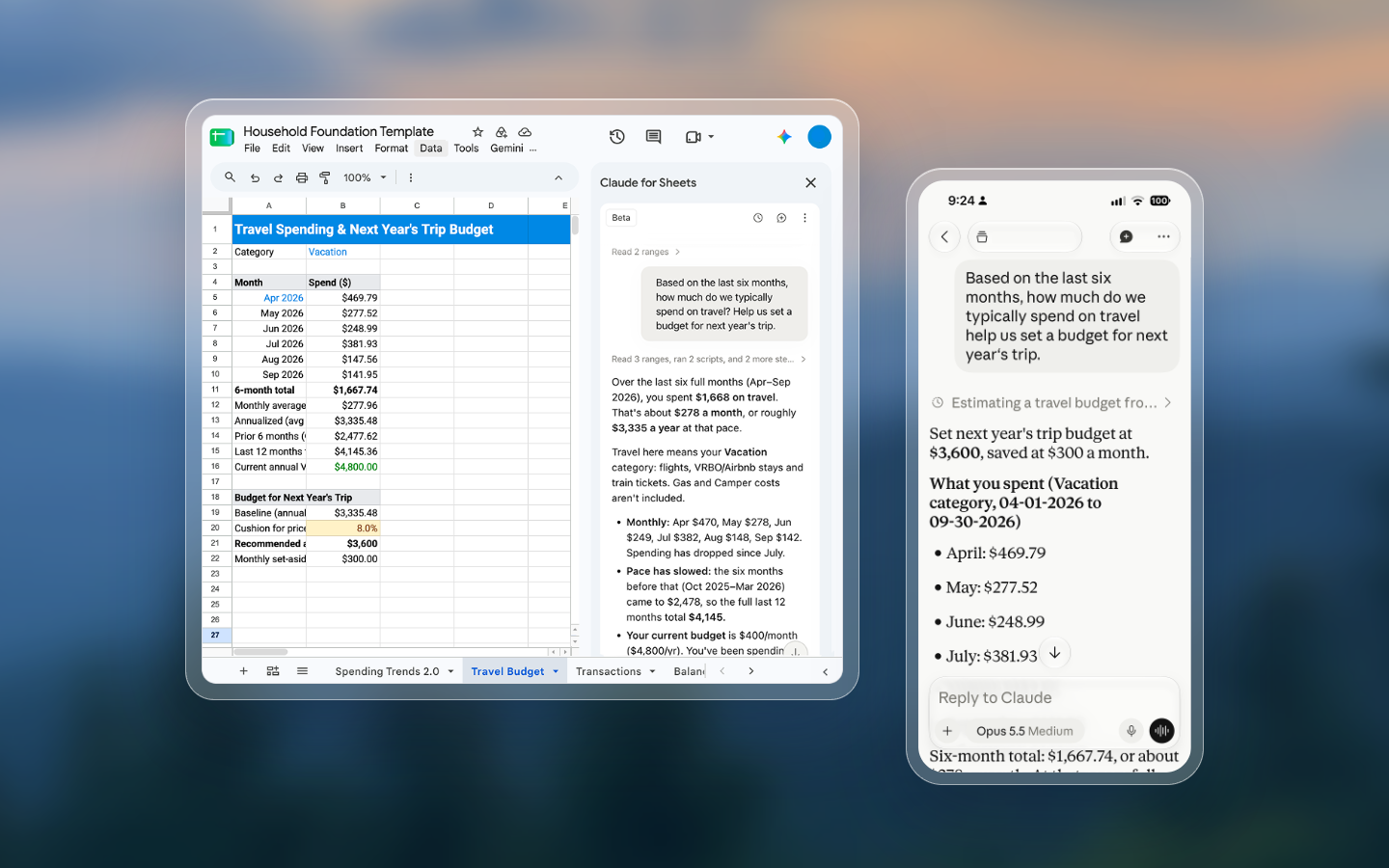
The Tiller Foundation Template is a pre-built, automated version of this system: transactions, budgeting, net worth tracking, and spending dashboards, all connected to your bank accounts for daily updates. Initial setup takes 30–45 minutes instead of two to three hours because you’re just connecting accounts and configuring categories, not manually entering data.
Explore the Foundation Template
Frequently asked questions
What should a complete personal finance spreadsheet include?
A complete personal finance spreadsheet typically includes five components: a Transactions sheet (a running log of every income and expense), a Budget sheet (planned spending by category compared to actuals), a Net Worth tracker (total assets minus total liabilities, recorded monthly), a Goals/Savings tracker, and a Dashboard or Summary view. Starting with just Transactions and Budget is fine; the other components can be added once the core system is running.
How do I connect my budget sheet to my transaction list in Google Sheets?
Use a SUMIFS formula. With transactions in one sheet (columns for Date, Description, Category, Amount) and budget categories in another, enter a year in cell F1 and a month number in G1. Then use:
=SUMIFS(Transactions!D:D, Transactions!C:C, A2, Transactions!A:A, ">="&DATE(F1,G1,1), Transactions!A:A, "<"&DATE(F1,G1+1,1))
This sums all transactions where the Category matches A2 and the date falls within the month specified. See Step 2 above for full setup detail.
How long does it take to set up a spreadsheet personal finance system?
Building from scratch takes most people 2–3 hours the first time. Using a pre-built template like Tiller’s Foundation Template reduces initial setup to 30–45 minutes, mostly account connection and category configuration. Either way, the system gets faster to maintain once it’s running.
How is a spreadsheet personal finance system different from using a budgeting app?
The core difference is ownership and flexibility. Apps provide a pre-designed system you fill in; they handle the interface, but you work within their fixed structure. A spreadsheet gives you a blank canvas — you design the categories, formulas, and views that match your situation, and your data lives in a file you control. Tools like Tiller close the convenience gap by connecting bank accounts directly to Google Sheets or Excel, giving you both automatic data imports and full customization.
Can I manage all my finances in one spreadsheet?
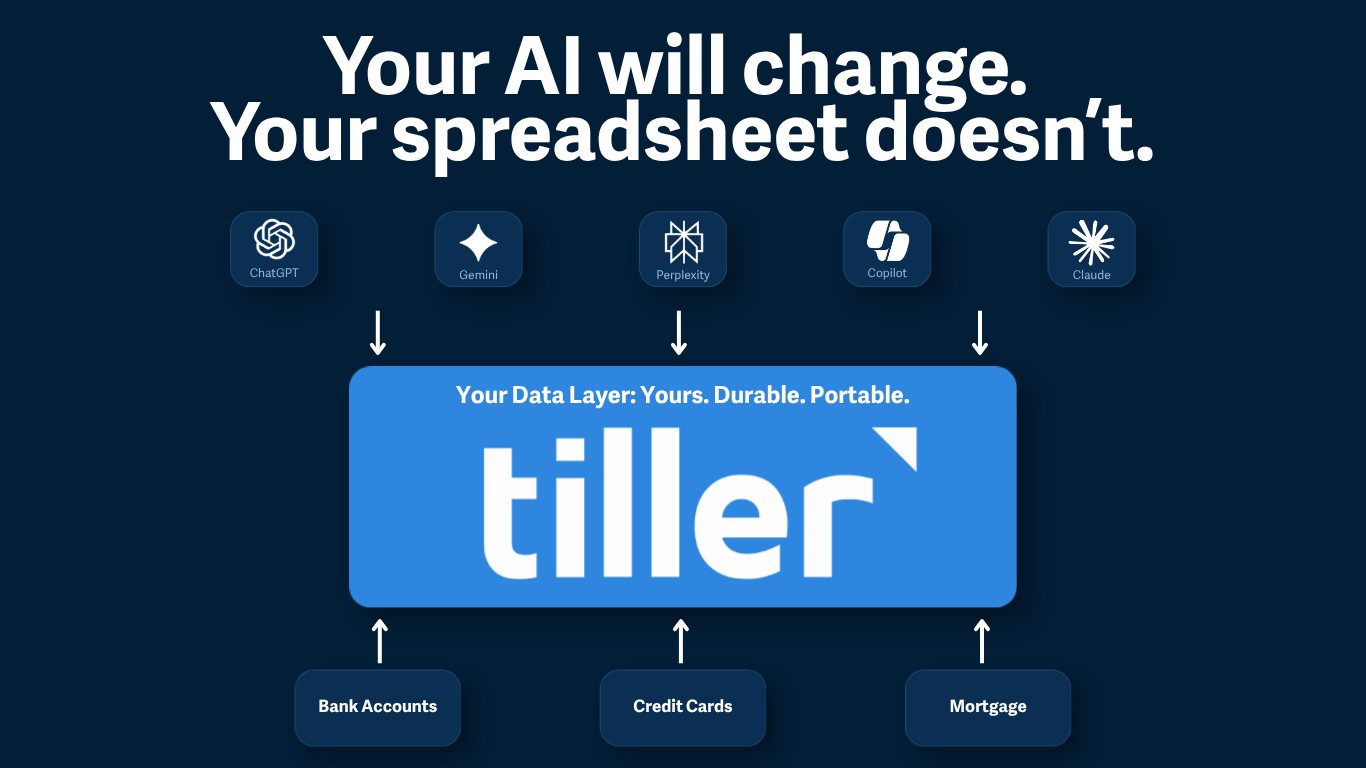
A single Google Sheets or Excel workbook can handle transactions, budgeting, net worth tracking, and goal progress simultaneously, each as its own tab, connected by formulas. The key is to treat the Transactions sheet as your data layer and build everything else on top of it.