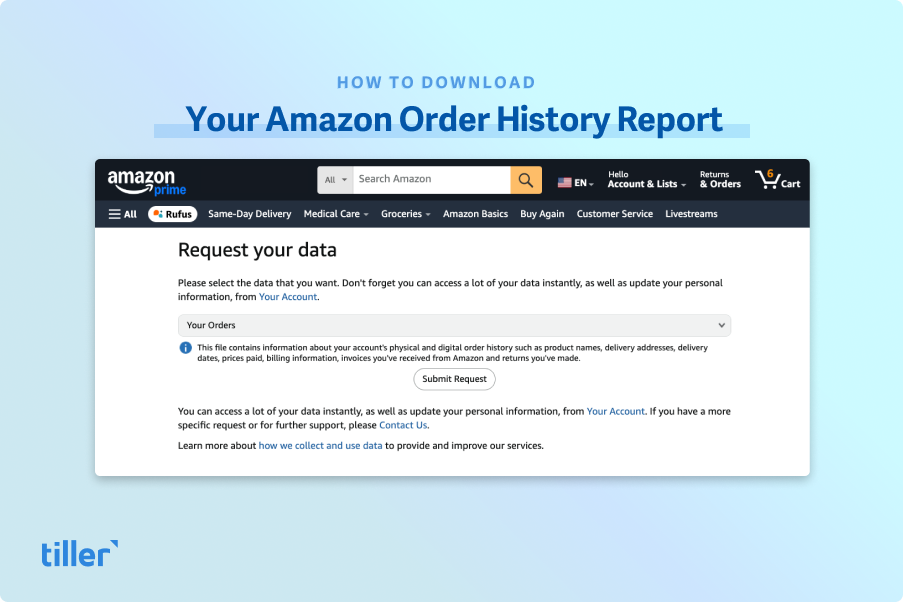
Amazon used to let you download a CSV (spreadsheet) file with your entire Amazon order history. That option has been replaced with a “Request your data” page, which lets you download all different kinds of data, including your order data.
But instead of one spreadsheet, Amazon divides it into spreadsheets like orders, returns, digital purchases, and so on. So getting all that data compiled into one spreadsheet can take some time.
That’s where Tiller’s Import CSV Line Items workflow can help you save lots of time and make sure data is imported properly. Tiller connects your banks to your Google Sheets or Microsoft Excel spreadsheets and automatically tracks your daily spending, income, and balances in easy, customizable templates so you can manage your money your way.
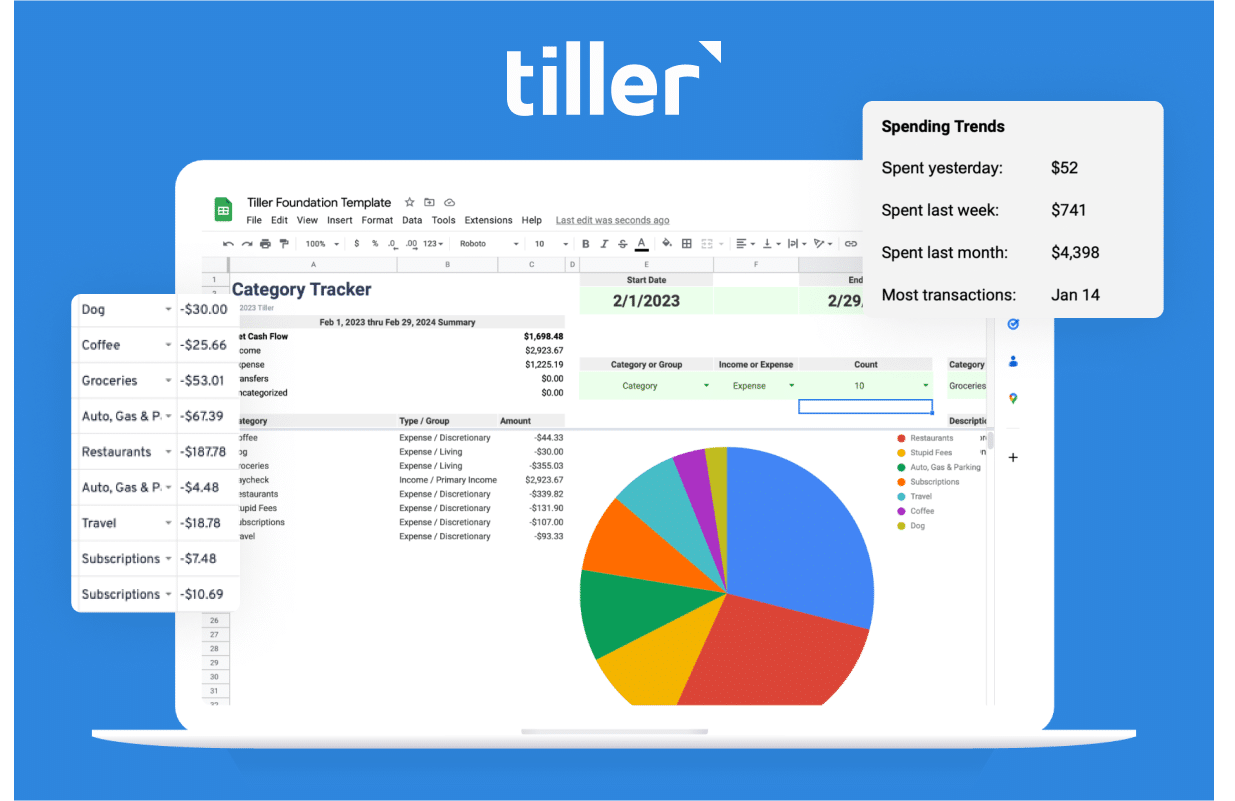
The Tiller Import CSV Line Items workflow integrates with Tiller’s Foundation Template, which is an automated spreadsheet that imports data from many sources to let you track your finances all in one place. You can track your spending, control your expenses, and confidently plan your financial future. You can try Tiller completely free for 30 days.
How to download your Amazon order history
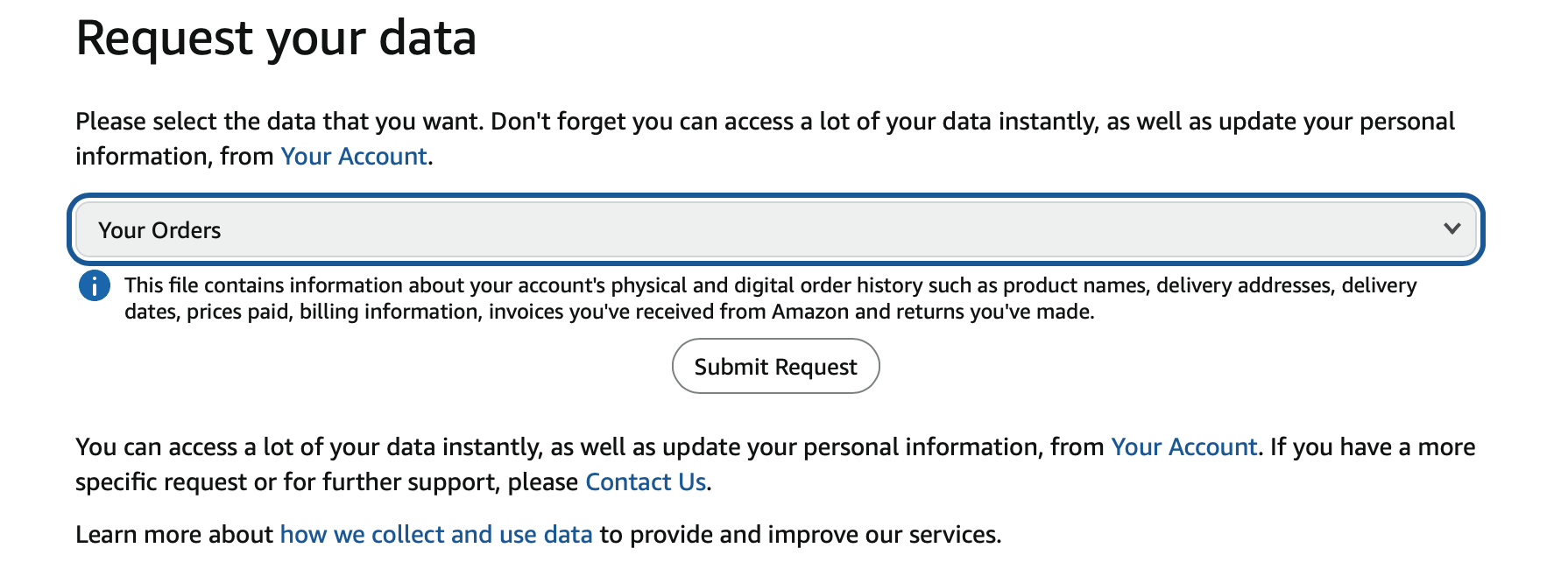
To access your Amazon order history, you’ll need to visit Amazon’s “privacy central” service. There you’ll be able to request a comprehensive record of everything Amazon knows about you – including your order history.
Amazon says it can take days or even weeks to send your data, but it often is available within a few hours.
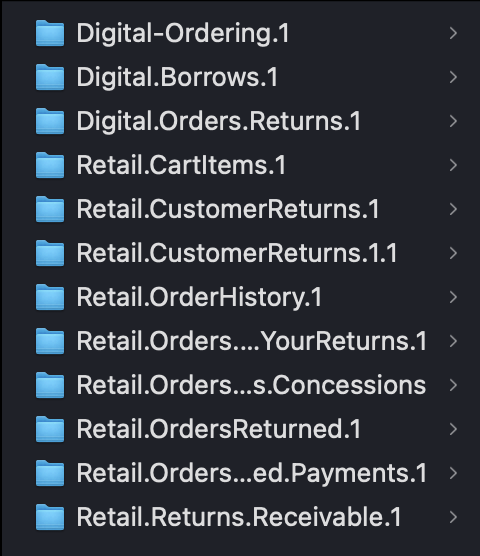
They’ll send you a link to a zip file to download. You’ll unzip that file and get several folders with files in each.
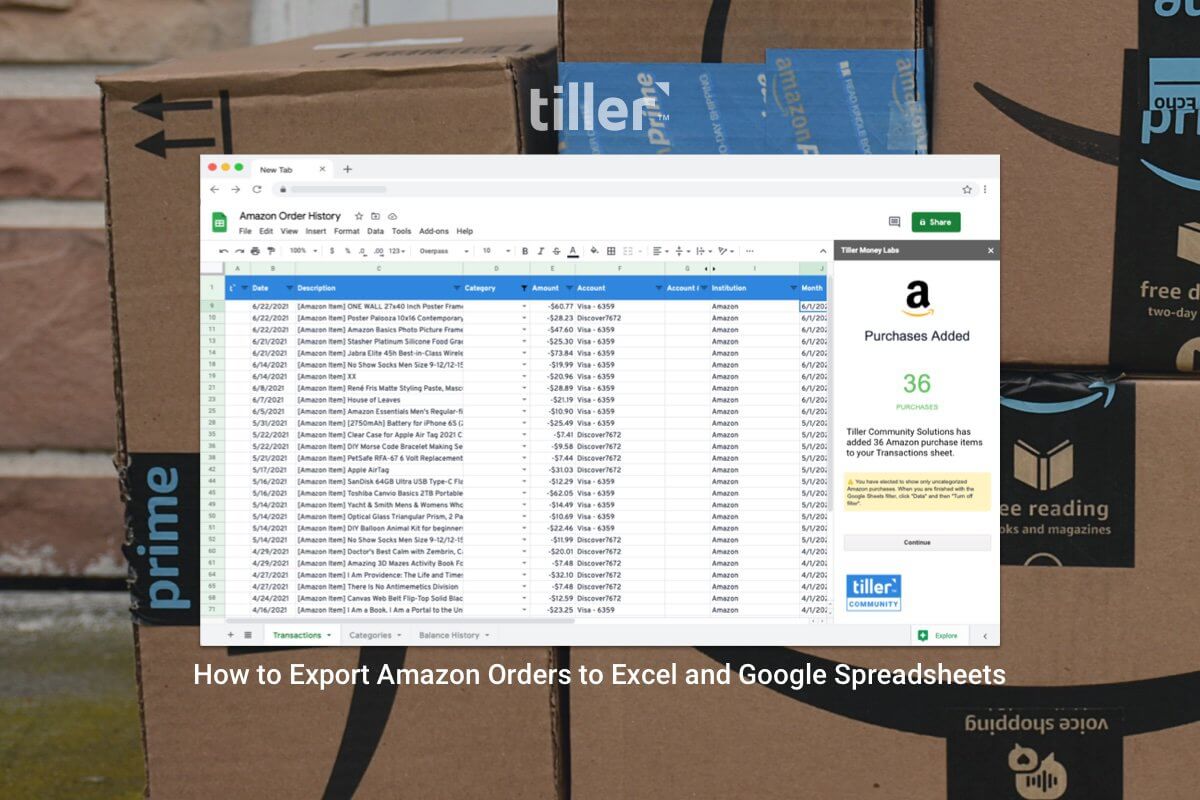
Tiller’s Import CSV Line Items workflow automatically adds this data to your Tiller Sheet.
The Import CSV Line Items workflow can now read the Retail.OrderHistory.1.csv file in the “Your Orders” Privacy Central download. Note that this workflow is available only in Google Sheets, not Excel.
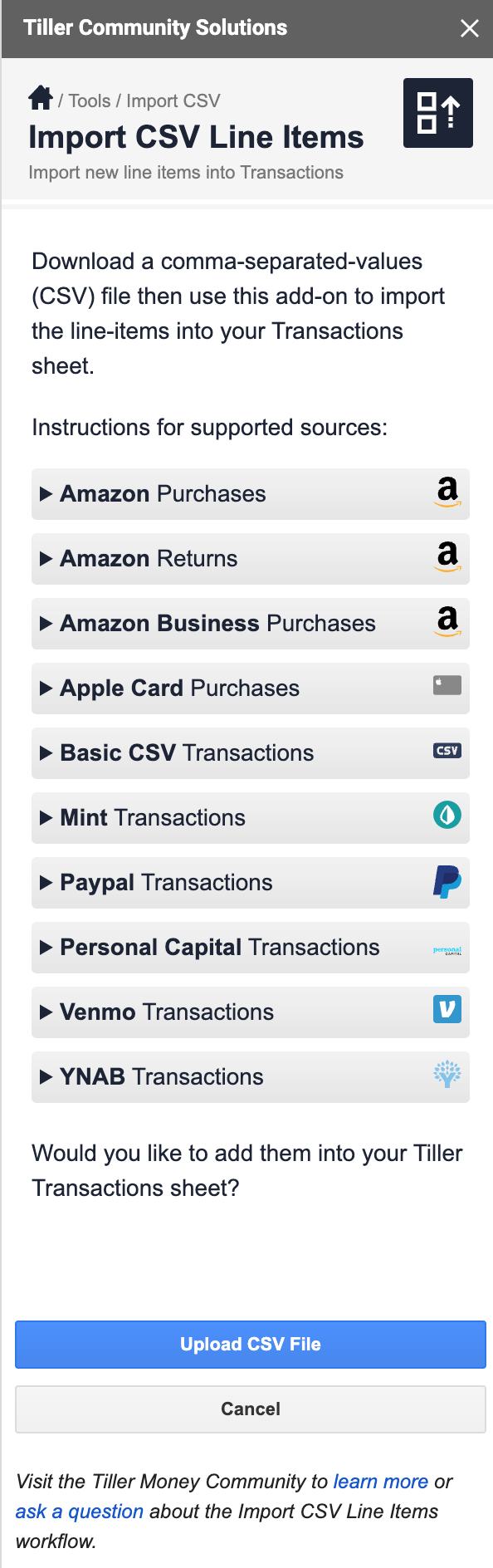
The workflow will walk you through the steps to get your order history into Tiller. You will need to do it once for purchases and once for returns since Amazon splits those into two separate files.
Note that those are the only two files that the Import CSV Line Items is able to handle. You may have other files in your Amazon data. To add those items, you’ll need to copy and paste the matching data into your Transactions Sheet. Unfortunately, there is no automated way to import those currently.
You can find more detailed information about the Import CSV Line Items workflow in our Tiller Community.