
Quick Summary
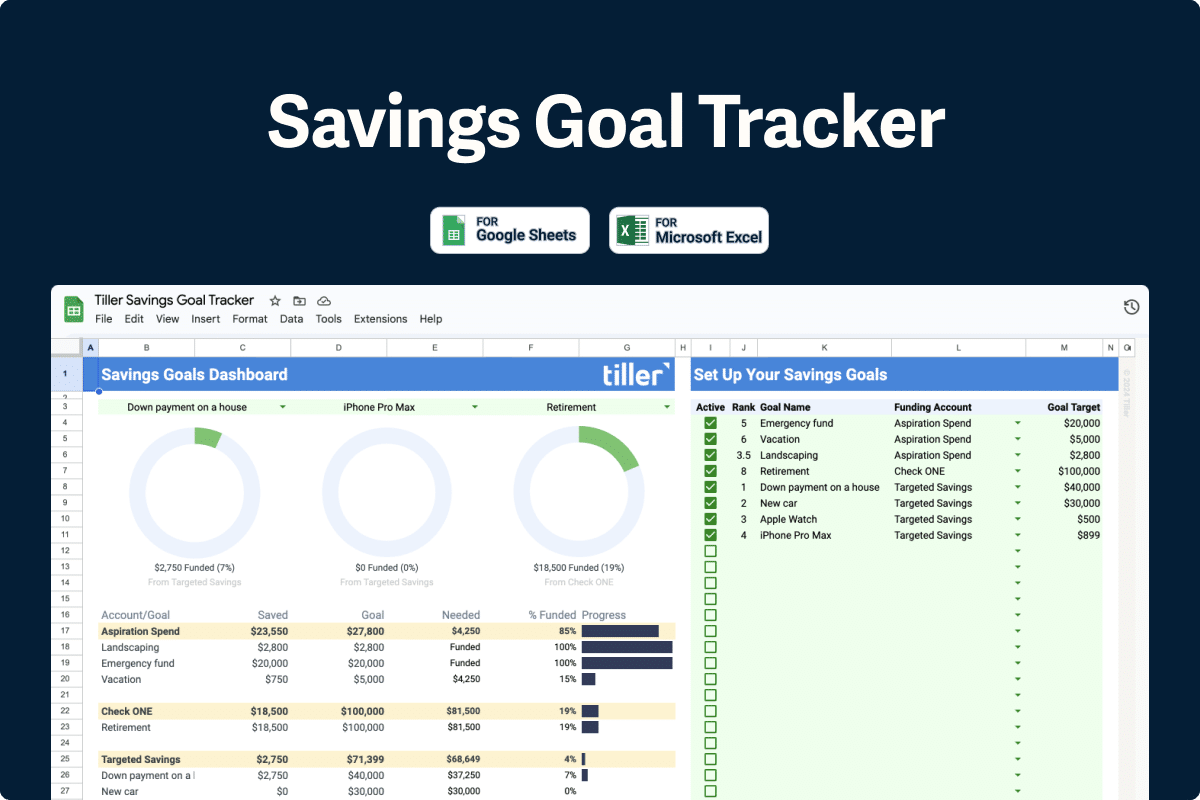
The Savings Goals Tracker lets you set specific savings goals and link each one to a real-world Tiller account, so you can see progress at a glance instead of relying on disconnected “buckets” inside a single bank’s app. As each goal is fully funded, the sheet automatically starts tracking progress on the next goal ranked for that account.
Key facts:
- Platforms: Google Sheets and Microsoft Excel
- Setup: Assign goals to accounts, then set a custom rank (fractional ranks like 1.1, 1.2, 1.3 are supported) to control the order goals are funded within that account
- Best fit: Shorter-term or single-account goals (e.g., vacation fund, emergency fund, down payment) rather than complex multi-account goals like retirement. See 7 Best Retirement Planner Spreadsheets.
Ever wonder how your savings goals track against your real-world account balances?
Many neo-banks offer the option to set up goals, funds, or buckets within their apps. However, these are typically disconnected from your accounts at other banks, where you’ve also been growing savings for a rainy day, vacation, down payment, or retirement.
Tiller offers a Savings Goal Tracker template for Google Sheets and Microsoft Excel offering a flexible path to see all your goals across all your accounts in one place.

Setting up the Savings Goals Tracker
The Savings Goals Tracker is simple to set up and easy to understand. It allows you to set specific goals and decide which accounts are funding those goals.
Since Tiller can pull all your balances into one easy-to-find and consistently organized place, you can see all your goals at a glance and always know how far you have left to go until you achieve each one.
To start using the Savings Goal Tracker, follow these steps:
For Google Sheets:
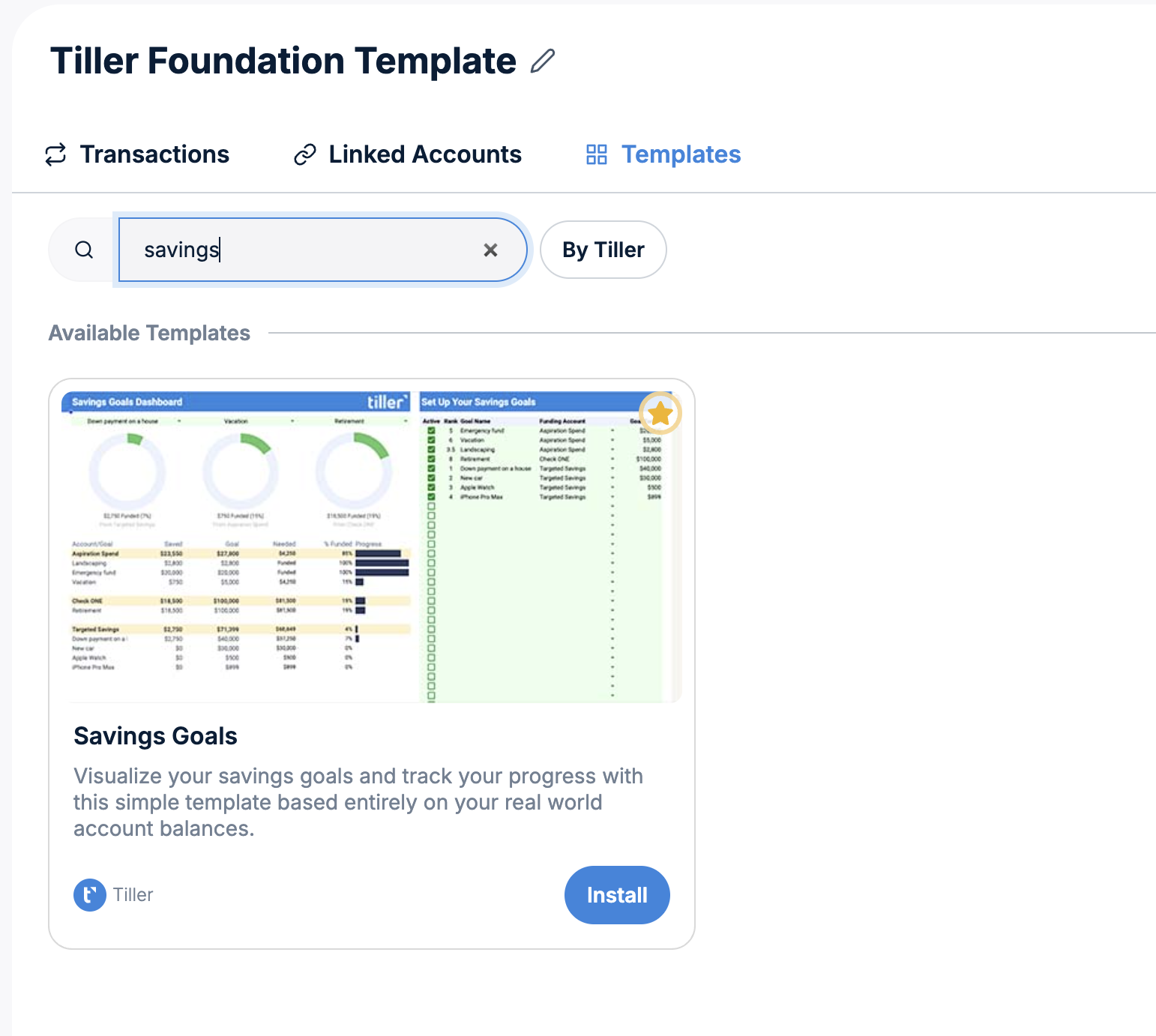
- Visit the Tiller Console
- Select the Google Sheet from the left side navigation where you want to install the Savings Goals template
- Click the Templates option along the top
- Search for or scroll to find the Savings Goals template
- Click Install
For Microsoft Excel:
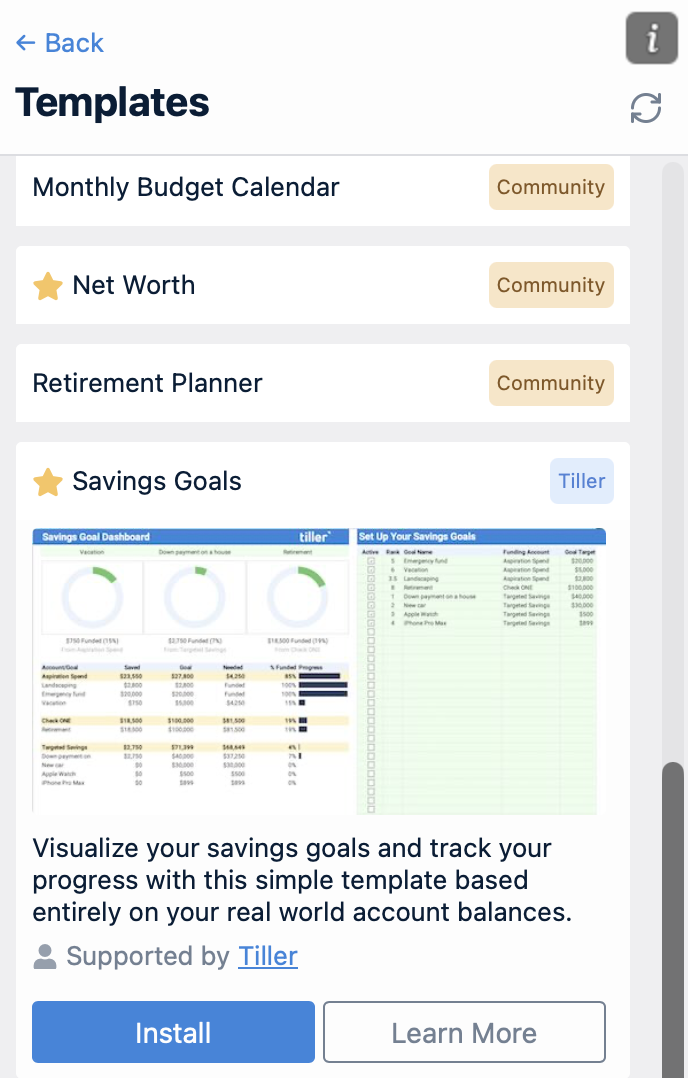
- Open your Tiller-powered Excel workbook
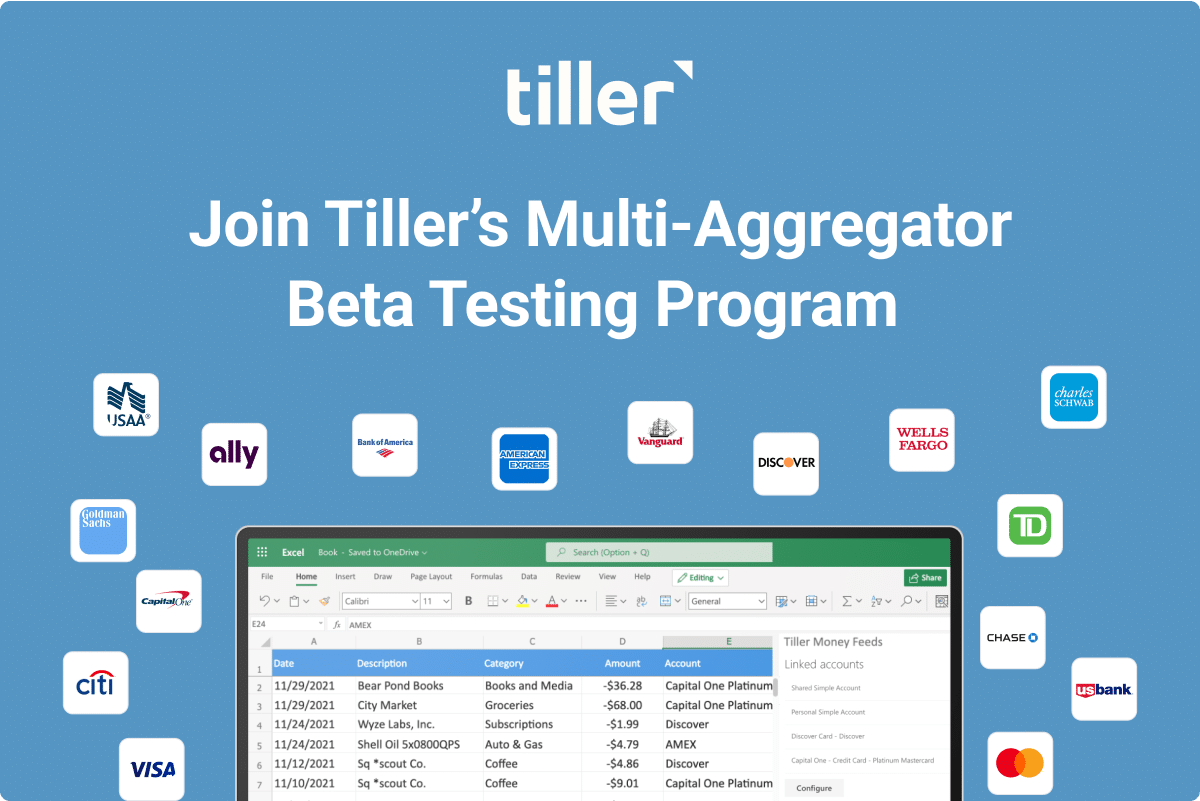
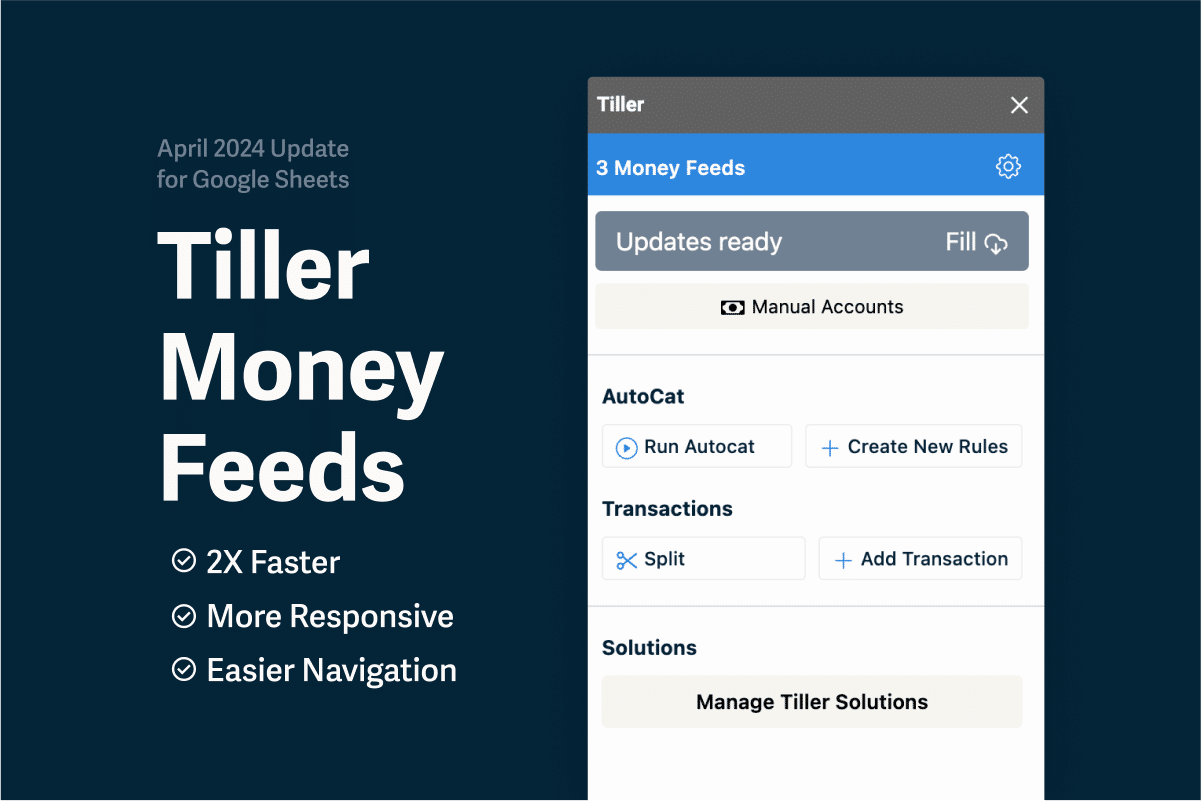
- Open the Tiller Money Feeds add-in
- Click Browse under the Templates section
- Search or scroll to find the Savings Goals template
- Click the name to expand then click Install
How the Savings Goals Tracker works
Goals are organized by account and reflect the latest balance Tiller automatically pulls in, mapped to your real-world account balances.
When you’ve fully funded one goal, it’ll show your progress toward funding the next goal assigned to that specific account.
You can set and customize the ranking for each goal to see the order in which they should be funded.
Tracking savings can be challenging, but focusing on real-world balances eases the pressure of budgeting. With the Savings Goal Tracker, you can manage goals ranging from holiday spending to retirement planning, all in one place.
If you have questions or run into issues, you can reach out to the Tiller Support team by using the chat tool in the lower right corner of the Tiller Console or write to support@tiller.com
FAQ
Can I track one savings goal across multiple accounts (e.g., several retirement accounts)?
Each goal is tied to a single account by design, to keep setup simple. If you need to combine multiple accounts toward one goal enter multiple line items for the same goal name, one per contributing account, and use the table view (rather than the pie chart) to see combined progress.
Can I allocate just part of an account’s balance to a goal?
No. The tracker is built around dedicated savings accounts, not portions of an everyday checking/spending account. If you want to fund a goal from money sitting in your checking account, Tiller recommends moving it to an actual savings account (ideally a high-yield one) so the tracker can reflect real, separated balances.
How does ranking work when I have multiple goals on one account?
Ranking determines the order in which goals for that account get funded — lower numbers are prioritized first. Ranks can be fractional (e.g., 1.1, 1.2, 1.3), which is useful for inserting a new goal between two existing ones without renumbering everything.
What happens if I use the same goal name twice?
Avoid duplicate goal names within the sheet — if two goals share a name, the dashboard will only reflect totals for the first one it finds, which can produce confusing results.
Is this tracker meant to replace retirement or other long-term multi-account planning tools?
No — Tiller recommends using the Savings Goal Tracker for simpler, shorter-term goals, and using one of the dedicated retirement-planning Community templates for longer-term goals that need to account for multiple accounts and other variables.
How do I get started?
You can install from the Console for Google Sheets and from the Tiller Money Feeds add-in sidebar for Excel. See the Tiller help article for setup steps, or ask questions in the Tiller Community.
Is this template free?
You’ll need an active or trial subscription to Tiller in order to install the template. Tiller is free for 30 days and you’ll keep any spreadsheets you created during your free trial if you choose not to continue.