
Tiller Resource Center > Spreadsheet Financial Systems
Budgeting in Spreadsheets
How to set up, run, and maintain a budget in Google Sheets or Excel—from your first category list to a fully automated monthly workflow.
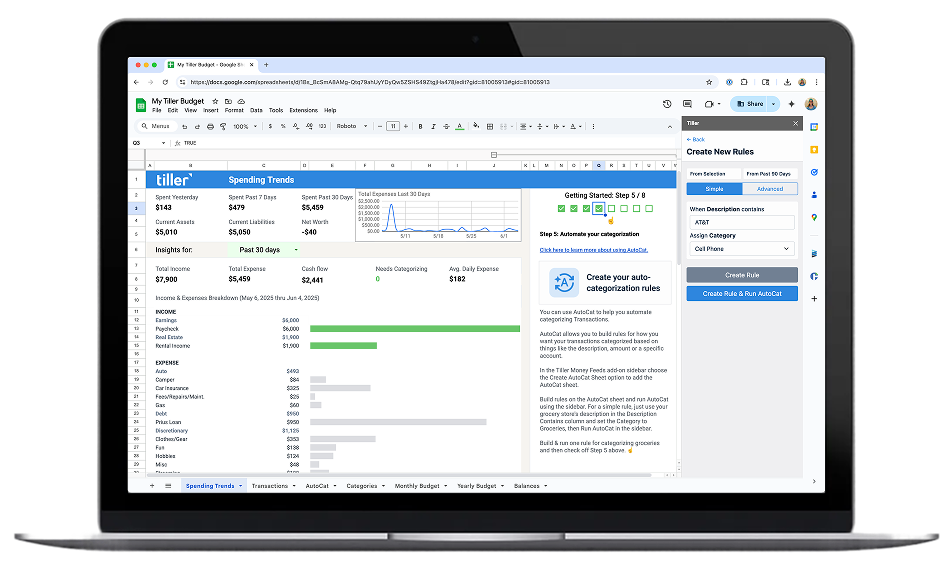
A spreadsheet budget starts with a simple idea: list what you earn, list what you spend, and see what’s left. But the difference between a spreadsheet that helps you manage money and one that collects dust comes down to how you set it up.
The best spreadsheet budgets aren’t just tables of numbers. They’re systems—with clear categories that match your actual spending, time periods that align with your pay schedule, and tracking logic that makes it obvious whether you’re on track or not. When the structure is right, checking your budget takes minutes instead of an evening.
Getting there involves a few key decisions: how granular your categories should be, whether you track weekly or monthly, how you handle irregular expenses, and how your transaction data gets into the sheet. These choices shape whether your budget feels useful or overwhelming.
This section walks through practical approaches to building and running a spreadsheet budget—from setting up your first Google Sheets or Excel budget to creating automated workflows that keep everything current. Several guides feature Tiller, which connects your bank accounts and delivers daily transaction data directly into your spreadsheet.
Start with these guides and resources:

How to Make a Budget in Google Sheets and Microsoft Excel
The complete starting guide. Learn how to set up a budget spreadsheet from scratch—including categories, formulas, and tracking layouts—in Google Sheets or Excel.

Envelope Budgeting in Google Sheets
A primer on adapting the classic envelope budgeting method for Google Sheets—with digital “envelopes,” automated tracking, and real-time balance updates.
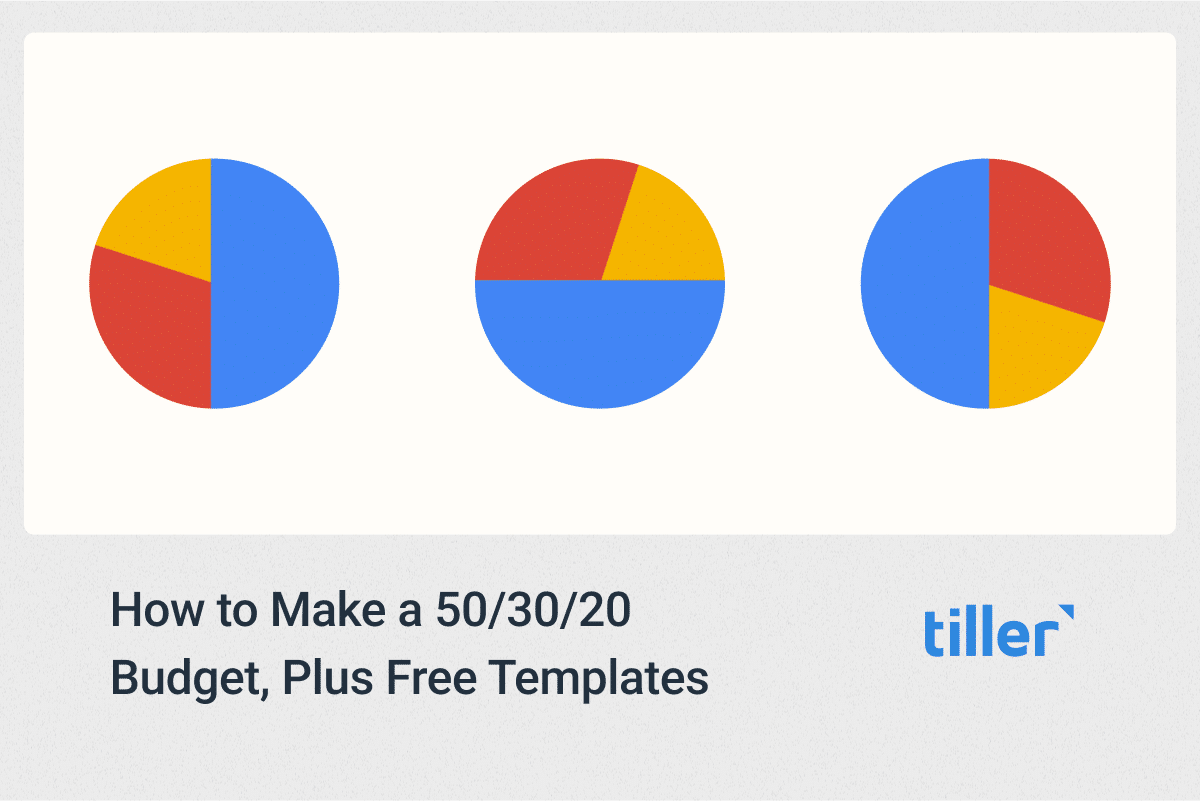
How to Use the 50/30/20 Budget Rule, Plus Free Templates
Learn how to apply the 50/30/20 framework in a spreadsheet to quickly see what you can afford to spend and save—with free templates to get started.
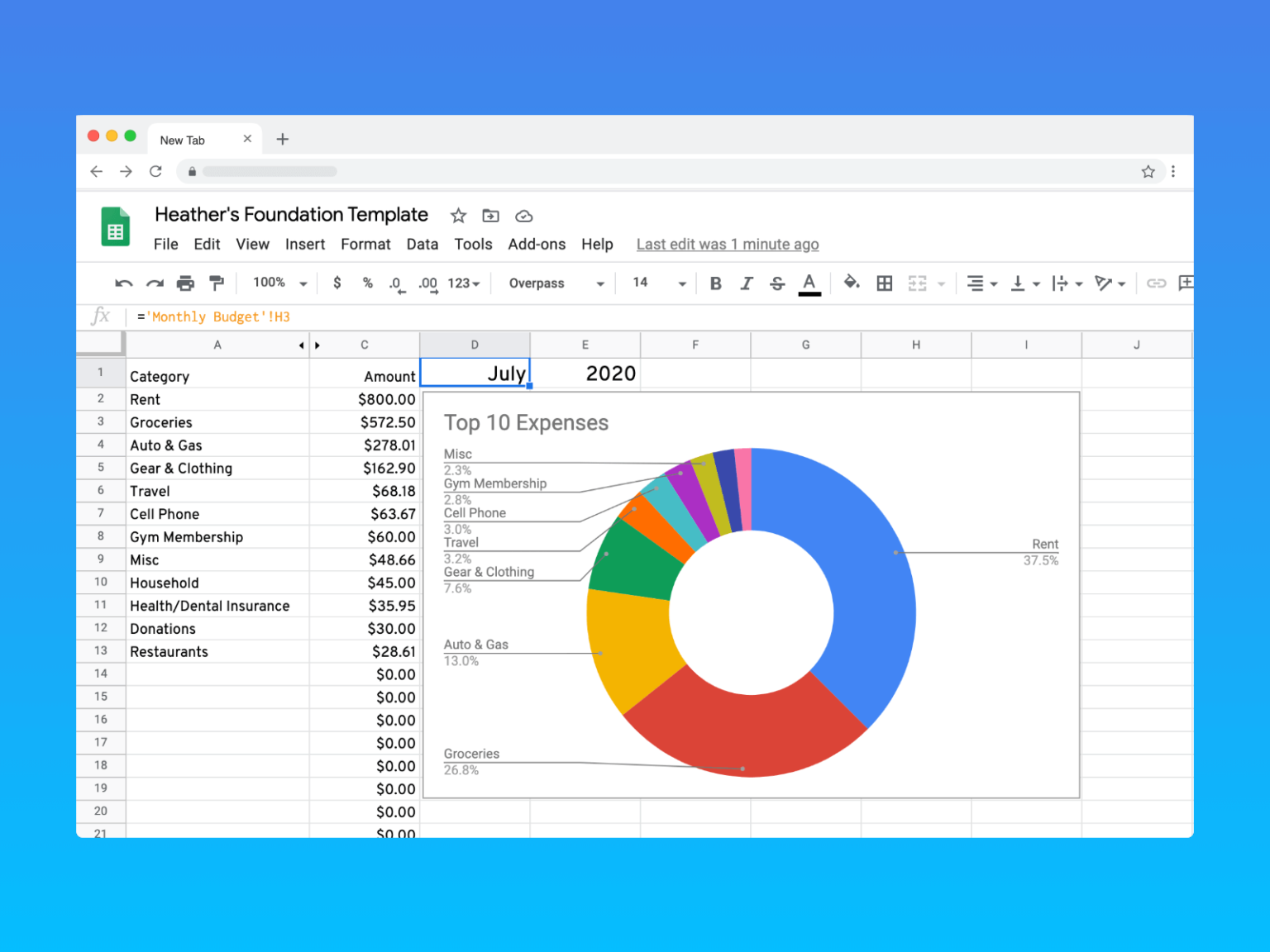
Visualize Your Budget with Pie Charts in Google Sheets
Turn your budget data into clear visual summaries. This guide shows how to create pie charts from spending categories so you can see where your money goes at a glance.

5 Ways Modern Couples Manage Their Money Together With Tiller
This article explores five different approaches to tracking shared expenses using Tiller, a service that integrates with Google Sheets and Excel. It highlights the flexibility of spreadsheets for managing finances, whether couples choose to combine everything, divide expenses, or maintain separate finances with transparency. The article covers scenarios from fully shared finances to tracking shared goals like savings or debt payoff, emphasizing customization and collaboration. It also touches on the importance of regular financial check-ins for couples to stay in sync with their money goals.

The Best Budget App for Couples Is a Free Spreadsheet (Updated 2026)
This article argues that the best budgeting tool for couples is a free, flexible spreadsheet, rather than a dedicated app. It highlights how spreadsheets facilitate collaborative budgeting, address financial tensions in relationships, and offer customization for various financial situations. The piece also details how Tiller enhances spreadsheet budgeting by automating transaction updates and providing templates for shared finances, savings goals, and debt payoff strategies. It emphasizes the flexibility, accessibility, and security of using spreadsheets for managing joint and separate finances.
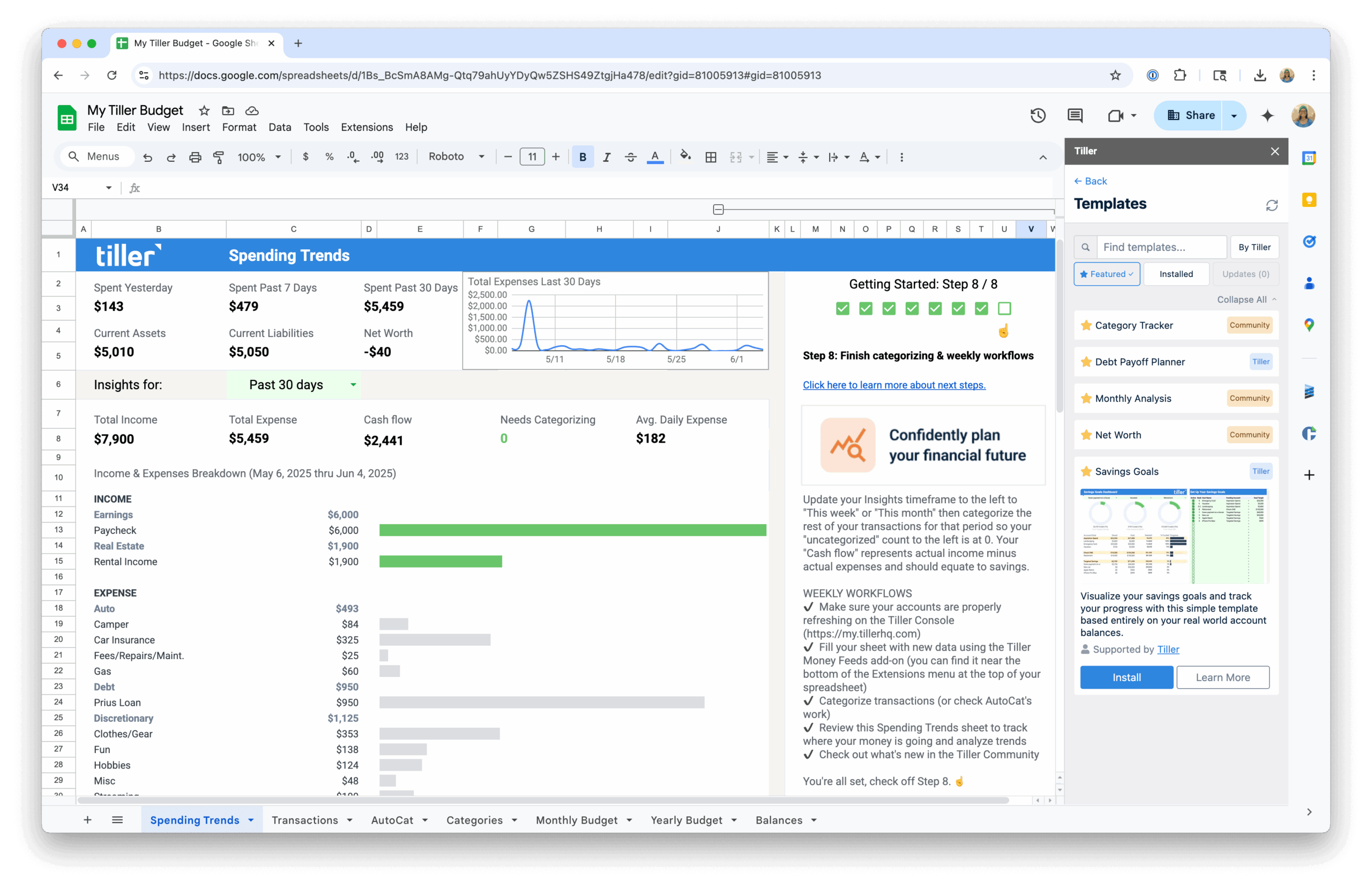
Spreadsheet Budgeting System: From Setup to Automation
The end-to-end guide to building a budgeting system that grows with you—from a blank spreadsheet to a connected, automated financial workflow.

Monthly Budgeting Workflows
Step-by-step monthly routines for reviewing, adjusting, and closing out your spreadsheet budget—so you stay on track without spending hours on it.
Budget Tracking in Google Sheets Guide
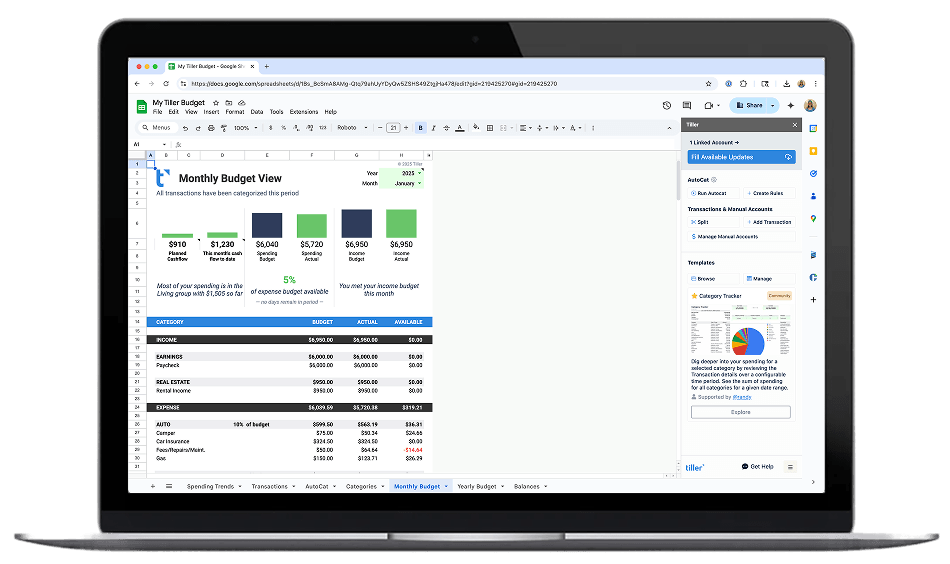
A practical walkthrough for tracking spending against your budget in Google Sheets—covering formulas, conditional formatting, and ways to spot overspending early.

How to Run Your Entire Budget Automatically in Sheets
Go beyond manual tracking. This guide walks through building a fully automated budget system where transactions flow in daily and spending reports update themselves.
How to Set Up a Budget in a Spreadsheet
Building a spreadsheet budget comes down to four core steps: defining your income, choosing your categories, setting up tracking, and establishing a review rhythm. The details vary based on your situation, but the framework is the same whether you use Google Sheets or Excel.
Start with income. List every source of money you receive in a typical month—salary, side income, recurring transfers, anything predictable. If your income varies month to month (freelance work, commissions, seasonal jobs), use a conservative average or your lowest recent month as the baseline. This is the number your entire budget builds from.
Choose your categories. The trick in creating budget categories is to get the number of categories right so that you don’t either overcomplicate things or stay too vague. A budget with 40 categories becomes exhausting to maintain. A budget with 5 categories (“bills, food, fun, savings, other”) doesn’t tell you enough to make decisions. Most people land somewhere around 10–20 categories that cover their major spending areas: housing, utilities, groceries, transportation, dining out, subscriptions, insurance, savings, debt payments, and a handful of discretionary categories that match their life.
Set up tracking. Your budget needs a way to compare what you planned to spend against what you actually spent. This means a column (or sheet) for budgeted amounts and another for actuals—with formulas that calculate the difference. SUMIF formulas are especially useful here: they can automatically total transactions by category from a separate data sheet, so your budget-vs-actual numbers update as you add new spending data.
Establish a review rhythm. A budget only works if you look at it. Most people find that a quick weekly check (5 minutes to scan category totals) plus a longer monthly review (15–20 minutes to close out the month and set the next one) keeps things on track. The monthly review is also when you adjust categories, update income assumptions, and carry forward any planned savings.
The guides in this section walk through each of these steps in detail, with specific formulas, layouts, and examples for both Google Sheets and Excel.
Keeping Your Budget Current Without the Busywork
The hardest part of spreadsheet budgeting isn’t the setup—it’s the upkeep. A budget is only useful when the data in it is current, and that’s where most manual systems eventually break down. Logging into bank websites, downloading CSV files, reformatting columns, pasting into the right sheet—it adds up to 20–30 minutes every time you want accurate numbers.
There are a few ways to handle this. Some people set a weekly “finance hour” where they manually enter or import transactions—it’s simple and works if you’re disciplined about it. Others use bank CSV exports on a regular schedule, which is faster but still requires cleanup since every bank formats files differently.
The most hands-off approach is automation. When your bank transactions flow directly into your spreadsheet—already formatted and ready to categorize—your budget stays current without any manual import work. You open your spreadsheet and the data is there.
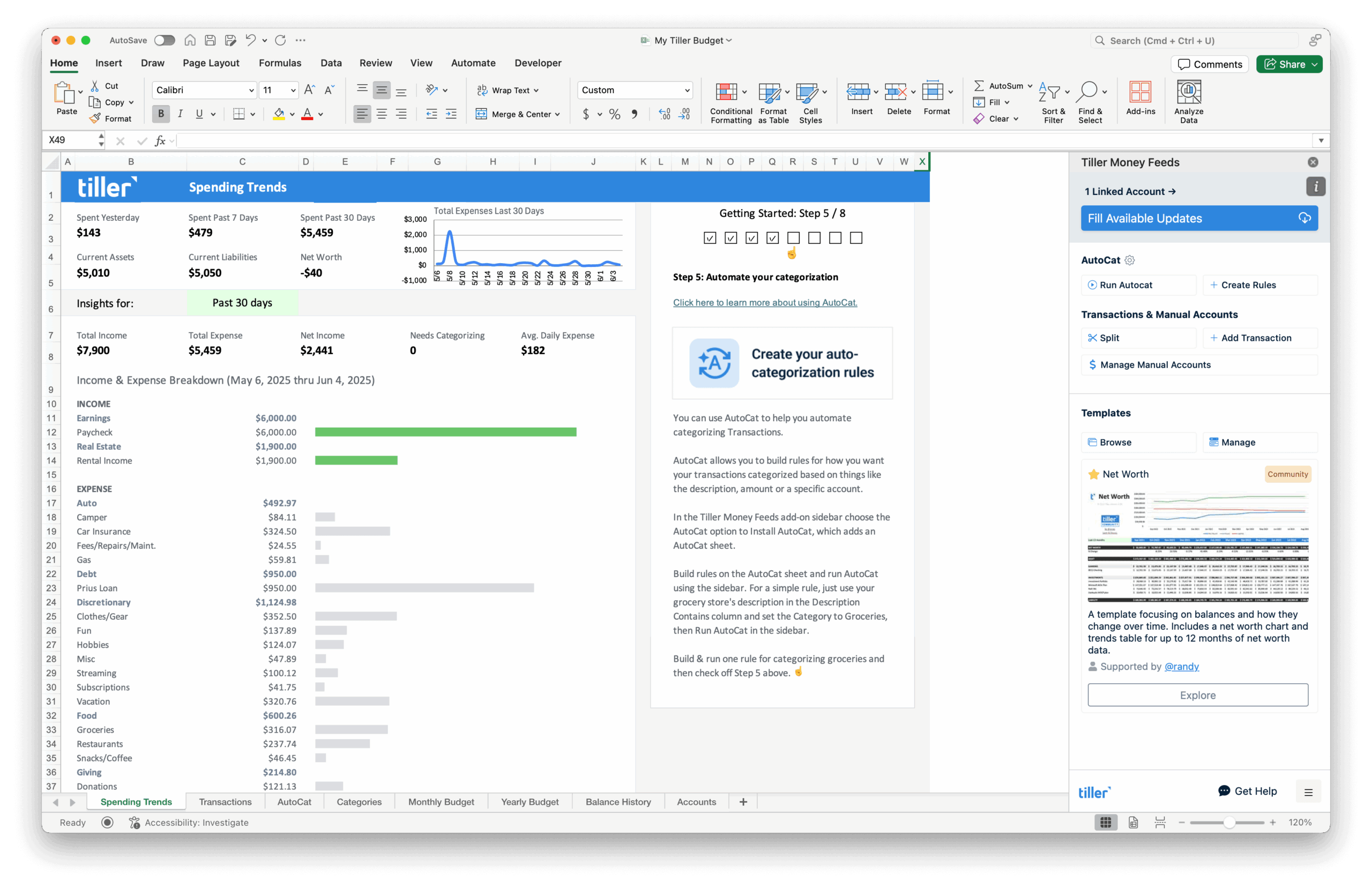
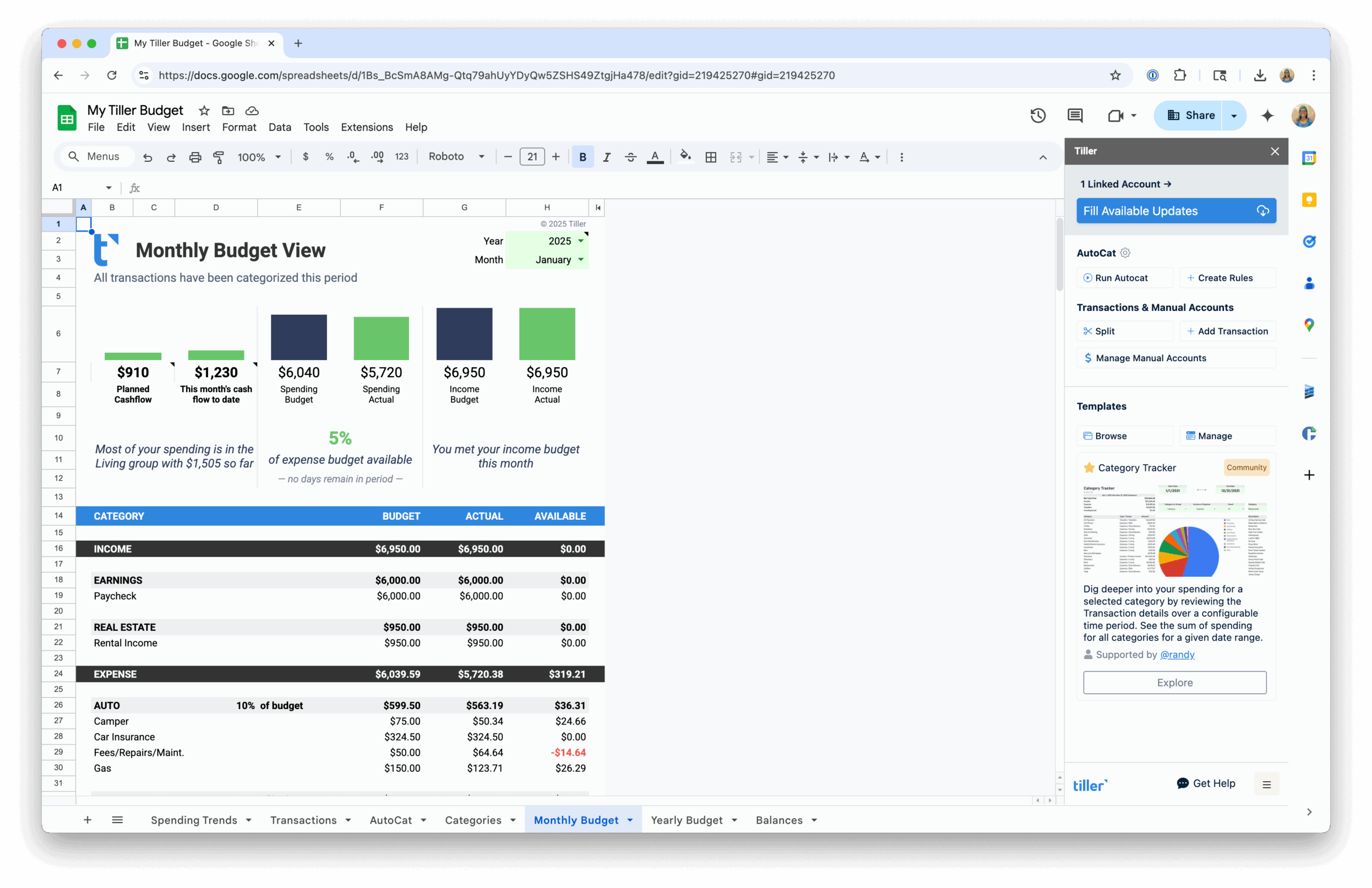
Tiller handles this automatically. It connects to your bank accounts and delivers daily transaction updates directly into Google Sheets or Excel. Your categories, your formulas, your layout—Tiller just handles the data layer so your budget reflects reality every morning. Pair it with the AutoCat feature for automatic transaction categorization, and you have a budgeting system that requires almost no manual upkeep while giving you complete control over how everything is organized.
