Automate Your Spreadsheet Budgeting System
Automate your budget in Google Sheets with bank feeds, auto-categorization, and smart formulas. Stop manual entry and start running your budget on autopilot.

Tiller Resource Center > Spreadsheet Financial Systems > Budgeting in Spreadsheets
Getting a spreadsheet budget set up is the first step. Keeping it running is what most guides don’t cover. This guide focuses on the two things that determine whether a spreadsheet budgeting system actually lasts: automating the data layer so it stays current, and evolving the structure over time as your financial situation changes.
You already have a spreadsheet budget. The problem is keeping it up to date.
Most spreadsheet budgets fail for one reason: entering and categorizing transactions takes more work than people can sustain. Once you fall behind, catching up becomes a project. That’s when many people give up.
The solution is automating the work that makes spreadsheet budgeting tedious. That’s what we cover in this guide.
Automating the data layer of your spreadsheet budgeting system
Every spreadsheet budgeting system has a data entry problem. How do you continue to get transactions into the spreadsheet? The two most common ways are to manually enter them or to download CSV files from your bank(s), reformat them to match your spreadsheet, and then import them.
Entering transactions manually is sustainable for a few weeks with a couple accounts. But with multiple accounts, it becomes a significant ongoing effort. When life gets busy, it gets skipped. And once you’re two weeks behind, catching up feels overwhelming. That’s when spreadsheet budgets die.
The fix is to automate the data layer. Most banks don’t offer their own automation. Several third-party services can automatically import transactions from your financial accounts into your spreadsheet.
If you’d rather not build your own import system, services like Tiller handle it for you by connecting your bank accounts, credit cards, and investment accounts to your Google Sheets or Excel spreadsheet. Each day, new transactions from every connected account automatically show up in your Transactions sheet and are already in the correct columns.
Once transactions are flowing in automatically, you still have to categorize them. You can do that by hand, line by line. Or, if you’d rather build your own system, you can use a lookup table with functions like SEARCH, INDEX, and MATCH to assign categories automatically based on merchant names. The exact setup varies, but the idea is the same: write the rule once instead of categorizing the same merchant over and over.
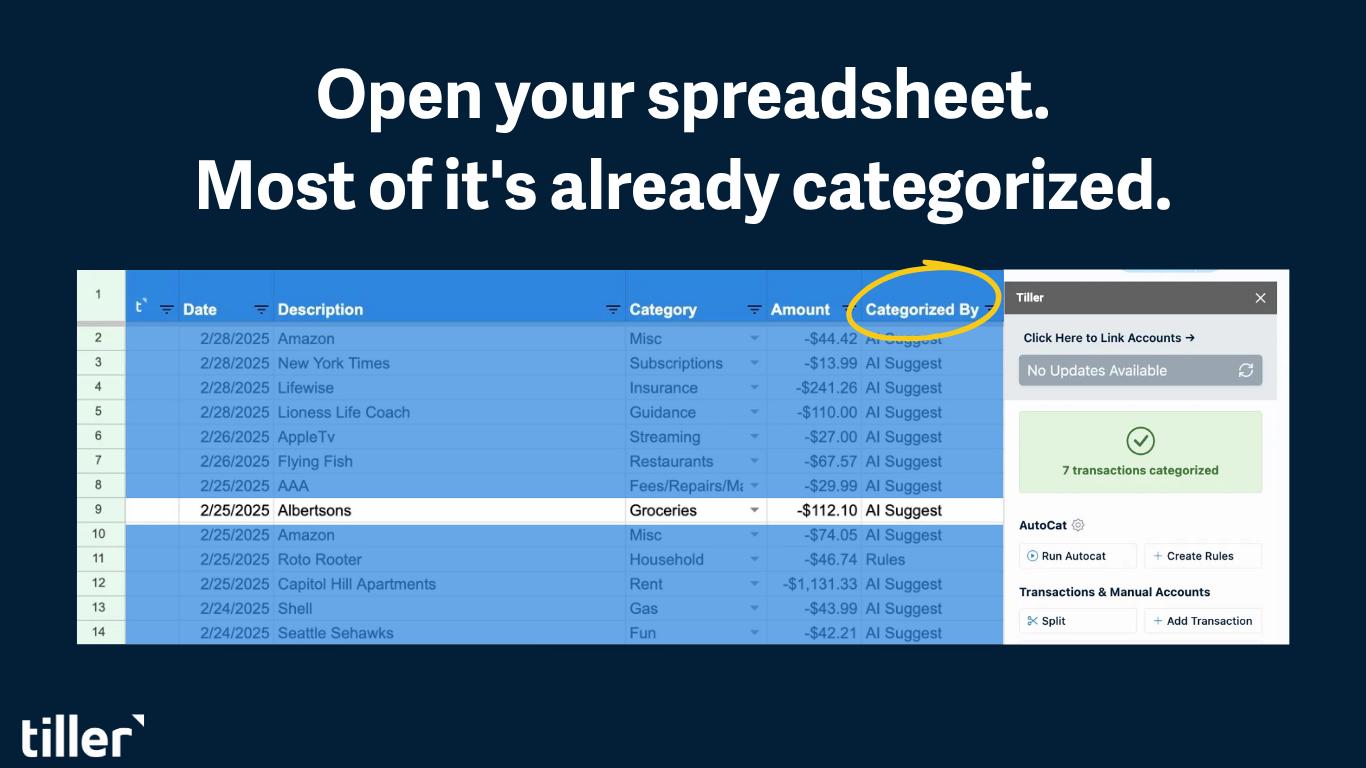
Tiller’s AutoCat makes this categorization even easier. You create rules based on the merchant name or transaction description, and matching transactions get tagged with the correct category automatically. Set up rules for your 20–30 most frequent merchants. Within a few weeks, 80–90% of transactions will categorize themselves, leaving you with just a handful to categorize manually.
With this system in place, your Transactions sheet is always up to date, so when you open your spreadsheet, your budget is already current. Your SUMIF calculations reflect the latest transactions automatically. All that’s left is for you to review the results and decide what to change.
Evolving your system over time
A spreadsheet budgeting system isn’t finished after initial setup. It grows with you, which is one of its core advantages over rigid budgeting apps.
After 1–2 months: Refine your categories based on your actual spending patterns. Merge categories that are too specific. Split categories that are too broad to be informative — “Dining Out” into “Restaurants” and “Coffee,” for example, if you want that added insight.
After 3 months: Add a trend view — a table that shows monthly totals by category across multiple months. This is where the spreadsheet format is the most powerful: you can see at a glance whether grocery spending is creeping up, whether utilities spike seasonally, or whether a category consistently runs over its budget.
After 6 months: Consider adding net worth tracking, savings goal progress, or a custom dashboard that pulls your most important numbers into one summary view. By this point, you have months of clean transaction data to build from, and you know what you actually want to see.
The system grows with you because you control the structure. Nothing is locked in by someone else’s feature roadmap.
The Three Stages of Spreadsheet Budget Automation
The progression has three stages.
- Stage 1 is manual, where you enter transactions by hand and do the math yourself.
- Stage 2 is semi-automated: you add SUMIF formulas so budget-versus-actual calculations run automatically once transactions are entered.
- Stage 3 is fully automated: you connect your bank accounts through a tool like Tiller so transactions arrive daily without manual entry, and AutoCat rules handle most categorization.
Each stage is functional. Stage 3 removes the ongoing maintenance burden, allowing the system to sustain itself.
Frequently asked questions
What causes people to abandon their spreadsheet budget?
The most common cause is manual entry fatigue. Entering every transaction by hand is sustainable for a few weeks but hard to maintain long-term, especially with three or more accounts. Other common factors include too many categories (simplify), not reviewing regularly (set a weekly calendar reminder), and perfectionism about setup (a functional but imperfect budget beats a perfect one you never finish building). Automating the data layer with a tool like Tiller addresses the root cause directly.