
Tiller Resource Center > Getting Bank Data into Spreadsheets
How to Connect Your Bank Accounts to a Spreadsheet
The practical guide to setting up automatic transaction syncing in Google Sheets and Excel — so your financial data arrives every morning without any manual work.
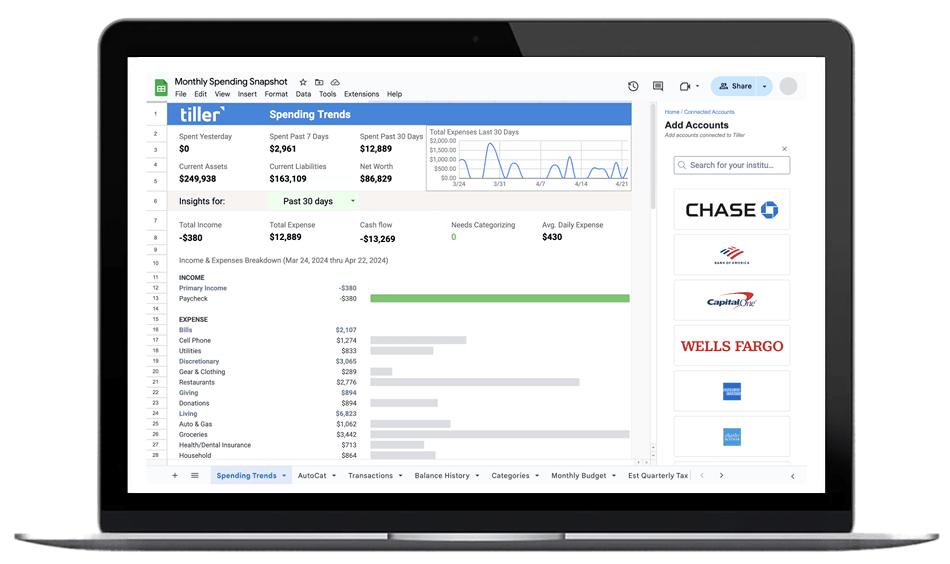
Getting your bank transactions into a spreadsheet manually works — until it doesn’t. The moment you’re managing more than one account, or you want numbers that reflect this week (not last week), the CSV download routine starts to fall apart. Logging into multiple bank websites, exporting files in different formats, cleaning up column headers, merging everything by hand — it’s 20–30 minutes of work every time you want current data.
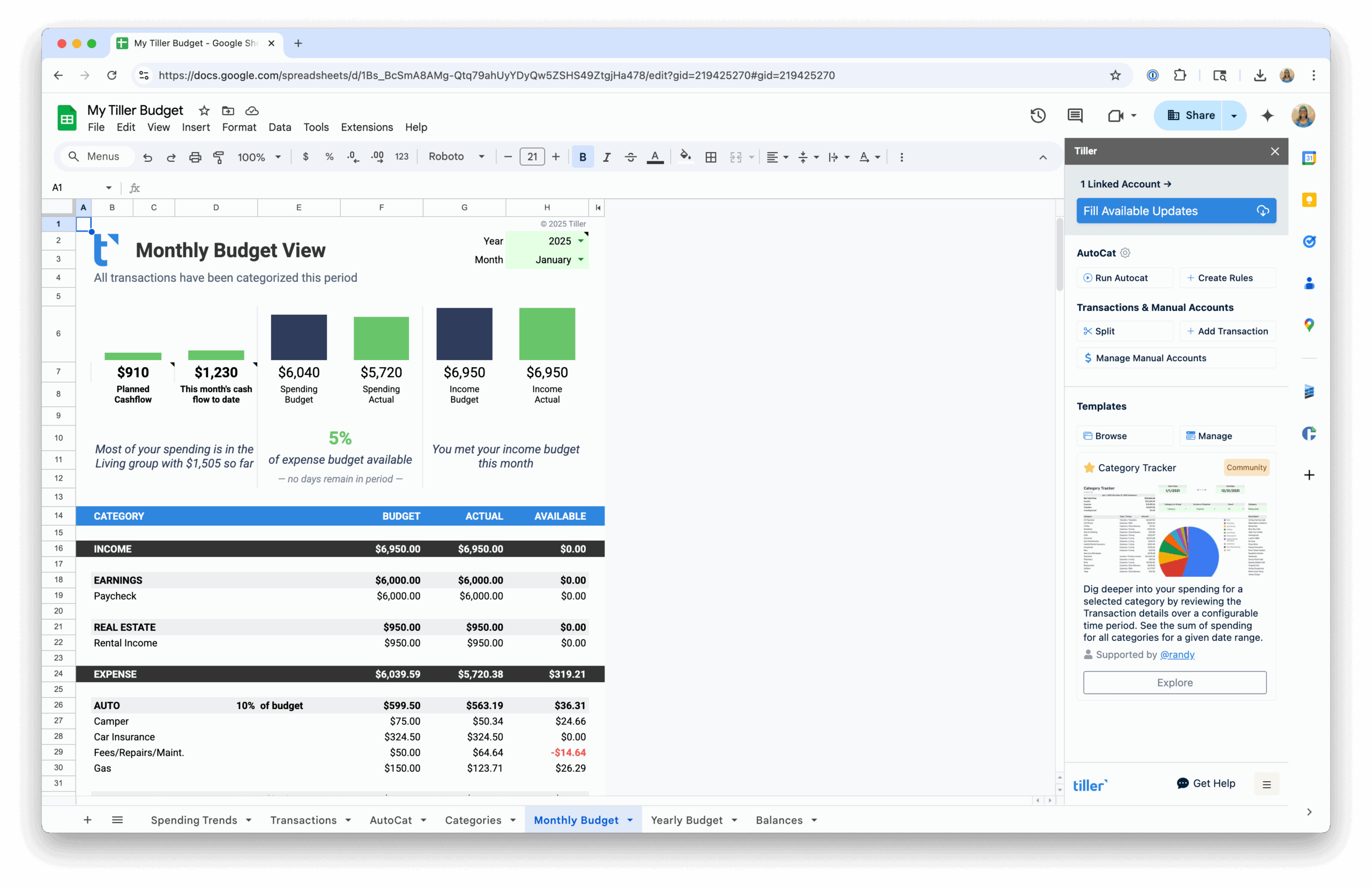
A direct bank connection solves the maintenance problem. When your accounts are linked to your spreadsheet, transactions arrive automatically. Balances update. Categories are suggested. You open your sheet and the data is already there.
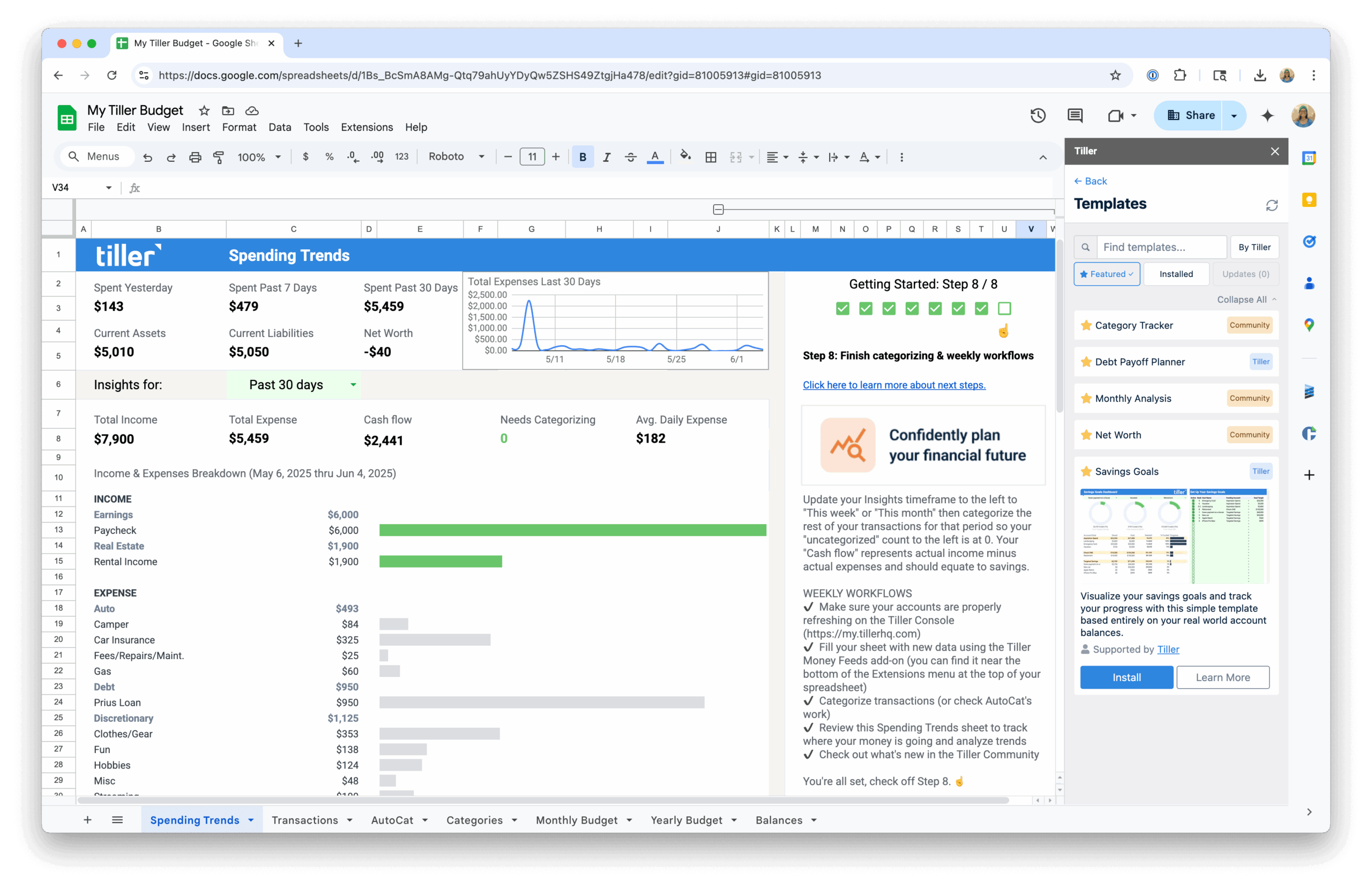
This hub covers the how: how bank-to-spreadsheet connections work, how to set one up in Google Sheets or Excel, how to sync transactions automatically, and how to automate categorization once the data is flowing. Several guides here feature Tiller, which handles the bank connection and daily data delivery so the pipeline runs without you.
Start with these guides:
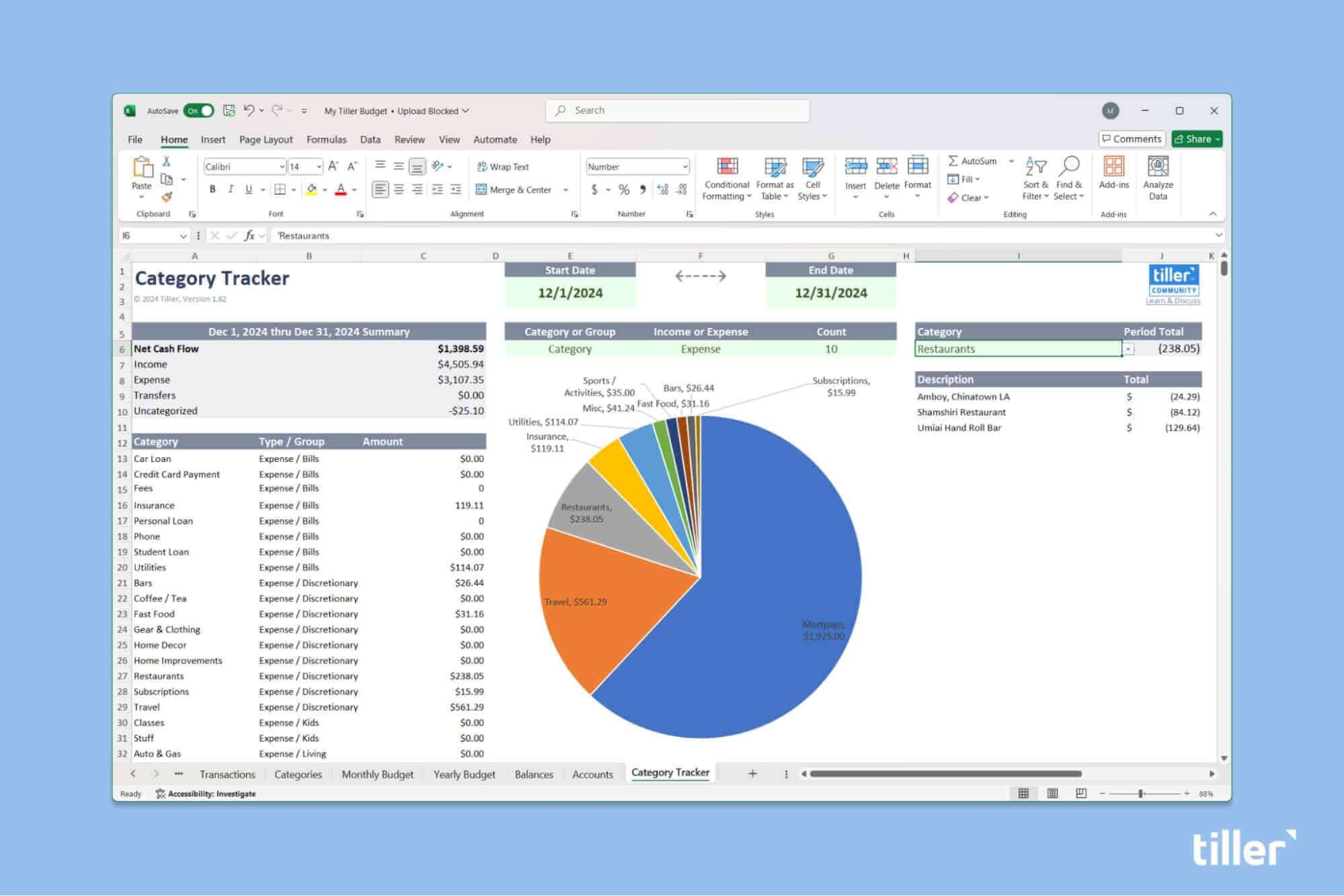
Automatically Download Bank Transactions to Excel
Step-by-step setup for automated transaction imports into Microsoft Excel. Connect your accounts once and get daily updates without touching a CSV file.
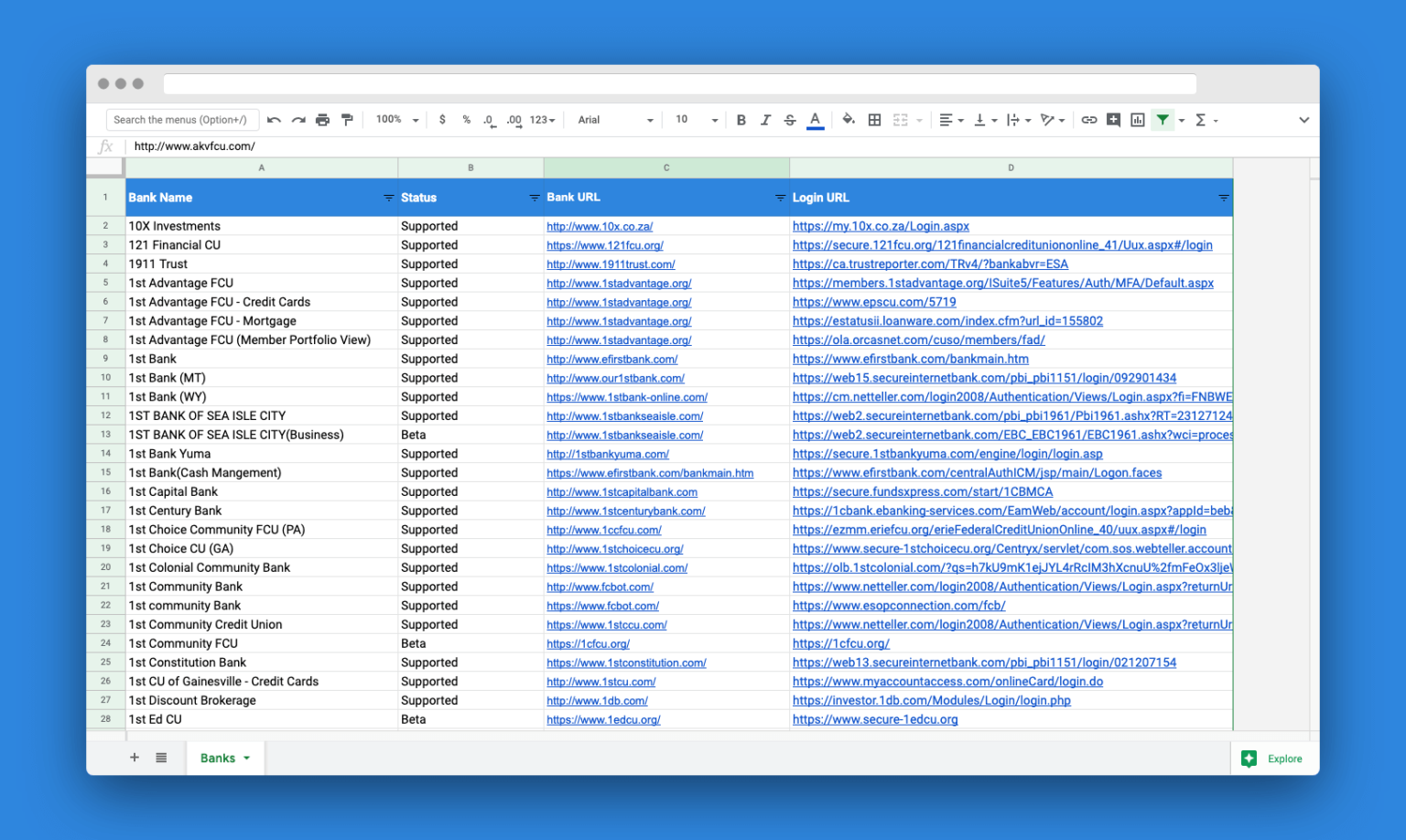
What Banks and Financial Sources Work With Tiller?
This article addresses a common concern for potential Tiller users: whether their financial institutions are compatible with the service. It highlights that Tiller integrates with over 21,000 financial sources, including banks, credit cards, and brokerages. The post emphasizes that the most reliable way to confirm compatibility is through a free 30-day trial. It also provides a Google Sheet for users to check institutions beforehand, noting that the list is constantly updated.
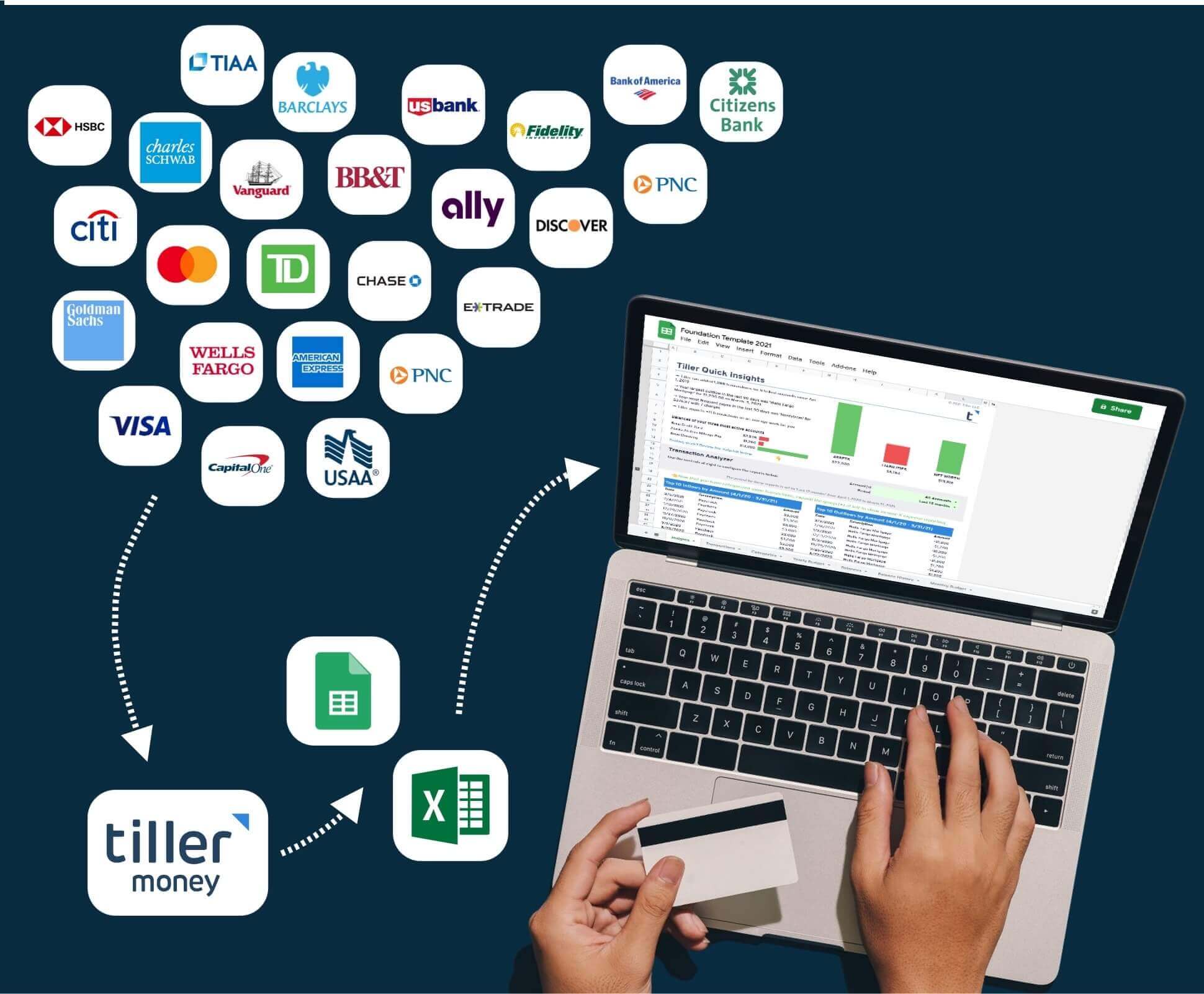
How to Import Bank Transactions into Google Sheets
This page provides a comprehensive guide on how to import bank transactions into spreadsheets, both manually and using Tiller’s automated features. It details the steps for exporting data from banks, formatting it for Tiller’s templates in Google Sheets or Microsoft Excel, and adding new data to transaction sheets. The article also introduces community solutions for automating these import processes, catering to users with varying technical skills.

How to Use a Bank Account Tracking Spreadsheet + Free Templates
This page provides a comprehensive guide on using bank account tracking spreadsheets to manage personal finances. It details how to monitor balances, understand cash flow, and track spending habits effectively. The article covers essential elements of a tracking spreadsheet, including transaction details, dates, amounts, and categories. It also highlights the benefits of using formulas, charts, and automated transaction imports to streamline financial management.

How to Track Your HSA Spending in a Spreadsheet
This article explains the importance of tracking HSA spending in a spreadsheet, detailing why it’s crucial to keep accurate records for IRS compliance. It covers the restrictions on HSA cards and the penalties for using them for non-qualified medical expenses. The article also provides information on HSA contribution limits for 2024 and offers various methods for tracking HSA contributions and spending, including using Tiller’s automated system or simple Google spreadsheets.

How to Link Your Bank Account to an Excel Spreadsheet
This article explains how to link your bank accounts directly to an Excel spreadsheet using Tiller Money Feeds. It highlights the challenges of manually importing bank statements and presents Tiller as a faster, easier alternative. The post details how to use Tiller Money Feeds, including signing up for a free trial, authenticating banks, and installing the Tiller Money Feeds add-in. It also mentions key features like AutoCat for transaction categorization and various templates available with a Tiller subscription.
How to Import CSV Into a Google Spreadsheet
This article provides a comprehensive guide on how to import CSV files into Google Spreadsheets. It explains what a CSV file is, how to create one from bank transactions, and step-by-step instructions on importing it into Google Sheets. Additionally, the guide offers tips on cleaning up the imported data, including removing unnecessary columns and using the CONCATENATE formula to combine data. The process helps users manage their financial data efficiently without manual entry.
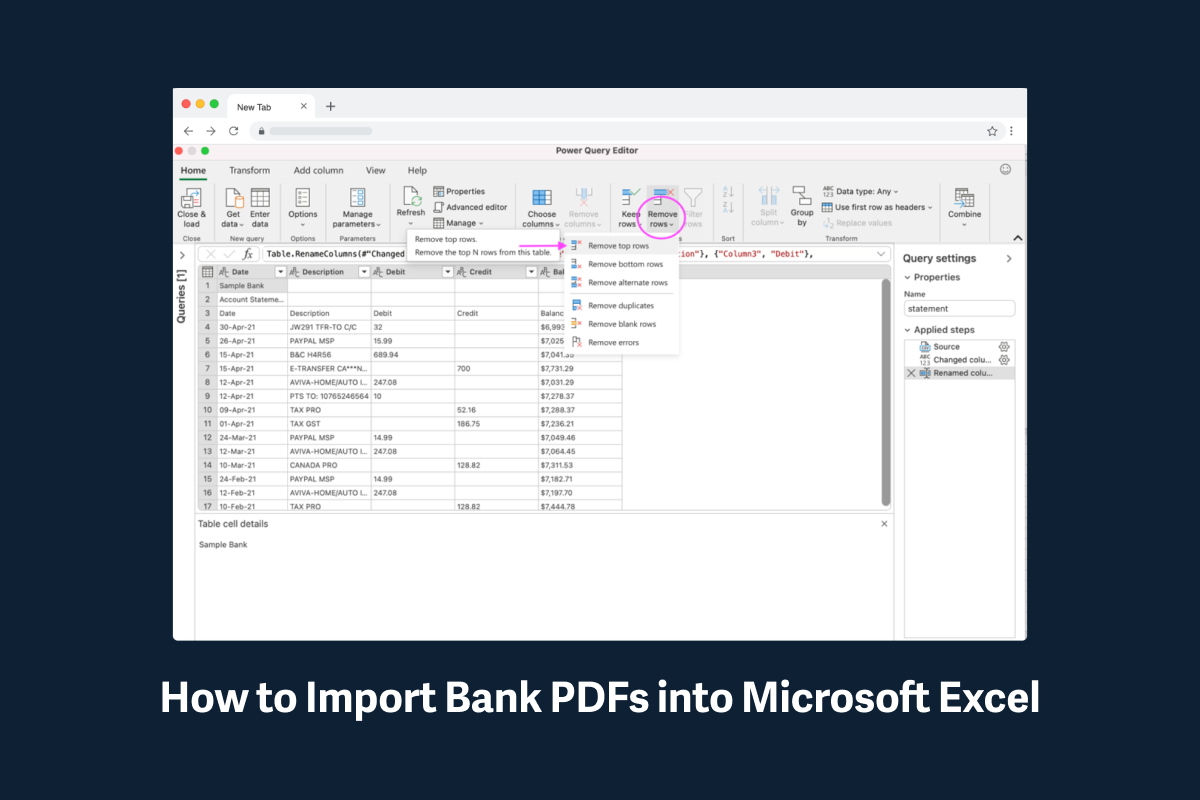
How to Import Bank PDF Statements into Microsoft Excel for Free
This guide explains how to convert bank PDF statements into CSV files for use with Microsoft Excel or Google Sheets. It covers using free online converters like Zamzar, Nanonets, Convertio, and Adobe Online. Additionally, it details how to import data directly from PDF files into Excel using Power Query on Windows OS. The article also provides steps for cleaning up bank activity data within Power Query, including renaming columns and using conditional columns for categorization.
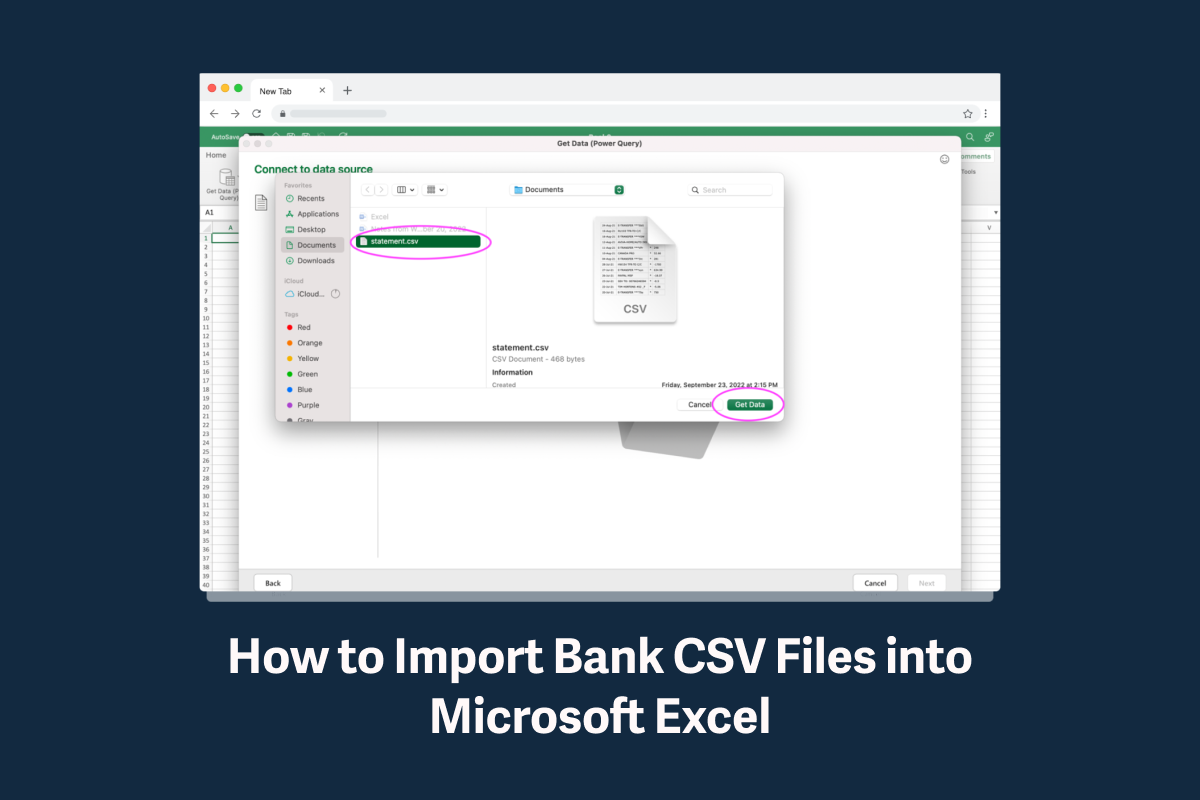
How to Import Bank CSV Files into Microsoft Excel
This guide provides a step-by-step process for importing bank CSV files into Microsoft Excel. It covers logging into your bank, downloading transaction data, and cleaning up the data using Excel’s Power Query Add-in. The article also explains how to organize the imported data using PivotTables for better analysis. It’s a practical resource for anyone looking to manage their financial data in Excel.

How to Automatically Sync Bank Transactions
A practical walkthrough of how bank transaction syncing works—what tools are available, how secure connections are established, and how to get your accounts feeding data into a spreadsheet automatically.
Build a Live Financial Dashboard with Automated Data
How to turn your automated transaction feed into a financial dashboard that updates in real time. Covers layout, formulas, charts, and how to connect live data so your dashboard always reflects your current situation.
Automate Transaction Categorization in Your Spreadsheet
Getting transactions into your spreadsheet is only half the job. This guide covers how to automatically categorize transactions using rules, patterns, and Tiller’s AutoCat—so your spending reports stay accurate without manual tagging.
How a Bank-to-Spreadsheet Connection Actually Works
When you connect a bank account to a spreadsheet tool like Tiller, you’re not sharing your login credentials with a third party. The connection happens through a financial data aggregator — a company (like Plaid or MX) that specializes in securely linking financial institutions to other services. These are the same aggregators that power many banking apps and financial tools you already use.
The connection is read-only. The service can see your transactions and balances, but it cannot move money, initiate transfers, or make any changes to your accounts. You authorize access through your bank’s own interface, and you can revoke it at any time.
Once the connection is active, it runs in the background. Every morning, the aggregator checks for new transactions and passes them to your spreadsheet automatically — no action required on your part. Most major banks, credit unions, credit cards, and investment platforms are supported through these aggregator networks, though coverage can vary by institution.
More Ways to Work with Bank Transaction Data
This hub focuses on the connection and sync mechanics. The Bank Transactions & Financial Data Automation Resource Center also covers:
- Exporting Bank Transactions to Spreadsheets — Manual export guides for downloading transaction data from your bank, including institution-specific walkthroughs for Chase, Bank of America, Wells Fargo, Capital One, and more. A good starting point if you prefer manual control or want to understand the process before automating.
Once your data is flowing automatically, the Automated Personal Finance in Spreadsheets hub in the Spreadsheet Financial Systems Resource Center covers what to build with it — dashboards, automated budgets, and complete financial
