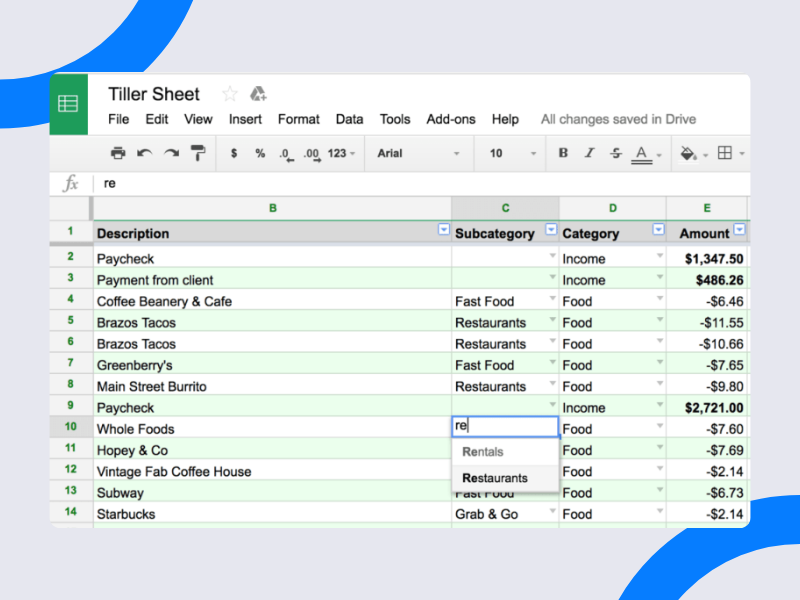


When it comes to money, everything is measured in transactions.
Every time you spend or make money, each transaction adds or subtracts to your net worth. Filing these transactions into categories like “groceries,” “subscriptions,” and “car payments” is the basis of personal finance software.
When it comes to deciding how your transactions are assigned to these categories, most personal finance software tries to make choices for you.
But while the goal might be to keep things simple, the result is often frustration with categories that don’t reflect the way you actually think about your money.
For example, Mint didn’t let you delete its default master categories, and Empower only allows you to create 30 custom categories.
Tiller takes a different approach to categories
We don’t impose our rules or opinions on the categories you use.
To truly understand your money, your transaction categories must be precise, accurate, and personally meaningful.
That’s why Tiller gives you more control of your budget categories and auto-categorization rules than any other automated personal finance tool.
You are the only one who creates, deletes and renames your Tiller categories. And only you decide if, how, and when your transactions are automatically categorized.
And to keep everything easy, clear, and uncluttered, we do this all with flexible, automated spreadsheets.
Truthfully, setting up categories with Tiller does take a bit more effort than other tools. But the payoff is a truly personalized system for tracking your money, your way.
We do have a little advice about setting up your categories…
Our only advice about categories is to keep them simple. Or at least as simple as possible.
Many people can effectively track their money with just five categories. Or even three, as seen with the 50/30/20 budget. Of course, it’s all up to you.
Read more about our budget category suggestions here.
How Transaction Categories Work With Tiller
Tiller automatically updates spreadsheets with your latest spending, account balances, and other transactions.
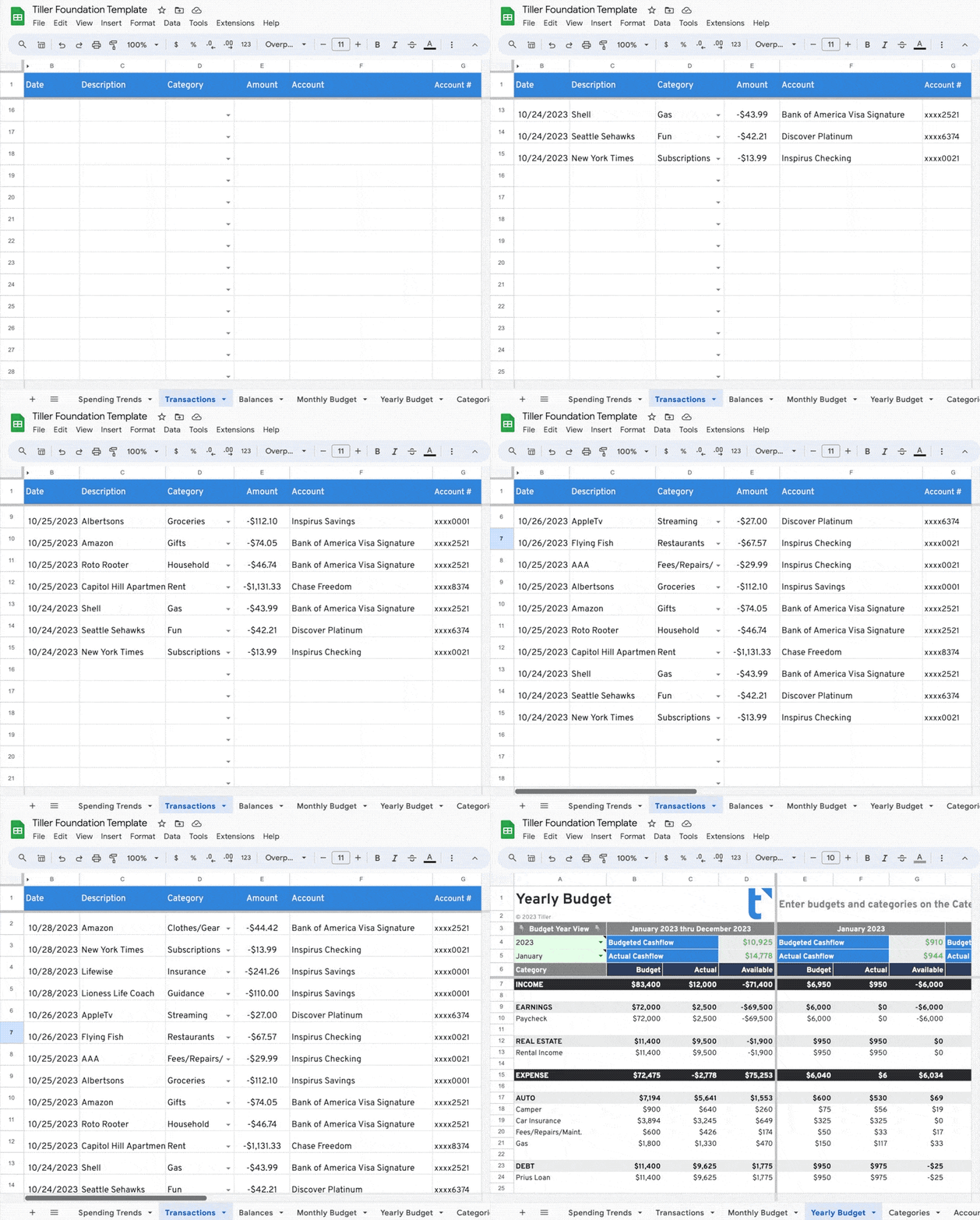
When you get started with Tiller’s automated financial feeds, a Transactions sheet and Categories sheet will be installed in your Foundation Template or custom Google or Microsoft Excel spreadsheet.
All your transactions flow into the Transactions sheet
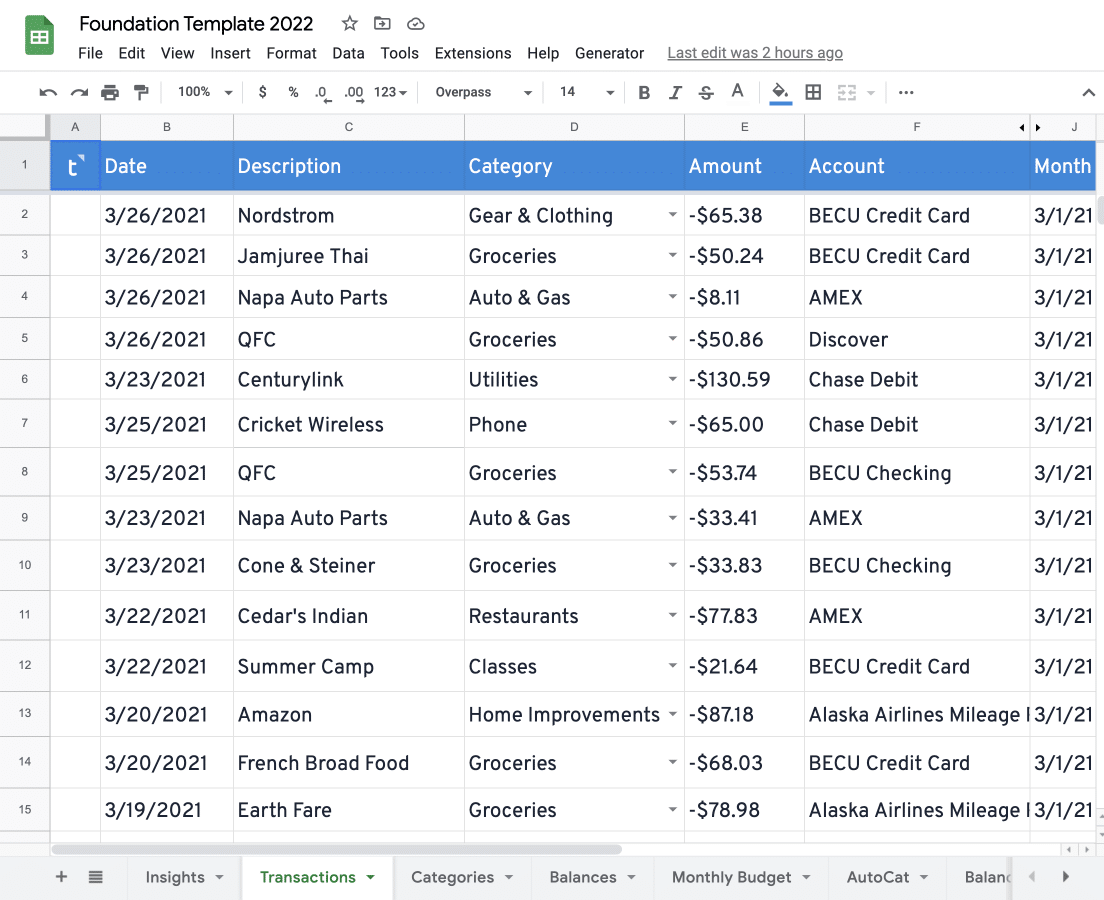
Every transaction including all your income, expenses, and transfers from all your linked accounts flow into a single, unified Transaction Sheet.
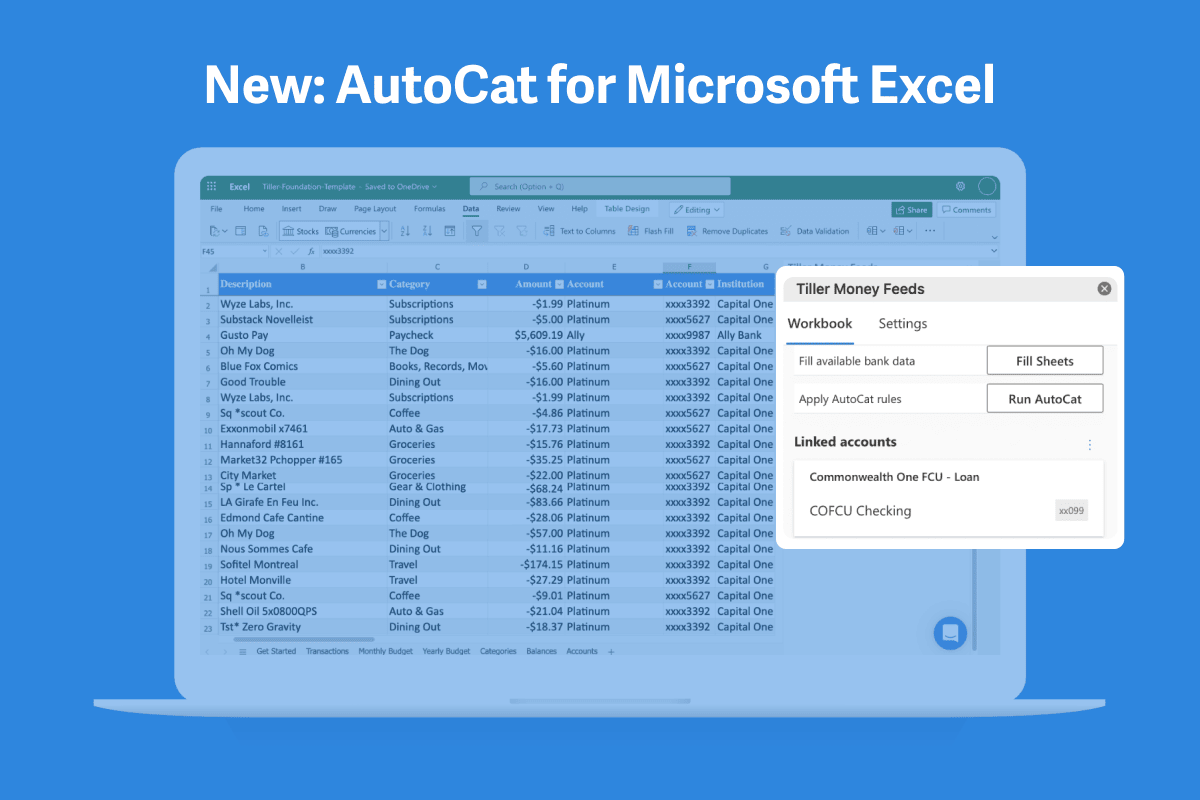
This is also where you can manually categorize transactions. You can also use AutoCat to do this automatically, including Description Match, AI Suggest, and custom rules. More on this below.
You create your categories in the Categories sheet
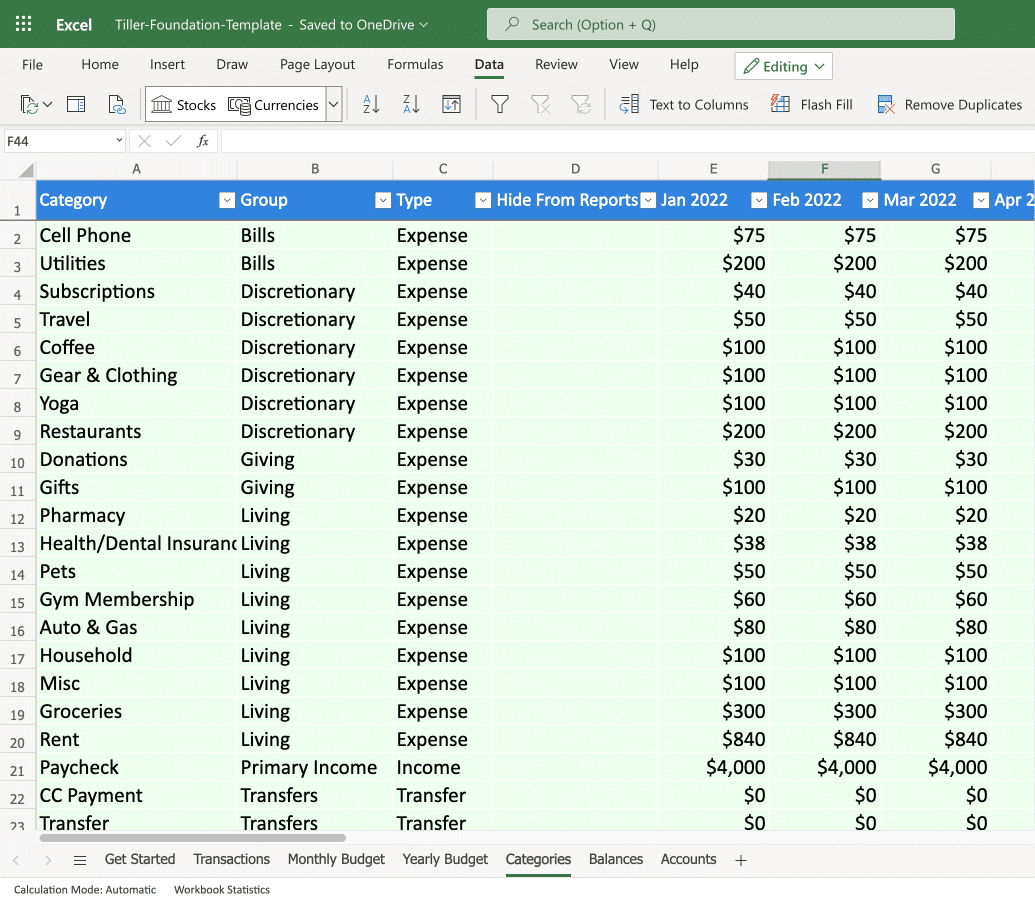
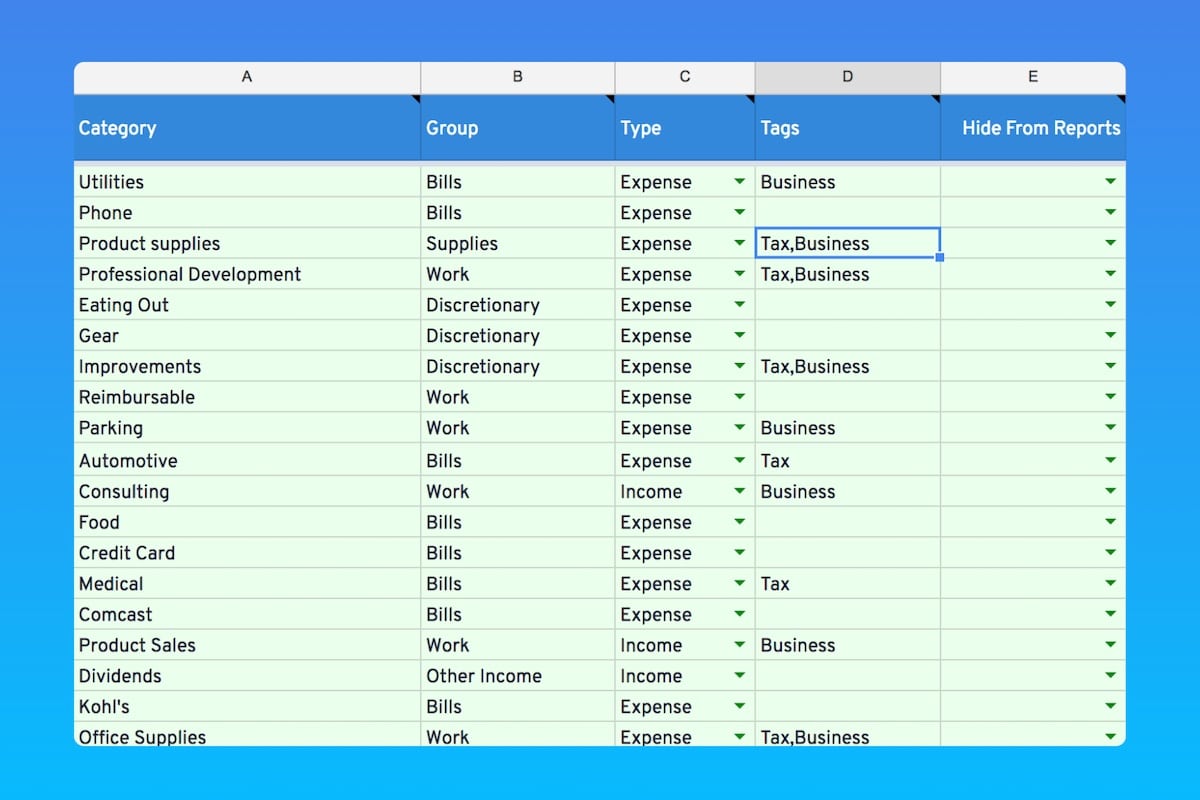
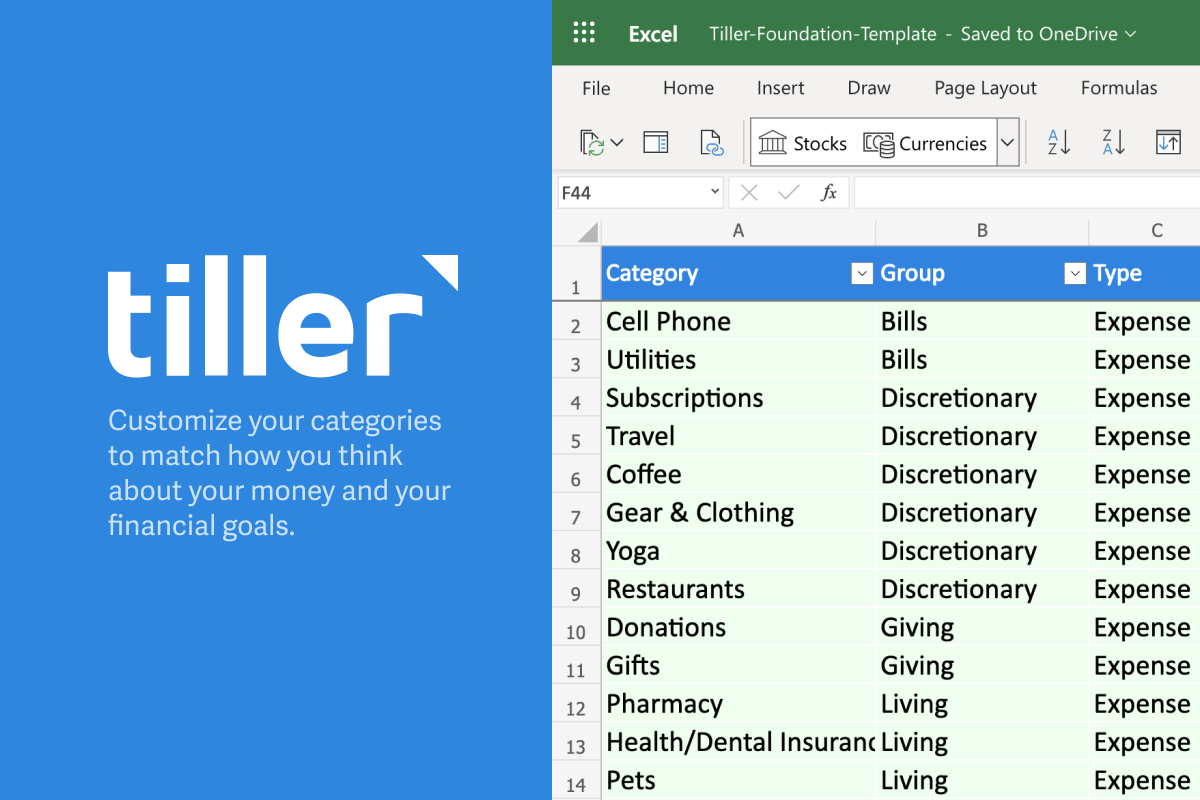
Meanwhile, the Category sheet is where you create, rename, and otherwise manage all your categories. Here’s a simple version of the Category sheet as seen in Tiller’s Foundation Template:
Groups, Categories, and Tags
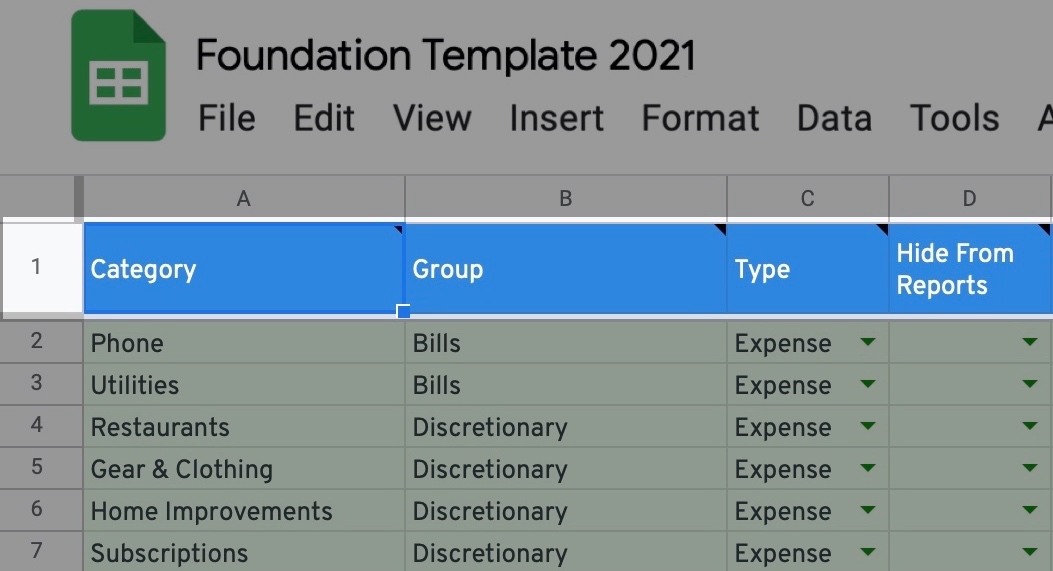
The Category sheet includes four columns:
- Category – You can add up to 200 total categories. For example, Dining Out, Phone, Office Supplies, etc.
- Group – Use this to organize categories into groups. For example,
Food” might group Restaurants, Snacks, and Groceries together. - Type – The common types of categories, like Expense, Income, and Transfer.
- Hide from Reports – exactly what it sounds like.
Additionally, you can add a “Tags” column for an additional level of reporting and tracking. More on this below.
About sub-categories and Tiller
Many personal finance apps use subcategories to give additional detail in tracking your transactions.
For example, Mint and Quicken use categories, tags, and subcategories, while YNAB uses groups and categories.
Tiller uses Categories, Groups, Type, and Tags (optional) to organize your transactions.
We’ve found this approach works best for keeping everything clear and uncluttered, yet flexible and easily customized.
However, if you prefer a subcategory hierarchy, just think of “Groups” as the top-level and “Categories” as the secondary level.
For example, lets say you want to organize all your food-related expenses under a single umbrella, but still track specific types of food purchases.
You can use “Food” for the Group, and “Groceries, Snacks, and Restaurants” for the Categories.
Adding new categories
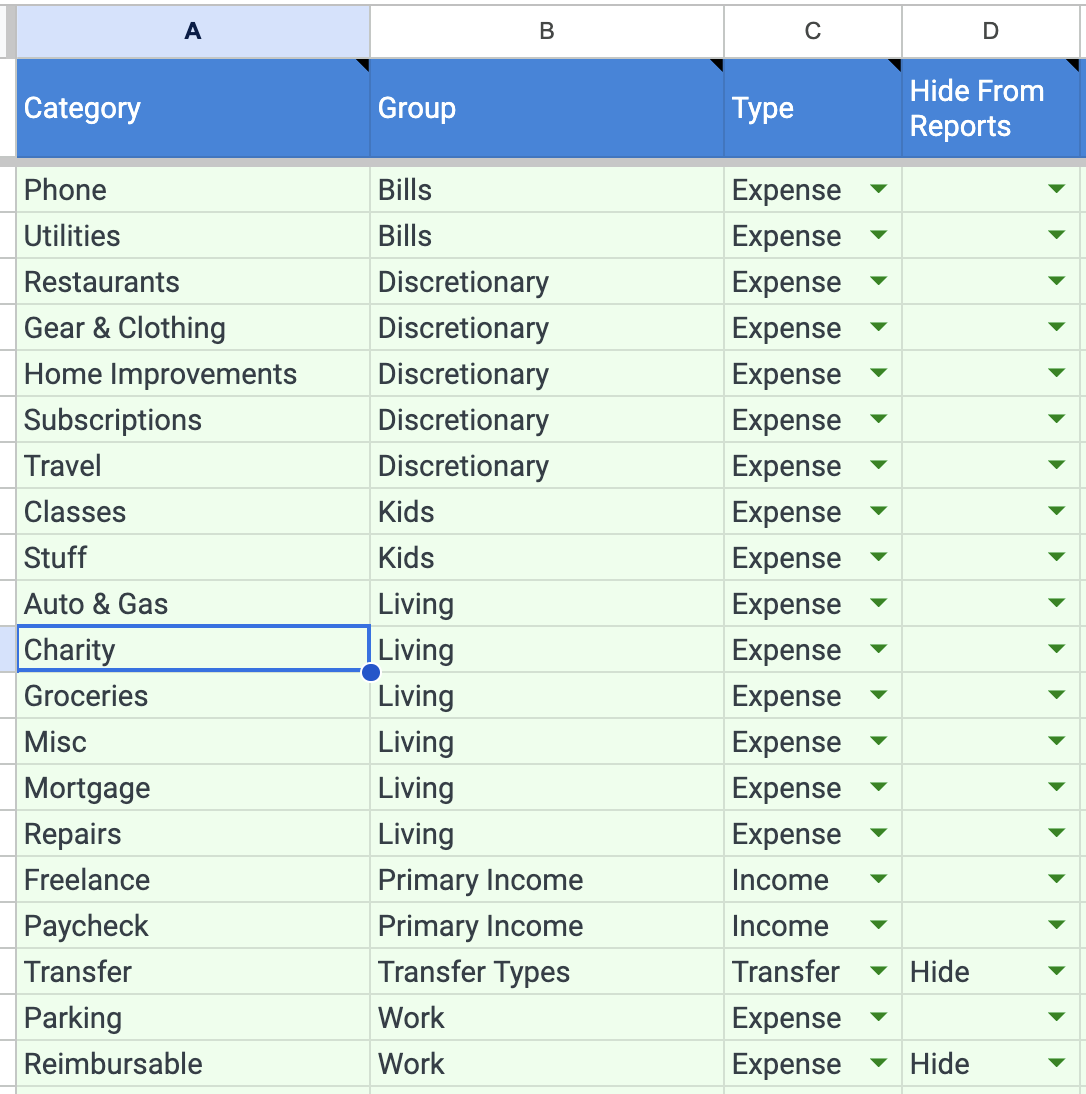
Adding new categories to your Category sheet is very easy. Simply open your Categories Sheet and type in the new category name, its group, and the type of transaction.
You can either add new transactions to this category on the Transactions sheet as they flow in, or use AutoCat (below) to automatically do this for you.
Renaming, hiding, and deleting categories
Unlike Mint, you can easily rename or delete the default categories included with Tiller.
Editing or removing a category name is as simple as clicking it. However, for accuracy, you will probably want to recategorize past transactions in any category you’ve edited or deleted.
Luckily, this is very easy. You can either use AutoCat to recategorize (see below), or you can use a spreadsheet filter to quickly find and update any obsolete category.
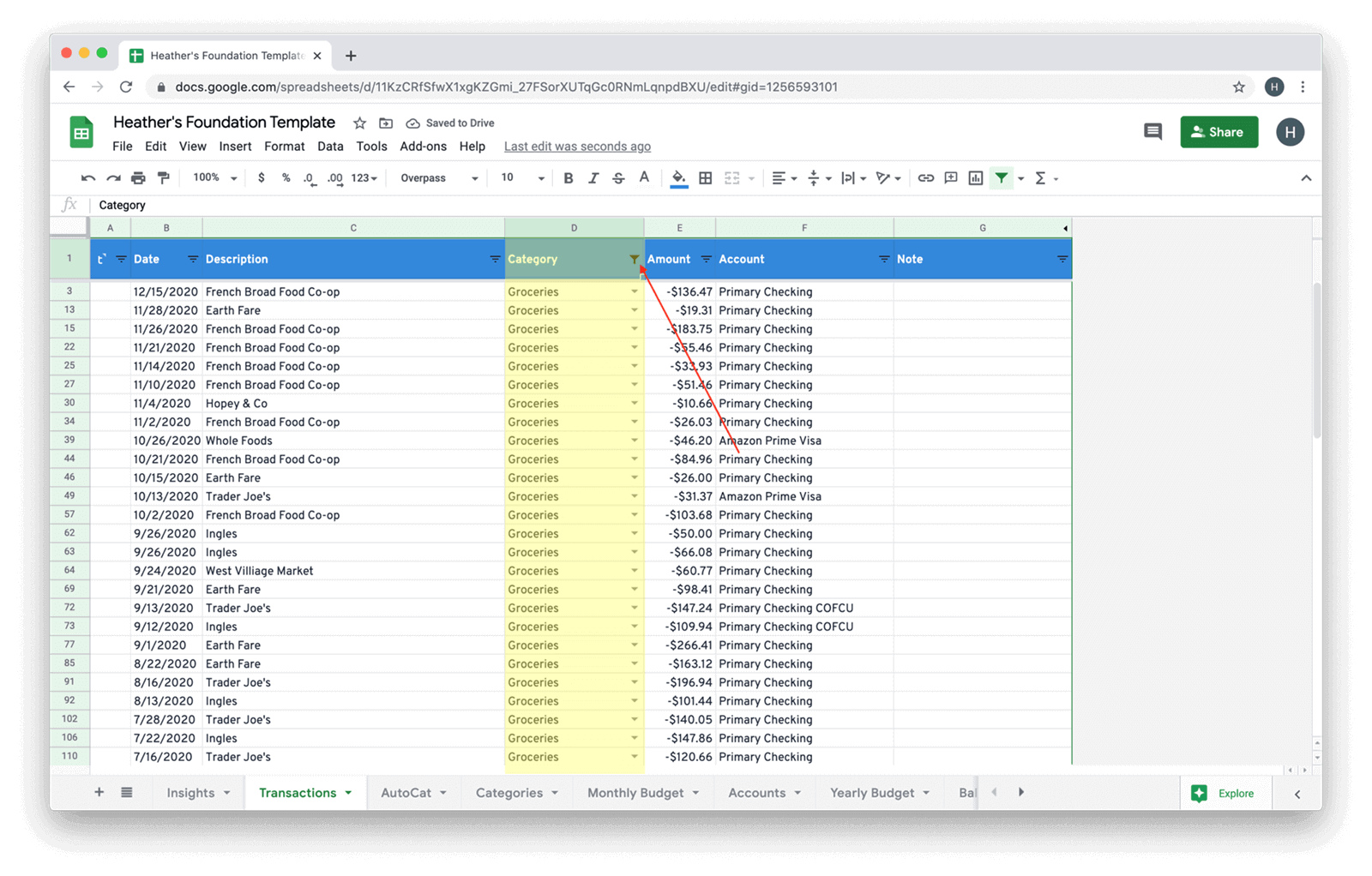
Note that you can also easily hide categories. In many cases this a better idea than simply deleting or renaming a category, so you can more accurately review past budgets and financial trends.
Rename Category Tool
Tiller Labs offers a helpful (and free) Rename Category Tool to help you easily rename your categories.
Using Tags for detailed reporting
Along with categories and groups, tags provide another, more detailed view of where your money is coming and going.
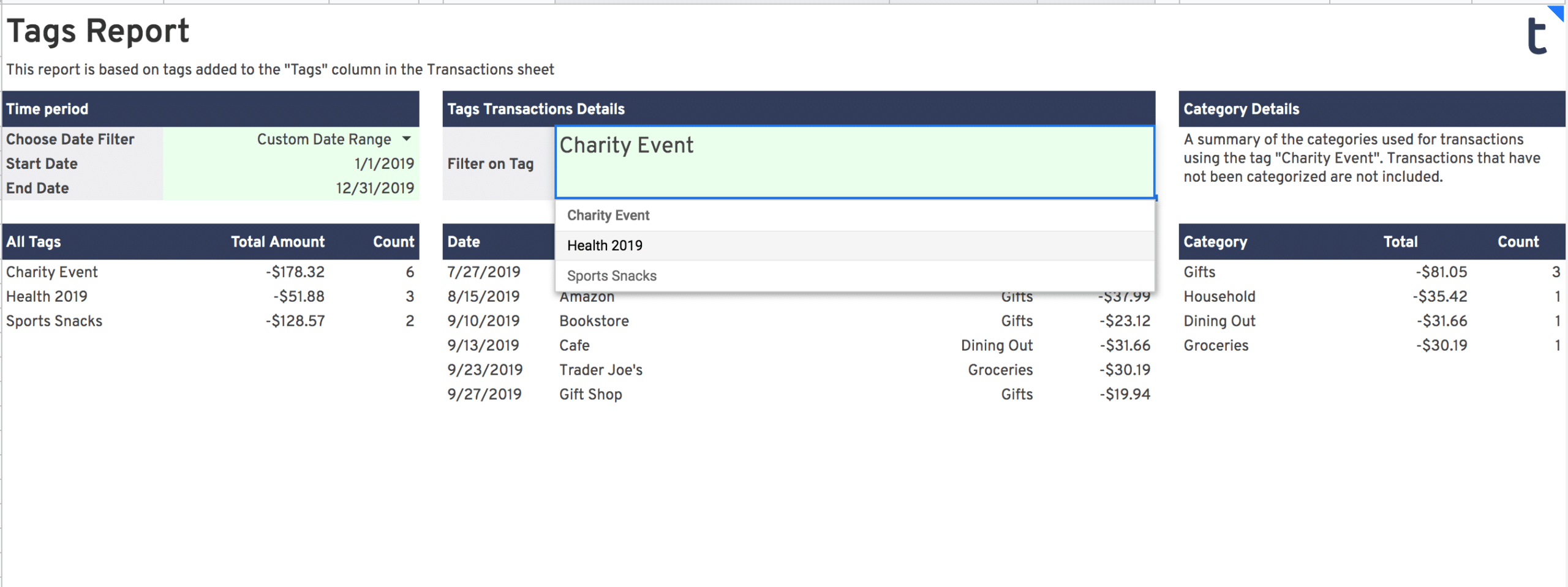
Tags are helpful for grouping and analyzing all transactions associated with a specific event or use case.
For example, you might have a parent category for Subscriptions, and different tags for “streaming video,” “magazines,” “software,” etc.
You can then run a custom report to see how much you’re specifically spending on magazines each month, or streaming tv services.
And while every transaction should only be assigned to a single category, it can have multiple tags. So you might tag a transaction as “streaming video,” “entertainment,” “kids,” etc.
But again, our advice about tags is similar to our advice about categories: try and keep it as simple as possible.
Note that tags aren’t enabled by default in Tiller-powered spreadsheets. However, it’s very easy to enable them by following these instructions.
Category Tags for Reporting
You can also take advantage of a few of the reporting features and templates offered in the Tiller add-on when you use the Tag column in your Categories sheet.
For example, tags are very helpful for tracking business expenses and deductions, which greatly simplifies preparing your taxes.
Read more about this in the Tiller Community.
When to use transfer categories?
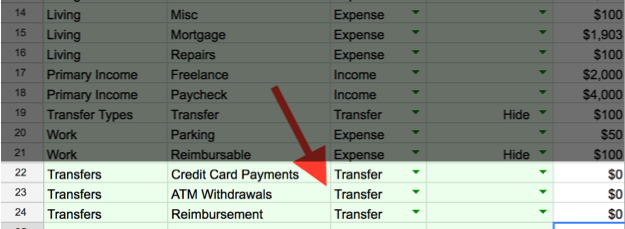
With Tiller, you can link multiple financial accounts to your spreadsheets so you can track everything in one place.
This can get a little confusing, however, when you use one account to pay a credit card balance or transfer money to another account. Most people prefer to track these types of transactions as transfers, instead of spending or income.
Join a discussion about transfer categories in the Tiller Community.
Categorizing Your Transactions
When it comes to categorization, most personal finance tools make choices for you using merchant codes or generic AI that you can’t control. Transactions end up in the wrong categories, and fixing them is frustrating.
Tiller takes a different approach. You’re always in control of your categories. But now, you also choose how much of the categorization work you want to do yourself.
AutoCat Rules let you build precise, custom rules to categorize transactions exactly how you want. Any transaction from Trader Joe’s is recorded under Groceries. Starbucks under $10 goes to Coffee. You decide.
Description Match watches how you categorize transactions and applies that same logic going forward. No rules to write. If you’ve been categorizing Netflix as Subscriptions, it’ll keep doing that automatically.
AI Suggest handles everything else. It uses an AI model to categorize transactions that don’t match any rule or pattern, based on your transaction history and category list. It’s completely opt-in. If you’d rather keep AI out of your financial data, just leave it off.
All three work together in priority order: your Rules run first, then Description Match, then AI Suggest. The “Categorized By” column on your Transactions sheet shows you exactly which method handled each transaction.
You can use all three, any combination, or none at all. Manual categorization still works exactly like it always has.
Learn more about the new AutoCat →
Using AutoCat Rules
AutoCat Rules are the most powerful and precise way to categorize transactions. You build rules based on description, amount, account, institution, or any combination.
Examples of rules you might create:
- Any transaction with a description containing “Hannaford” goes to “Groceries”
- Descriptions containing “Payment” with the institution “Capital One” go to “Transfer”
- Descriptions containing “Starbucks” under $25 go to “Coffee,” over $25 goes to “Dining Out”
AutoCat can also automatically tag transactions, clean up descriptions, and automate custom columns.
Learn more about building AutoCat rules →
Prefer manual categorization? No problem!
Many people prefer to manually categorize their transactions, feeling this provides the greatest awareness of their finances.
You can simply skip using AutoCat if you prefer this approach.
With Tiller, you’ll still benefit from autocomplete and drop-down menus for efficient categorization, without any loss of control.
Transactions and Category Reporting
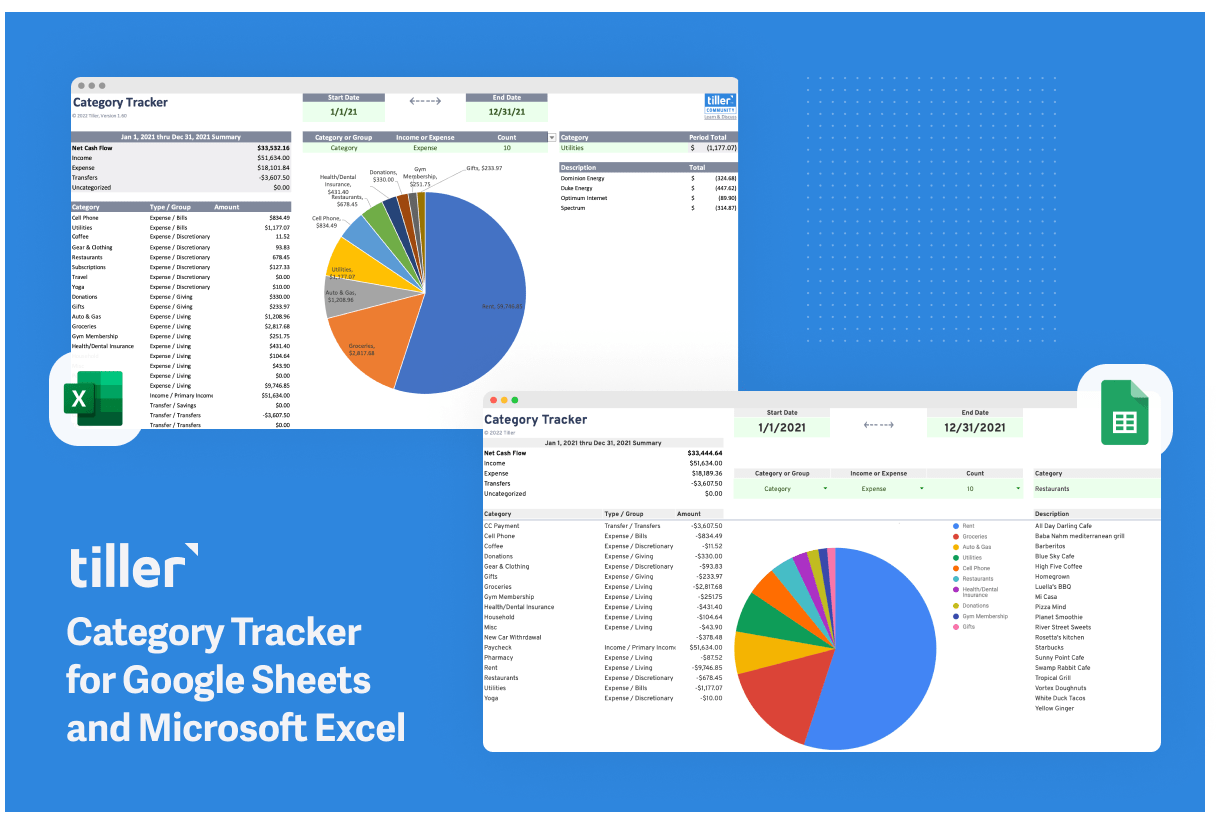
Because Tiller is based on Google Sheets and Microsoft Excel, you can easily create hundreds of types of reports with graphs and charts to visualize where your money is coming and going.
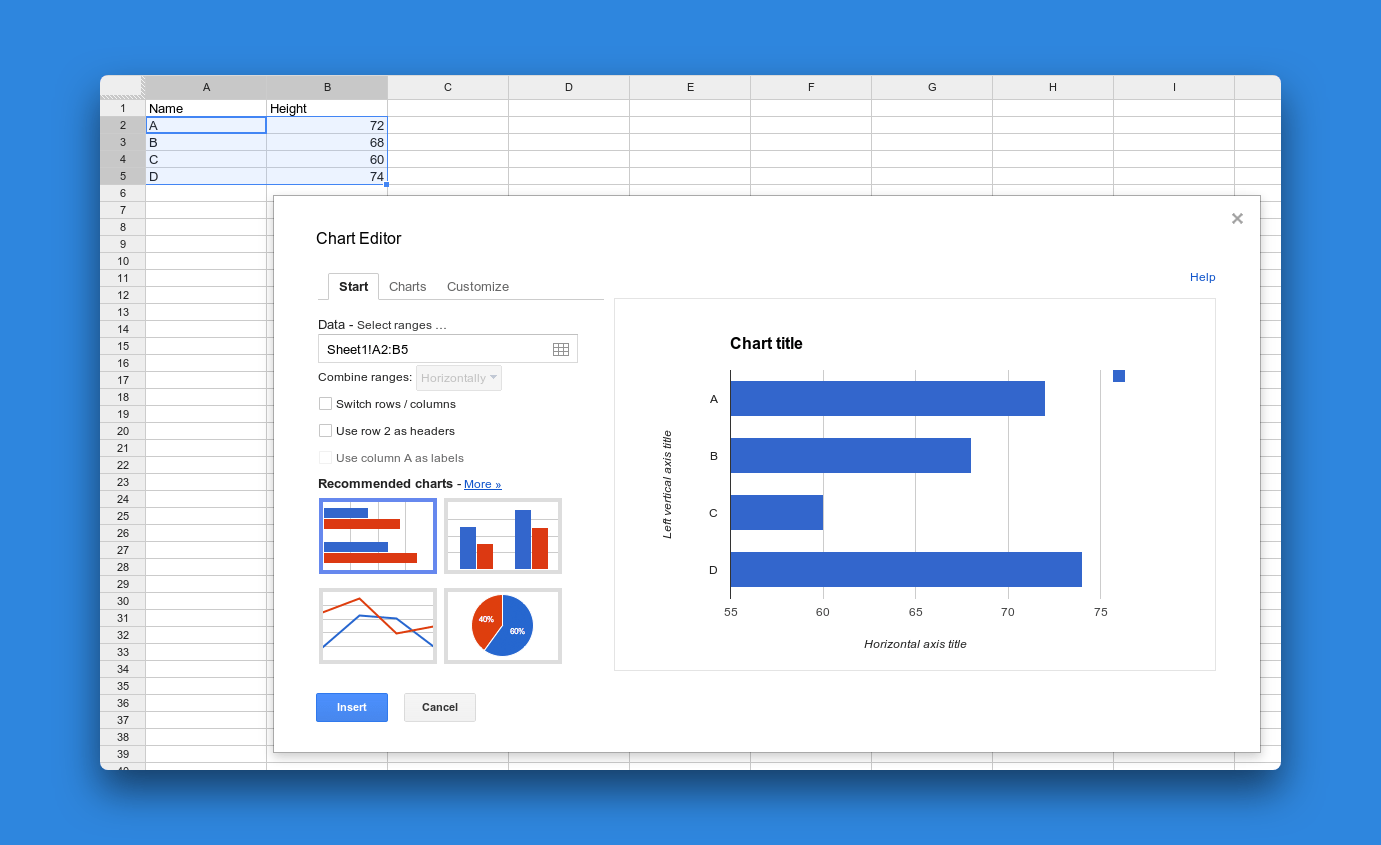
One of the most powerful benefits of using precise, accurate budget categories is the ability to analyze your cash flow, debt payoff targets, net worth, spending trends, and so much more with custom charts and reports.
You can use prebuilt charts, or dig deeper with pivot tables, queries, and anything else you can imagine in a spreadsheet.
Easy, pre-built Tiller Community Templates
The Tiller Community has created dozens of free report templates to provide insight into your transaction history. View Tiller Community templates here.