Tiller helps you automatically import your transactions into your spreadsheet. But the real magic happens with categorization. Categorizing a handful of transactions by hand works fine. But with three or more accounts and 100+ transactions per month, manual categorization is where most spreadsheet budgets break down.
Automated categorization fixes this problem. You define simple rules — “Any transaction from Whole Foods is Groceries” — and Tiller knows to categorize those transactions automatically going forward. After a few weeks of refining these rules, most of your transactions will be automatically categorized. There are only a few exceptions that you have to manually categorize or create a new rule for.
In this guide, we’ll cover how rule-based categorization works, how to build an effective rule set, and how Tiller’s AutoCat automates the entire process for bank-connected spreadsheets.
Why categorization is the most important step
Categories are what help you make sense of your transactions. They help you see the bigger picture of where your money is going.
Without categories, you can answer “How much did I spend in March?”
With categories, you can answer “How much did I spend on Dining Out in March versus my $300 budget? How does that compare to the last three months? Which category keeps running over?”
Knowing the answers to those questions gives you insight into how you’re spending your money and whether you may want or need to adjust it.
Consistent categories also make SUMIF formulas work correctly. The formula that connects your transaction log to your budget sheet depends on exact category matches, so a transaction tagged “Grocery” won’t be counted in a budget row labeled “Groceries.” Consistent, clean categorization makes your spreadsheets work.
Manual categorization — when it works and when it doesn’t
Reviewing each transaction and assigning a category by hand works if you have only a few transactions. But it starts becoming too time-consuming when:
- You have three or more accounts generating 100+ transactions per month.
- You miss a weekly review and have to catch up on two weeks of transactions.
- The same merchants appear repeatedly and you’re tagging “Netflix → Subscriptions” for the hundredth time.
- You have transactions that recur every month, like Netflix, your electricity bill, your gym membership, and so on.
Automated, rule-based categorization solves these problems.
How rule-based categorization works
A categorization rule is a simple if/then statement. For example:
If a transaction’s description contains “Whole Foods” → assign category “Groceries”
If a transaction’s description contains “Netflix” → assign category “Subscriptions”
If the amount is between $200 and $2,000 and the description contains “Rent” → assign category “Housing”
Rules can match on:
- Description contains. This is the most common rule type; it matches text anywhere in the transaction description.
- Description equals. This requires an exact match, which is useful for standardized merchant names.
- Amount range. Minimum and maximum transaction amounts.
- Account. Which bank account or card the transaction came from.
- Multiple conditions combined. This is for precise matching on unusual transactions.
Rule order matters: AutoCat processes rules top to bottom and stops at the first match. Put your most specific rules at the top and broader catch-alls at the bottom.
Building your initial rule set
Start with your most frequent merchants. Look at two to three months of transactions and identify the merchants that appear most often. Your top 20–30 recurring merchants probably account for 70–80% of your transaction volume. Build rules for those first.
Common starting rules most people need include:
- Grocery stores (Whole Foods, Trader Joe’s, Kroger, Safeway, local markets)
- Streaming services (Netflix, Hulu, Spotify, Disney+, Apple TV)
- Gas stations (Shell, Chevron, BP, Costco Gas)
- Regular restaurants or coffee shops
- Utility companies (electric, gas, water, internet)
- Insurance payments
- Gym or fitness memberships
- Your employer’s payroll description (for income categorization)
- Rent or mortgage payment descriptions
- Loan payments
Be specific enough to avoid false matches. A rule for “Description contains ‘Air’” might catch “Allegiant Air” but also “Air Conditioning Repair” and “Fair Trade Coffee.” A better rule is “Description contains ‘Allegiant’” for the airline specifically.
Use amount ranges for ambiguous merchants. Amazon is the classic example. You could have purchases for $12 books and $400 electronics. An amount rule can split these. Amazon transactions under $50 go to Shopping, and over $50 go to a separate Large Purchases category for review.
How Tiller’s AutoCat handles this automatically
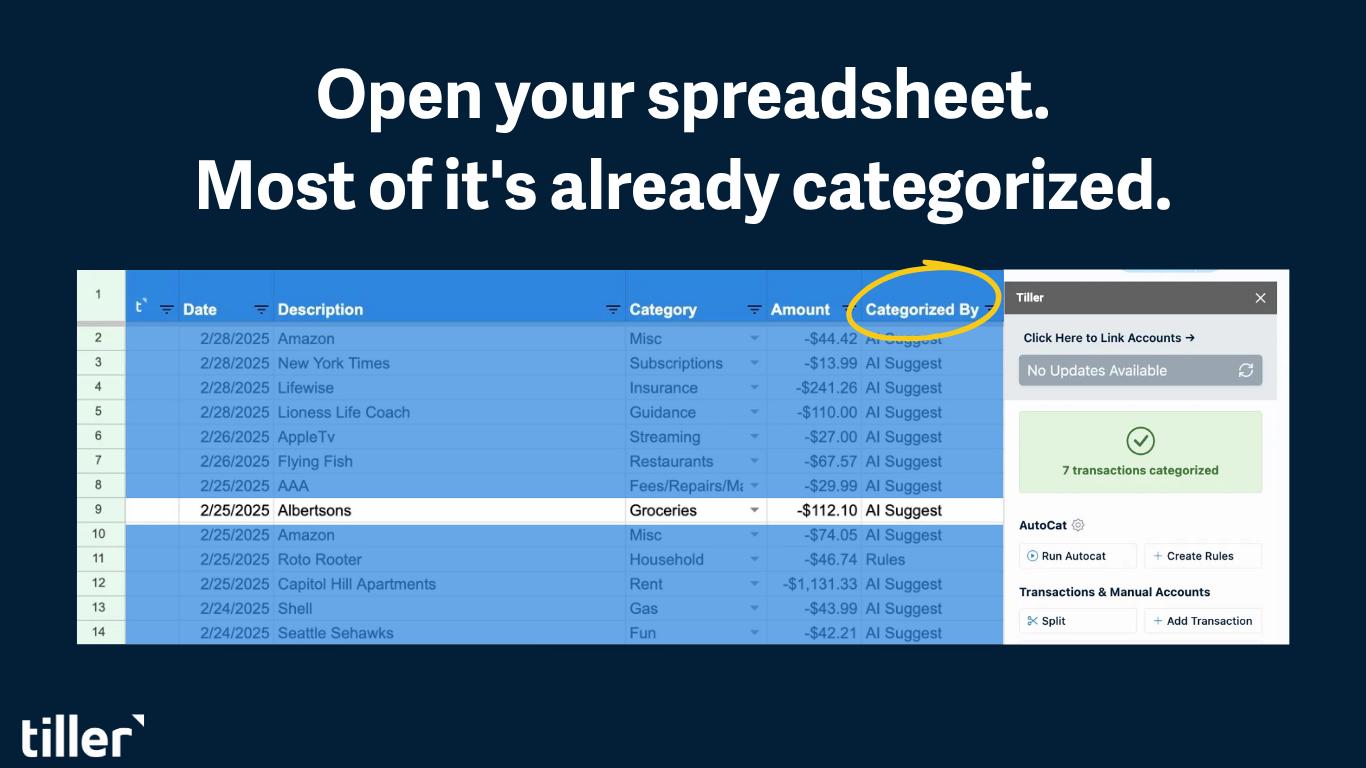
For bank-connected spreadsheets using Tiller, AutoCat handles rule-based categorization automatically as part of the daily transaction feed.
How AutoCat works:
- Rules are stored in a dedicated AutoCat sheet in your workbook.
- When new transactions arrive each day, AutoCat runs your rules against them.
- Matching transactions get their Category column filled in automatically.
- Rules are processed in order; the first matching rule wins
AutoCat can go beyond basic categorization. It can also:
- Override other columns in the Transactions sheet, not just Category. This is useful for cleaning up merchant descriptions or adding tags.
- Use multiple match conditions in a single rule (AND logic across conditions).
- Match multiple merchants in one rule using comma-separated values (OR logic within a field).
- Support regex patterns for advanced matching.
Most users find that after two to three weeks of running AutoCat, 80–90% of incoming transactions categorize themselves automatically. What remains are new merchants, one-off purchases, and unusual transactions that don’t match an existing rule.
Handling the hard cases
Amazon and other multi-category merchants
Amazon is the most common challenge; the same merchant sells groceries, electronics, books, and household supplies. You have a couple of options for how to handle merchants like this:
- Create separate rules by amount range (under $30 → Shopping, over $200 → Electronics).
- Create an “Amazon — Review” category and manually recategorize Amazon purchases during your weekly check-in.
- Use a “Skip” or “Categorize Later” flag for Amazon transactions and handle them separately.
Split transactions
A single transaction that covers multiple categories can be split directly in Tiller. This is helpful when you have two different categories on the same trip — for example, a Costco run that included groceries and household supplies. The Transaction Splitter tool in Tiller Money Feeds lets you split a single transaction into multiple rows, each with its own amount, category, and description.
To split a transaction, select the row in your Transactions sheet, open Tiller Money Feeds, and click Split under Transactions. Enter the amount and category for the first portion, click Add split, and repeat for each category. When you click Split transaction, the original entry is replaced by the individual splits.
For transactions you split regularly, such as paycheck deductions, shared bills, or recurring Costco or Target runs, the Saved Splits feature lets you save a split template and apply it in one click the next time that kind of transaction appears.
New merchants
The most common source of uncategorized transactions for established users is new merchants that you haven’t transacted with before. They won’t match an existing rule, so you’ll need to manually add a category and create a new AutoCat rule if you expect more transactions with them.
Refunds and returns
Refunds often appear with a different description text than the original charge. Refund descriptions often include ‘REFUND,’ ‘CREDIT,’ or ‘RETURN’ — a rule matching any of these in the Description column catches most refunds automatically
Maintaining your rule set over time
You should expect to update your rules periodically. For example, updates would be needed if:
- You switch to a new grocery store or regular merchant.
- A merchant changes their name or description format.
- Your spending patterns change significantly (e.g. new job, new location, new habits).
- You add new budget categories and need to route transactions to them.
Most Tiller users spend only a few minutes updating their AutoCat rules each week or month.
Frequently asked questions
What is transaction categorization and why does it matter?
Transaction categorization is the process of labeling each bank transaction with a spending category, such as Groceries, Dining Out, Subscriptions, Housing, and so on. Categories make a transaction log useful by connecting individual transactions to your budget, enabling spending-by-category reports, and making SUMIF formulas work. Without consistent categories, you aren’t able to get meaningful insight into your finances.
How does automatic transaction categorization work in a spreadsheet?
Rule-based categorization uses if/then logic to assign categories automatically. You define rules — for example, “If the description contains Whole Foods, assign Groceries” — and the system applies them to every matching transaction. Rules can match on description text, transaction amount, account source, or combinations of conditions. Once the rules are set, matching transactions are automatically categorized without any manual work.
How long does it take to set up categorization rules?
Initial rule setup takes most people 30–60 minutes. You identify your most frequent merchants, build rules for the top 20–30, and test them against recent transactions. After that, you’ll add occasional rules for new merchants. Tiller’s AutoCat Rule Builder speeds up initial setup by letting you create rules directly from recent transactions.
What percentage of transactions can I expect to categorize automatically?
For most users with an established rule set, 80–90% of incoming transactions are automatically categorized. The remaining 10–20% are typically new merchants, one-off purchases, or transactions with ambiguous descriptions. This percentage improves over time as your rule set grows to cover more of your regular spending patterns.
How do I handle merchants like Amazon that sell multiple types of products?
Amazon is the most common multi-category challenge. The most practical approaches are to create amount-range rules to split Amazon transactions by likely category (small purchases to Shopping, large purchases to a review queue), create a dedicated Amazon or Mixed category for all Amazon purchases and review them during your weekly check-in, or use an exclusion rule to flag Amazon transactions for manual categorization while automating everything else.
Does AutoCat work on past transactions or only new ones?
By default, AutoCat runs on any uncategorized transactions — both past and new — when you manually trigger it. There’s also a “Run Rules on All” option that applies your rules to all transactions in your sheet, including those already categorized. Use the Run Rules on All option carefully, as it will overwrite existing categories where a rule matches.
Can I use AutoCat if I’m not connected to Tiller?
AutoCat is a Tiller feature and requires a Tiller subscription. However, the rule-based categorization concept works in any spreadsheet. You can build your own logic using Google Sheets’ or Excel’s IF formulas or conditional formatting to apply categories based on description text, though this requires more manual spreadsheet setup than AutoCat provides.
Can I split a transaction across multiple categories in my spreadsheet?
Yes. Tiller’s Transaction Splitter tool lets you divide a single transaction into multiple rows, each with its own amount and category. This is particularly useful for transactions from merchants like Costco, Target, or Amazon, where a single charge covers multiple spending types. For transactions you split regularly, like paycheck deductions or shared bills, the Saved Splits feature lets you save a split template and reuse it with one click.