Tiller Resource Center > Spreadsheet Financial Systems > Budgeting in Spreadsheets
If you already budget in a spreadsheet, you know the drill. Open Google Sheets, realize it’s two weeks out of date, log into four bank websites, download files, paste transactions, re-categorize everything, and finally — after 30–45 minutes — have current numbers to look at.
It doesn’t have to work that way.
A fully automated budget in Google Sheets means transactions arrive automatically, get categorized automatically, feed into formulas that update automatically, and produce a dashboard that reflects current reality . . . automatically. You open the sheet and your budget is current.
This guide covers each layer of that automation, including what Google Sheets handles natively and where tools like Tiller extend what’s possible.
What “automated budgeting” actually means
Automation in a budget spreadsheet operates in four layers:
1. Data input — getting transactions from your bank into the sheet
2. Categorization — tagging each transaction with the right budget category
3. Calculations — computing budget vs. actual, variances, and totals
4. Reporting — displaying the results in a readable format
Layers 3 and 4 (calculations and reporting) are things Google Sheets handles well with native formulas and charts. Layers 1 and 2 (data input and categorization) are where most manual budgeting time is spent — and where automation makes the biggest difference.
Full automation means that you don’t touch layers 1 or 2. You spend your time in layers 3 and 4 — reviewing what the data shows and deciding what to do about it.
What still requires human judgment, even in a fully automated budget, includes reviewing categories for edge cases, making the monthly call on whether to adjust budget amounts, and deciding how to respond to what the numbers are telling you. Automation removes the mechanical work, but the thinking and analysis stay yours.
Layer 1: Automate transaction data
Getting bank data into your spreadsheet is the biggest bottleneck in manual budgeting. Downloading CSV files from each institution, dealing with inconsistent column formats, and pasting data in the right place — it works, but it doesn’t scale. With three or more accounts, this takes too much time to be maintainable over the long term.
Tiller eliminates this step. After connecting your accounts through Tiller’s console, new transactions from every linked bank account, credit card, investment account, and loan appear in your Google Sheet automatically each morning. You don’t log in to your bank each time. You don’t download anything. The data just arrives.

The transaction sheet becomes your automatic foundation — the raw data that everything else in your budget builds on. Your formulas start working as soon as transactions land.
Layer 2: Automate categorization
Without automation, you categorize transactions one by one — reading each description (and perhaps reviewing each receipt) and deciding where it belongs. Depending on how many transactions you have, this could take an hour or more each month.
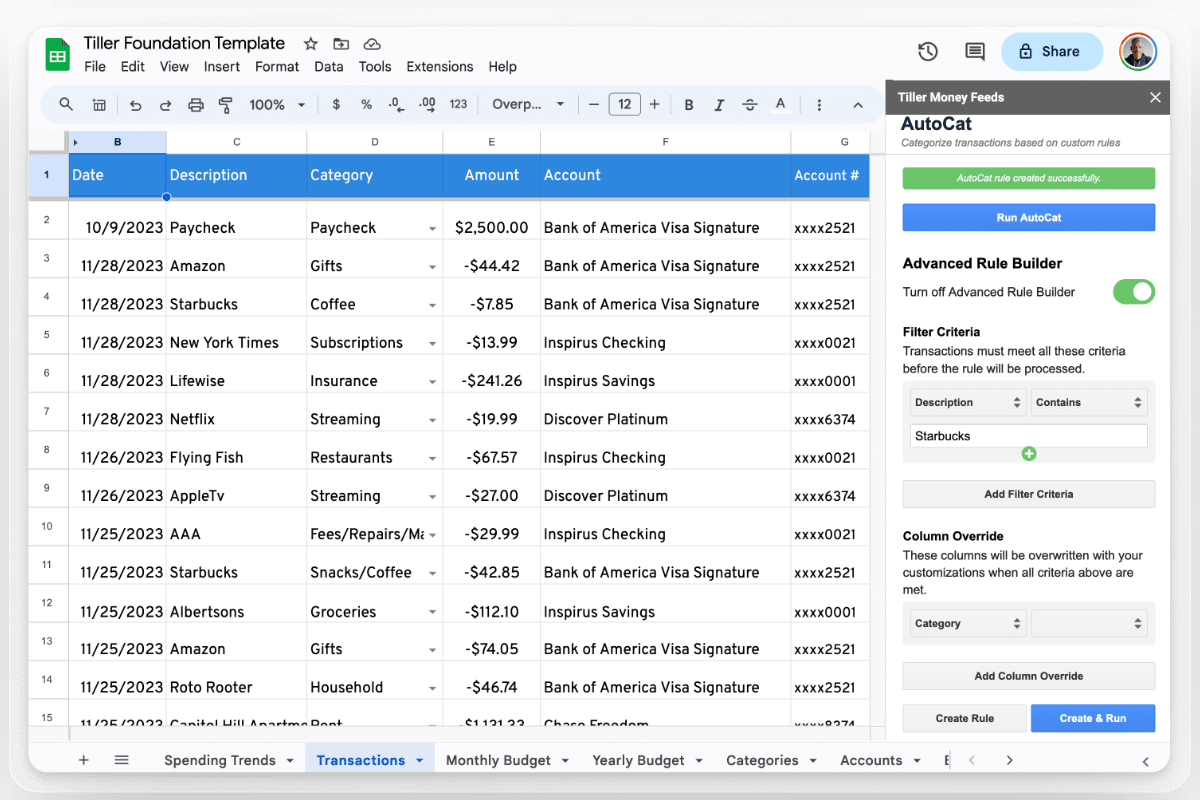
Tiller’s AutoCat feature handles this with rules you set once and don’t have to revisit. AutoCat works like a set of matching instructions:
Any transaction from Whole Foods → Groceries
Any transaction from Spotify → Subscriptions
Any transaction from Shell or BP → Gas
Any transaction over $500 at a Home Depot → Home Improvement
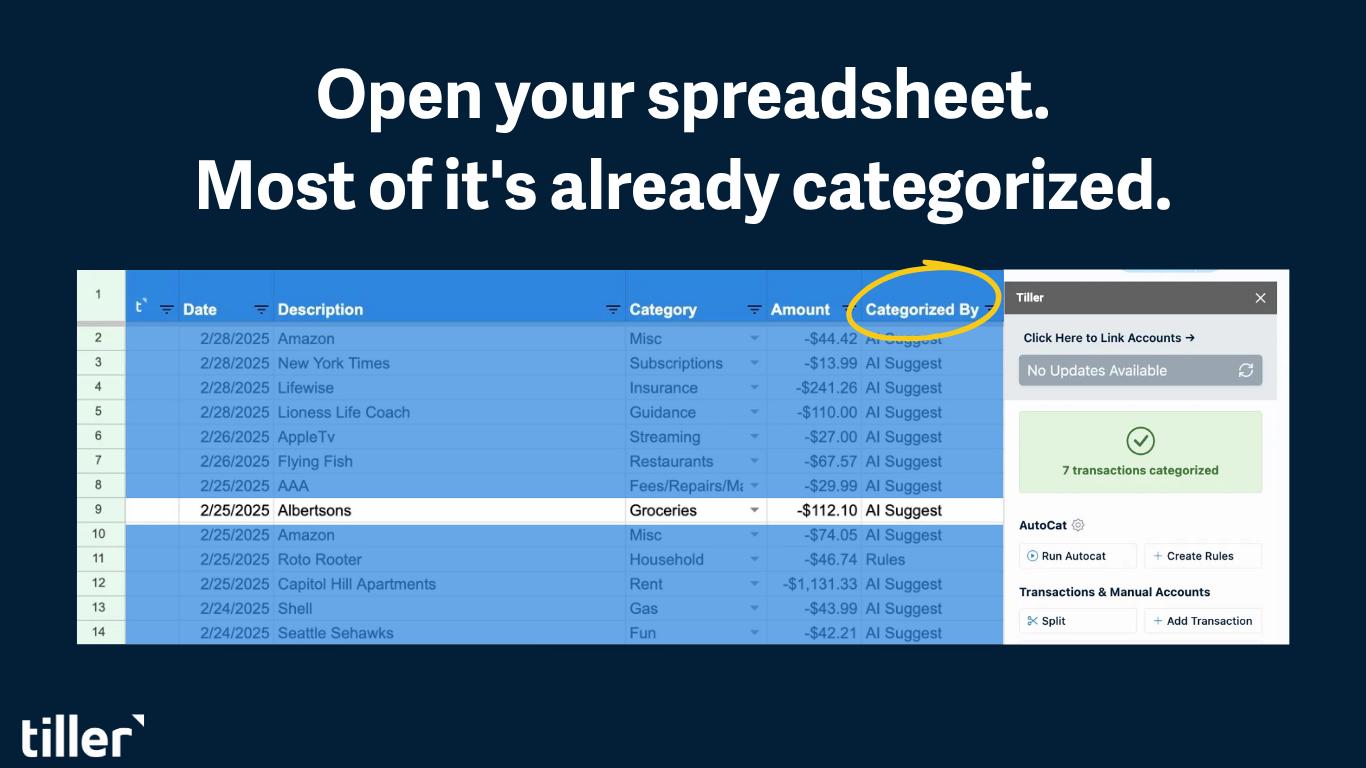
When new transactions arrive, AutoCat checks them against your rules and applies the correct category automatically. Transactions that don’t match any rule stay uncategorized for you to handle manually.
Building your rule set: Start with your 15–20 most frequent merchants. These rules will cover the majority of your transaction volume. After a month of AutoCat running, typically 80–90% of transactions categorize themselves. What remains is occasional — a new merchant, a split transaction, something unusual.
The categorization work doesn’t disappear entirely — but it drops from an hour-long monthly project to a few minutes of spot-checking.
Layer 3: Automate budget calculations with formulas
Once transactions are landing and getting categorized automatically, formulas do the rest of the calculation work in real time.
SUMIF — the foundation:
=SUMIF(Transactions!C:C, A2, Transactions!D:D)
This totals all transactions (in column D) in a given category (labeled in column C). Put it in your Actual column for every budget row and it updates instantly as new transactions arrive.
Variance — the number that matters:
=B2-C2
Budget (column B) minus Actual (column C). Positive = under budget. Negative = over budget. This one formula, down a column of categories, is your budget scorecard.
Pacing — are you on track mid-month?
=C2/(DAY(TODAY())/DAY(EOMONTH(TODAY(),0)))/B2
This estimates whether your spending pace, if it continued through the end of the month, would put you over budget. A result over 1 means you’re on pace to overspend this category.
Conditional formatting: Apply a rule to your Variance or % Used column: negative values (or values over 100%) in red, values within 20% of the limit in yellow, comfortable values in green. This turns a column of numbers into an instant visual scan.
With these formulas in place and AutoCat categorizing transactions as they arrive, your budget dashboard updates itself every morning without you touching it.
Layer 4: Automate reporting and dashboards
Once calculations are running automatically, you can build reports that update themselves.
A spending by category chart: In Google Sheets, select your Category and Actual columns, and insert a pie or bar chart. It updates automatically as new transactions arrive and get categorized.
A monthly trend view: A table showing each category’s spending totals across multiple months, fed by SUMIF formulas filtered by month. You can see at a glance whether your grocery spending crept up in December or how much your utilities spike in winter.
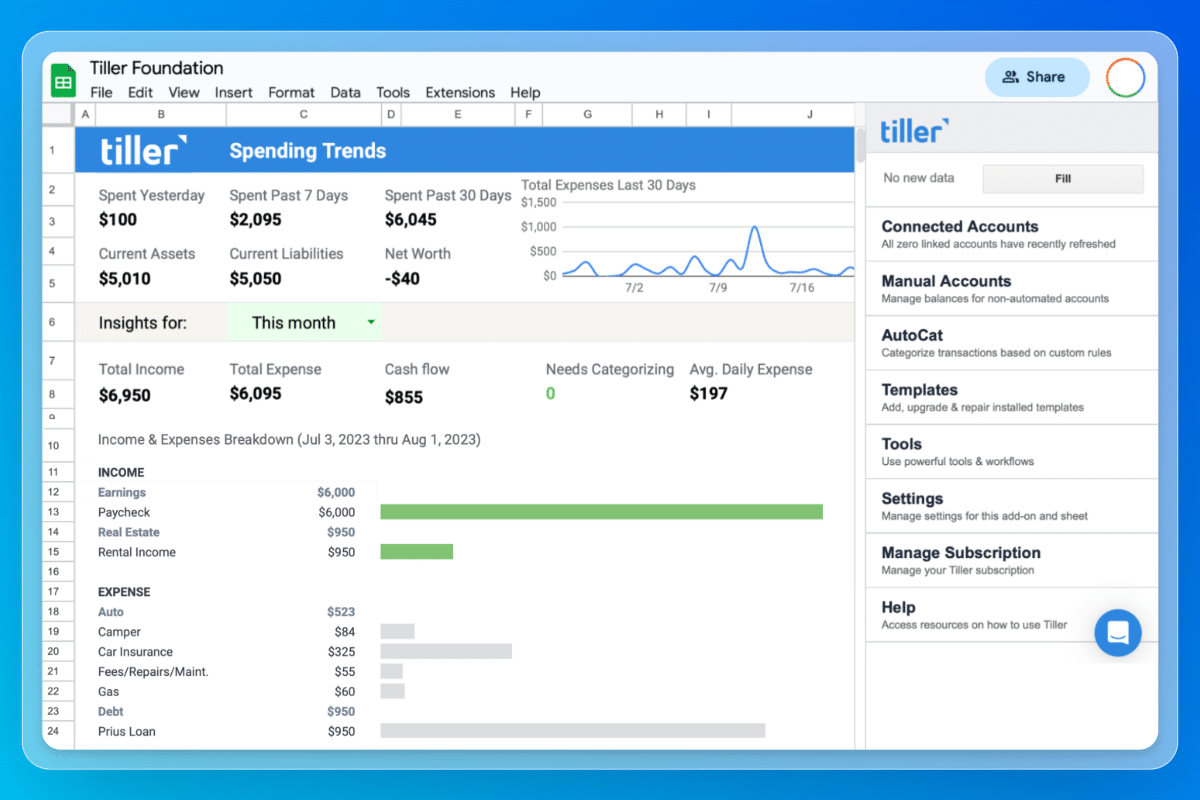
A summary dashboard: A separate sheet that pulls key numbers — total spending, total budgeted, net remaining, categories over budget — using cell references from your budget sheet. It has all your most important metrics in an easily scannable format.
The Tiller Foundation Template includes pre-built versions of these reports, connected to your transaction data from day one. If you prefer to build your own, the formulas above are the building blocks.
What your automated budget looks like day-to-day
The before picture (manual): 20–30 minutes of data entry and categorization, multiple times per month.
The after picture (automated):
Morning: Transactions from yesterday are already in your sheet and categorized. Nothing for you to do here.
Weekly check-in (2–3 minutes): Scan for any uncategorized transactions. Glance at category totals. Note anything unusual. That’s it.
Monthly close (10–15 minutes): Review budget vs. actual by category. Note any patterns worth adjusting. Update next month’s budget amounts if needed. Everything else is already done.
The monthly time investment drops from 2–4 hours (manual) to 15 minutes (automated). More importantly, the data is always current and accurate, so decisions are based on up-to-date and relevant information.
Frequently asked questions
Is there a way to automatically import bank transactions into Google Sheets?
Yes — Google Sheets doesn’t support direct bank connections natively, but Tiller adds this capability. After connecting your accounts through Tiller’s console, new transactions from every linked bank account, credit card, investment account, and loan are delivered into your Google Sheet automatically each morning. You don’t need to log into your bank, download files, or paste anything.
How do I automatically categorize transactions in Google Sheets?
Tiller’s AutoCat feature handles this. You create rules based on merchant name, description keywords, or amount ranges — and when new transactions arrive that meet the criteria, they’re tagged with the correct category. Stop manual entry and start running your budget on autopilot. Setting up rules for your 20–30 most frequent merchants typically results in 80–90% of transactions categorizing themselves.
What Google Sheets formulas are used for automated budget tracking?
The core formula is SUMIF: =SUMIF(Transactions!C:C,”Groceries”,Transactions!D:D) — it totals all transactions categorized as Groceries automatically. Combine with a variance formula (=Budget-Actual) and conditional formatting to highlight over-budget categories in red, and your budget dashboard updates itself every time a new transaction arrives.
Can I fully automate my Google Sheets budget, or do I still need to do anything manually?
You can automate the data and calculation layers almost completely — transactions import automatically, categorization rules handle most tagging, and formulas update all your budget totals in real time. What still benefits from a human touch: reviewing transactions your AutoCat rules didn’t catch, making the monthly judgment call on adjusting budget amounts, and deciding how to respond to what the data shows. The goal is to reduce mechanical work to near zero, freeing you for the actual financial decisions.