How to Import Bank CSVs Directly into Tiller
Tiller automatically pulls in your daily transactions, but there are times when importing a CSV is handy. You have years of history you were already tracking in a spreadsheet before you started using Tiller. Maybe you want to transition from another personal finance app. Or your institution isn’t supported. Maybe you’re tracking an account manually.
For all of those situations, the CSV Importer has you covered.
What the CSV Importer does
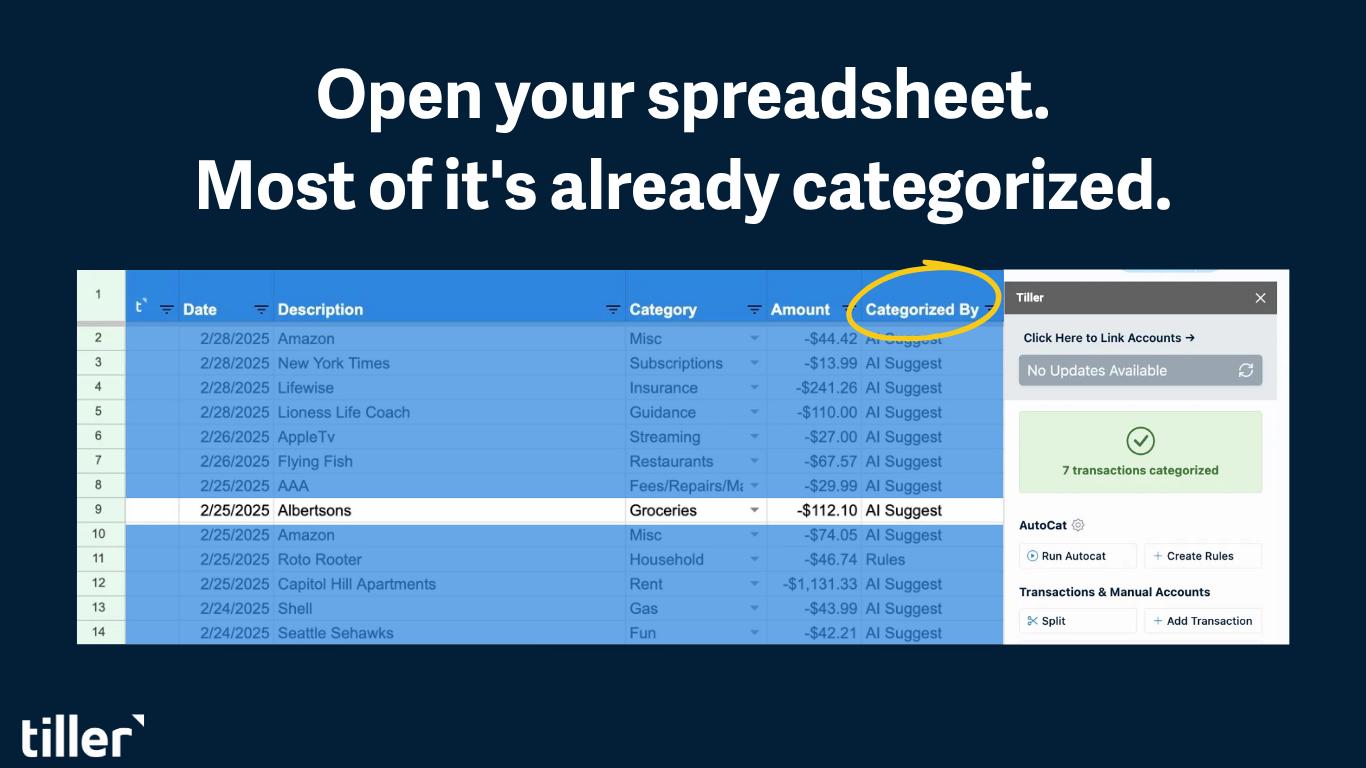
The CSV Importer lets you upload a CSV file from your bank directly into Tiller’s database: no add-ons, no formulas, no manual row-by-row entry. Once the data is imported, it fills into your spreadsheet exactly like automated transaction data would.
You can use it for:
- Adding historical data to an account that’s already connected. Just set the date range in your bank export to cover the period before Tiller started pulling data automatically
- Manually tracked accounts that will never have an automated feed
- Bringing customized bank data from another tool to help you pick up where you left off
- Keeping your spreadsheet up to date during a bank outage. Import a CSV while the connection is down, then clean up any duplicates when the feed resumes
How it works
Log in to my.tiller.com, click Import CSV under Manage Accounts, upload your file, and map accounts. That’s it. The imported data flows into your spreadsheet exactly like automated transaction data would. No manual row entry, no re-arranging columns and data, no copy-pasting.
The importer handles most common bank CSV formats automatically, including separate credit/debit columns and reversed polarity amounts. It can also handle imports that include data for multiple accounts, allowing you ultimate flexibility.
One thing to know before you start
The importer doesn’t deduplicate automatically. Before uploading, check what transactions are already in your spreadsheet and set your CSV date range to start after the last existing transaction. It saves cleanup time later.
For the full setup guide, duplicate management steps, and known limitations, visit the CSV Importer help doc.