
Tiller Resource Center > Getting Bank Data into Spreadsheets
Export Bank Transactions to a Spreadsheet
How to download transactions from your bank and get them into Google Sheets or Excel—with step-by-step guides for every major institution.
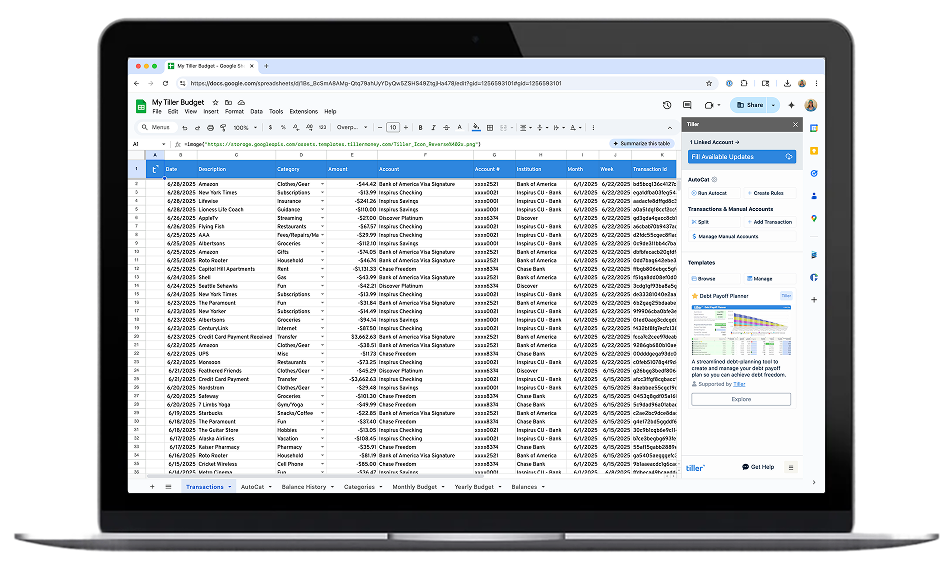
Every major bank lets you export your transaction history—but almost none of them make it obvious. The option is usually buried inside account settings or statement menus, formatted differently at every institution, and labeled something different from bank to bank. Knowing it exists is one thing; actually finding it is another.
Once you have your data, there’s usually more work to do: cleaning up extra header rows, standardizing date formats, merging data from multiple accounts. The process is workable, but it’s not seamless.
This hub collects step-by-step export guides for the banks, credit cards, and financial platforms that people most commonly want to get data from. Each guide walks through exactly where to find the export option, what file format to choose, and how to bring that data into a spreadsheet cleanly. For anyone who wants to skip the manual export process entirely, we’ve also included a pointer to Tiller’s automated approach—which handles all of this automatically, every day.
Find your institution below:

How to Export Chase Bank Transactions to a Spreadsheet
Step-by-step instructions for downloading your Chase checking, savings, or credit card transactions as a CSV file and importing them into Google Sheets or Excel.
How to Export Bank of America Transactions to a Spreadsheet
Where to find the transaction download option in Bank of America’s online banking, which format to choose, and how to clean up the export for use in a spreadsheet.

How to Export Wells Fargo Transactions to a Spreadsheet
A walkthrough for downloading Wells Fargo transaction history and getting it into Excel or Google Sheets with minimal cleanup.

How to Export Citibank Statements into Microsoft Excel and Google Sheets
This guide provides step-by-step instructions on how to export Citibank statements into Microsoft Excel and Google Sheets. It covers logging into your Citibank account, downloading transactions as a CSV file, and then opening that file in either Excel Online or Google Sheets. The process is designed to help users analyze their financial data in a spreadsheet format. This resource is ideal for individuals looking to manage their banking transactions more effectively outside of the Citibank platform.
How to Export Amazon Orders to Excel and Google Spreadsheets (Updated for 2026)
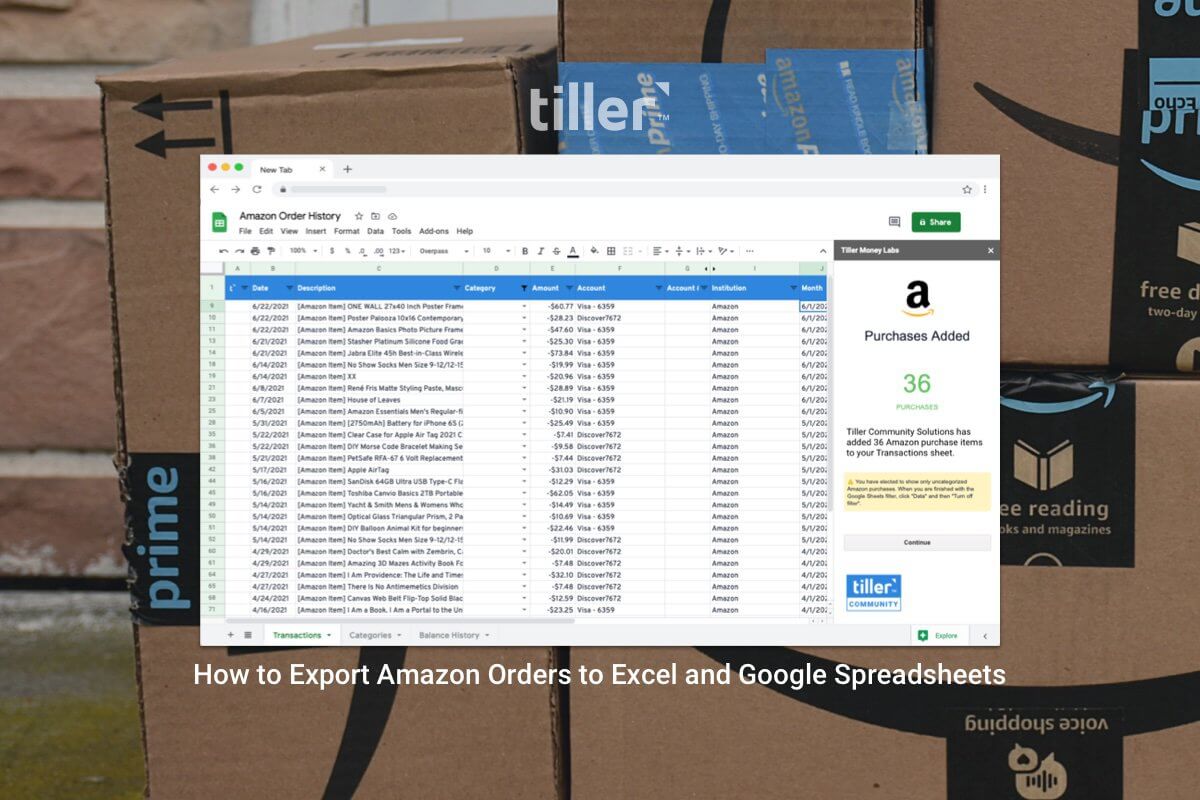
This article provides updated instructions on how to export Amazon order history to Excel and Google Spreadsheets. It covers the process of downloading CSV files from Amazon and then importing them into either Microsoft Excel or Google Sheets for analysis and archiving. The article also introduces Tiller’s CSV Importer for more detailed tracking and categorization of Amazon purchases, highlighting its benefits for users who want to itemize their orders.
How to Download Your Amazon Order History Report (Updated for 2026)
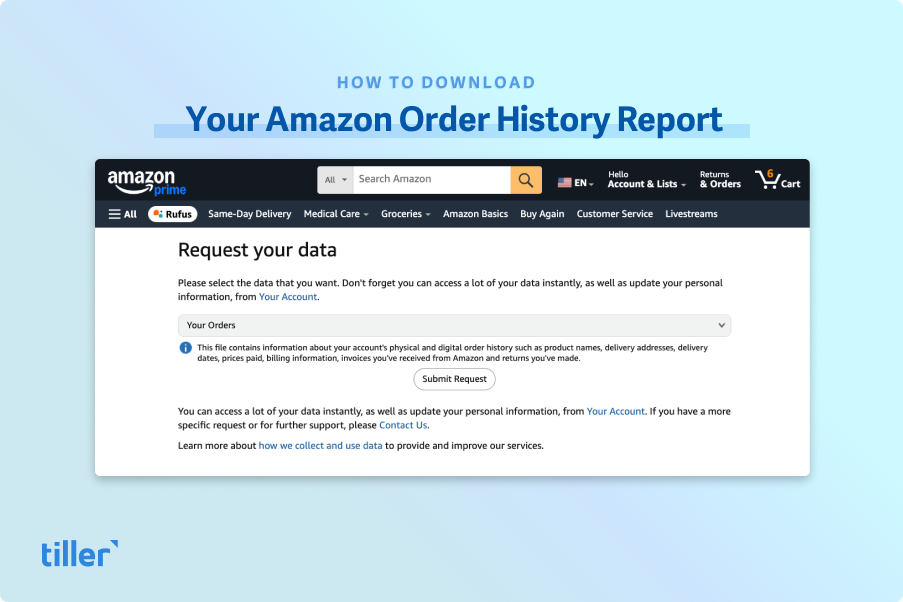
This guide provides step-by-step instructions on how to download your Amazon order history and transaction reports. It explains that Amazon now divides this data into multiple spreadsheets, such as orders, returns, and digital purchases. The article highlights how Tiller’s Import CSV Line Items workflow can help users compile this data efficiently into a single spreadsheet. It also mentions that this workflow is currently only available for Google Sheets.

Answering “How Much I Spend on Amazon?”
This page provides a guide on how to track Amazon spending using Tiller-powered Google Spreadsheets. It details a method involving two one-click profiles linked to separate credit cards, allowing for easy categorization of “Living” and “Discretionary” expenses. The article also touches on the benefits of using custom categories in spreadsheets and automating the process with Tiller’s AutoCat feature. It aims to simplify financial tracking for Amazon purchases.

How to Export Capital One Transactions to a Spreadsheet
Step-by-step guide for exporting Capital One credit card or bank account transactions and importing them into your spreadsheet.
How to Export Citibank Statements into Microsoft Excel and Google Sheets
This guide provides step-by-step instructions on how to export Citibank statements into Microsoft Excel and Google Sheets. It covers logging into your Citibank account, downloading transactions as a CSV file, and then opening that file in either Excel Online or Google Sheets. The process is designed to help users analyze their financial data in a spreadsheet format. This resource is ideal for individuals looking to manage their banking transactions more effectively outside of the Citibank platform.
How to Export Ally Bank Transactions to a Spreadsheet
A guide to downloading your Ally Bank transaction history and importing it into a spreadsheet for budgeting or tracking.
How to Export U.S. Bank Transactions to a Spreadsheet
Step-by-step instructions for downloading U.S. Bank account history as a CSV file and getting it into Google Sheets or Excel.
How to Export PNC Bank Transactions to a Spreadsheet
How to find and use PNC’s transaction download feature, and what to do with the file once you have it.
How to Export Truist Bank Transactions to a Spreadsheet
Instructions for downloading Truist Bank statement data and importing it cleanly into Google Sheets or Excel.
How to Export Discover Card Transactions to a Spreadsheet
Where to find Discover’s transaction download option and how to import the exported file into your spreadsheet.
How to Export PayPal Transaction History to a Spreadsheet
A guide to downloading your PayPal activity report and getting that data into Excel or Google Sheets.
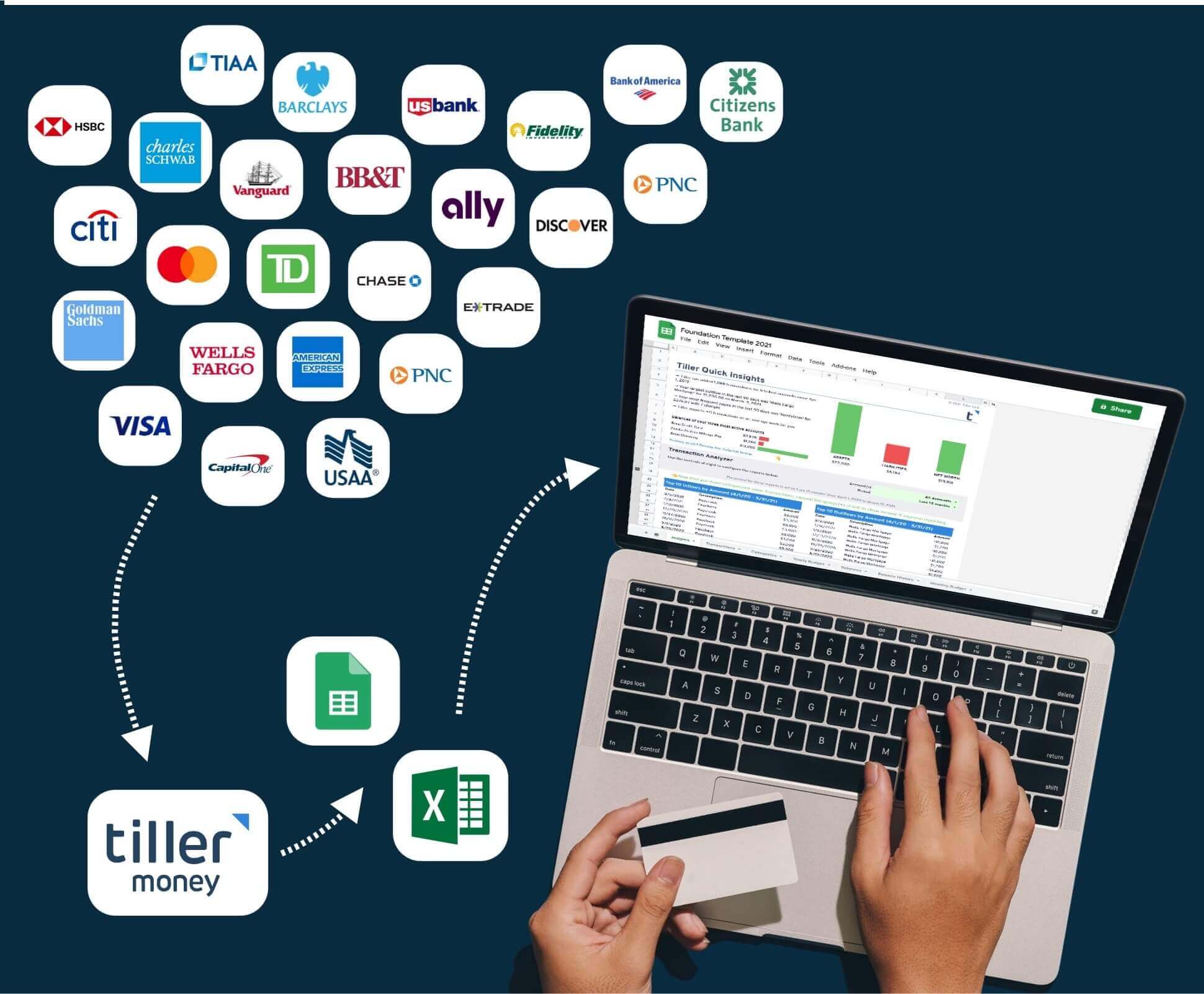
How to Import Bank Transactions into a Spreadsheet
Once you have your export file, this guide walks through the cleanest way to import it—handling format issues, merging multiple files, and setting up a transaction sheet that works.
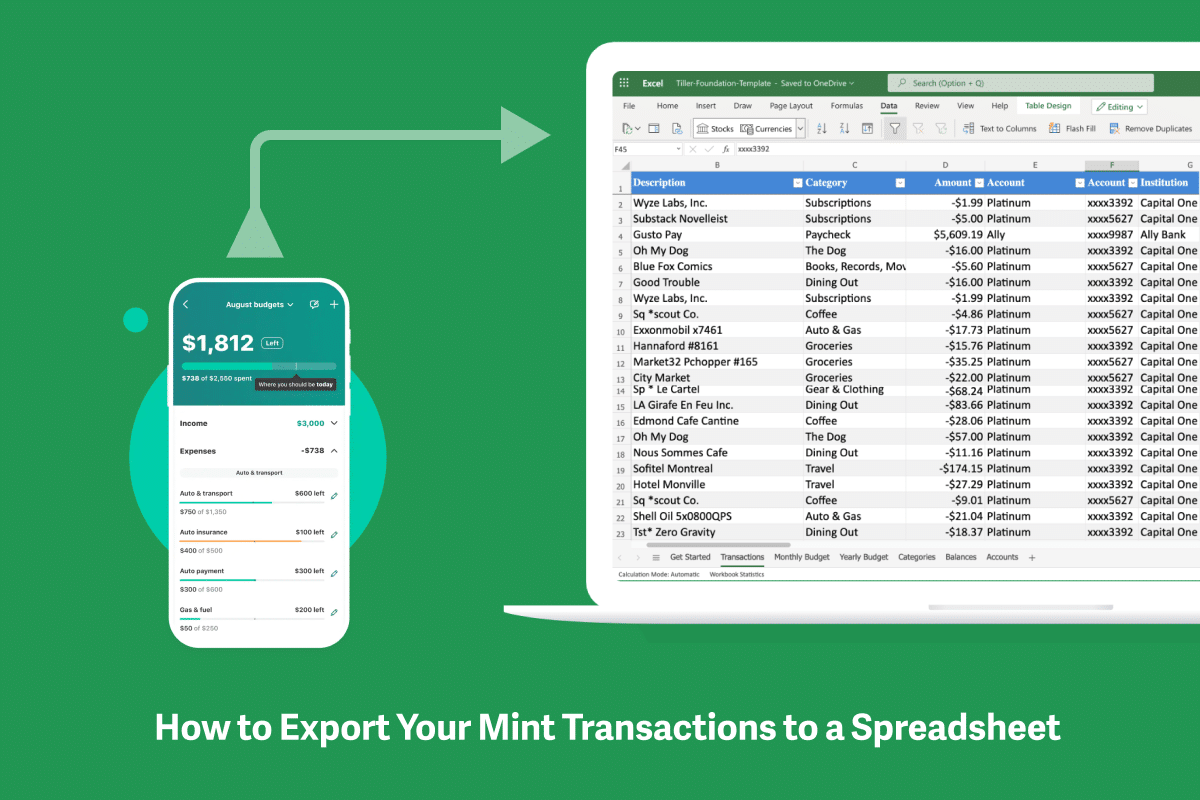
How to Export Your Mint Transaction Data to Google Sheets
For Mint users who want to migrate their history or continue tracking in a spreadsheet—a step-by-step guide to getting your Mint data out and into a sheet.
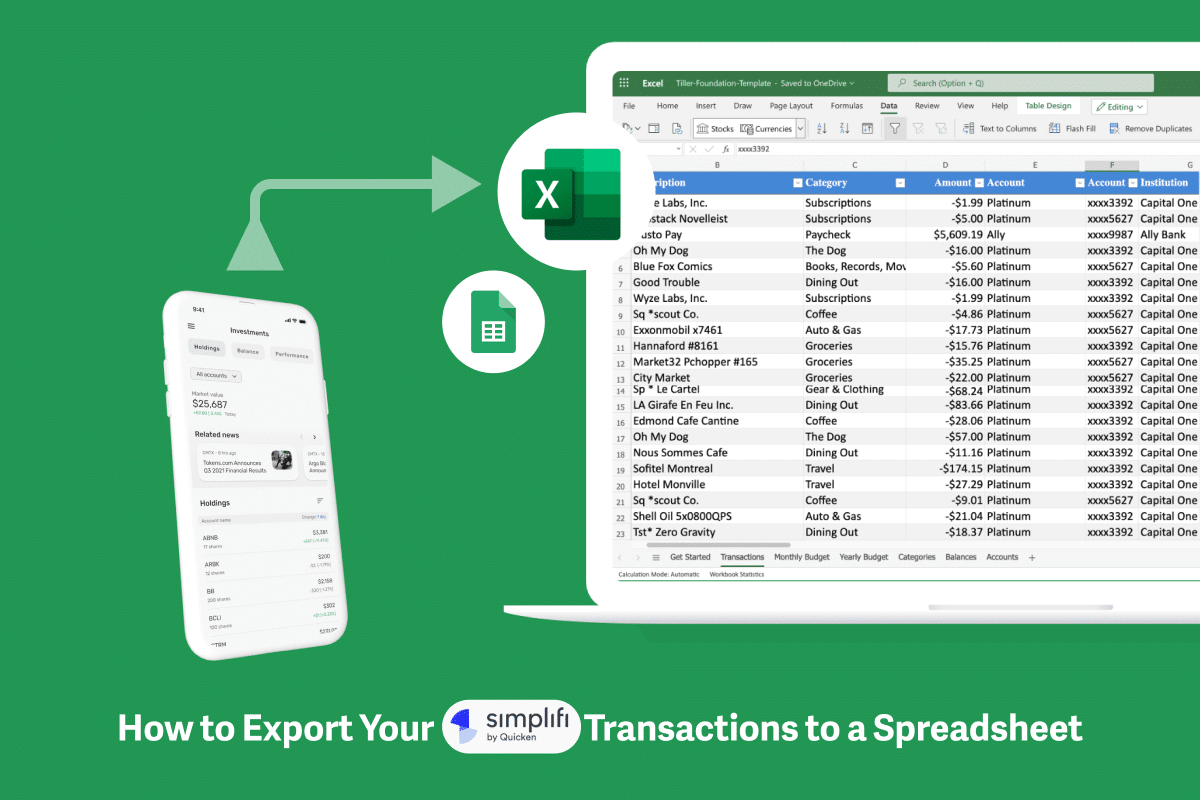
How to Export Simplifi Transactions to a Spreadsheet
Step-by-step instructions for exporting your Simplifi transaction history and importing it into Google Sheets or Excel.
Why Manual Exports Exist—and When to Move Past Them
Manual bank exports are useful in specific situations: pulling a one-time history for a new spreadsheet, getting transaction data from an account that doesn’t support automation, or migrating records from a different tool. Every guide in this hub covers that process clearly so you can get your data when you need it.
But manual exports have a ceiling. Each one requires logging into your bank, finding the right menu, selecting a date range, downloading a file, and cleaning it up before it’s usable in your spreadsheet. If you’re managing multiple accounts or want current data more than occasionally, the process starts to cost more time than it saves.
Tiller’s automated bank feed solves this. Connect your accounts once and transactions flow into your Google Sheets or Excel spreadsheet every morning—already formatted, no downloads required. The institution-specific guides on this page will help you with one-time data pulls; Tiller handles the ongoing updates automatically.
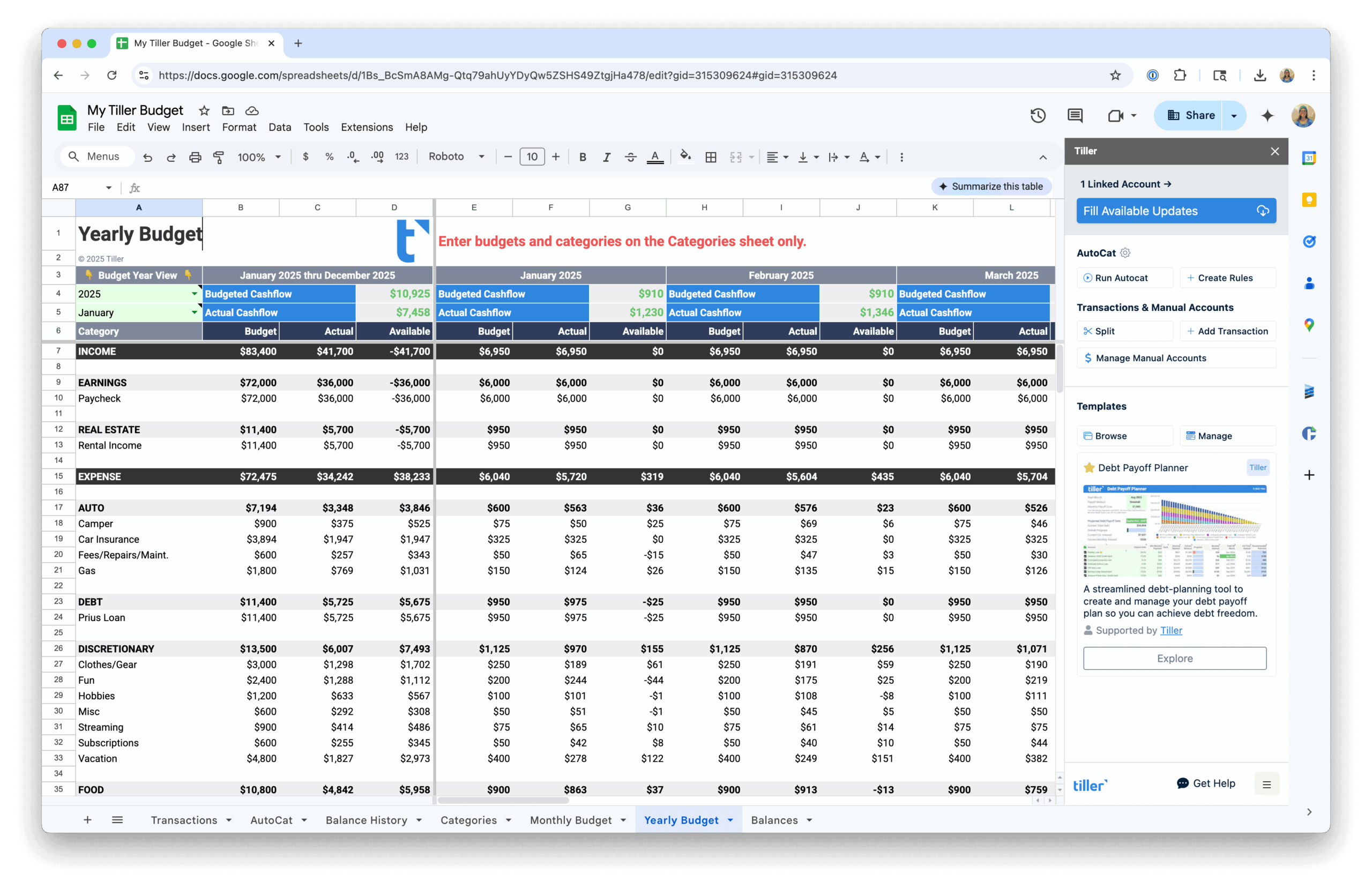
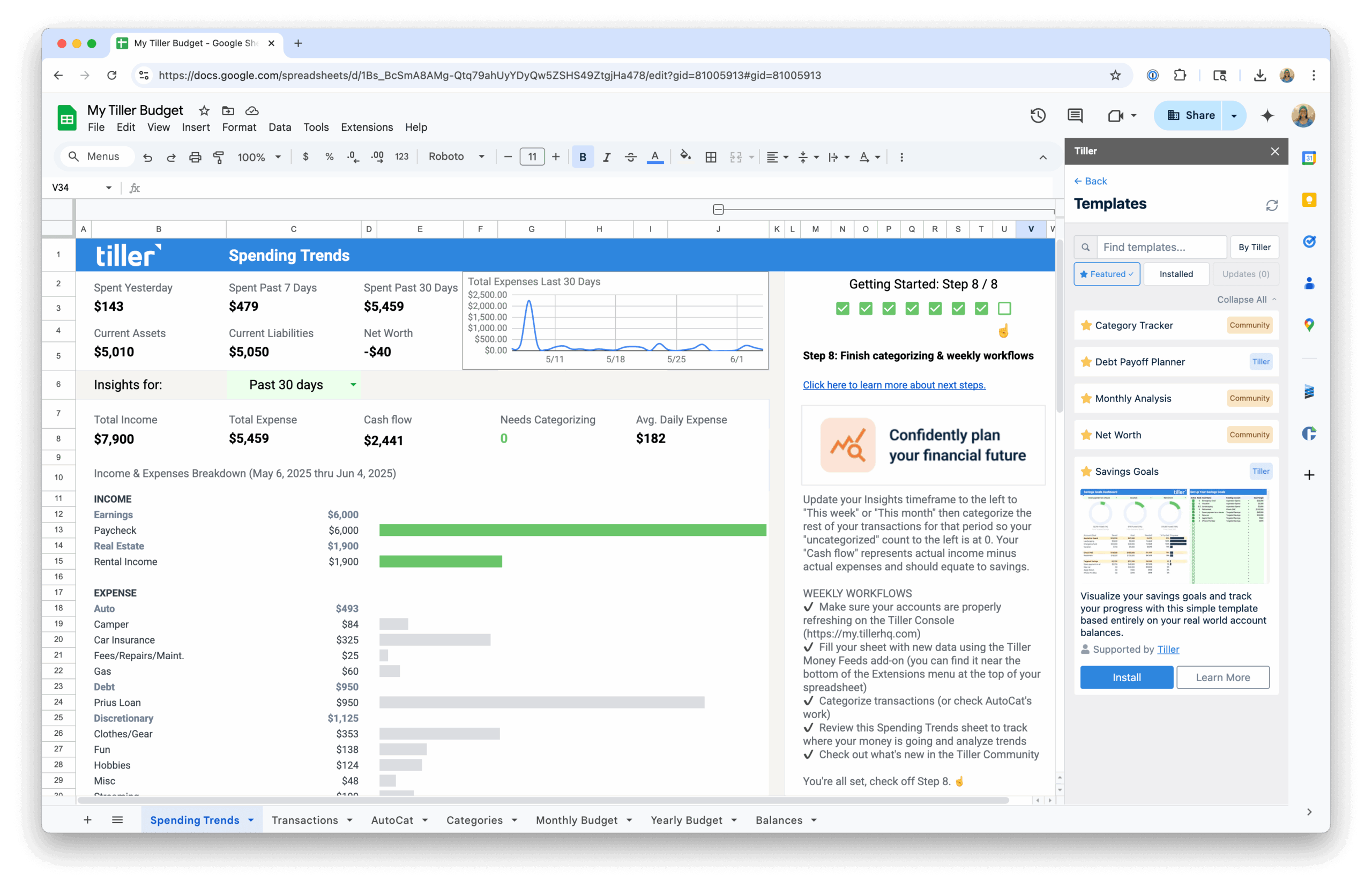
Want to connect bank accounts to a spreadsheet?
If you’d rather skip the manual download process and have your bank transactions update your spreadsheet daily without any action on your part, the automation hub covers exactly that.
- How to connect your bank accounts to a spreadsheet — How to connect your bank accounts to a spreadsheet so transactions sync automatically every day.
