
Why did spending jump last month? How should you split shared expenses? What would make your weekly money review more useful?
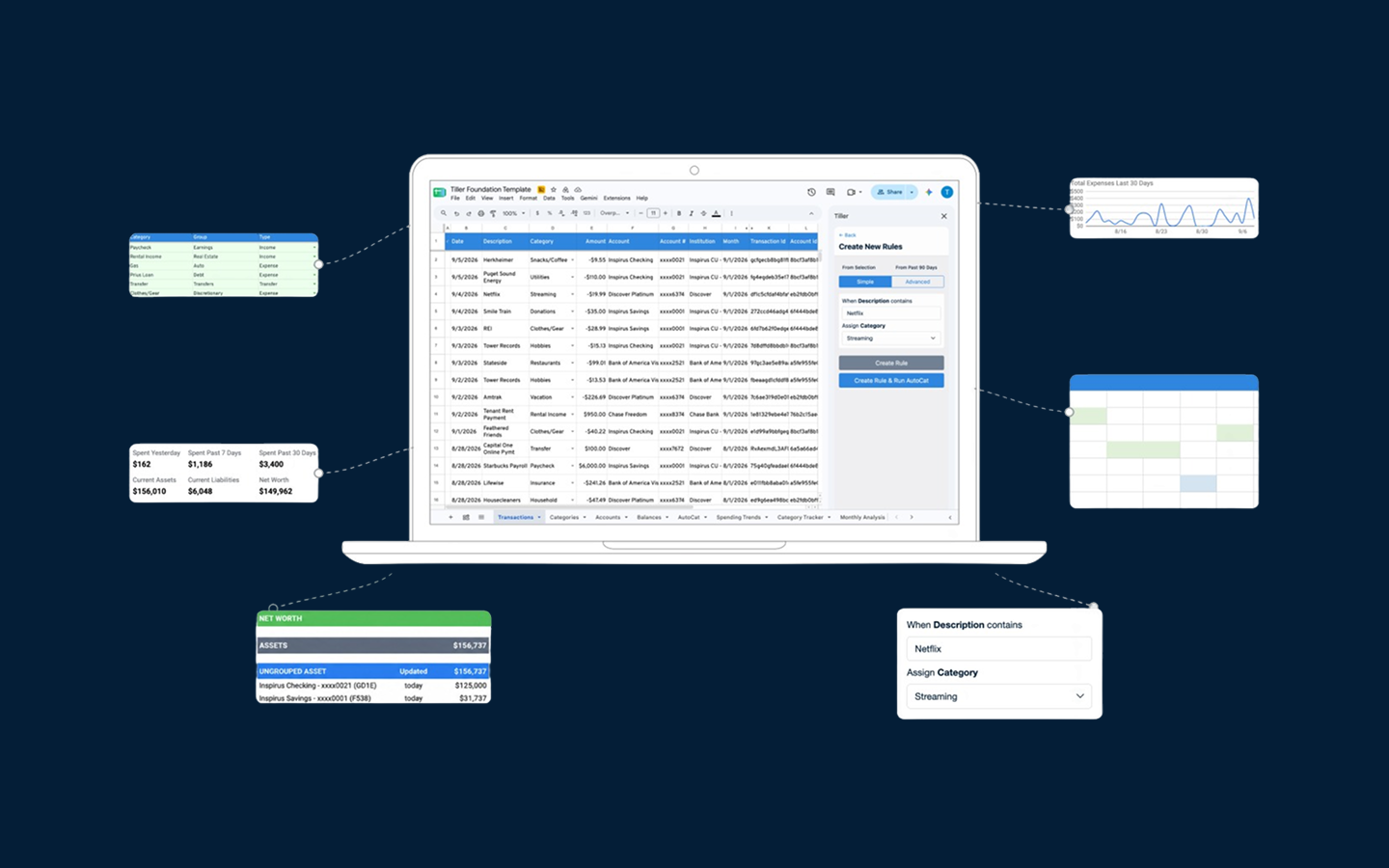
Tiller is built on spreadsheets so you can customize them to answer specific, personal questions like these.
Until recently, customizing spreadsheets had more of a learning curve. Today, describe what you want, and AI can help you build it.
The inspiring projects below prove the point. See how 17 Tiller Community members used Tiller-powered spreadsheets and AI to answer longstanding questions about their money.
1. Penny, a WhatsApp interface for a Tiller spreadsheet
Talk about your money from WhatsApp in a shared household chat
@alyson1 built Penny for OpenAI Build Week. Her project connects a Tiller spreadsheet to WhatsApp, so she and her husband can check in and chat about their money from a shared source. A planned feature texts bank balances each morning. The project’s GitHub README describes the app reading the Transactions sheet through the Google Sheets API, doing the math in code, and using the OpenAI API only to interpret each question and word the reply.
- AI Platform: OpenAI Responses API
- Implementation: WhatsApp backend reading a Tiller spreadsheet through the Google Sheets API, with math done in code
- How AI was used: OpenAI interprets each WhatsApp question and words the reply.
Note: The Community post doesn’t name a model. The OpenAI API details come from the builder’s GitHub README, which doesn’t say whether Codex helped write the code.
2. Private desktop and mobile web app for Tiller
Visualize your finances from a private desktop and mobile interface built around your needs
@folkhero wanted an interactive way to visualize his finances on desktop and mobile, with Tiller as the source underneath.
Over several months, he used Claude to build a private web app with data from his Tiller spreadsheet. The app reads the Transactions, Balance History, Accounts, and Categories sheets and a separate Holdings sheet. Claude never had direct access to his live sheets while he built the app. He supplied descriptions, headers, and other context, and the finished app connects to the data itself.
- AI Platform: Claude Pro, mainly Sonnet and Opus
- Implementation: Claude as coding partner; finished app connects through Google Sheets API / Google Picker
- How AI was used: Claude wrote the code for the private web app.
3. Categorization agent with email corrections
Categorize new transactions automatically, then fix mistakes by email
@organized_money wanted categorization to happen routinely instead of piling up into a large cleanup job. The free AI agent they built finds Tiller transactions with a blank category and compares them with existing categories and transaction history. It then asks the AI model the user selects to categorize them and writes the category back to the spreadsheet.
A daily email shows what the agent changed. Reply with a correction, and the agent applies the correction. Most of the processing runs locally. The external AI call handles categorization, and the user chooses the model and connects it through OpenRouter.
- AI Platform: user-selected model through OpenRouter
- Implementation: local agent + model API + email review loop
- How AI was used: The model categorizes blank-category transactions, and the agent writes the category back to the spreadsheet.
4. Categorify, a local rules + AI categorization app
Turn unfamiliar transactions into reusable categorization rules
@brendan2 needed a practical way to handle thousands of annual transactions with rules he could understand, edit, and reuse. His Apps Script experiments were slow, hard to debug, and tied to individual spreadsheets. So he’s building Categorify, a native Mac app that’s still in development.
As he describes it, the app mirrors Tiller transactions locally and applies deterministic rules to known patterns. The app sends only genuinely new transactions to AI. Claude proposes a category and drafts a reusable rule with a confidence score. Once the matching rules are in place, AI isn’t used for similar transactions.
- AI Platform: Claude for new transactions
- Implementation: native Mac app in development + local database + deterministic rules + AI fallback
- How AI was used: Claude proposes a category and drafts a reusable rule for each new transaction.
5. Local MCP server connecting Claude to Tiller
Ask Claude about your Tiller data without copying it into chat
@jackstein21 wanted to ask natural-language questions about his spending without copying data into chat or building a new formula for every question. In about two days, he built a local MCP server with Claude Code.
The server gives Claude read-only access to his Tiller spreadsheet, with explicit permissions and user-controlled Google OAuth credentials. He now uses it to talk through spending, ask planning questions, and check how much he’s already spent in a category before a purchase.
- AI Platform: Claude + Claude Code
- Implementation: local MCP server built with Claude Code; Claude uses the server to query the Tiller spreadsheet
- How AI was used: The server was built with Claude Code, and Claude uses it to answer questions about spending.
6. Personal dashboard rebuilt in Claude
Keep your custom financial views while moving the calculations into Claude
@ms.lum wanted to keep the financial views she’d already designed without rebuilding every calculation from scratch around Tiller. She came to Tiller with a custom Google Sheets dashboard that tracked questions such as food spending, cumulative weekly spending, and fixed versus flexible expenses.
She connected Claude to her Google Sheets through the Google Drive connector. Tiller stayed the source for transactions and categorizations, and Claude recreated the dashboard. The calculations that had lived in formulas moved into Claude. Her original questions and view of the data stayed intact.
- AI Platform: Claude
- Implementation: Claude chat + Google Drive connector to the Tiller spreadsheet
- How AI was used: Claude recreates her dashboard and runs its calculations.
7. Receipt parser and Apps Script for matching Tiller transactions
Turn scanned receipts into structured, categorized data you can match to Tiller transactions
@BryanS wanted scanned receipts to become structured data that could eventually link back to the Tiller transactions they documented. He first built a workflow for PDFs in Google Drive that runs OCR with Google Document AI, sends the text to ChatGPT for parsing and categorization, and writes the results into Google Sheets. He later prototyped a website that uses Tesseract for OCR and outputs a CSV of categorized line items.
Then he had Claude generate Apps Script that matches the detected vendor to Tiller transaction descriptions, with attaching a receipt URL as the goal. In the thread, he lists the practical issues he ran into: privacy, matching confidence, Apps Script safety, large-spreadsheet performance, and model cost.
- AI Platform: ChatGPT + Claude; Google Document AI and Tesseract for OCR
- Implementation: two builds, Document AI OCR + ChatGPT parsing into Google Sheets and a later Tesseract prototype that outputs a CSV; Claude-generated Apps Script for matching
- How AI was used: ChatGPT parses and categorizes receipts, and Claude generated Apps Script that matches receipt vendors to transactions.
8. Extended a monthly Claude + Tiller dashboard
See year-to-date spending drivers and project the rest of the year
@kevandcan wanted to go beyond a monthly snapshot and see spending patterns across the year. He replied to the Community’s monthly dashboard post and had Claude build a year-to-date bar chart of spending by expense group, hover details showing the main drivers in each month, and a projection for the rest of the year based on prior-year patterns.
The original dashboard post describes Claude reading the Tiller spreadsheet through the connector and regenerating an HTML dashboard that stays static between refreshes.
- AI Platform: Claude connected to Tiller
- Implementation: Claude connected to Tiller, extending the Community’s monthly dashboard
- How AI was used: Claude built a year-to-date bar chart, hover details, and a spending projection.
9. Shared-spending reconciliation script for two Tiller accounts
Reconcile shared spending across two Tiller accounts automatically
@Larry and his fiancée needed to reconcile shared spending across two separate Tiller accounts according to their own household rules. Larry, who describes himself as a retired mediator rather than an IT professional, used Claude to build a Google script that pulls spending transactions from both accounts and calculates who owes whom.
Claude didn’t access their financial data while building the tool. Claude left placeholders for the spreadsheet locations, to be filled in when the script is adopted and run.
- AI Platform: Claude
- Implementation: Claude generated a Google script with spreadsheet-location placeholders
- How AI was used: Claude wrote the script that calculates who owes whom.
10. Seasonal monthly budget values with Claude Cowork
Use actual spending patterns to set month-specific budget targets
@johnkwheeler84 wanted his budget to reflect the months when real spending or income ran well above or below a level monthly average. He copied three Foundation Template tabs into a spreadsheet file, pointed Claude Cowork at the file, and asked Cowork to analyze 2025 transactions and write month-specific budget recommendations whenever a month’s actual value differed from the average by more than 30%.
Cowork created the new tab directly. He reviewed the results and copied about 75% into his active Categories sheet. He then asked Cowork for category-structure improvements and chose which ones to accept or reject.
- AI Platform: Claude Cowork, Opus 4.6
- Implementation: copied three Foundation Template tabs into a spreadsheet file and pointed Cowork at the file
- How AI was used: Cowork analyzed 2025 transactions and created month-specific budget recommendations.
11. Claude Project as a Tiller-building agent
Get step-by-step help configuring advanced Tiller sheets
@Trent wanted help understanding which Tiller sheets fit his goals and how to set up the more advanced planning sheets. As a software engineer, he said Tiller’s breadth left him to work out how the sheets fit together, especially for forecasting and long-range planning, so he built a Claude Project to guide him.
He assembled Tiller documentation and Community material into knowledge files inside the Project, then used the Project for plans, step-by-step setup, troubleshooting, and screenshot-based guidance. At the time of the post, Claude wasn’t directly reading or modifying the spreadsheet.
- AI Platform: Claude Project, Sonnet 3.5 in the documented setup
- Implementation: persistent Project with Tiller knowledge files, screenshots, and chat
- How AI was used: Claude answers setup and troubleshooting questions from Tiller documentation.
12. Claude Project for a living financial plan
Build a financial plan you can keep revising as your situation changes
@thomp679 wanted to see whether he could build a long-range financial plan in AI and keep revising the plan as his situation changed. He built one in a Claude Project, using persistent instructions and a regularly updated profile file. He compared Claude’s plan with his existing Boldin plan and iterated until the two were broadly comparable.
He later added Tiller transaction history and budgets so Claude could understand his expenses and withdrawal strategy. After reconsidering how much private information he had uploaded, he explicitly recommended against doing the same. His lesson matters as much as the build: summarize or de-identify where possible, and review the plan critically rather than accepting Claude’s output as authoritative.
- AI Platform: Claude Project
- Implementation: persistent Project instructions, a profile.md file, and manually supplied files and data
- How AI was used: Claude builds and revises a long-range financial plan.
13. Custom financial models generated in ChatGPT
Turn Tiller data into custom tax, home-buying, career, and retirement models
@Blake wanted useful financial models without deep experience building charts and spreadsheet models. He exports his Tiller spreadsheet to Excel and uploads the file to ChatGPT. He says he has used ChatGPT to create tax projections for his kids, a break-even analysis on buying a second home, and a career and retirement spreadsheet for his son.
His advice for revising is to tell ChatGPT what to change. An uploaded file is a static copy rather than a live connection, so the copy needs a refresh whenever the data changes.
- AI Platform: ChatGPT
- Implementation: exports his Tiller spreadsheet to Excel and uploads the file to ChatGPT
- How AI was used: ChatGPT generates tax projections, a second-home break-even analysis, and a career and retirement spreadsheet.
14. One-formula Income & Expense report with Gemini
Build a dynamic Income & Expense report with a single formula
@jono wanted a dynamic Income & Expense report without assembling many helper columns and formulas. With some help from Gemini, he used modern Google Sheets functions such as LET() to build the report as a single formula in his Tiller spreadsheet. He recommends opening the spreadsheet, asking Gemini for precise formula changes, and reviewing what Gemini proposes.
In the free Chrome setup he describes, Gemini can see the open spreadsheet and return formulas for you to copy into place. He notes that Google AI Pro can update the cells automatically.
- AI Platform: Google Gemini
- Implementation: free Gemini in Chrome sees the open sheet and you copy formulas back; he says Google AI Pro can update cells directly
- How AI was used: Gemini helped improve the single-formula report.
15. Clickable sidebar for a 25-tab Tiller spreadsheet
Move between tabs in a large Tiller spreadsheet more quickly
@ScottC wanted a quicker way to move around a Tiller spreadsheet with about 25 tabs. He used ChatGPT to turn a table-of-contents script into hyperlinks and then a sidebar. @jemmoa7 had ChatGPT build a sidebar script of his own, and ScottC later used ChatGPT to add a checkbox to jemmoa7’s code.
Both described the behavior they wanted and pasted the generated Apps Script into the spreadsheet. ScottC says ChatGPT recognized its own mistakes when he shared the errors Apps Script returned, and jemmoa7 re-prompted ChatGPT to finish and change the script. The finished navigation runs as Apps Script without ChatGPT connected to the spreadsheet.
- AI Platform: ChatGPT
- Implementation: ChatGPT generating Apps Script that each builder pasted into Google Sheets
- How AI was used: ChatGPT wrote each builder’s Apps Script for navigating the spreadsheet.
16. Month-over-month analysis sheet with Gemini
Use Gemini to turn a stuck formula into a working month-over-month analysis
@pkrug539 wanted a month-over-month analysis. A formula had blocked him, and pivot tables weren’t part of his usual toolkit. He gave Gemini screenshots and described the analysis he wanted. Gemini generated formulas, diagnosed problems from the screenshots, and explained how the formulas worked.
He then copied the results into his Tiller spreadsheet. The example shows AI helping someone past a spreadsheet technique they don’t yet feel comfortable using, rather than replacing the spreadsheet itself.
- AI Platform: Gemini, including the free version
- Implementation: screenshots and prompts, with formulas copied back into the spreadsheet
- How AI was used: Gemini wrote the formulas and explained how they work.
17. Sankey spending visualization with ChatGPT + Looker
See spending flows in a Sankey diagram without hand-writing the visualization code
@YouBet96 wanted a Sankey view of spending flows without writing the custom scripts used in older Community examples. He ran a prompt through ChatGPT and used the result to build a Sankey diagram in Looker. He said he built the diagram pretty easily without scripts and was still adjusting the display because it wasn’t quite right.
- AI Platform: ChatGPT
- Implementation: prompt in ChatGPT, visualization built in Google Looker
- How AI was used: ChatGPT produced the starting point for the Sankey diagram.