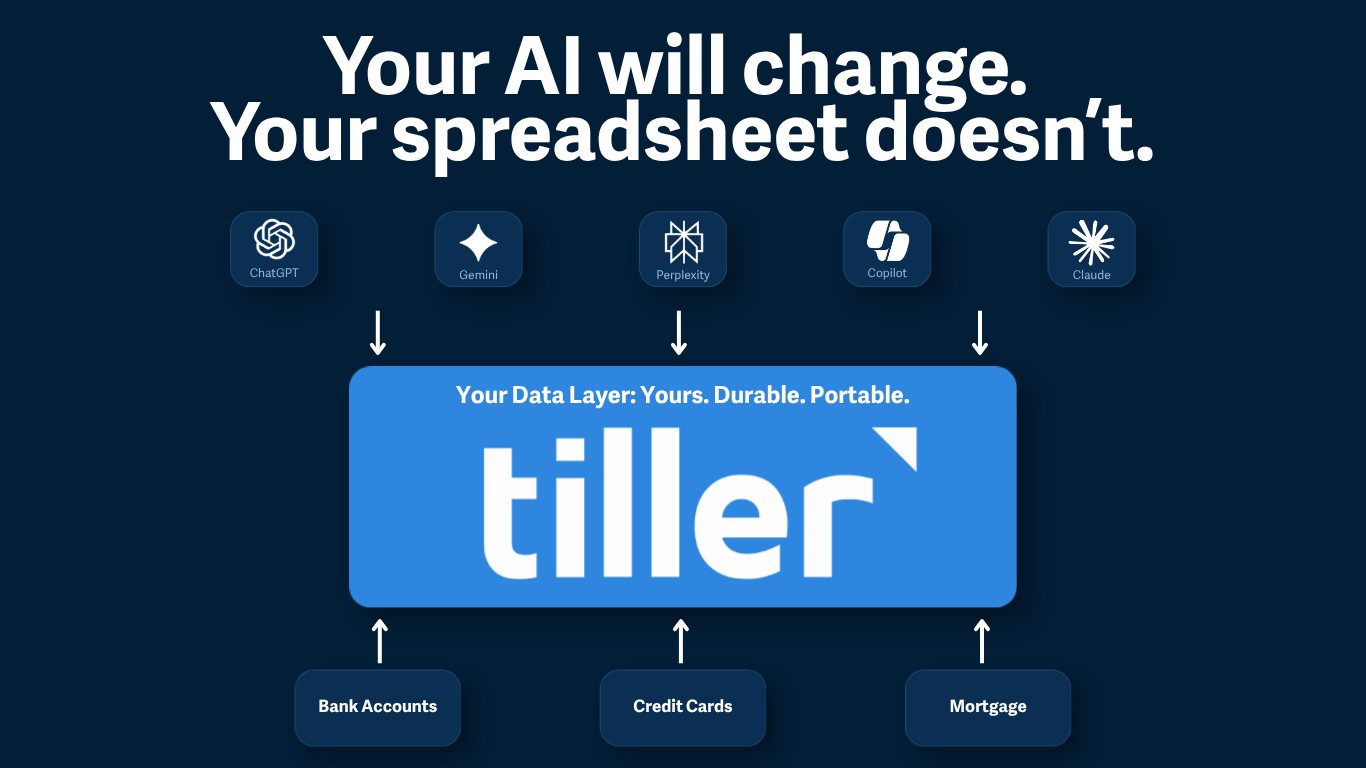

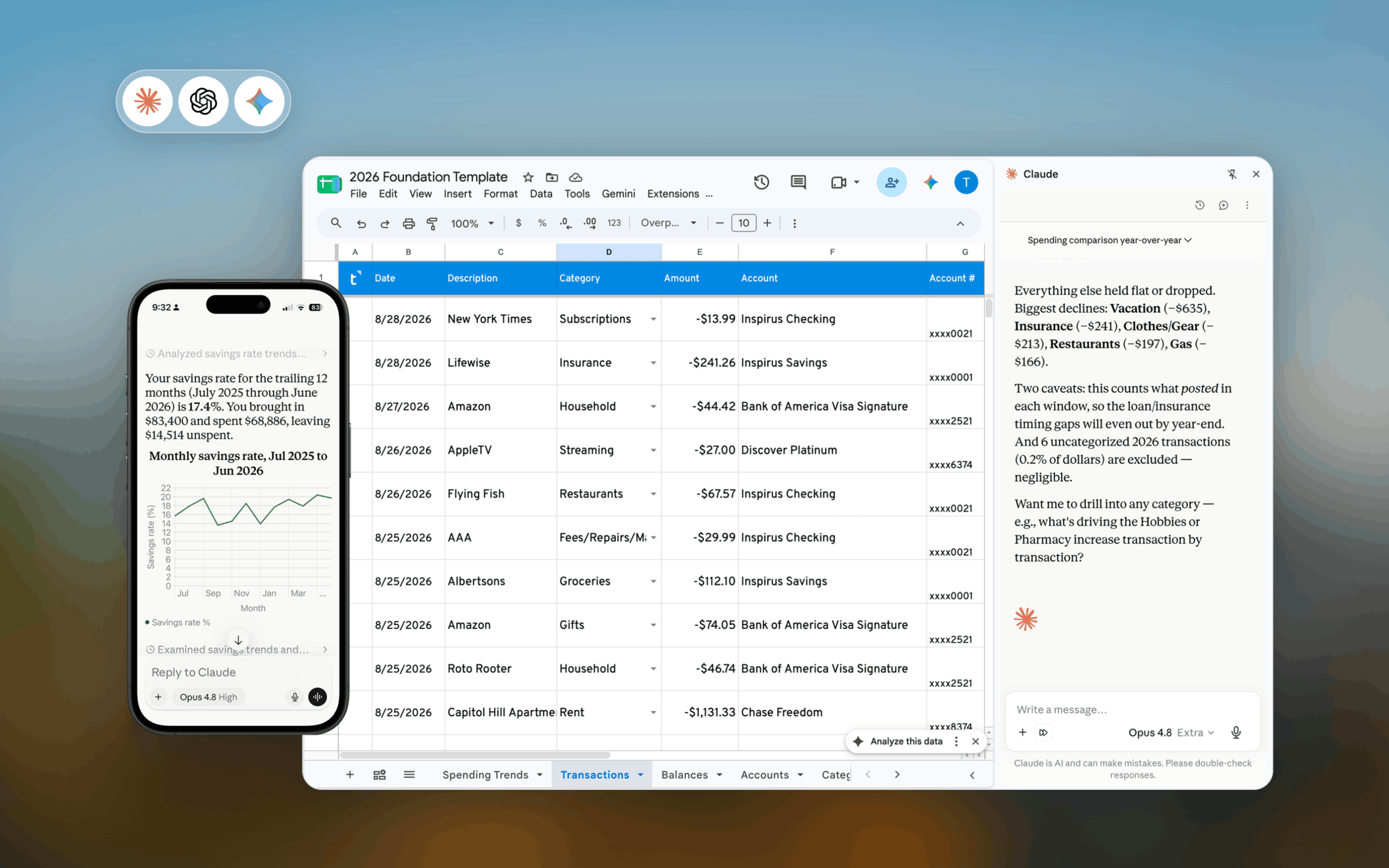
Spreadsheets give you more ways to use AI with your money than any personal finance app. That’s because they work natively with chatbots like ChatGPT and Claude, built-in assistants like Gemini in Google Sheets and Microsoft Copilot in Excel, AI coding tools, and custom automations.
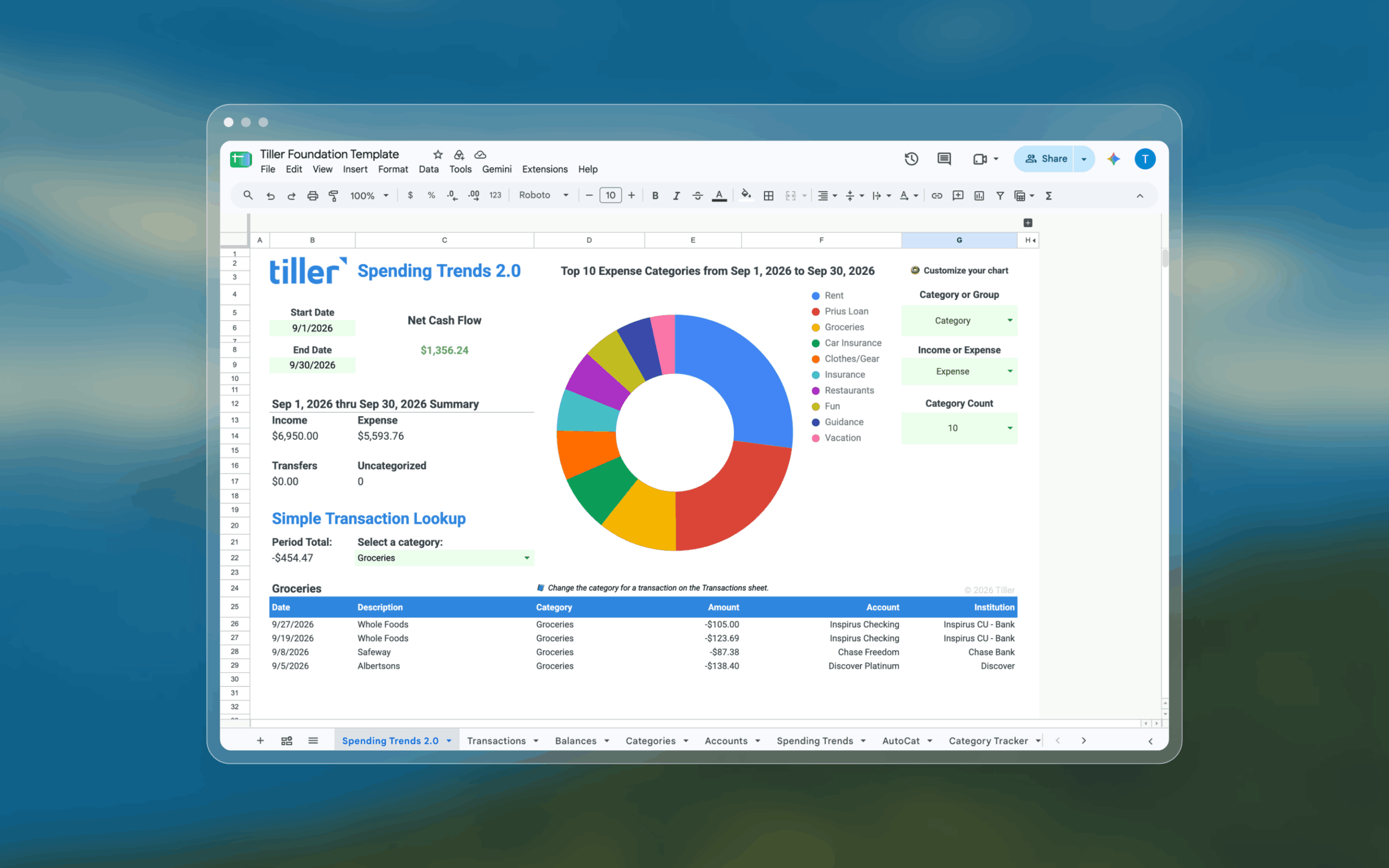
Tiller automatically updates your spreadsheets with your daily spending, transactions, and balances, so each of these tools works with clean, current, consolidated data.
When you manage your money in a spreadsheet, AI never needs to connect directly to your bank account; you control what you share, and you can use multiple AI models to analyze your data.
Here are twenty ways to use AI with your financial spreadsheet. Ask why your spending rose, categorize new transactions, build reports and dashboards, or schedule a daily summary.
1. Tiller MCP for Claude
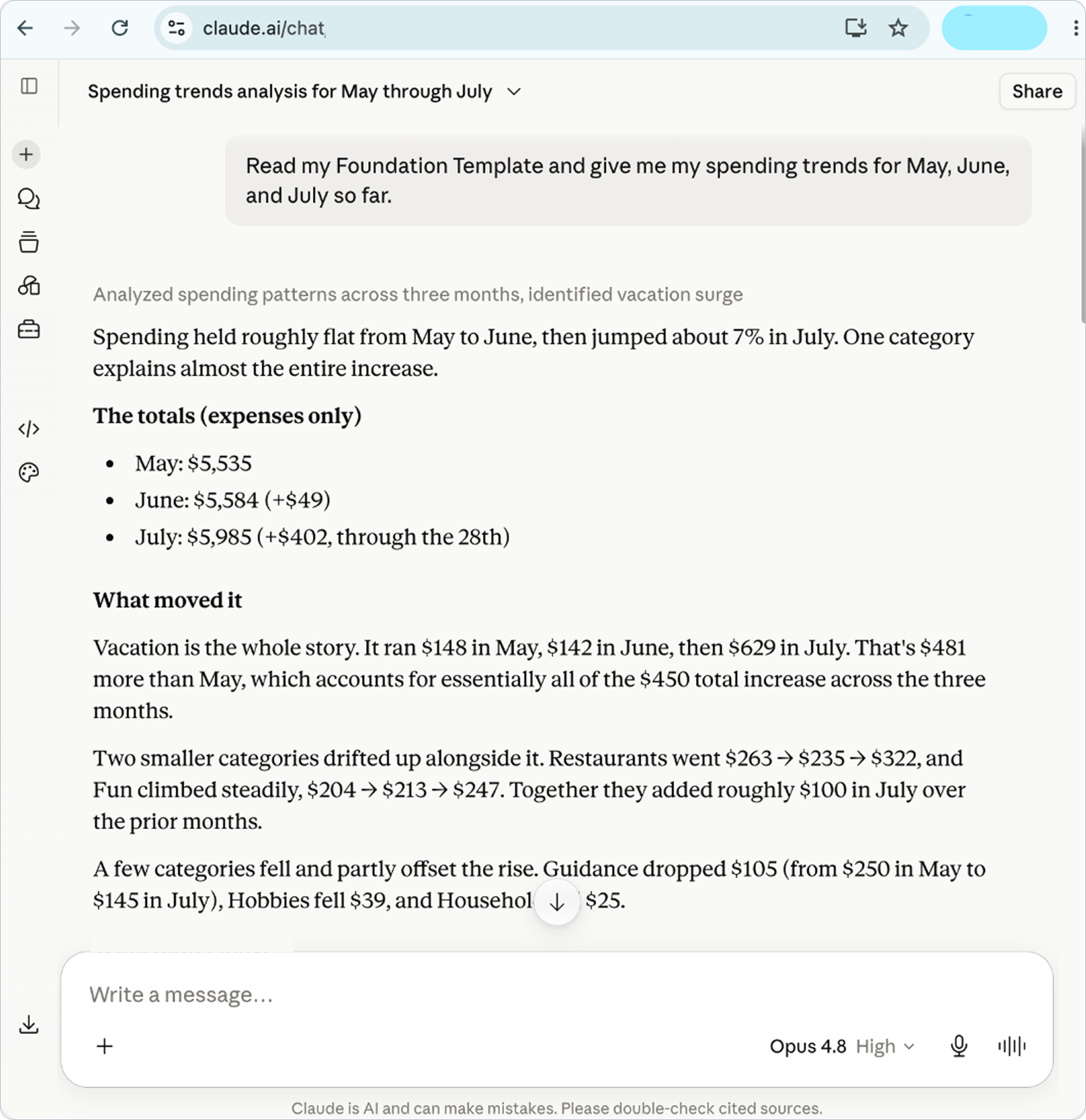
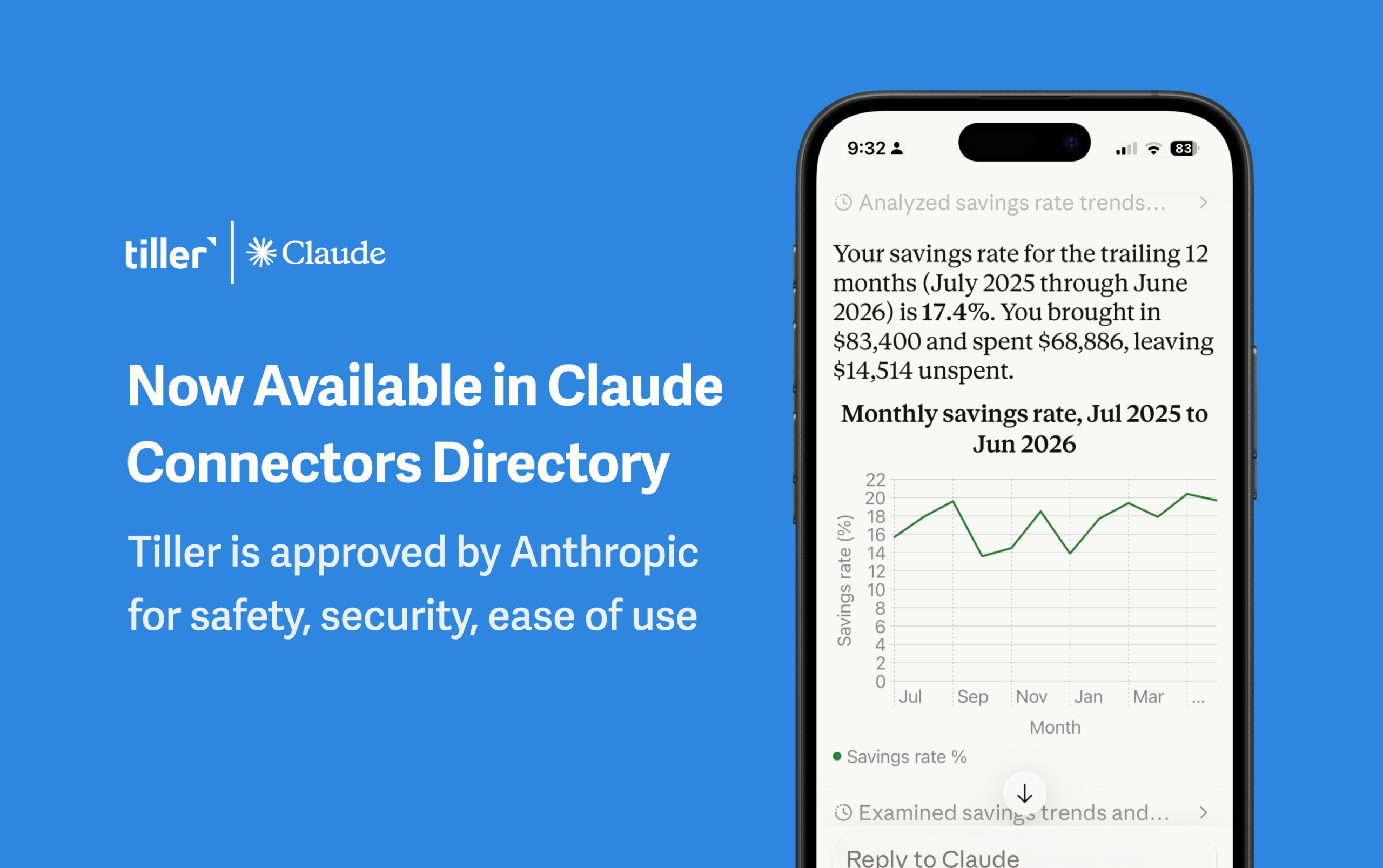
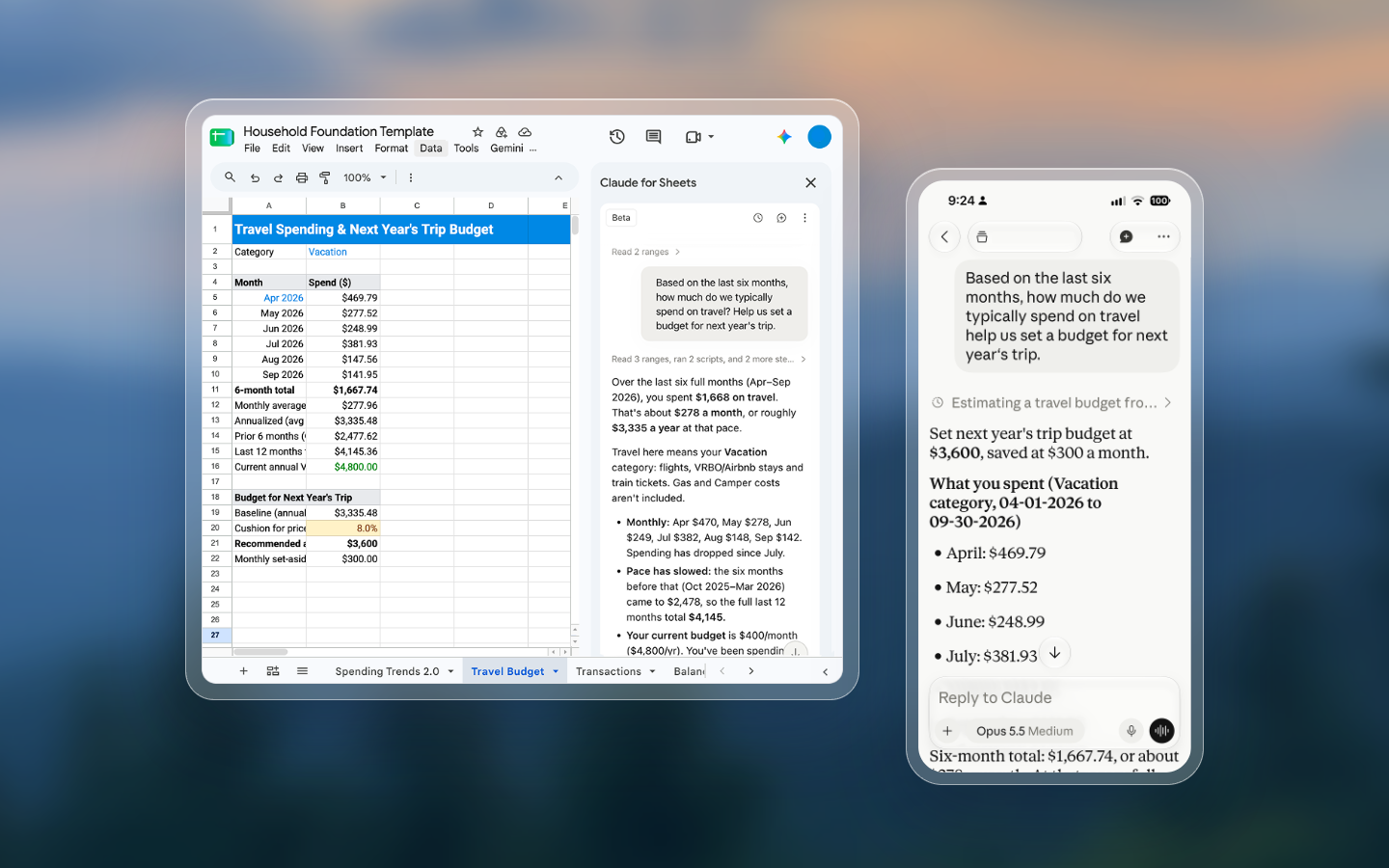
Tiller MCP for Claude reads supported Transactions and Categories data in your Tiller Google Sheet. Ask Claude to compare spending between months, list purchases in a category, or calculate income and expenses.
The connector uses your category definitions to separate transfers from income and expenses. The connector also excludes categories marked Hide from Reports by default. Claude reads fields such as Date, Description, Amount, Category, Account, and Institution, together with category Type and Group.
For Direct Fills sheets, Claude also proposes category changes. Claude applies categories or notes after you confirm. Tiller MCP for Claude doesn’t read Balance History or custom report tabs. The connector doesn’t edit formulas or charts. For balances, custom reports, formulas, or charts, choose one of options 3 through 20.
Add Tiller from Claude’s connector directory, then sign in to Tiller. You need an active Tiller subscription and a Claude account. A free Claude account works.
2. AI Suggest in AutoCat
For categorizing transactions without writing prompts
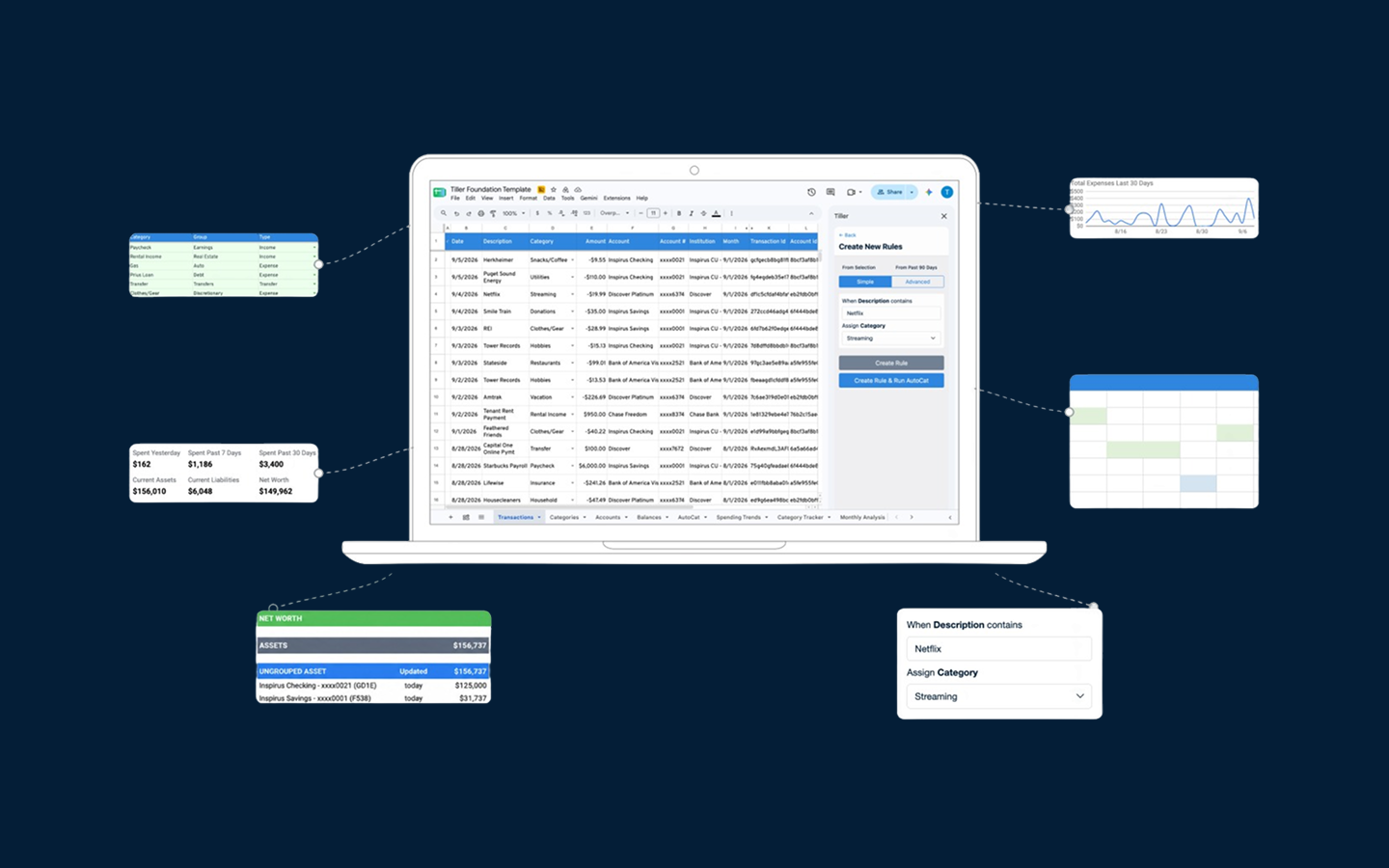
AI Suggest assigns categories to transactions that remain uncategorized after AutoCat’s Rules and Description Match have run. Once you turn on AI Suggest, it runs whenever AutoCat runs.
AI Suggest is available only for Tiller Google Sheets that use Direct Fills. Open the Tiller Money Feeds sidebar and click the gear beside AutoCat. Then turn on AI Suggest. The Categorized By column shows which method assigned each category, so you can review the categories AI assigned.
AI Suggest categorizes transactions only. For questions about spending or new reports, choose one of options 3 through 20.
Build and edit inside your spreadsheet
Use an AI assistant inside your spreadsheet to create a shared-expense report, change a budget formula, or build a chart from account balances. Options 3 through 9 overlap on these tasks. Start with the AI assistant you already use, if it works in Google Sheets or Microsoft Excel. Then compare the features your task needs, such as charts or PivotTables.
Whichever AI assistant you choose, tell it which sheets the report uses. Include the Categories sheet when the calculation depends on category Types, Groups, or exclusions. Before a large edit, ask the AI assistant which sheets and cells it plans to change.
3. ChatGPT for Google Sheets
For using ChatGPT directly in Google Sheets
ChatGPT opens in a sidebar beside your spreadsheet. Ask ChatGPT to build a report, explain a formula, or update several sheets. In your prompt, list the sheets ChatGPT should use, such as Transactions and Categories.
Install the official ChatGPT add-on from Google Workspace Marketplace, then sign in with your ChatGPT account. Access and usage limits depend on your plan and your organization’s settings. Spreadsheet conversations stay separate from your main ChatGPT history. ChatGPT memory isn’t used in spreadsheet conversations.
4. ChatGPT for Microsoft Excel
For using ChatGPT in an open Excel spreadsheet
ChatGPT’s Excel add-in builds, updates, and explains spreadsheets from a sidebar in your spreadsheet. Install ChatGPT for Excel from Microsoft Marketplace. Then open your Tiller spreadsheet and sign in with your ChatGPT account. Check the ChatGPT for Excel listing for plan and usage requirements.
You can also use Codex in the ChatGPT desktop app through the add-in to update formulas, values, formatting, and charts in an open spreadsheet. The Codex method works only in Excel. Within Codex, VBA and macros may not be fully supported.
5. Gemini in Google Sheets
For using Google’s AI in Google Sheets
If your Google AI or Google Workspace plan includes Gemini in Sheets, open the side panel and describe the report or budget update you want. Gemini creates new sheets and edits existing sheets.
Ask Gemini to show its plan before it builds the report. Then tell Gemini which sheets the report uses. Eligible accounts also have AI functions that apply a prompt to the cells in a range you specify, such as summarizing the notes in a column.
6. Microsoft Copilot in Excel
For answering questions, planning changes, or editing cells
Copilot gives you three modes in Excel. Chat only answers questions without changing cells. Plan lays out the proposed steps for you to review. Allow editing changes your spreadsheet directly.
For example, ask Copilot to plan a spending dashboard before it builds the report. Copilot also supports formulas, formatting, charts, and PivotTables. Open Copilot in your Tiller spreadsheet and choose a mode. You need a Microsoft 365 plan with Copilot access. The modes available also depend on your device.
7. Claude for Microsoft Excel
For following a calculation back to source cells
Claude for Excel answers questions with clickable references to cells in your spreadsheet. Ask why a budget total looks wrong. Claude then traces the formulas and assumptions behind that total. Claude also updates assumptions while preserving the formulas that depend on those values.
Install Claude for Excel from Microsoft Marketplace, then sign in with an eligible paid Claude account. Claude works with multiple tabs, sorting, filtering, PivotTables, conditional formatting, and dropdowns. Claude doesn’t support Excel data tables, macros, or VBA.
Anthropic warns that spreadsheets from untrusted sources can contain hidden instructions that can make Claude share data or change cells. When you open a file from an outside source, review each action Claude proposes.
8. Grok for Google Sheets
For questions and formulas based on selected cells
Grok opens beside your Tiller Google Sheet. Select the cells you want to use, then ask a question. Grok answers with references to source cells, writes and fills formulas, and changes values to test scenarios.
Install the Grok Google Workspace add-on and sign in with your Grok account. Select the Transactions rows and the Categories data your question uses. For a calculation across sheets, ask Grok to list the sheets and cells it used.
9. Grok for Microsoft Excel
For selected cells and scenario changes in Excel
Grok’s Excel add-in reads selected cells, answers with cell references, and inserts charts. Grok also writes formulas and fills or sorts cells. Ask Grok to change a scenario’s assumptions and list the cells whose values changed.
Install the Grok Excel add-in from Microsoft Marketplace and sign in with a Grok account that includes access. Select the cell range your question uses in your Tiller spreadsheet. Add ranges from any other sheets the question uses.
Use stored files from a conversation
A cloud-file connection gives the AI assistant your spreadsheet and other documents in one conversation. For example, you might compare your spending history with a household plan saved in a separate document. Connect Google Drive, OneDrive, or SharePoint, then select the files the AI assistant should read.
An AI assistant that reads a stored file may not edit its cells. Editing support varies by option. Your connected account’s file permissions also apply: selecting one file for a question doesn’t necessarily limit the connection to that file.
10. ChatGPT with Google Drive
For bringing Drive files into a ChatGPT conversation
Connect Google Drive to ChatGPT to find and use supported Docs, Sheets, and Slides. You need a ChatGPT account and the Google account that has access to your Tiller spreadsheet.
Some accounts can also edit the original Google Sheet. Check whether Sheets editing is enabled in your ChatGPT workspace and allowed by your Google permissions. To review formulas and changed cells beside the conversation, use ChatGPT inside Google Sheets (option 3).
11. ChatGPT with SharePoint and work OneDrive
For Excel files stored in a work Microsoft account
ChatGPT’s SharePoint app searches and reads supported files in SharePoint and OneDrive for work or school. Supported files include a Tiller Excel spreadsheet stored in either location.
Connect the SharePoint app using the Microsoft account that has access to the spreadsheet. The app doesn’t support personal OneDrive accounts. Your organization decides which features are enabled. For changes inside an open Excel spreadsheet, use an Excel add-in (option 4, 6, 7, or 9).
12. Gemini Apps with uploaded or Drive spreadsheets
For analyzing a spreadsheet in a Gemini conversation
Upload a spreadsheet to Gemini Apps or add a supported spreadsheet from Google Drive. Gemini answers questions about the files you provide. Answers and comparisons stay in the Gemini conversation, not in your live spreadsheet.
You need a Google account and a file Gemini accepts. An uploaded file contains the data that was in your spreadsheet when you shared the copy. Adding a Drive file doesn’t by itself give Gemini permission to edit the original spreadsheet. For changes inside your Tiller Google Sheet, use Gemini in Sheets (option 5).
13. Claude with Google Drive
For questions across your spreadsheet and Drive documents
Claude’s Google Drive connector searches and reads supported files, including Sheets, Docs, Slides, PDFs, and Microsoft Office files. Connect your Google account and select the files your question uses.
The Drive connector extracts text, so Claude may not receive every formula, chart, or image in your spreadsheet. Ask Claude which sheets and cells an answer uses.
For live edits, Claude offers a separate Google Sheets connector, currently in beta. Enable that connector to edit a Sheet in a pane beside chat.
14. Claude with Microsoft 365
For combining an Excel file with Microsoft 365 information
Claude’s Microsoft 365 connector reads supported Excel files alongside work documents, email, and Teams information. One question can draw on your spreadsheet and any of those sources.
You need a Microsoft 365 work account, the Microsoft 365 connector enabled in Claude, and administrator consent. Personal Microsoft accounts aren’t supported. When an administrator enables file editing, Claude also creates and updates files in OneDrive and SharePoint. To follow formulas and review changes inside an open spreadsheet, use Claude for Excel (option 7).
15. Grok with connected cloud files
For reading cloud files from a Grok conversation
Grok has connectors for Google Drive, OneDrive, and SharePoint, plus custom MCP connections. Choose Google Drive, OneDrive, or SharePoint in Grok’s connector settings. Then sign in to the account that holds your files.
Business and Enterprise accounts may need an administrator to enable the connection. Some connectors have additional plan requirements. Grok’s documented OneDrive connector uses personal OneDrive storage, while SharePoint has its own connector.
Actions such as creating files or uploading reports vary by service. Check the connector’s guide before asking Grok to change your original spreadsheet. For cell edits, use Grok’s spreadsheet add-ins (options 8 and 9).
Share only the rows or files a question needs
A limited copy gives an AI assistant only the rows or files a question needs.
16. Upload or paste a limited copy
For a one-time question without a cloud connection
Filter your Transactions sheet to the dates and accounts you want to analyze. Then paste the selected rows, or upload them as a CSV, to an AI assistant that accepts files. For a question about several sheets, share a copy of your spreadsheet that contains those sheets.
Keep the column headers so the AI assistant can match each column to dates, amounts, and categories. Include the Categories sheet when the calculation needs category Type, Group, or exclusions. For example, a question about expenses needs the Categories sheet to separate expenses from transfers.
The AI assistant analyzes only the copy you provide. Depending on the AI assistant, you can request calculations, charts, formulas, or an edited file. New transactions and later corrections won’t appear in that copy. Uploading a file also doesn’t update your original spreadsheet. Large files may exceed the AI assistant’s file-size or conversation limits, so filter to the rows your question needs.
Run a multi-step project or schedule a recurring task
A project might combine spending history, receipt files, and a report you want rebuilt. A recurring task might send a summary of new transactions each morning. For either one, describe the report or summary you want, list the files and sheets to use, and say which changes you want to review first.
17. ChatGPT Work with Google Sheets
For a project that produces or updates a Google Sheet
ChatGPT Work completes multi-step tasks, including analyzing source files and creating or editing spreadsheets. For example, ask Work to turn your transaction history and planning notes into a draft budget.
Start a Work task and provide the source files. Then enter the title of the Google Sheet to create or update, and list the existing sheets and formulas to keep unchanged. You need access to Work and the Google Drive app enabled in ChatGPT, with permission to read or edit the Sheet.
18. Claude in Chrome
For tasks across your spreadsheet and browser tabs
Claude in Chrome reads pages, clicks, types, and navigates websites you authorize. Claude can work across your Tiller Google Sheet and other browser tabs in one task.
Install the Claude in Chrome extension, sign in with an eligible paid Claude account, and review the site permissions you grant. Claude operates through the website’s buttons and fields, not through a spreadsheet add-in.
Anthropic warns that malicious instructions on websites can redirect Claude’s actions or expose data. Limit site access to the sites the task needs. To follow the least-access rule, start with a connector or spreadsheet add-in when the task needs only your spreadsheet.
19. Claude Cowork and project tools
For a spreadsheet project with files and several steps
Claude’s project tools read files, run code, and create or reorganize spreadsheet files. For example, provide a budget and receipt files, then ask Claude to produce a report with the calculations saved in the spreadsheet.
Cowork requires a paid Claude plan. Anthropic is gradually combining Cowork and chat, so some accounts no longer have a separate Cowork selector. Describe the task in Claude. For files on your computer, you need the desktop app and access to the folders that hold those files.
If Claude returns a downloadable spreadsheet, the file is a separate copy of your spreadsheet. Your original spreadsheet changes only when you’ve connected a connector or add-in that can edit your spreadsheet. Review the proposed actions and the completed file.
20. Custom scripts and automations
For a script you schedule and customize
A custom automation sends a daily transaction email, builds a month-end report, or scans for duplicates using rules you write. An AI assistant can help you write the script. In your script, you set which rows to read, when to run, and where to send or save the result.
Apps Script reads and updates Google Sheets. Apps Script also supports scheduled tasks and connections to other services. Office Scripts automates Excel spreadsheet tasks. Office Scripts also connects to Power Automate. Scripts connect to other services through APIs, which let programs exchange information. An MCP connection also gives an AI assistant specific tools you define.
You need your Tiller spreadsheet, a place to run the code (Apps Script or Office Scripts), and credentials for any connected services. Decide which changes need your review and add an alert for script errors. Also note where to turn the automation off, because scripts, schedules, and access credentials may stay active until you disable or revoke them.
Verify the answer and save the calculation
Ask the AI assistant to list the sheets or ranges, dates, accounts, and exclusions behind each answer. Then open the source rows and repeat the calculation with a spreadsheet formula, PivotTable, query, or script. For edits, verify the changed cells as well as the result.
When a calculation answers a question you’ll ask again, save the formula or report in your spreadsheet. If the AI assistant returned a separate file, verify the file’s totals against your Transactions sheet before copying the calculation into your original spreadsheet. Tiller keeps adding new transactions to your spreadsheet. A saved formula or report can then include those transactions. You can also inspect the calculation behind the answer.
When you finish with an AI assistant, you can end its access. Disconnect cloud connectors in the AI assistant’s settings, remove spreadsheet add-ons or add-ins, and disable any scheduled scripts you created.