Meet the New AutoCat
Categorizing transactions is the part of budgeting nobody loves. AutoCat for Google Sheets just got smarter: Description Match learns from your categorization, and AI Suggest handles the rest. Less setup, less manual work, more time thinking about your money instead of organizing it.
Categorizing transactions is one of the parts of budgeting nobody loves.
You know it matters. Uncategorized transactions mean you can’t see where your money is actually going. But sitting down to sort through a list of charges from the past week (or, let’s be honest, the past month) is the kind of task that’s easy to put off and hard to catch up on.
AutoCat has always been Tiller’s answer to this. Build a rule, and it applies the right category to matching transactions every time. Automatically, consistently, exactly how you want it. For power users who love to dial things in, it’s hard to beat.
But here’s the honest truth: building rules takes work. You have to think through your merchants, write the criteria, test them, and keep them updated as your spending changes. For many people, that’s a barrier. Not because they don’t care about categorization, but because life is busy and the setup cost is real.
We heard you. And today, AutoCat for Google Sheets gets a lot smarter.
Description Match: AutoCat that learns from you
Description Match is a new feature that watches how you categorize transactions and applies that same logic going forward. No rules required.
If you’ve consistently categorized Trader Joe’s as Groceries, it’ll keep doing that. Put Netflix under Subscriptions? Done. It picks up on your patterns and handles the majority of everyday categorization quietly in the background.
No setup. No rules to write. It just works.
Learn more in the Help Center →
AI Suggest: For everything else
Some transactions are harder to categorize. New merchants, unfamiliar descriptions, and anything that doesn’t fit a clean pattern. That’s where AI Suggest comes in.
Now out of beta, AI Suggest passes remaining uncategorized transactions to an AI model that categorizes them based on your transaction history and your category list. It handles the long tail that Description Match and Rules can’t reach.
It’s completely opt-in. If you’d prefer your financial data never touch an AI model, you can leave it off entirely and rely on Description Match and AutoCat Rules. You’re in control.
How AutoCat Rules, Description Match, and AI Suggest work together
The three features work in priority order:
- AutoCat Rules run first. They always win.
- Description Match fills in based on your past categorization patterns.
- AI Suggest handles whatever is left.
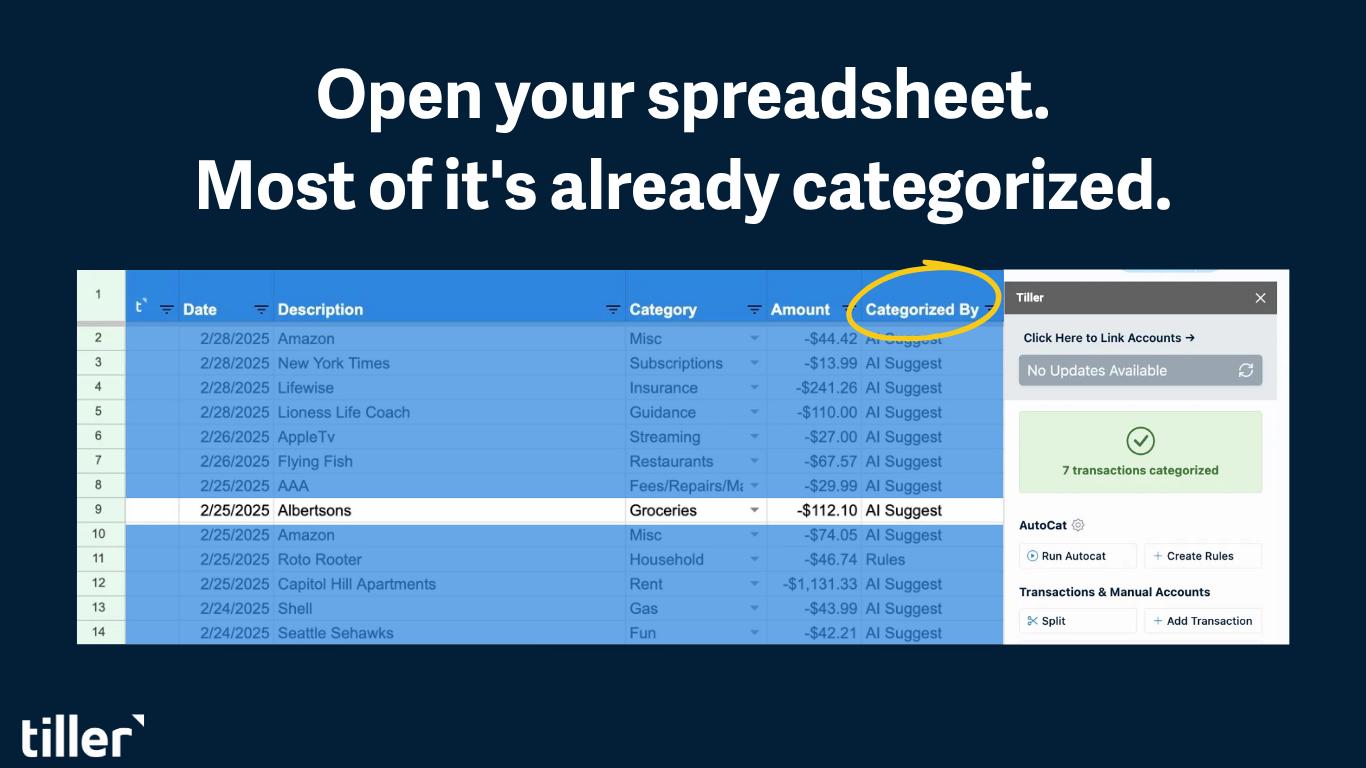
You can use all three, or just the ones that fit how you work. The ‘Categorized By’ column on your Transactions sheet shows you exactly which feature handled each transaction, so you always know what’s happening with your data.
The result
Open your spreadsheet, and most of your transactions are already categorized. The ones that aren’t are the genuinely unusual ones that actually deserve your attention. Instead of sorting through 50 transactions, you’re reviewing 3.
That’s the new AutoCat. Less setup, less manual work, more time thinking about your money instead of organizing it.
One thing to know
Description Match and AI Suggest are available for Direct Fills Google Sheets. If you’re still on a Sidebar Fills sheet, upgrading is quick and worth it for these features alone.
Learn more about upgrading to Direct Fills here →
Quick Insider Tip: Add a review column for AI Suggest
If you want more visibility into how AI Suggest categorizes, add a review column to your Transactions sheet. It highlights anything AI Suggest touched until you’ve confirmed it, so you can scan, approve, or override in seconds instead of hunting through the sheet.
It’s a five-minute setup: a checkbox column, a quick conditional formatting rule, and you’re done.
See the step-by-step in the Help Center →

Open your spreadsheet. Your work is already done.
Your bank data flows in automatically. Your categories apply themselves. You just open your spreadsheet and make decisions.
Frequently Asked Questions
What is AutoCat?
AutoCat is Tiller’s transaction categorization system for Google Sheets. It has three parts that work in priority order: AutoCat Rules (which you build), Description Match (which learns from your past categorizations), and AI Suggest (which uses an AI model for unfamiliar transactions).
Do I have to build rules to use AutoCat?
No. Description Match works automatically based on how you’ve categorized transactions in the past. You can skip rules entirely.
Does Tiller use AI to categorize my transactions?
Only if you opt in. AI Suggest is completely optional. If you’d prefer your financial data never touch an AI model, you can leave it off and rely on Description Match and AutoCat Rules.
What’s the difference between Description Match and AutoCat Rules?
AutoCat Rules are criteria you build manually. Description Match learns from your past behavior automatically, no rule-writing required. Rules run first; Description Match fills in based on your patterns.
How do I know which feature categorized each transaction?
The ‘Categorized By’ column on your Transactions sheet shows you which feature — Rules, Description Match, or AI Suggest — handled each one.