
There’s a reason that monthly budgets are the most common type of budget. Most income arrives monthly, most fixed expenses (rent, subscriptions, insurance) are billed monthly, and a calendar month gives you a natural reset point to review what happened and plan what comes next.
A good monthly budget spreadsheet helps you track your income and spending each month, shows how your actual spending compares to your plan, and rolls forward cleanly to the next month.
The right template depends on how detailed you want to get, whether you prefer manual entry or automated data, and whether you’re budgeting alone or with a partner. This guide covers the best options across each scenario.
What a monthly budget spreadsheet should include
A functional monthly budget template needs a few things at a minimum.
Income section. Total expected income for the month, broken down by source, if you have multiple income streams. Variable income earners should use a conservative estimate rather than their best month.
Expense categories with monthly targets. Planned spending amounts for each category. Aim for 12–18 categories, which is enough to yield meaningful insights without making tracking them all too tedious. Common starting categories include Housing, Utilities, Groceries, Dining Out, Transportation, Insurance, Healthcare, Personal Care, Entertainment, Subscriptions, Savings, and Miscellaneous.
Actual spending column. Either manually entered or pulled automatically from a transaction sheet via SUMIF formulas.
Budget vs. actual difference. The gap between what you planned and what you spent, by category.
Monthly summary. Total income, total budgeted, total spent, total remaining. A single row that answers “How did this month go?” at a glance.
Optional but valuable additions include conditional formatting that flags categories over budget in red, a savings rate calculation, and a month-selector that lets you switch between months without changing the structure.
Best free monthly budget templates for Google Sheets
Google Sheets Monthly Budget template
This template is the fastest starting point. In Google Sheets, click Template Gallery, and select Monthly Budget. The template includes income and expense sections, category groupings, and basic totals. It’s best for beginners who want something functional in just a few minutes.
Vertex42 Monthly Budget Spreadsheet
Vertex42’s free monthly budget is more polished than Google’s built-in one. It includes a detailed expense breakdown, a summary section, and clear formatting that makes the budget vs. actual comparison easy to read. It’s available for both Google Sheets and Excel and is best if you want a free template with more structure and better design than the default options.
Tiller’s free monthly budget template
Tiller offers a free downloadable monthly budget template designed to pair with Tiller’s automated bank feed, but it’s also fully usable as a standalone manual template. The structure matches what you’d get with Tiller connected, so if you decide to automate later, the transition is seamless.
NerdWallet’s Budget Worksheet
NerdWallet’s free budget worksheet follows the 50/30/20 rule, allocating 50% of income to needs, 30% to wants, and 20% to savings as a percentage-based framework. It’s a simpler structure than category-by-category budgeting and is useful if you want broad financial awareness without detailed tracking. This is best if you’re new to budgeting and want a framework more than a detailed tracker.
Click here to see some of our other favorite Google Sheets templates.
Best free monthly budget templates for Excel
Microsoft’s built-in Monthly Budget template
Excel includes a free monthly budget template accessible from the template gallery when you open Excel or from office.com. It has a clean structure, basic formulas, and standard category groupings. It’s best for Excel users who want the same quick-start experience as Google’s built-in option.
Vertex42 for Excel
The same Vertex42 templates available for Google Sheets are available in Excel format. They’re best for Excel users who want a more polished free option than Microsoft’s default.
Tiller Foundation Template for Excel
The Foundation Template is available for both Google Sheets and Excel and is the only automated Excel budget template officially recommended by Microsoft. It works either as a standalone template for manual entry or as part of Tiller’s automated bank feed. It’s best for Excel users who want the most complete monthly budgeting template available.
Click here to see some of our other favorite Excel templates.
Monthly budget templates by budgeting approach
Zero-based monthly budget templates
Zero-based budgeting assigns every dollar of monthly income to a category so your budget totals zero at the end of the month. These templates require more discipline to set up, but give you maximum visibility into where every dollar goes. Tiller’s zero-based budget template and several community-built YNAB-inspired spreadsheets are the best options.
Key features to look for include income entered at the top, every dollar assigned to a specific category, a running “remaining to budget” counter that approaches zero as categories are filled in.
Monthly household budget templates
Household budget templates account for combined income from multiple earners, shared expenses, and individual spending. They typically include a section for joint expenses (rent, utilities, groceries) and individual discretionary categories. These are best for couples and families who manage shared finances in a single spreadsheet.
Monthly budget templates for variable income
Freelancers, contractors, and anyone with irregular income need a template that handles months with varying income. These templates typically include a conservative income baseline, a “buffer” category for months when income is higher than expected, and a structure that doesn’t break when income changes month to month.
Monthly budget templates for beginners
If you’ve never budgeted in a spreadsheet before, start with the simplest functional template. It should have income at the top, 10–12 expense categories, a total row at the bottom, and nothing else. Complexity can be added once the habit is established. Google’s and Microsoft’s built-in templates or a clean Vertex42 download are good starting points.
Monthly budgeting automated with Tiller
Every template in this guide requires you to get transaction data into the spreadsheet somehow. Manual entry works when you’re just getting started and have only a few accounts and transactions to track. But when you have three or more accounts across a full month, the data entry becomes time-consuming and often leads to budgets being neglected or abandoned.
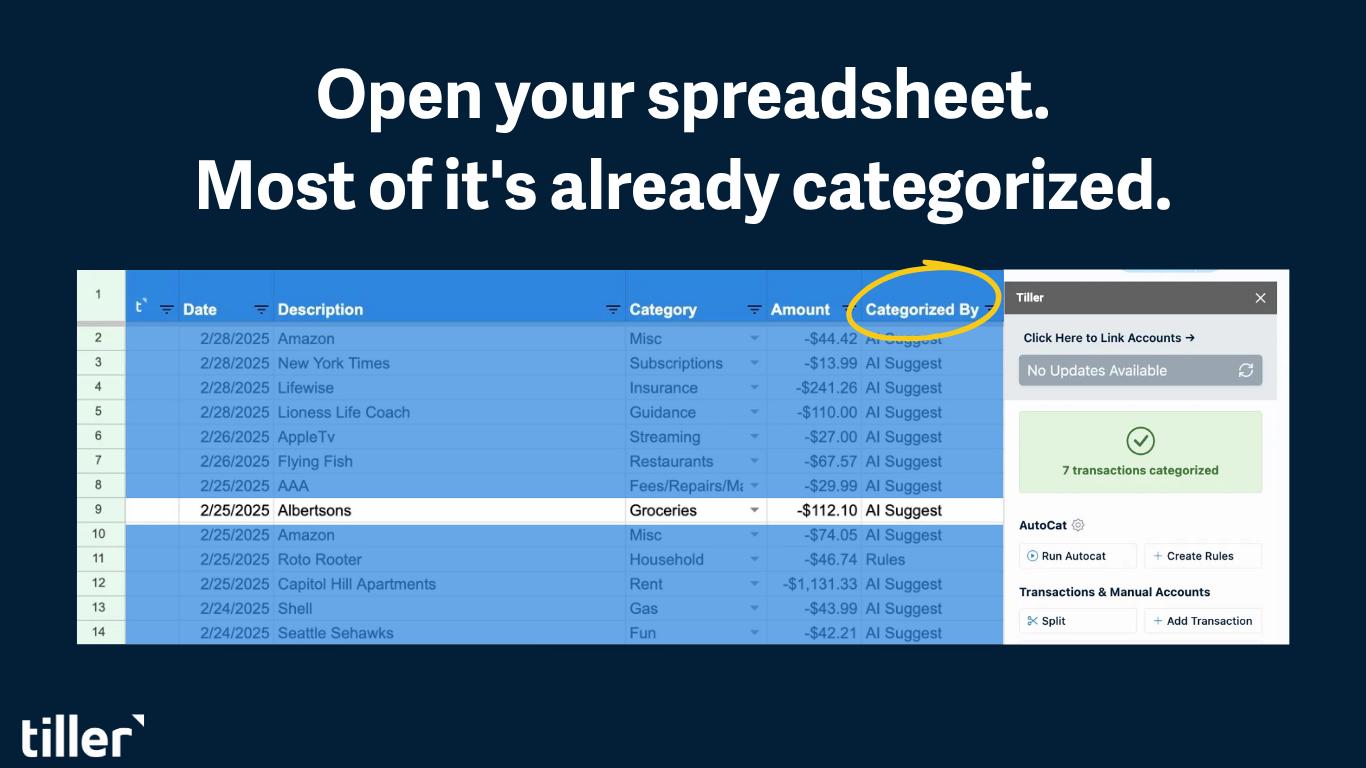
Tiller’s Foundation Template solves this problem. You connect your bank accounts once, and transactions from each linked account automatically appear in your spreadsheet each day. Your monthly budget sheet uses that transaction data via SUMIF formulas to keep your budget vs. actual always current.
The monthly structure in the Foundation Template is:
- Transactions sheet. Every transaction from every connected account is categorized automatically by AutoCat.
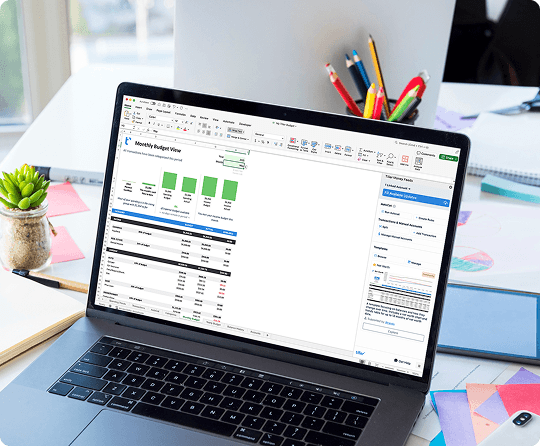
- Budget sheet. Monthly planned amounts vs. actual spending by category, updated automatically as new transactions arrive.
- Monthly summary. Income, spending, and remaining are updated daily.
When the end of the month comes, all that’s left to do is review your data.
How to set up a monthly budget spreadsheet from scratch
If none of the templates above fit your situation exactly, you can easily build one from scratch in Google Sheets or Excel. Here is a recommended initial setup:
Sheet 1 — Transactions. Columns: Date | Description | Category | Amount | Account. One row per transaction. All accounts in one sheet, tracked in the Account column.
Sheet 2 — Budget. Columns: Category | Monthly Budget | Actual | Remaining | % Used.
In the Actual column, use SUMIFS to pull spending from the Transactions sheet:
=SUMIFS(Transactions!D:D, Transactions!C:C, A2, Transactions!A:A, ">="&DATE(F1,G1,1), Transactions!A:A, "<" &DATE(F1,G1+1,1))Where A2 is the category name, F1 is the year, and G1 is the month number. Update F1 and G1 to switch months.
In the Remaining column:
=B2-C2Add conditional formatting to Remaining — red for negative values, yellow for within 10% of zero, green for comfortable.
Sheet 3 — Summary (optional). A single view pulling total income, total budgeted, total spent, and savings rate from the Budget sheet using direct cell references or additional SUMIF formulas.
Frequently asked questions
Q: What should a monthly budget spreadsheet include?
At minimum, it should include an income section, expense categories with monthly targets, an actual spending column (either manually entered or pulled from a transaction log via SUMIF formulas), a budget vs. actual difference column, and a monthly summary. Useful additions include conditional formatting that flags categories that are over budget, a month selector to switch between months, and a savings rate calculation. Templates that connect to automated bank feeds eliminate the manual data entry step.
Q: What is the best free monthly budget spreadsheet for Google Sheets or Microsoft Excel?
For a quick start, Google Sheets’ built-in Monthly Budget template (accessible from the template gallery) or Microsoft’s monthly budget template are the easiest options. For a more polished free template, Vertex42’s monthly budget spreadsheet offers better structure and is available for both Google Sheets and Excel. For a template built to grow with you, Tiller’s free monthly budget template is designed to work with automated bank feeds, but functions as a manual template as well.
Q: How many budget categories should a monthly budget spreadsheet have?
12–18 categories is the recommended range for most people. Fewer than 10 doesn’t give you enough insight into where your money goes, but more than 20 is usually too many to be helpful. Common starting categories include Housing, Utilities, Groceries, Dining Out, Transportation, Insurance, Healthcare, Personal Care, Entertainment, Subscriptions, Savings, and Miscellaneous. After a month or two, you can refine your categories based on your actual spending patterns.
Q: How do I connect my monthly budget sheet to my transaction list in Google Sheets or Excel?
Use a SUMIFS formula in your Actual column that pulls spending from your Transactions sheet filtered by category and month. Store the year in one cell and month number in another; update those two cells to switch months.
Q: Can I use a monthly budget template for variable or freelance income?
Yes, with a few adjustments. Use a conservative income estimate rather than your best month. It’s better to have money left over than to overspend based on optimistic projections. Add a buffer or savings category to capture the difference in high-income months. Some templates designed for variable income include a rolling average income calculation or an “available to budget” approach similar to zero-based budgeting.
Q: How does Tiller’s monthly budget template compare to free options?
Free templates give you a good structure, including categories, formulas, and layout, but you enter every transaction yourself. Tiller’s Foundation Template adds automated bank feeds, so transactions from all connected accounts arrive daily in your spreadsheet, and your monthly budget-vs.-actual totals update automatically. The structure is similar to a good free template; the difference is that your data stays up to date without manual work. Tiller costs $99/year after a 30-day free trial.