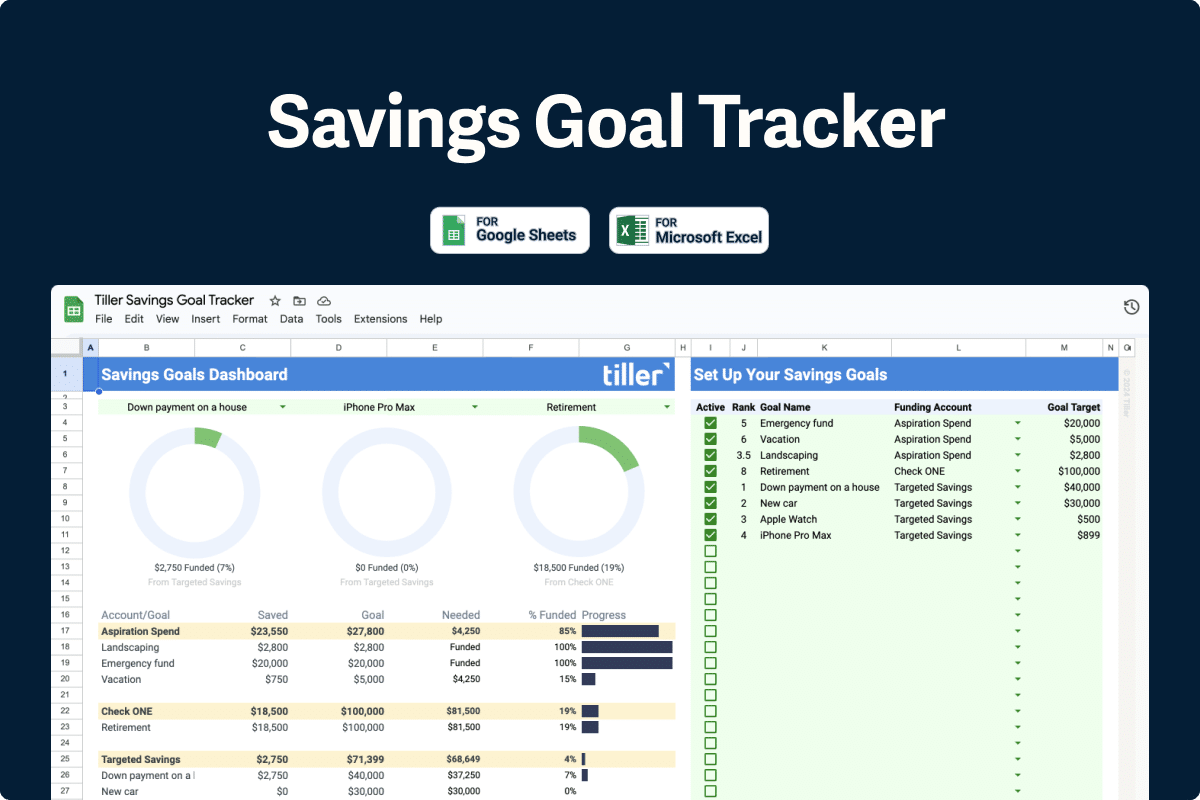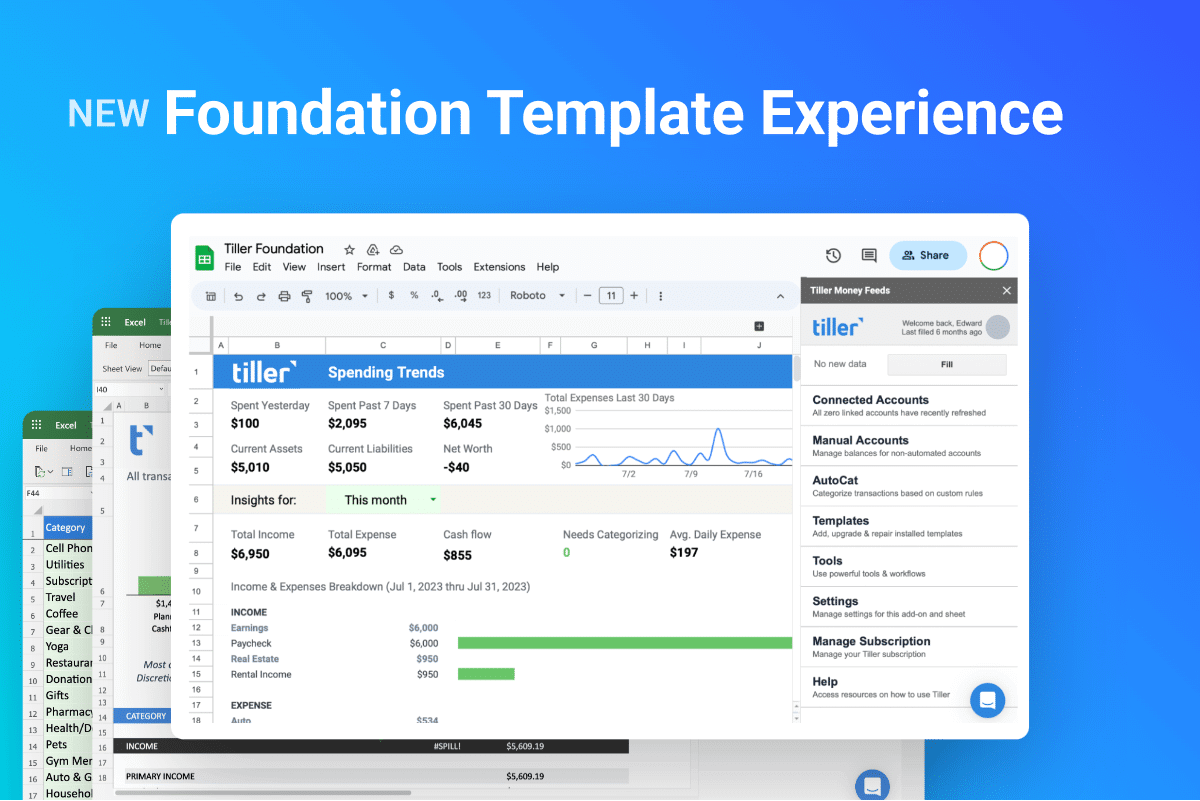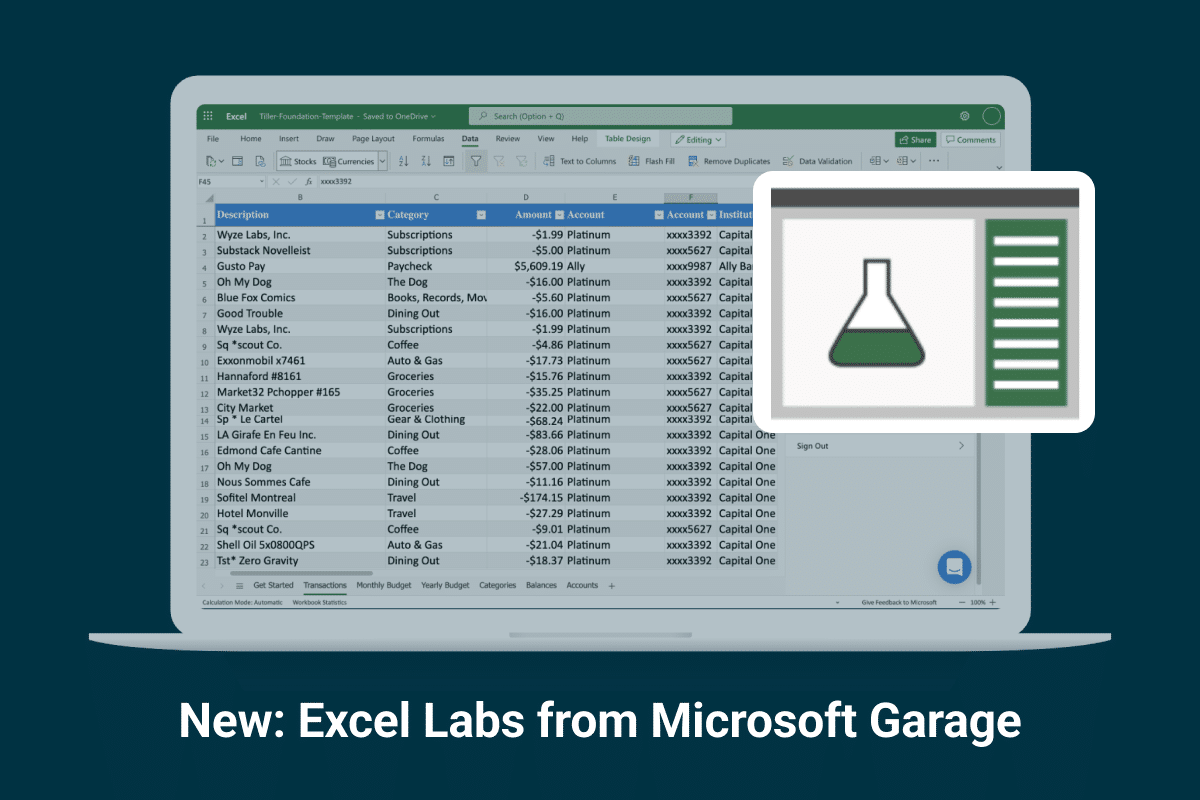
The Tiller Foundation Template turns your daily financial activity into a personal finance system inside Google Sheets and Microsoft Excel.
Each day, Tiller updates the Foundation Template with your latest transactions and balances across all your linked accounts.
Pre-built sheets and Tiller’s AutoCat categorization engine keep that data organized, so you can stay on top of spending, track cash flow and net worth, and create optional monthly and yearly budgets.
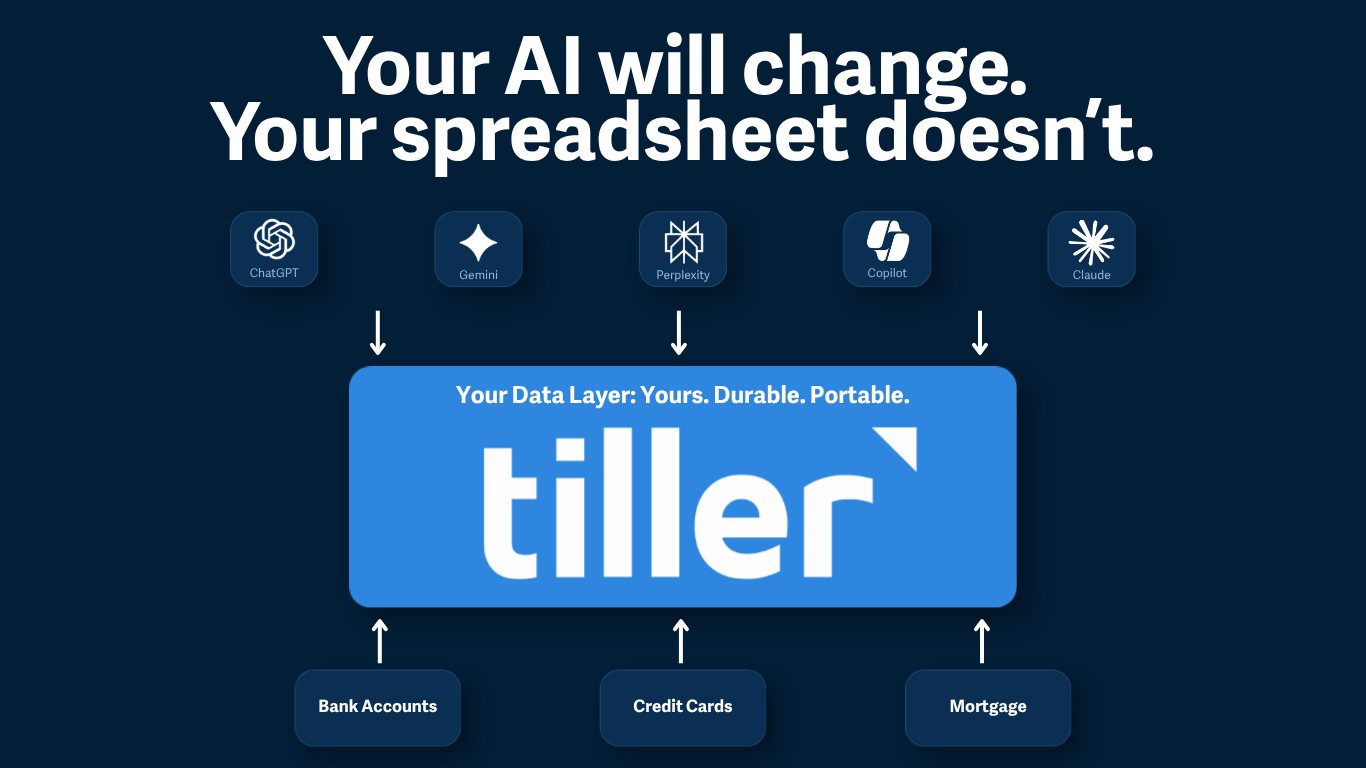
That structure helps you navigate your financial life, while also giving any AI a uniquely clean, efficient source to work from.
“Like many of you, I transitioned to Tiller because it’s the absolute gold standard for data ownership. There is simply no better way to maintain a “single source of truth” than having your raw financial data live in a spreadsheet you actually own. The Tiller Foundation template is an incredible engine for anyone who wants total flexibility.” – @mu3484343, Tiller Community
You don’t need AI to use the Foundation Template. But if you choose to use AI, the Foundation Template gives AI a uniquely powerful financial system to work from.
Transactions: Every account. One common structure.

What this sheet does for you
What it does: Keeps transactions from your connected accounts in one consistent structure.
Job for you: Keep a transaction history you can search, organize, correct, categorize, and calculate from.
Benefit: Compare activity across accounts and trace a total or report back to the transactions behind it.
Tiller adds transactions from the accounts you connect to the Transactions sheet using the same supported column structure.
Each transaction Tiller adds starts as one row. The same fields carry the same meaning across accounts: Date, Description, Category, Amount, Account, Account #, Institution, Transaction ID, Account ID, and other supported columns. Tiller documents the complete field list in Transactions Sheet Columns.
That common structure is useful before AI enters the conversation. A formula can total spending across several cards. A filter can isolate one account. A pivot table can group the same Category field across institutions. Reports can read the same fields as new transactions arrive.
AI works from the same structure. When you ask a question across several accounts, the transaction fields are already organized the same way.
Money in is positive. Money out is negative.
The Amount column follows the same convention across the Transactions sheet. Income, refunds, and credits are positive. Expenses and debits are negative.
That gives formulas, reports, scripts, and AI one Amount field to calculate from across connected accounts.
Amount tells you which direction money moved. Category and Type add what the transaction means in your financial system. A refund can be positive without being income. A credit card payment can leave checking without becoming another purchase.
Transaction ID keeps similar transactions distinct
Tiller assigns every transaction a unique Transaction ID and every account a unique Account ID.
Suppose you buy two $4.50 coffees on the same day. The date, description, and amount can all match. They still remain two transaction rows with two Transaction IDs.
Account ID gives formulas and other tools a precise account reference instead of relying only on the account name displayed in the Account column.
Date and Date Added answer different questions
Transactions can carry both Date and Date Added.
Date is the posted date when available, or the transaction date when that is the available date. Date Added records the day the transaction entered your spreadsheet. Tiller documents that distinction in Transactions Sheet Columns.
If a transaction appears after you’ve already reviewed a period, Date Added helps you find the newly added row while Date keeps the transaction in the period supplied by the financial institution.
Source and Categorized By add useful history
The Source field identifies whether a transaction came from Yodlee, Plaid, or a manual entry.
Categorized By records whether Rules, Description Match, or AI Suggest supplied a category when AutoCat categorized the transaction.
Those fields give you additional information about where a transaction came from and how its category was assigned.
Add your personal financial context
The Transactions sheet is editable. You can assign or change a Category, correct a Description, add Note or Tags columns, add your own columns, and split a mixed purchase across several categories.
Tiller’s Transaction Splitter turns one transaction into multiple transaction rows. The Splitter prompts you when the splits don’t match the original amount, and each split can carry its own Category, Description, Note, or Tags.
A $120 store purchase might become $80 Groceries and $40 Household. That distinction then stays available to your budgets, reports, exports, formulas, and AI questions.
The Transactions sheet is flexible, but its supported headers matter. Tiller explains which parts you can change in Editing the Transactions Sheet.
Builder tips
- Build against the supported header names rather than fixed column positions, so your formulas and scripts keep following the fields Tiller fills.
- Use Transaction ID for transaction-level matching and Account ID for account-level matching instead of relying only on descriptions, dates, amounts, or account names.
- Use Date for the transaction’s financial period and Date Added when you need to find newly arrived rows. Add custom columns when your reports, workflows, or AI need context Tiller does not supply.
Categories: Tell the spreadsheet what your transactions mean

What this sheet does for you
What it does: Defines how transactions are classified and how Foundation Template reports treat them.
Job for you: Organize transactions around what they mean in your financial life.
Benefit: Carry your own definitions into budgets, reports, formulas, and AI analysis instead of relying on merchant names or amount signs alone.
Your financial institution supplies the transaction. You decide how that transaction belongs in your financial life.
The Categories sheet stores those definitions. Each Category can belong to a Group and uses one of the three Types supported by the Foundation Template: Income, Expense, or Transfer. You can also mark a Category Hide From Reports. Tiller documents the full setup in Customizing Categories.
Groups organize categories around the way you think about money
A Group collects related Categories under a broader heading.
Groceries, Restaurants, and Snacks/Coffee can all belong to Food. Camper, Car Insurance, and Gas can belong to Auto.
You keep the detail at the Category level while reports can also calculate at the Group level.
The Foundation Template supports up to 200 unique Categories across 20 Groups.
Income, Expense, and Transfer define how reports treat a Category
The Amount field tells you whether money came into or left an account. Type tells the Foundation Template what kind of financial activity the Category represents.
A refund may be positive, but it isn’t income.
A credit card payment may leave checking, but it isn’t another purchase.
A Transfer Category gives reports an explicit way to treat money moving between your own accounts. Tiller’s Understanding Transfers guide goes deeper on how to handle transfers in different budgeting situations.
Hide From Reports changes the report without removing the transaction
Mark a Category Hide in Hide From Reports and Foundation Template reports leave those transactions out. The transactions remain on the Transactions sheet.
That keeps the financial history intact while the reporting rule stays visible on Categories.
Your budget uses the same Category structure
The Categories sheet also stores monthly budget amounts.
Enter a budget for a Category and the later budget months can carry that amount forward. Monthly Budget compares those budget amounts with the transactions assigned to the same Categories.
The budget target stays on Categories. The spending stays on Transactions. Monthly Budget calculates the comparison between them.
Tiller explains the full budgeting workflow in Budgeting in the Tiller Foundation Template.
Categorize a $1,200 Venmo payment as Rent, and AI counts it as rent. Write an AutoCat rule for it, and the next matching payment lands as Rent too.
Builder tips
- Use Category as the connection between Transactions and Categories. Use Group, Type, and Hide From Reports when you want custom reports or AI analysis to follow the same financial definitions as the Foundation Template.
- Include Categories with Transactions when AI needs to distinguish Income, Expense, Transfer, reporting exclusions, or your own rollups.
- Keep Category names synchronized with existing transaction rows when you rename them.
AutoCat: Turn repeated decisions into rules

What this sheet does for you
What it does: Stores reusable rules for updating transactions that match criteria you define.
Job for you: Make a recurring categorization or cleanup decision once and apply it to future matches.
Benefit: New transactions can reuse decisions you have already made instead of requiring the same cleanup again.
Changing one transaction fixes that transaction.
Writing an AutoCat rule tells Tiller what to do with future transactions that match the rule.
That difference matters. A correction records your decision about one transaction. A rule carries a repeatable decision forward.
Tiller’s complete current AutoCat behavior is documented in How to use AutoCat for automatic categorization.
Every AutoCat rule has criteria and overrides
Each row on the AutoCat sheet is a rule.
Filter criteria determine whether a transaction matches. The default AutoCat sheet includes fields such as Description Contains, Amount Min, Amount Max, Account Contains, and Institution Contains.
Override columns determine what AutoCat changes when the transaction matches.
Category is the most common override, but AutoCat can also update other Transactions columns such as Description, Note, Tags, or custom columns you add.
Rules can combine several conditions
Nonblank filter criteria in the same rule work together. A transaction must meet all of those criteria for the rule to match.
A text criterion such as Description Contains can also hold several quoted values, such as “Starbucks”,”Peets”. Those values work as alternatives: matching either one satisfies that criterion.
AutoCat also supports Amount Polarity and regular-expression criteria for more specific rules.
Specific rules belong above broad rules
AutoCat processes Rules from the top of the AutoCat sheet down. When a transaction matches a Rule, AutoCat applies that Rule and doesn’t continue matching the transaction against later Rules.
A specific rule such as Description Contains Amazon Prime should therefore sit above a broader rule such as Description Contains Amazon.
The order of the rules is part of the logic.
Your rules run first
In supported Google Sheets workflows, AutoCat uses this order:
- Rules apply first.
- Description Match can categorize remaining transactions from your prior categorization patterns.
- AI Suggest can suggest a Category for transactions that still remain uncategorized.
The Categorized By column records which AutoCat method assigned the Category.
Turn on Auto Run on Fill and AutoCat runs the enabled methods as new transactions are filled into the spreadsheet.
Your explicit Rules stay at the front of the sequence.
Builder tips
- Treat a correction and a Rule as different tools: a correction changes one transaction; a Rule governs future matches.
- Put specific Rules above broad Rules, and use additional override columns when a Rule should add a Note, Tag, cleaned Description, or other reusable context.
- Customer-authored Rules run before Description Match and optional AI Suggest, so Rules are the right place for decisions you want the system to apply consistently.
Balance History: Keep account balances as their own history
What this sheet does for you
What it does: Keeps dated account balances separate from transaction activity.
Job for you: See how the value of your accounts has changed over time.
Benefit: Use recorded balances for historical balance and net-worth questions without reconstructing an account balance from transaction history.
Transactions and balances answer different questions, so Tiller keeps them as separate data feeds.
The Transactions sheet records transaction activity. Balance History records account balances over time.
Each Balance History row can include Date, Time, Account, Account #, Institution, Balance, Account ID, Balance ID, Type, and Class. Tiller explains the fields and the separation from Transactions in Understanding the Balance History Sheet.
A Balance History row is the balance Tiller recorded for an account at that time. The balance isn’t calculated by adding and subtracting the transactions in the Transactions sheet.
That gives balance questions their own source. You can use a recorded balance from a past date without reconstructing that balance from every transaction that came before it.
Balance History is hidden by default in the Foundation Template.
Builder tips
- Use Balance History for historical account values and Transactions for transaction activity. They are different sources for different questions.
- Use Account ID when you need to relate balance records to an account and Balance ID when you need to distinguish individual balance records.
- When you give AI the spreadsheet, include Balance History for balance-over-time or net-worth questions instead of asking the model to reconstruct balances from Transactions.
Accounts: Decide how your accounts appear in balance reports

What this sheet does for you
What it does: Defines how accounts are classified, grouped, and included in balance-based reports.
Job for you: Organize accounts around the way you want to understand your assets and liabilities.
Benefit: Change account grouping, Asset or Liability treatment, and report inclusion without changing the underlying balance history.
The Accounts sheet uses the accounts supplied from Balance History and gives you a place to customize how those accounts appear in balance-based reports.
Class Override sets an account as an Asset or Liability when you need to correct its classification.
Group organizes related accounts together.
Hide leaves an account out of supported reports.
The Accounts sheet doesn’t replace Balance History. The balance records stay in Balance History while Accounts stores the presentation choices used by Balances and other supported reports.
Tiller documents this relationship in Reviewing Balances & Customizing Accounts.
Builder tips
- Treat Accounts as account-level definitions, not as the balance source. Pair Accounts with Balance History for custom net-worth, account-group, or asset/liability analysis.
- Use Group, Class Override, and Hide when a custom report or AI analysis should follow the same account treatment as the Foundation Template.
- Keep balance history intact when changing presentation. Account settings change how reports organize balances, not the recorded balances themselves.
Balances: Turn the latest balances into a net worth view

What this sheet does for you
What it does: Turns the latest balance records and your Accounts settings into a current account and net-worth view.
Job for you: See where you stand across your accounts now.
Benefit: See Assets, Liabilities, Net Worth, individual account balances, and update dates in one report.
The Balances sheet reads the latest balance records and the account settings from Accounts and turns them into a current account view.
You see Net Worth, total Assets, total Liabilities, each account’s latest balance, and when that balance was last updated.
In the supplied example:
$156,737 in Assets – $6,775 in Liabilities = $149,962 in Net Worth.
The balances come from Balance History. The grouping and asset/liability treatment come from Accounts. Balances calculates the view.
Change an account Group and you change the way the report is organized without rewriting the Balance History rows behind it.
Read more in Reviewing Balances & Customizing Accounts.
Builder tips
- Use Balances when you need the ready-made current account view. Build historical or custom balance analysis from Balance History and Accounts.
- The sheet demonstrates the Foundation Template pattern: source balance records + account definitions -> calculated report.
- For AI, Balances can provide a concise current summary, while Balance History and Accounts provide the underlying records and definitions for deeper analysis.
Spending Trends: Go from the summary back to the transactions

What this sheet does for you
What it does: Calculates cash-flow and spending views from Transactions and Categories.
Job for you: See where your money went, what changed, and which transactions produced the result.
Benefit: Move from a high-level total or Category view back to the transactions behind it.
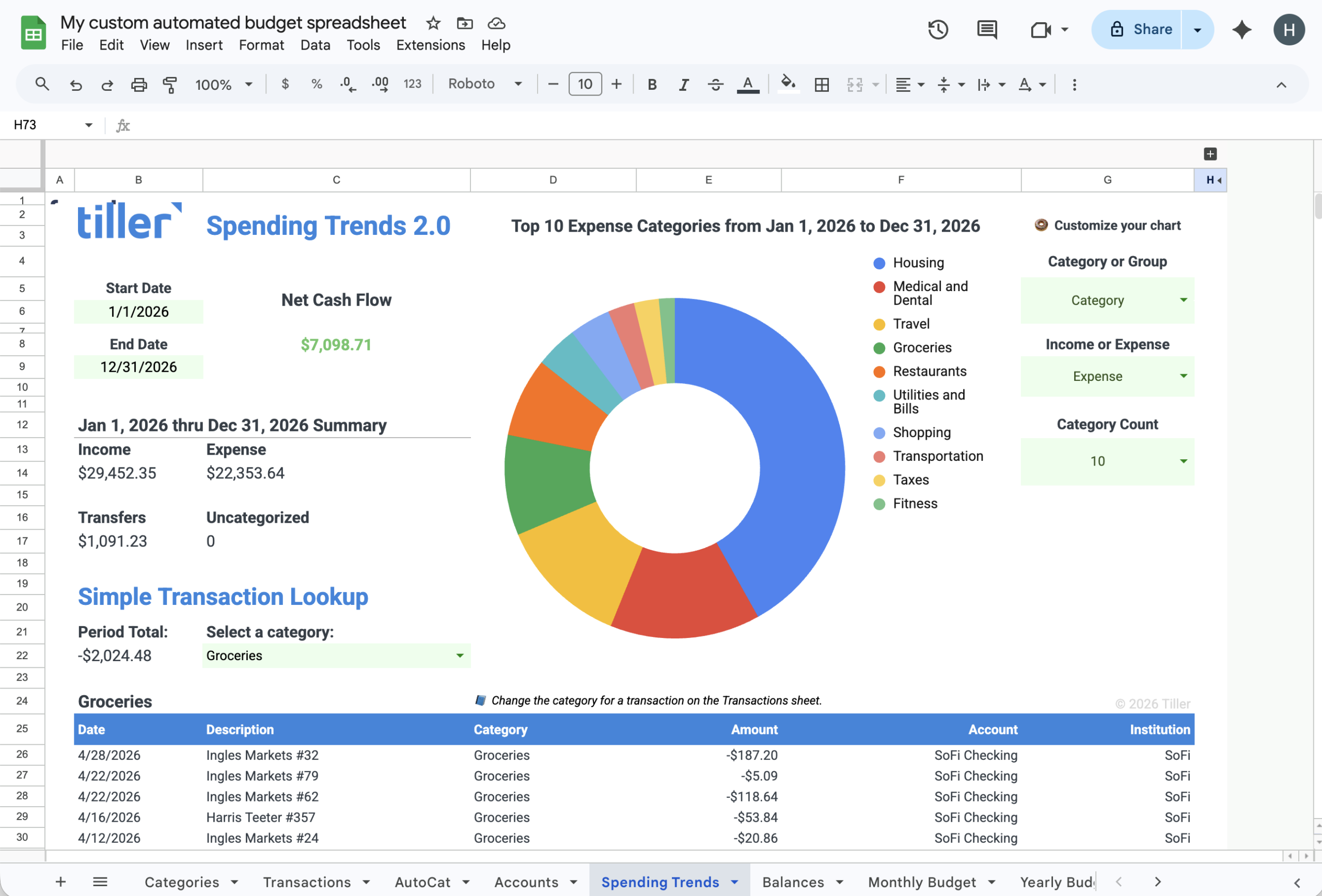
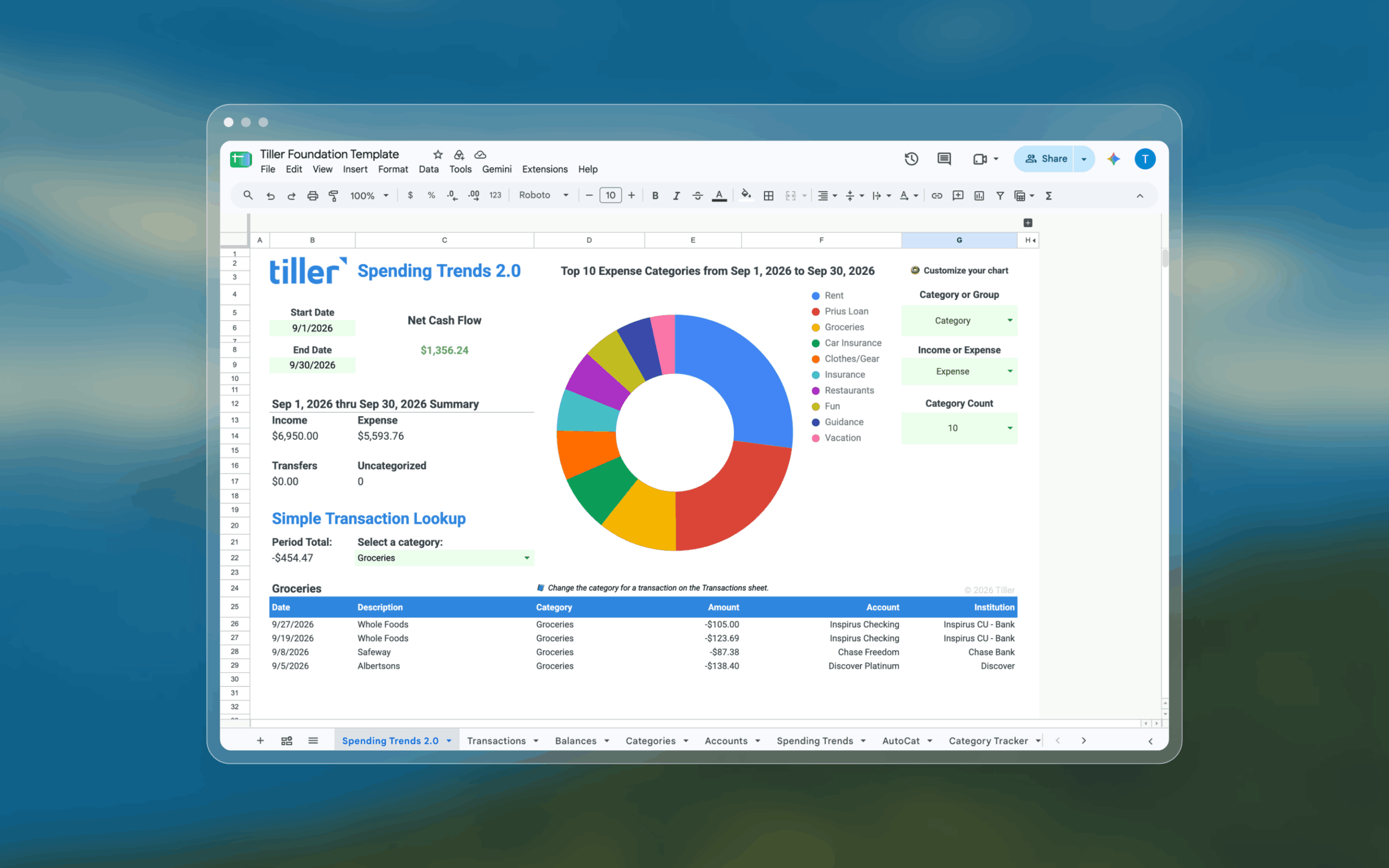
The current Google Sheets Spending Trends 2.0 sheet shows what the separation between source rows and reports makes possible.
Choose a date range and Spending Trends calculates Net Cash Flow, Income, Expense, Transfers, and Uncategorized activity. The chart can break activity down by Category or Group. Tiller documents the current version in Using the Spending Trends Sheet.
Then Simple Transaction Lookup takes you back to the source transactions. Choose a Category and the sheet lists the matching transactions for the selected period.
You can move from a summary to the transaction rows behind it without maintaining another copy of the transaction history.
Reports calculate totals. Transactions stays for transactions.
Suppose you type Groceries: $400 into the same Amount column that contains your grocery purchases.
A formula that sums the column can count the $400 subtotal as another purchase.
The Foundation Template keeps those two kinds of information separate. Transactions holds transaction rows. Categories holds Category definitions and budget amounts. Spending Trends, Monthly Budget, Yearly Budget, and Balances calculate from the underlying sheets.
You can change a budget, chart, formula, or report without rewriting the transaction or balance records behind it.
Builder tips
- Treat Spending Trends as a calculated report, not as the source for another financial ledger.
- Use Simple Transaction Lookup to move from a summary back to the Transactions rows behind it.
- Build custom spending reports from Transactions + Categories when you want your own logic to keep working as new transactions arrive.
Build on the Foundation Template while keeping its structure
The Foundation Template gives you room to customize your financial system while preserving the structure Tiller uses to keep adding financial activity.
Three rules matter most.
Keep the core sheet names and supported headers
Tiller uses the Transactions and Balance History sheets to fill transaction and balance data. On Transactions, row 1 contains the supported header names that tell Tiller where each field belongs.
Keep important fields such as Transaction ID and Account ID. You can add your own columns, formulas, and sheets around that core structure.
See Editing the Transactions Sheet for the supported customization rules.
Add supported transaction fields early when you want historical values
Tiller supports additional automated transaction fields beyond the default columns.
Add those supported fields before the first data feed when you want them across the full transaction history. Supported automated fields added later fill new transactions going forward rather than retroactively filling earlier transaction rows.
The current list is in Transactions Sheet Columns.
Update existing transactions when you rename a Category
Changing a Category name on Categories changes the Category definition.
Transactions that already contain the old Category name still contain that value until you update those transaction rows. Update the existing transactions so the Category values continue to match your Categories sheet.
See Customizing Categories for the current category rules and limits.